Ask the assistant
Ask the LazyBooks assistant about your books, and let it make changes for you after you approve them.
The assistant answers questions about your books and can do work for you, such as categorizing and approving transactions. It works only in the organization that you have open.
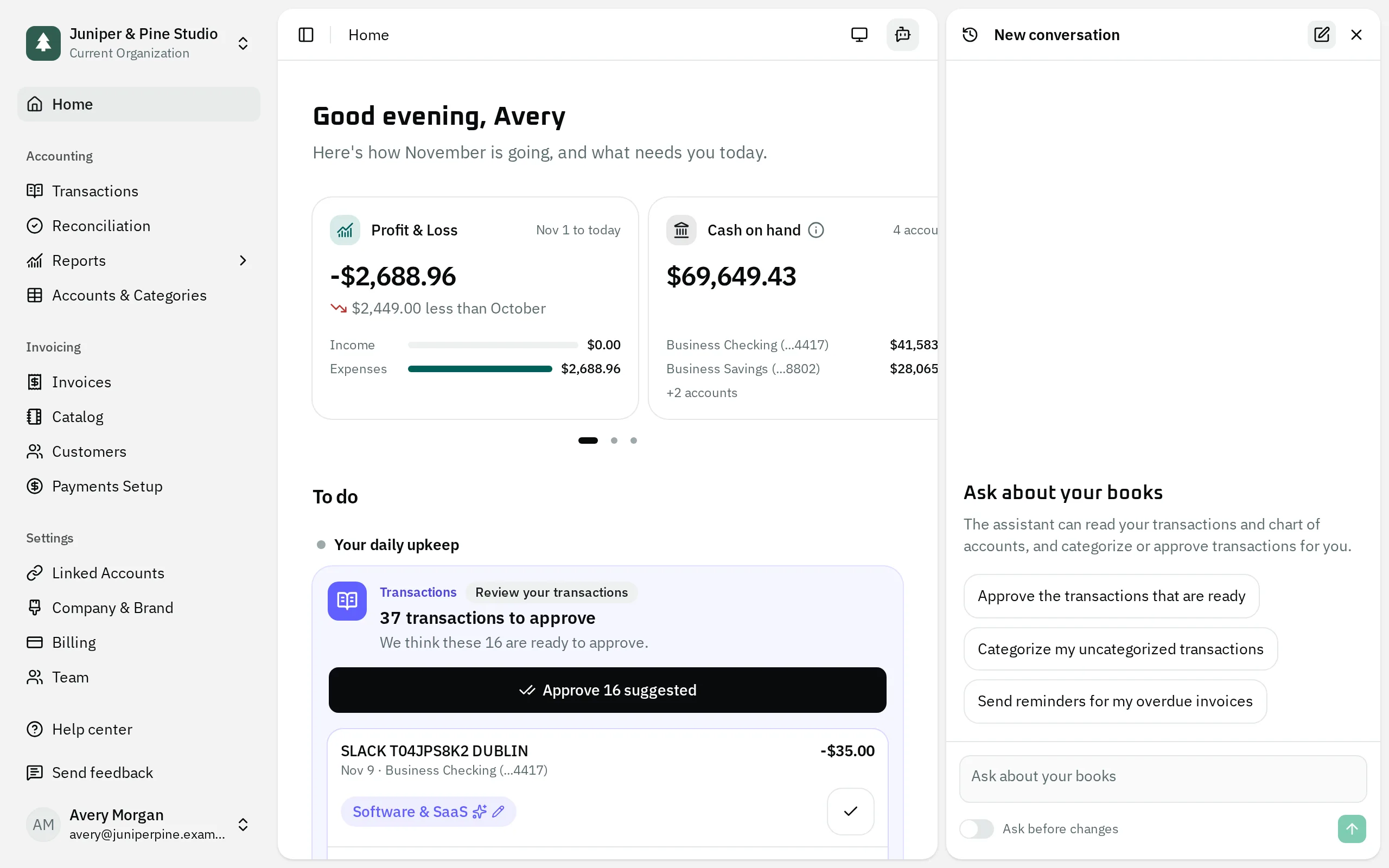
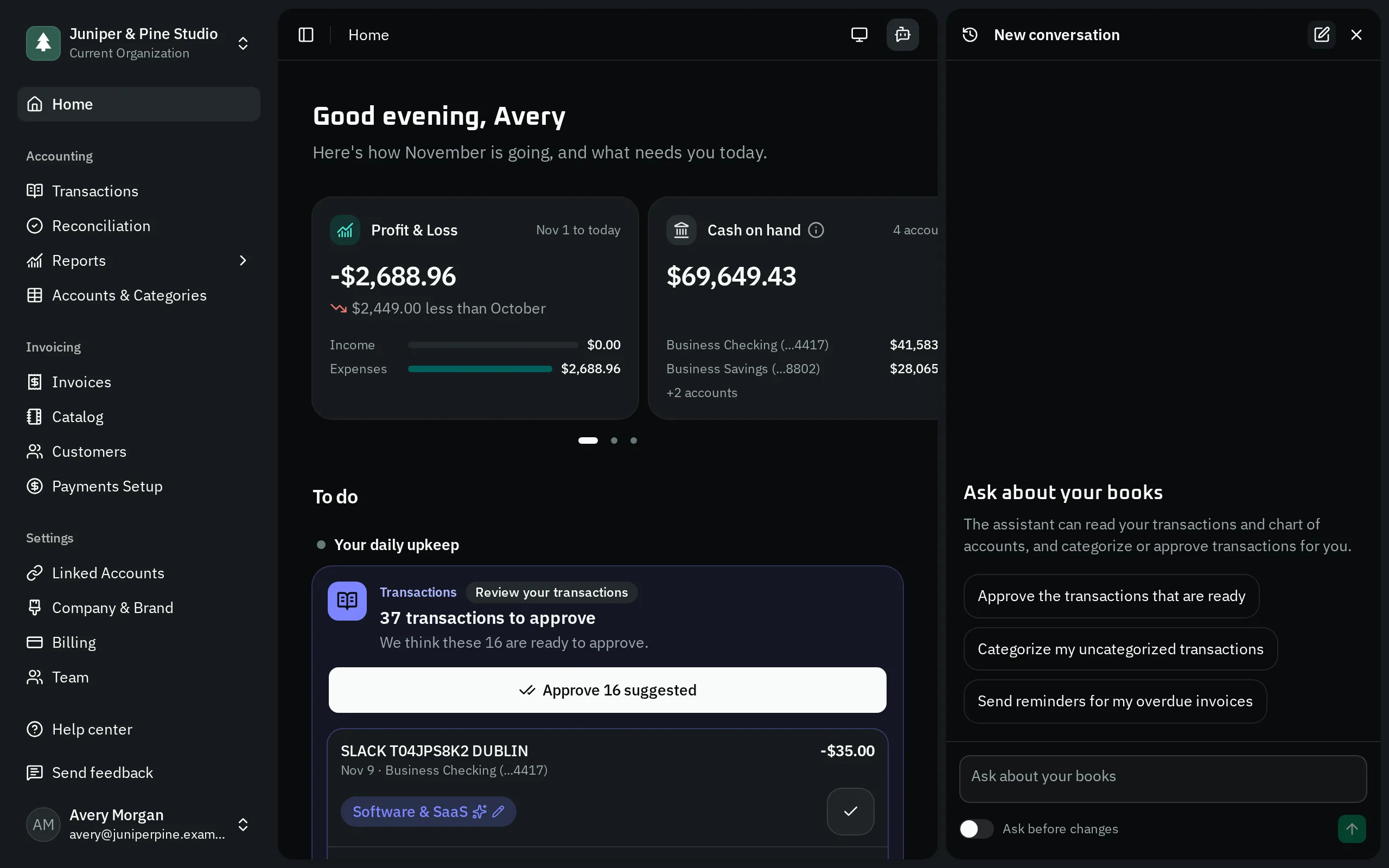
Ask a question
- If the assistant panel is closed, click the assistant button at the top right of the page.
- Type your question in the box at the bottom of the panel.
- Press Enter to send it. To start a new line, press Shift+Enter.
On a wide screen, the panel shows beside the page. When you open LazyBooks again, the panel is open or closed as you last left it on that browser. On a smaller screen, such as a phone, the panel opens over the page, and it is closed when you open LazyBooks. The assistant button opens and closes the panel.
A new conversation shows Ask about your books and three questions that you can click to ask. Some of these questions come from your to-do list, so they change with your books.
The assistant knows which page you are on and which item you have open. For example, while a transaction is open, you can ask about "this transaction".
While the assistant replies, you can type your next message. The message waits in a queue and sends when the reply is done. To end a reply early, click Stop.
The panel stays open when you go to another page. A reply continues while the panel is closed.
What the assistant can do
The assistant can do these tasks in your organization:
- Read your transactions, your chart of accounts, your rules, and your to-do list.
- Find your vendors, list the transactions of a vendor, and tell you how much you spent with your vendors in a period. It can give a new transaction a vendor, but it cannot change the vendor of an existing transaction. See Vendors.
- Categorize transactions. It can also create a subaccount and categorize a transaction to it. See Categorize transactions.
- Add an account of any type, with its number and parent. Rename or edit an account, and deactivate an account that you no longer use. See Add and edit accounts.
- Match two transactions as a transfer between your accounts, and unmatch a transfer. See Transfers and matching.
- Approve transactions, and move approved transactions back to Needs Review. See Review and approve transactions.
- Delete transactions. See Delete transactions.
- Add an expense, income, or transfer that no bank feed brings in, and make an adjustment to an account. See Add and edit transactions.
- Create and delete rules. See Rules.
- Verify the opening balance of an account. See Verify opening balances.
- Record the interest part of a loan payment, and record a loan that started after your books start date. See Loan payments.
- Find your customers, add a customer, and change the details of a customer. See Customers.
- Find, add, and change your catalog items, and remove the tax of a catalog item. Find and add sales taxes, change the name, rate, parts, or description of a tax, and deactivate or reactivate a tax. You can say the day that a new rate starts. See Catalog and taxes.
- Find your invoices, and create and change draft invoices. See Create and send an invoice.
- Finalize, send, and resend invoices, void an open invoice, and delete a draft. See Finalize and send and Void an invoice.
- Schedule an invoice to send later, and set up and manage recurring invoices. See Schedule an invoice and Recurring invoices.
- Record a cash or check payment of an invoice, and mark an invoice that is not in your books as paid. See Record a payment and Invoices that are not in your books.
- Take back a cash, check, or bank transfer payment that was recorded by mistake. It cannot take back a card payment, and it does not refund payments.
- Match a bank deposit to your invoices, and unmatch a deposit. See Match a bank deposit.
- Send payment reminders for open invoices. See Get paid.
- Invite team members, and resend or cancel invitations. Only an owner or an admin can ask for these changes. See Team members.
- Show the status and the issues of a bank transaction import. See Import bank transactions.
- Answer questions about how to use LazyBooks from the articles of this help center, with links to the articles. See Answers from the help center.
- Explain how a feature of LazyBooks works.
- Open a support ticket for a bug report or send a feature request to the LazyBooks team.
The assistant can also answer questions about your sales tax, such as "How much sales tax do I owe for Q3?" It answers with the numbers of the Sales Tax report, on the basis that you ask for, or the basis of the Sales Tax report that you have open, and otherwise on the accrual basis. Its answer links the report, so you can check the numbers and export them. It says how many invoices are not in your books, with their tax. It names up to five of them, those with the most tax. The notice on the report lists all of them.
If you added a sales tax agency, the assistant answers what you owe or paid for a period, such as a quarter or a year, from the returns of each agency that have days in that period. It includes the returns that are paid, and an agency that you deactivated when it has a return in that period. It gives the total that you still owe on those returns, and what you paid on them, for all agencies or for the one that you ask about. When an agency has no return for some of the days that you ask about, it says which days. A return can cover more days than you asked about, such as a quarterly return when you ask about one month, and the assistant then says so. When you paid too much on a return, the assistant says how much, and that you can use it as a credit on the page of the agency. See Credits and refunds. For each return, it gives the amount that is still due and says whether the return is open, filed, or filed outside LazyBooks. It can also list the returns that are due, and give the numbers of one return. Its answer links the page of the agency or the report of the return. For the tax charged over some days by all agencies together, or for another basis, it answers with the Sales Tax report. The assistant cannot mark a return as filed, and it cannot record a payment to an agency. See File and track sales tax returns.
Answers from the help center
When you ask how to do something in LazyBooks, the assistant searches this help center and answers from the articles that it finds. The answer links each article that it used, so you can read all the steps. A link opens the article in a new tab.
In the reply, the search shows as Search the help center. The articles that the search found show next to Sources.
If no article covers your question, the assistant tells you so and does not guess the steps. It can send your question to the LazyBooks team as a feature request.
Approve changes
The switch under the message box sets how the assistant makes changes. Each new conversation starts with Ask before changes.
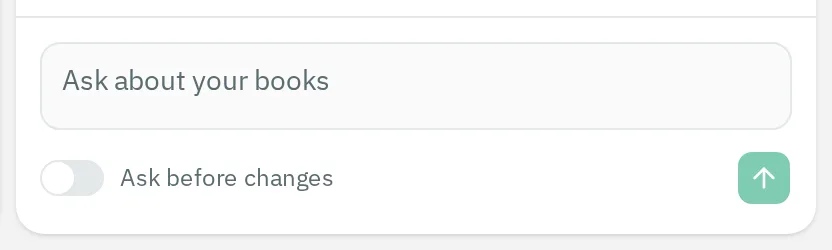
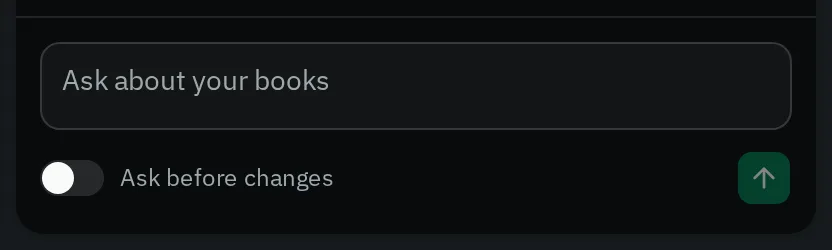
With Ask before changes, each change shows as a card with Approve and Decline buttons. Nothing changes until you click Approve. A reply with several changes also has a button that approves all of them.
To let the assistant make changes without a card, turn on the switch. The label then reads Make changes automatically. Rules, adjustments, team invitations, invoice voids, and deletes of transactions still show a card, so you approve each one. An invoice that the assistant marks as paid without a payment also shows a card.
The switch applies only to the conversation that you have open. Each card shows its status, for example Waiting for approval or Done.
If you send a message while a change waits for your approval, the message waits until you approve or decline the change.
Go back to a conversation
When you open the assistant panel, it shows your most recent conversation, so you can continue where you stopped. To start over, click the New conversation button at the top of the panel. If you have no conversations yet, the panel opens on a new conversation.
To open an older conversation:
- In the assistant panel, click the Conversations button.
- Click a conversation in the list.

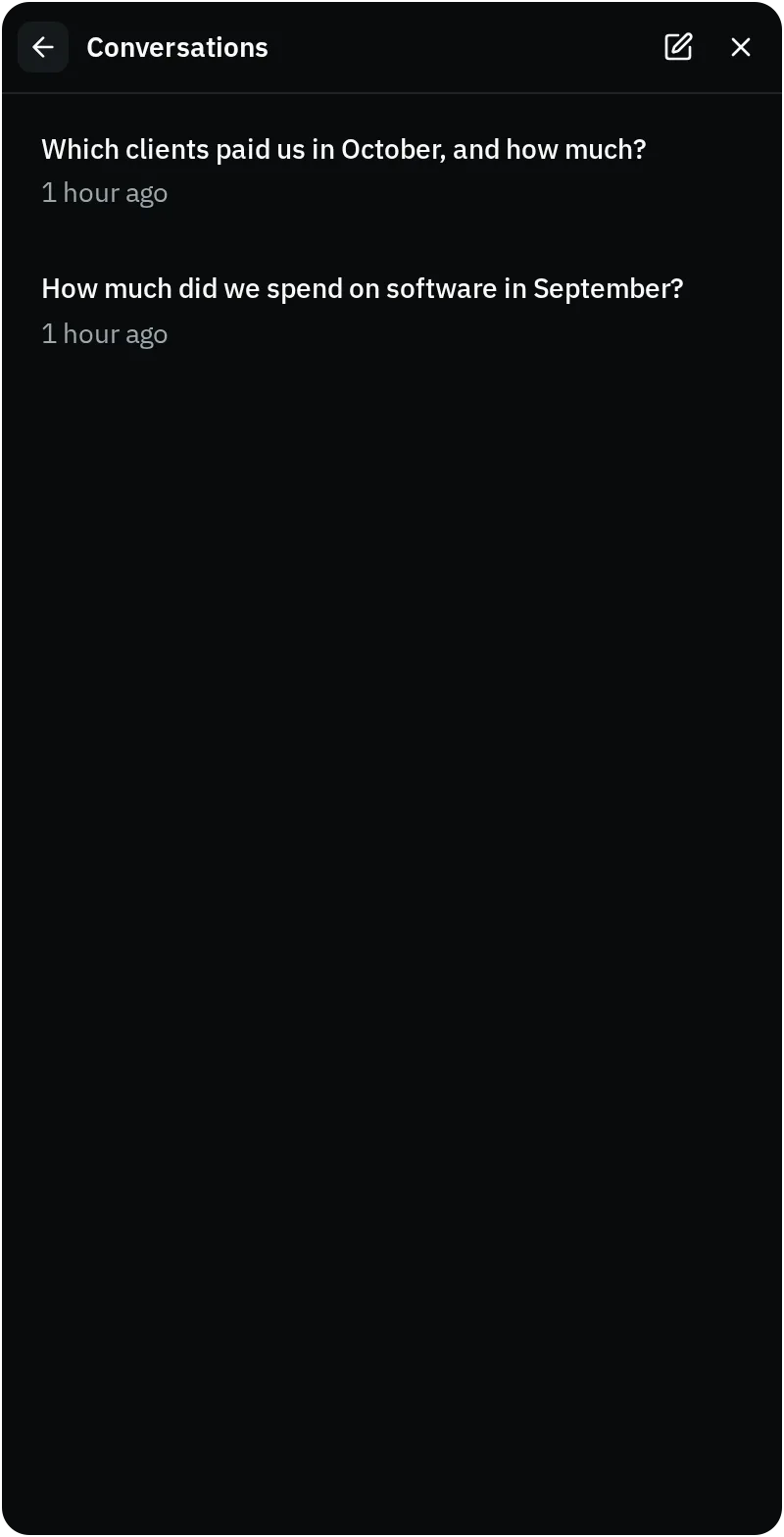
A conversation that waits for your approval shows Waiting for approval in the list. To start over, click the New conversation button. Your conversations are private to you, and each organization has its own conversations.
If a reply stops
A long request can stop with Limit reached. To continue, send another message. If the reply says that the conversation is too long, start a new conversation. If a reply fails, the panel shows This reply failed. Send your message again.