Add and import customers
Add the people and businesses that you invoice, change their details, and import a customer list from a CSV file.
Customers are the people and businesses that you send invoices to. You choose a customer each time you create an invoice, and LazyBooks sends the invoice to the email address of that customer.
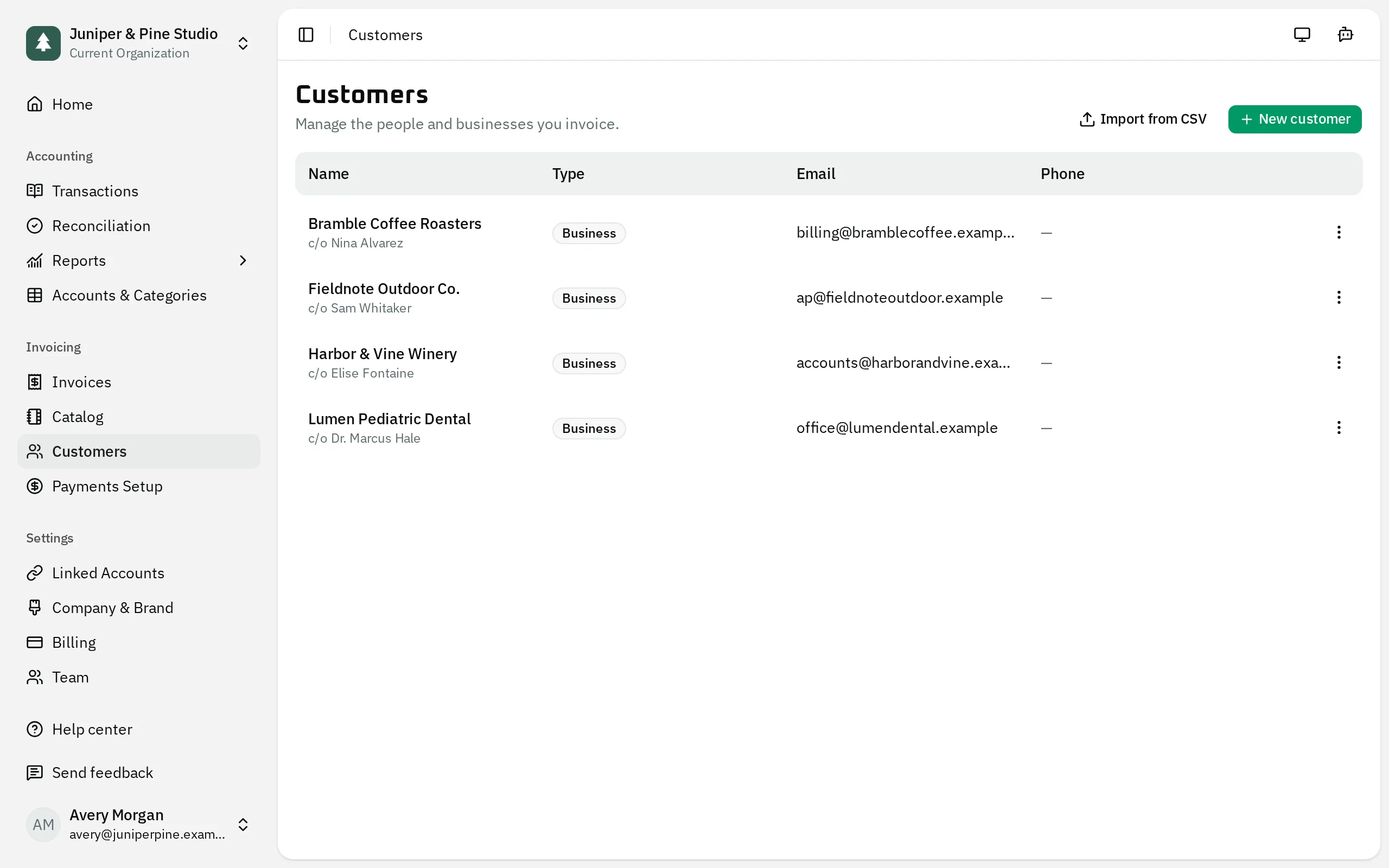
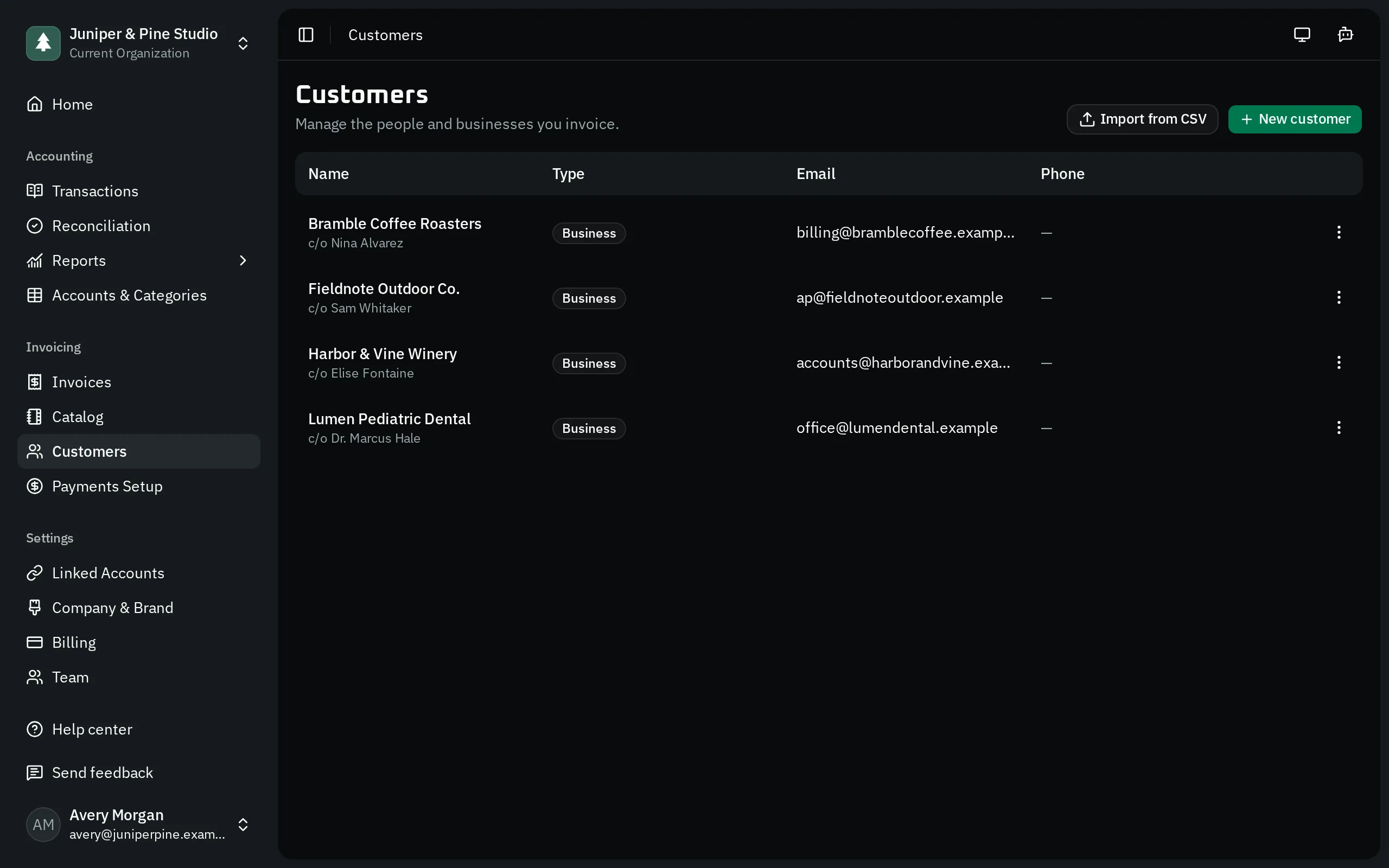
Add a customer
- In the sidebar, under Invoicing, click Customers.
- Click New customer.
- Choose Individual or Business.
- Type the Full name of the person, or the Business name.
- For a business, type a Contact name if you have one.
- Type the Email and the Phone of the customer.
- To add an address, click Address and fill in the fields.
- Click Add customer.
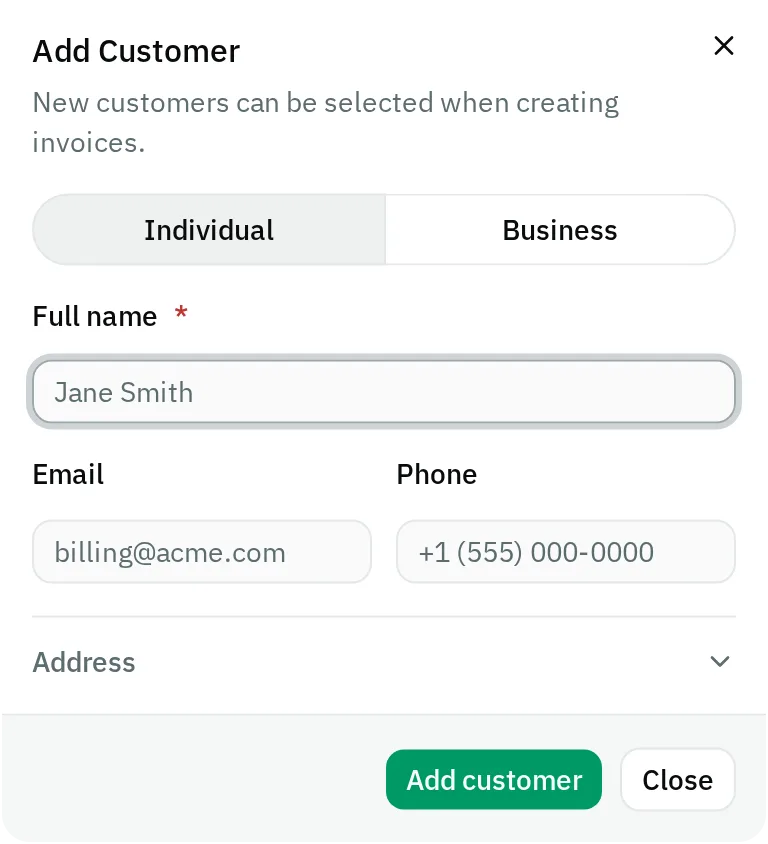
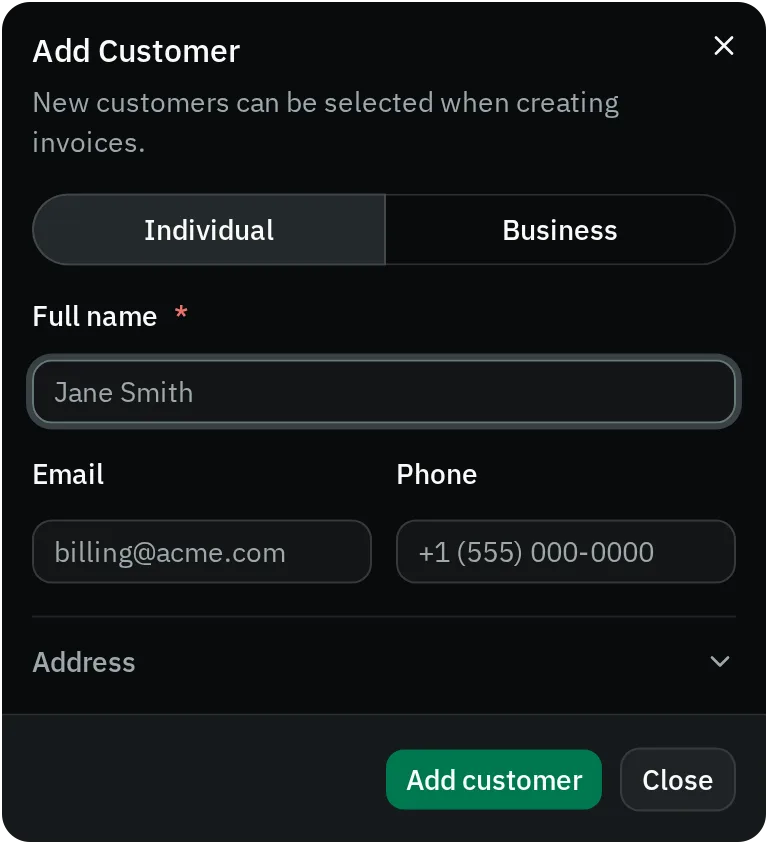
Each customer must have a different name. If the name is already in use, the dialog shows A customer with this name already exists.
You can also add a customer while you create an invoice. In the Customer list of the invoice, choose New Customer.
Change the details of a customer
- On the Customers page, click the menu button at the right end of the customer row.
- Click Edit.
- Change the details.
- Click Save changes.
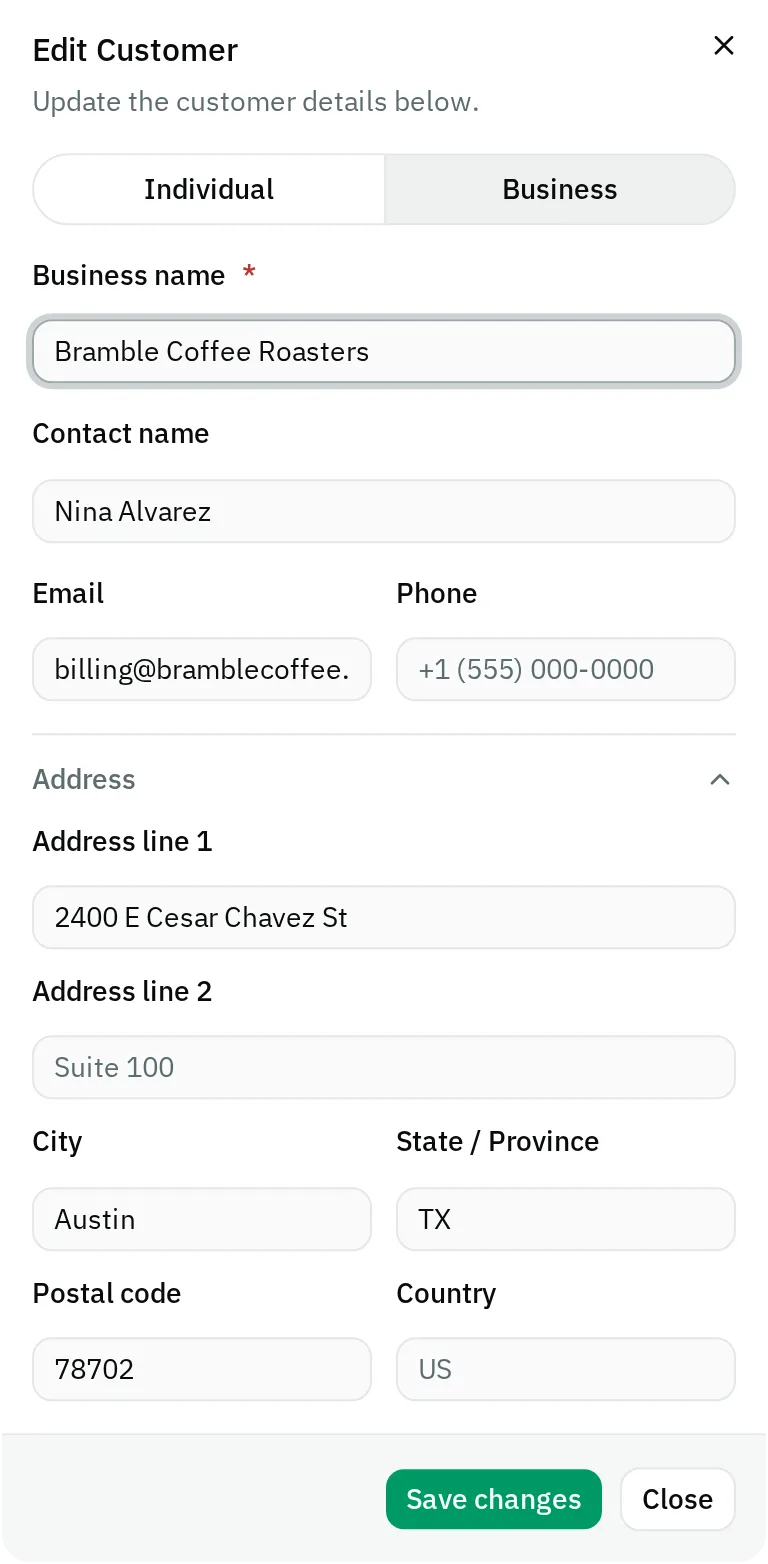
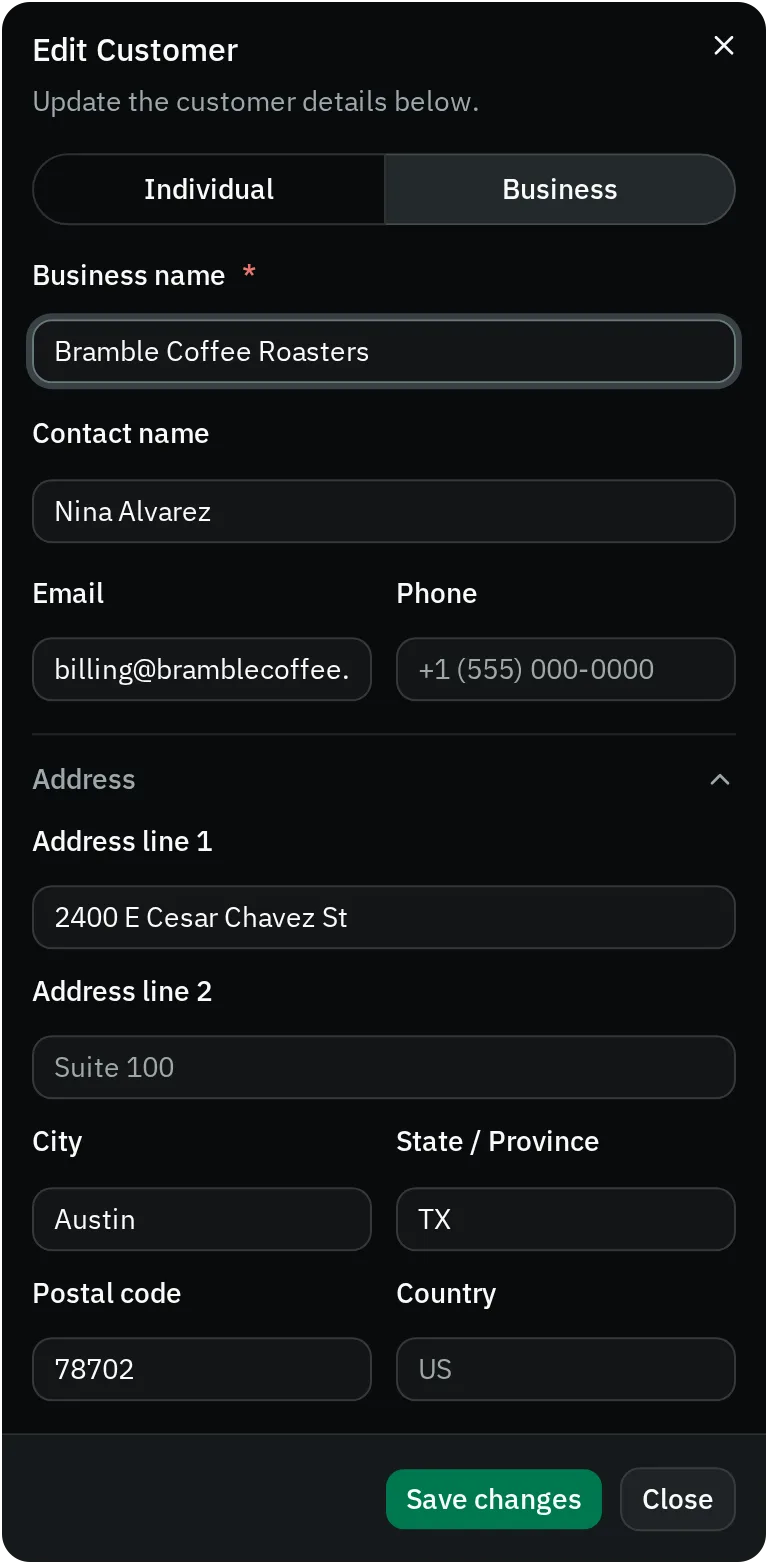
In the invoice editor, you can also click the menu button on the customer card, and then click Edit customer information.
Import customers from a CSV file
A CSV file is a spreadsheet saved as plain text, with commas between the values. Most spreadsheet apps can save one.
- On the Customers page, click Import from CSV.
- To get a file with the correct column names, click Download template.
- Drag your CSV file onto the page, or click Choose file and select the file.
- On Match columns, make sure that each column of your file goes to the correct field.
- Click Continue.
- On Review, choose an action for each row that has a problem.
- Click the Import button. The button shows the number of customers, for example Import 12 customers.
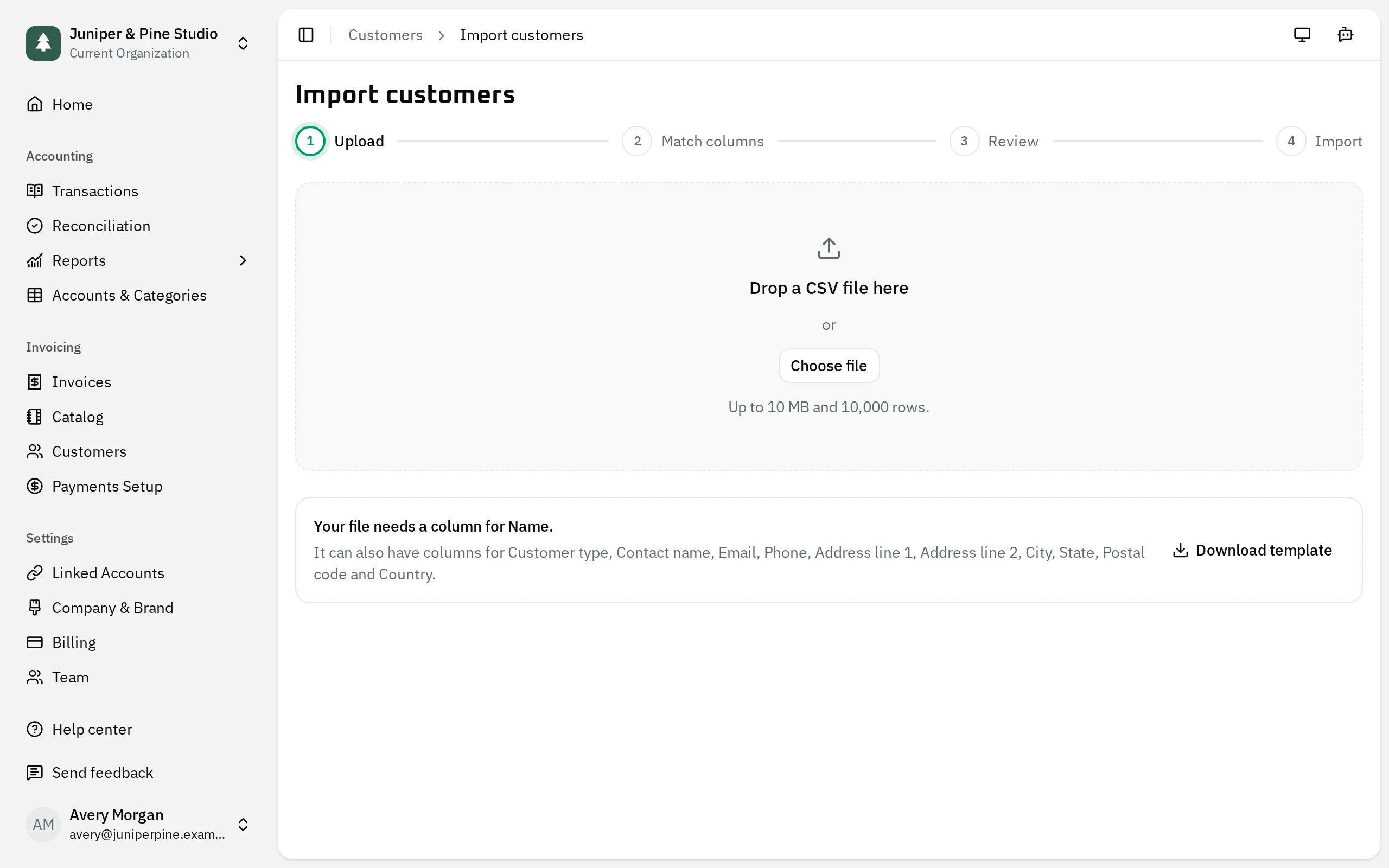
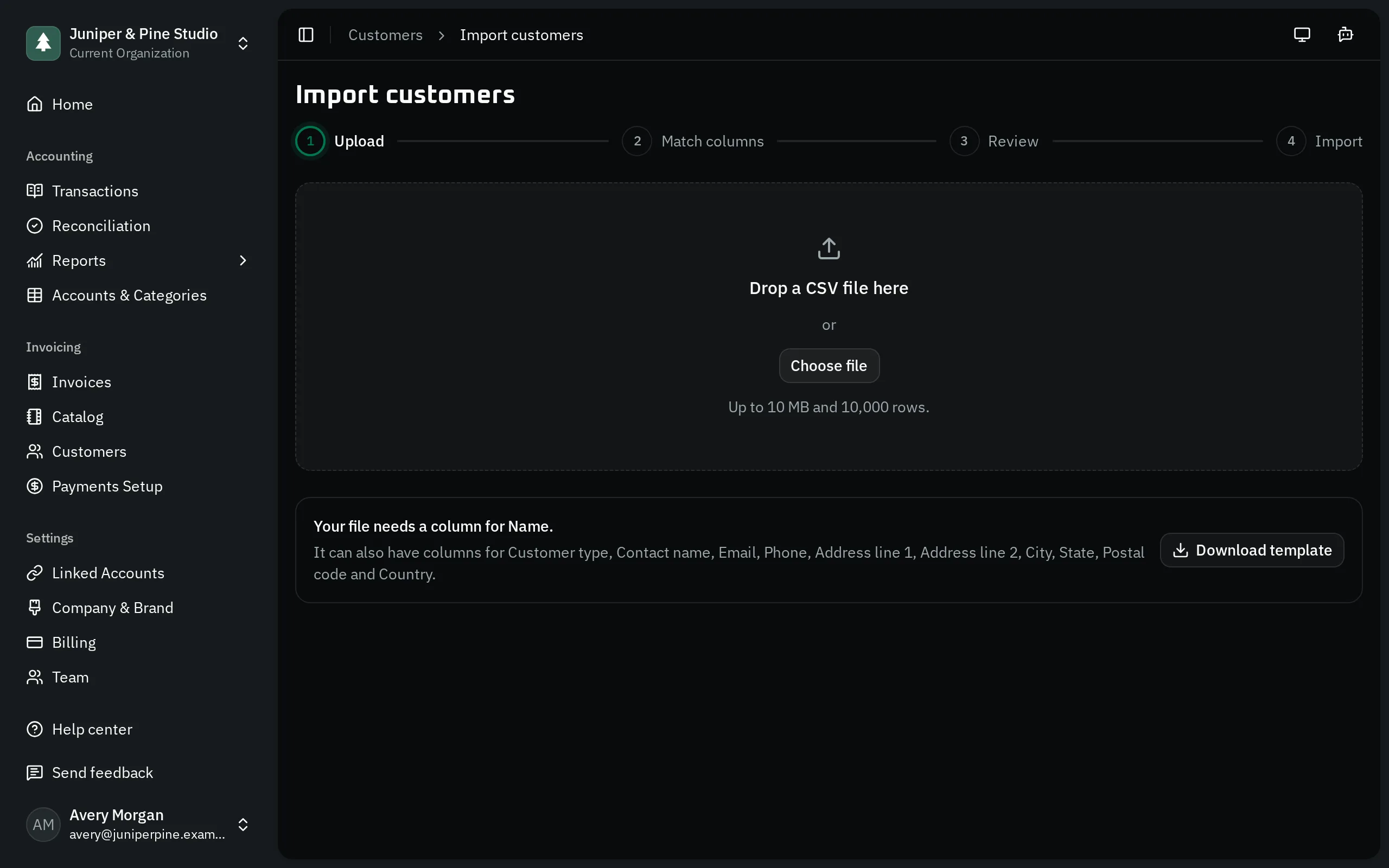
Your file must have a column for Name. It can also have columns for Customer type, Contact name, Email, Phone, Address line 1, Address line 2, City, State, Postal code, and Country. In the Customer type column, type business or individual.
If you ship to a customer at an address that is not the billing address, add the columns Ship-to address line 1, Ship-to address line 2, Ship-to city, Ship-to state, Ship-to postal code, and Ship-to country.
On Review, LazyBooks groups the rows that need your decision:
- If a name matches an existing customer or another row, choose Skip row or Merge. Merge replaces the details of the customer with the values in the file. Blank cells keep the current value.
- If an email or a phone matches a customer with a different name, choose Skip row, Create duplicate, or Merge.
- If a row has no name, a bad email, or a customer type that is not valid, the only action is Skip row. To import the row, fix it in your file and upload the file again.
When the import is done, the page shows Import finished with the number of customers that LazyBooks created, merged, skipped, and left unchanged. Click Go to Customers to see the list.