Recurring invoices
Set up an invoice once, and LazyBooks creates it on a schedule and emails it to your customer or saves a draft for you.
A recurring invoice bills a customer on a schedule, for example a monthly care plan or a retainer. On each date, LazyBooks creates an ordinary invoice from it. It emails the invoice to your customer, or it saves a draft for you to review.
Set up a recurring invoice
- In the sidebar, under Invoicing, click Recurring.
- Click New recurring invoice.
- Fill in the Schedule card. See Choose the schedule.
- In the Customer list, choose the customer.
- Add the line items, as on an invoice. See Add line items.
- Set the Due date, the Memo, and the Footer if necessary.
- Click Save.
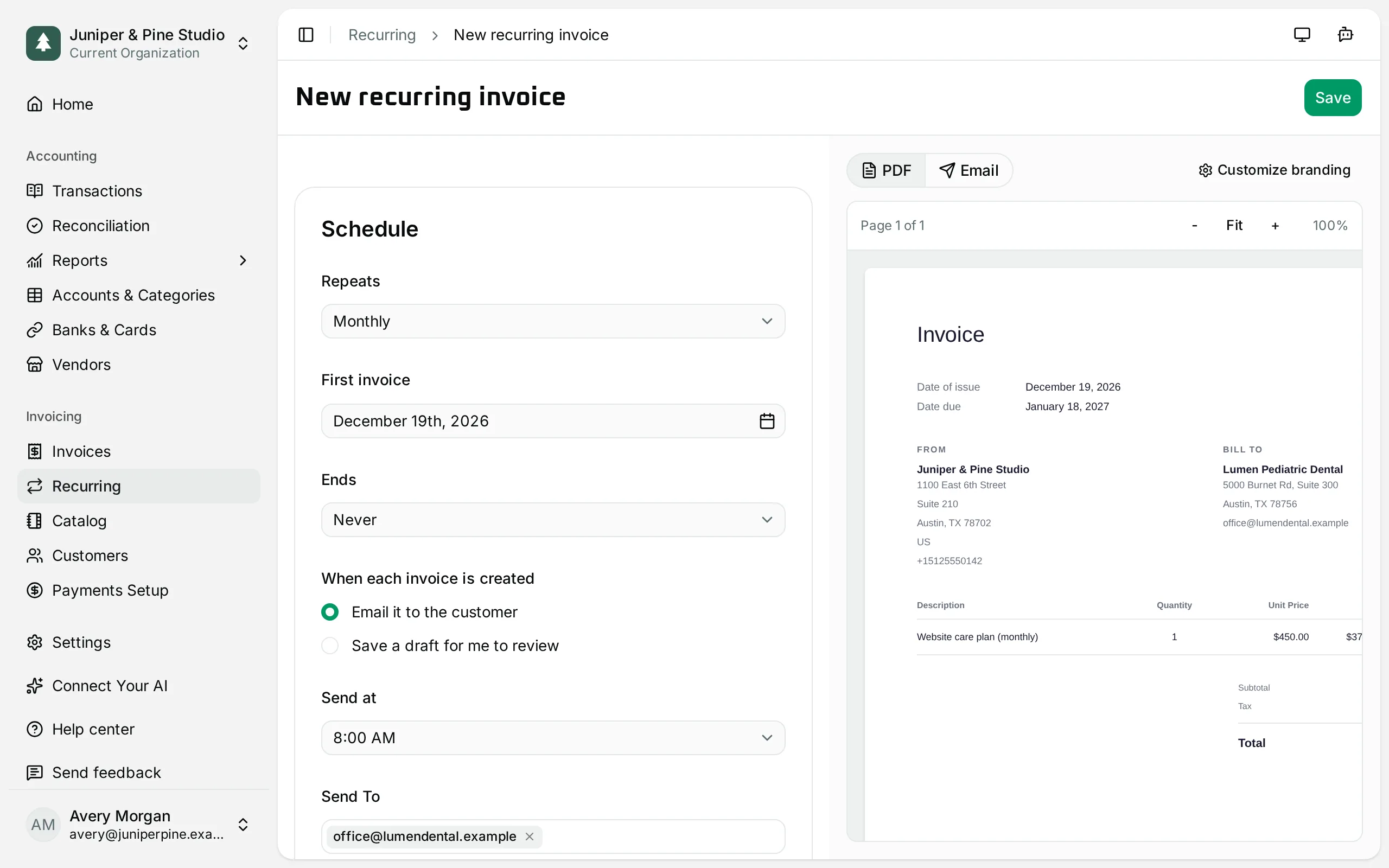
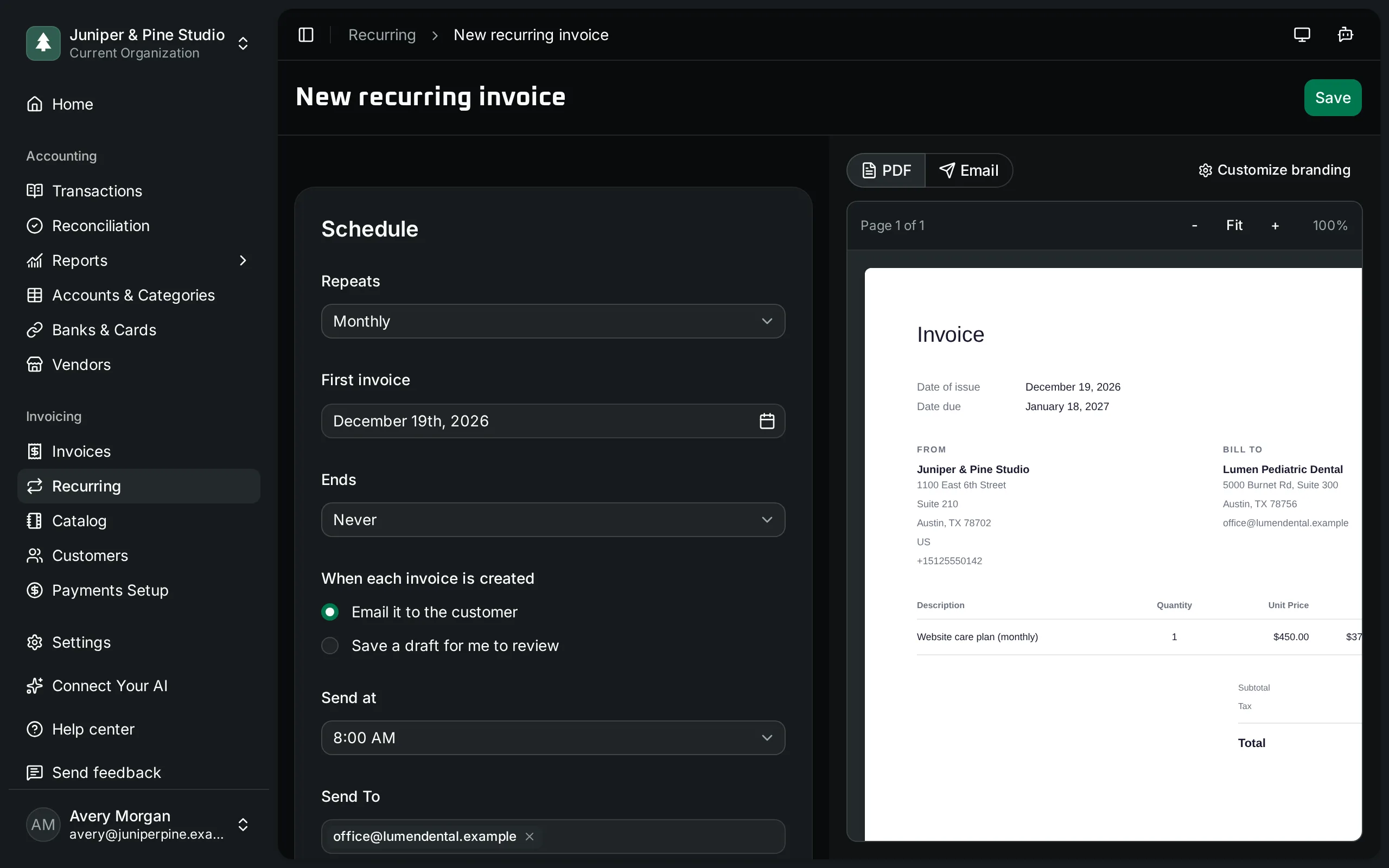
The preview on the right shows the next invoice.
After you click Save, LazyBooks opens the page of the recurring invoice. Each invoice is created on its date.
The Due date of a recurring invoice counts from each invoice date, for example 30 days. It has no Custom choice, because each invoice has its own date.
The line items keep the prices that you enter. A later price change in your catalog does not change them. To change a price, edit the recurring invoice.
Start from an invoice
You can also start from an invoice. Open the invoice and click Make recurring. LazyBooks opens the form, filled in with the customer, the line items, the due date, the memo, the footer, and the email addresses of the invoice. Check the schedule, and click Save.
The First invoice date is one month after the invoice date, or a later month when that day is before today. So your customer does not get two invoices for one month. If the invoice had a custom due date, choose new terms in Due date.
Make recurring does not show on a void invoice. It also does not show on an invoice that a recurring invoice created, until that recurring invoice ends.
Choose the schedule
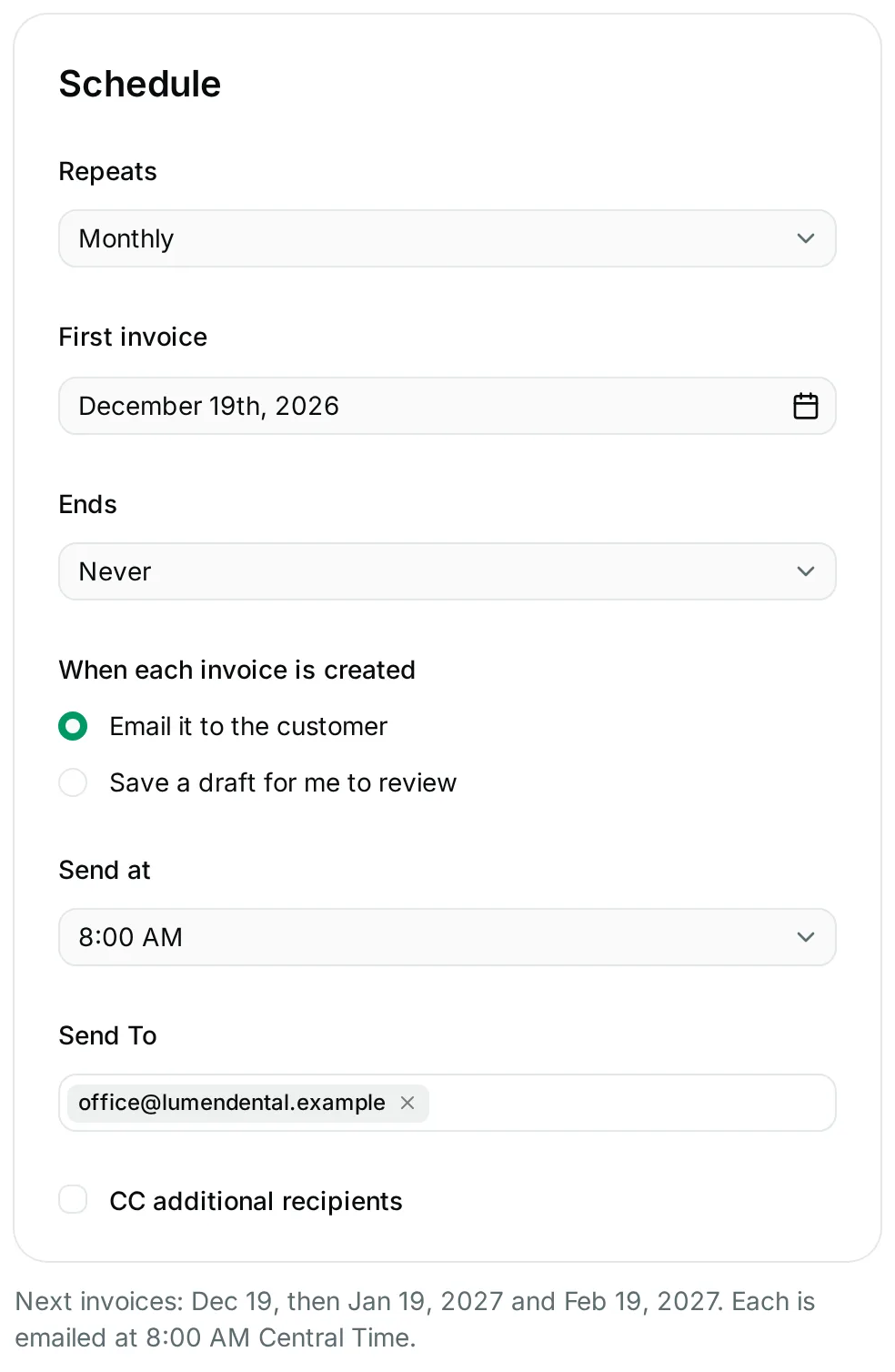
The Schedule card at the top of the form has these fields:
- Repeats sets how often an invoice is created: Weekly, Every 2 weeks, Monthly, Quarterly, Yearly, or Custom. For Custom, type a number in Every and choose weeks, months, or years.
- First invoice is the date of the first invoice. It must be today or later. The dates that follow count from this date.
- Ends is Never, On a date, or After a number of invoices. For an end date, choose the End date. For a number, type it in Number of invoices.
- When each invoice is created has two choices: Email it to the customer or Save a draft for me to review.
- Send at is the hour of the day that LazyBooks emails each invoice. In draft mode, the field is Create at. The default is 8:00 AM.
A first invoice date on the 29th, 30th, or 31st uses the last day of a shorter month. The next month goes back to the original day. For example, a monthly schedule that starts on January 31 creates invoices on January 31, February 28, March 31, and April 30.
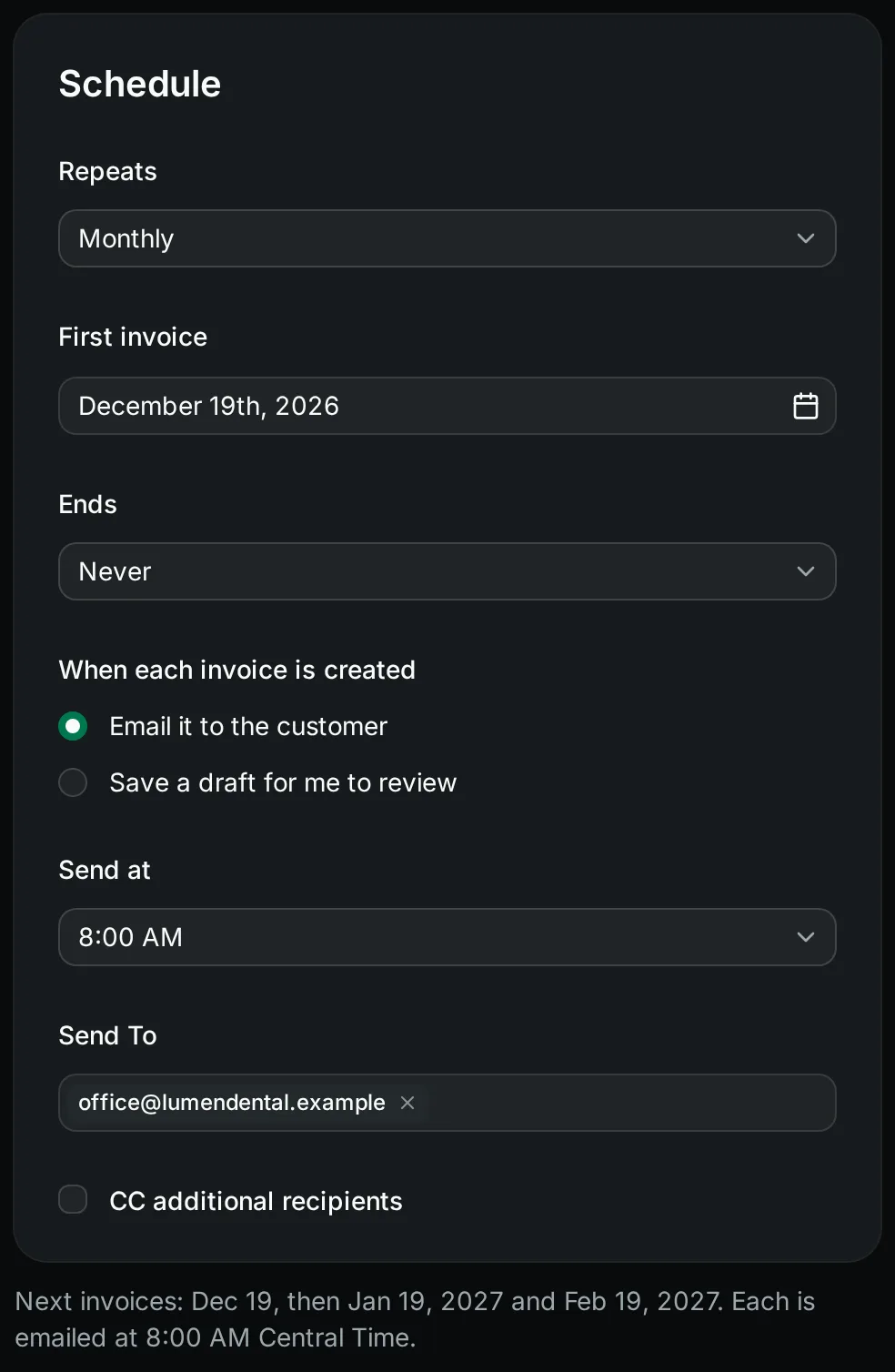
Under the card, a line shows the next three dates and the hour. For example: Next invoices: Dec 1, then Jan 1, 2027 and Feb 1, 2027. Each is emailed at 8:00 AM Central Time. If the first invoice date is today and its hour has passed, the line also says that LazyBooks creates that invoice right after you save.
The send hour and the time zone
The hour and the dates are in the time zone of your organization. To change it, see Change the time zone.
LazyBooks looks for invoices to create every 15 minutes. So an invoice for 8:00 AM goes out between 8:00 and 8:15 AM.
Email or draft
With Email it to the customer, LazyBooks creates the invoice, finalizes it, and emails it at the send hour. Its status is Open. The email goes to the addresses in Send To. To send copies, select CC additional recipients and type the addresses in CC Recipients.
When you choose the customer, Send To gets the email address of the customer. Email it to the customer needs at least one address in Send To. If the customer has no email address, type one, or choose Save a draft for me to review.
With Save a draft for me to review, LazyBooks saves each invoice as a draft. The to-do list on the Home page shows it, for example Recurring invoice #1007 for Fieldnote Outdoor Co. is ready to review. Click Open draft, check the invoice, and finalize it. See Finalize and send.
Each invoice gets its own number. Its issue date is its date on the schedule. The due date counts from the issue date.
If LazyBooks cannot email an invoice, the invoice shows Not sent. See If a scheduled invoice is not sent.
The page of a recurring invoice
In the sidebar, under Invoicing, click Recurring. The Recurring invoices list shows the customer, the amount, the next date, the status, and how often each one repeats.
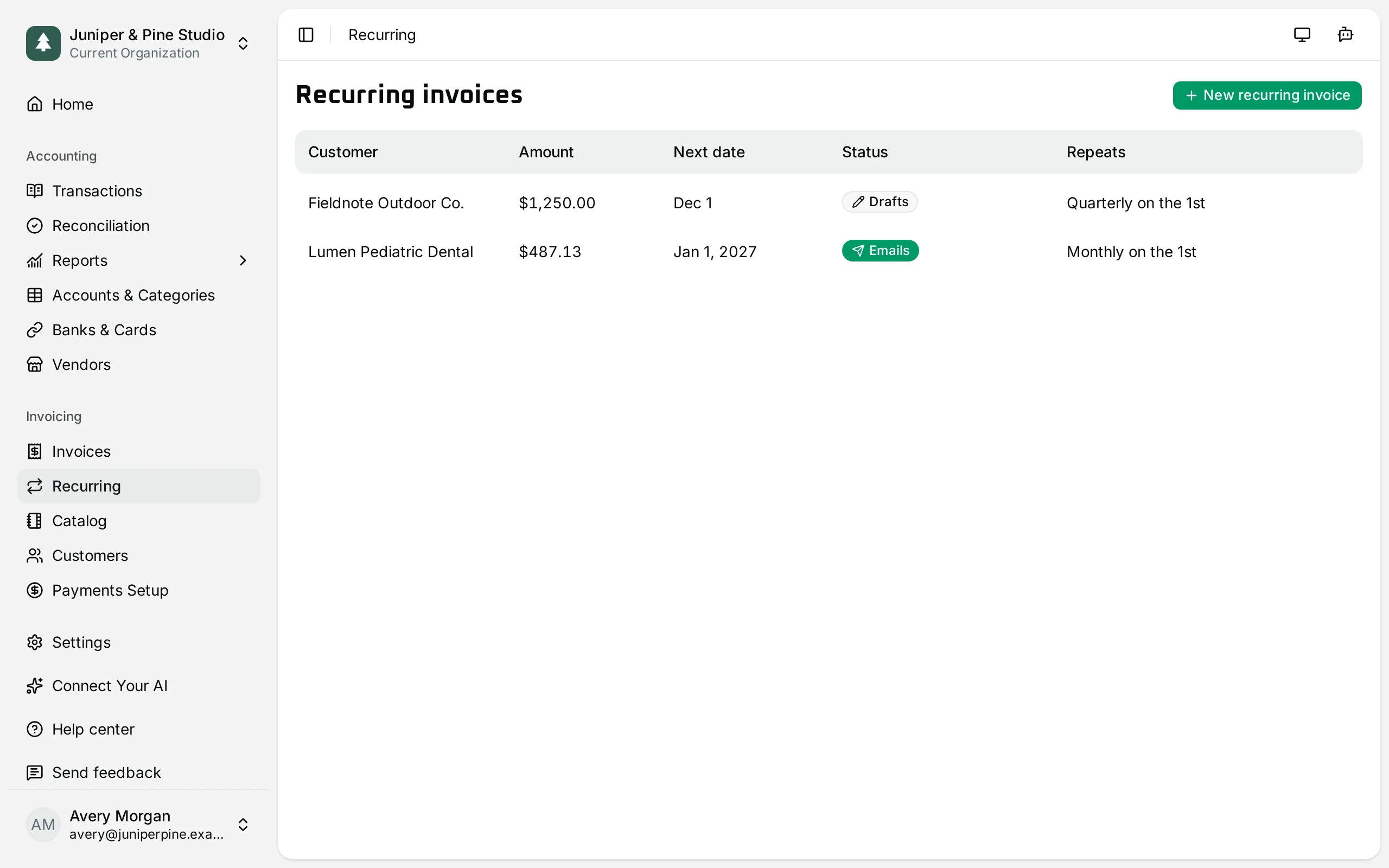
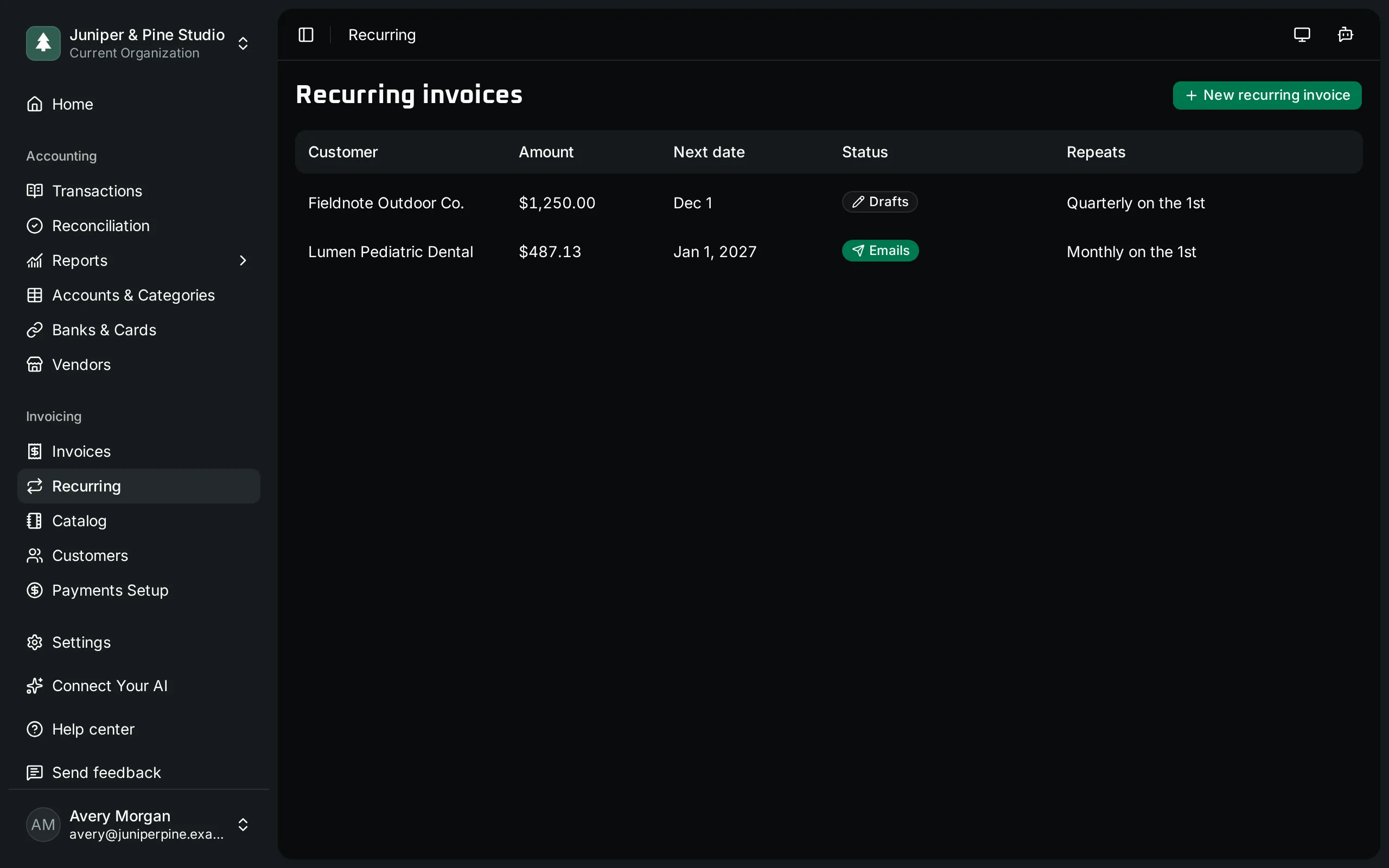
The status is Emails, Drafts, Paused, Ended, or Needs attention. Click a recurring invoice to open its page.
The page shows how often the recurring invoice repeats and when it ends. The Next invoice card shows the date, how the invoice goes out, and the amount. The Invoices table lists the invoices that it created, with their number, date, amount, and status.
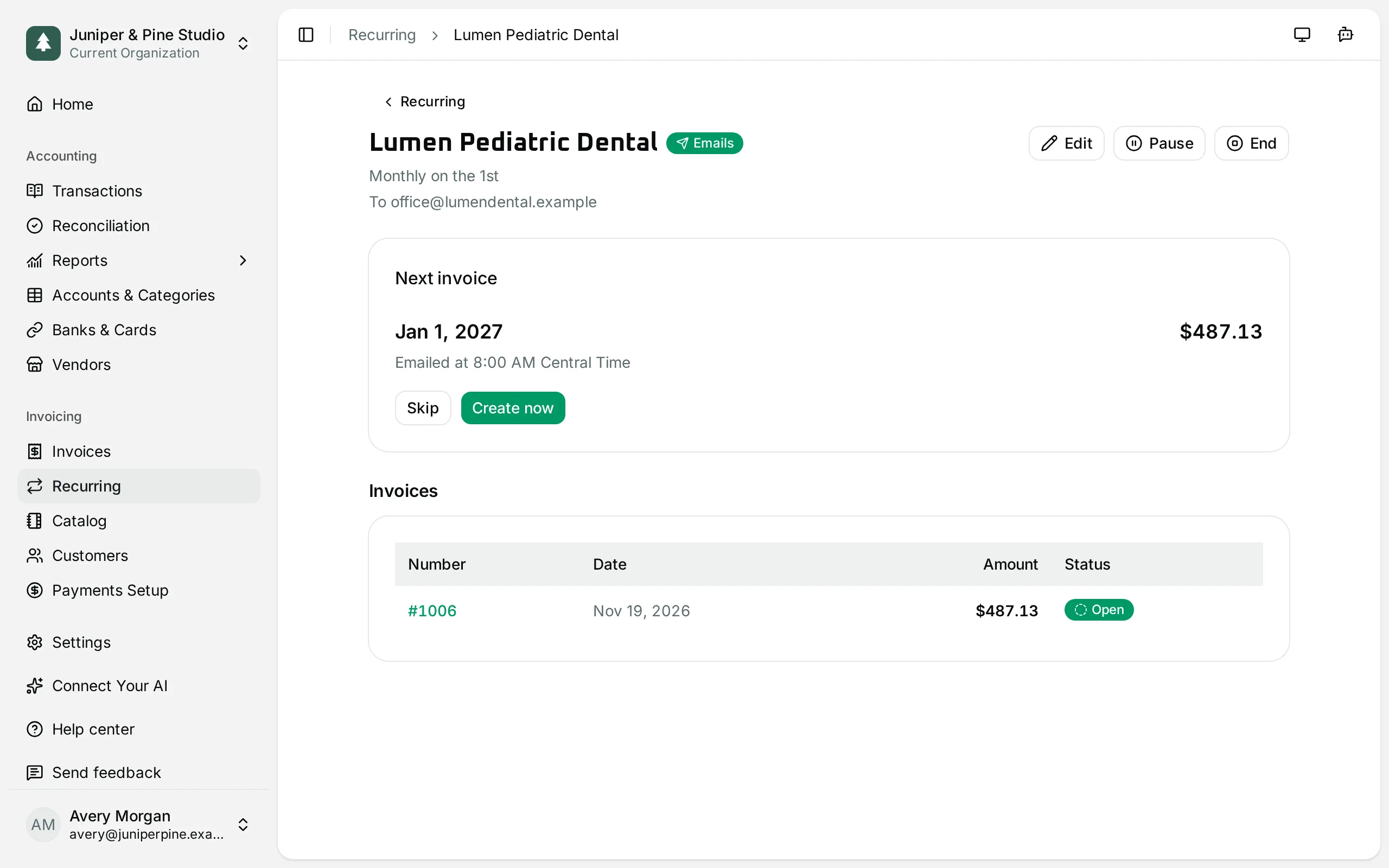
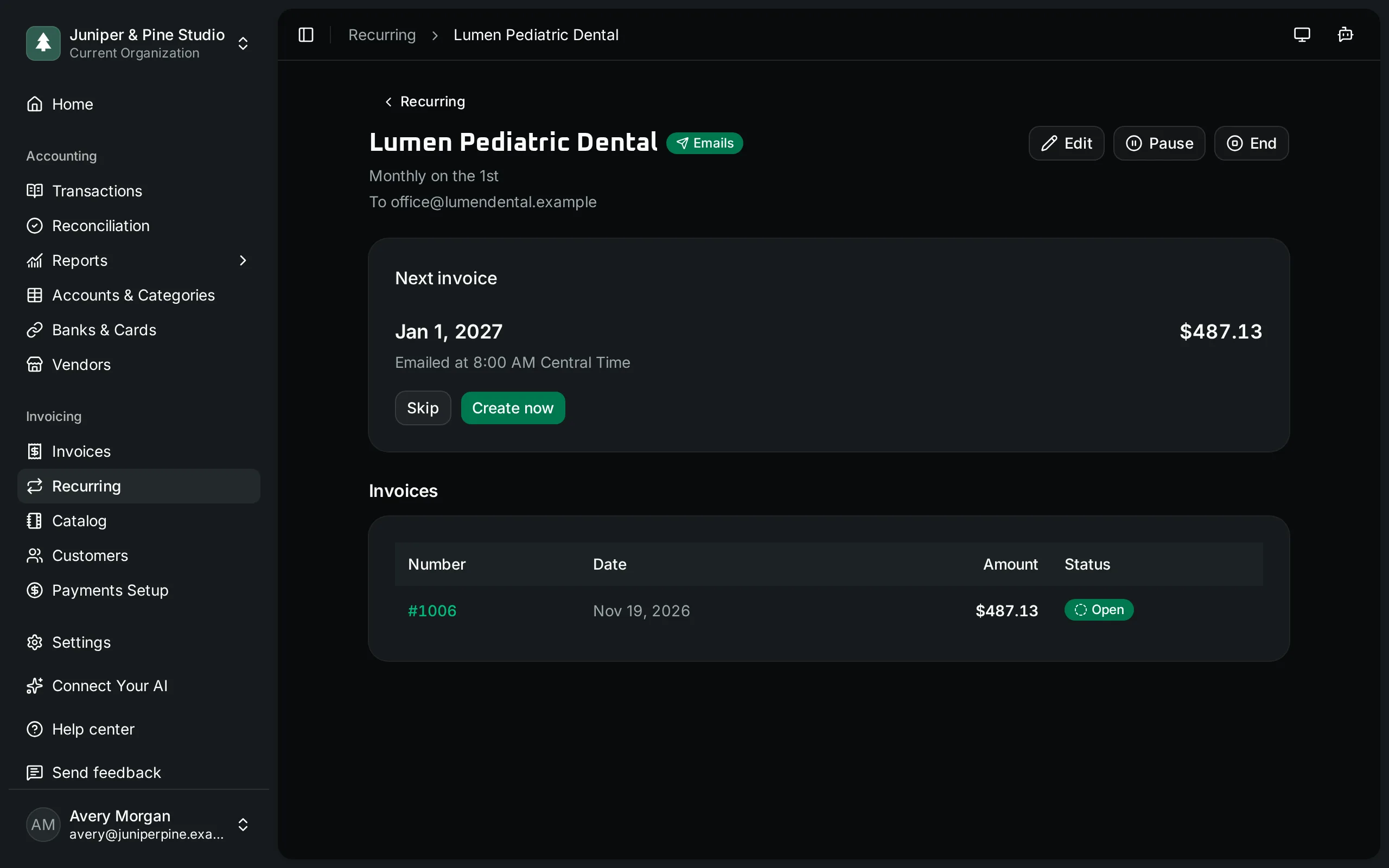
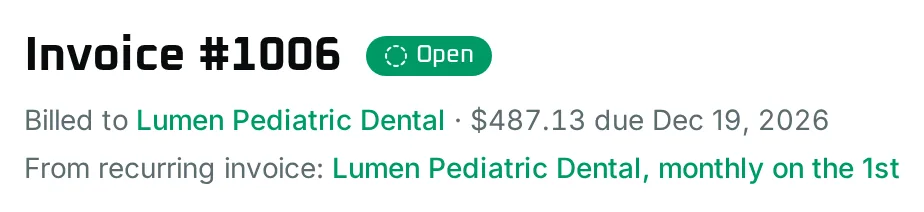
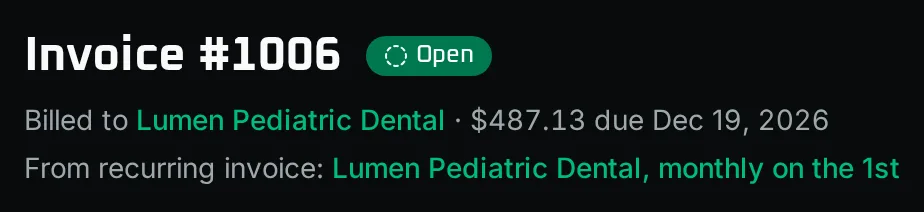
An invoice that a recurring invoice created shows From recurring invoice under its title, with a link to the recurring invoice.
Skip, create now, pause, or end
- Skip skips the next invoice. The dialog tells you the date that comes next. If no date is left, the recurring invoice ends.
- Create now creates the next invoice today, dated today. LazyBooks emails it within 15 minutes, or saves it as a draft. It takes the place of the next date, so your customer does not get a second invoice for that date.
- Pause stops new invoices. Dates while it is paused are skipped.
- Resume starts the invoices again from the first date after today.
- End stops the recurring invoice for good. You cannot restart it. The invoices that it already created stay.
Edit a recurring invoice
- Open the recurring invoice.
- Click Edit.
- Make your changes.
- Click Save.
The changes apply to the next invoices. Invoices that it already created stay the same. A draft that it created is an ordinary draft, so you can still edit it. You cannot edit an invoice after it is finalized.
If you change Repeats or First invoice, choose a First invoice date of today or later. The new dates count from it. LazyBooks never creates an invoice on or before the date of the last invoice that it created.
If you change the email address of a customer, LazyBooks puts the new address in Send To of that customer's recurring invoices, in place of the old one. Other addresses and the CC addresses stay. See Add and import customers.
Needs attention
When a recurring invoice has a problem, its status is Needs attention. Its page shows what happened, and the to-do list on the Home page has an item for it.
- An item is turned off or a tax is deactivated: a line uses a catalog item that you turned off or a tax that you deactivated. In email mode, the invoices are saved as drafts and not sent. For a deactivated tax, the draft has no tax on that line, so check its amounts before you send it. Click Edit, and choose an active item or tax.
- An invoice was not created: LazyBooks tries again in 15 minutes. If the recurring invoice is paused, a resume skips that date. Create the invoice from Invoices if you still need it.
- Your subscription ended: LazyBooks paused the recurring invoice. When your subscription is active again, click Resume. See Start a new subscription.
When you edit a recurring invoice that has a deactivated tax, LazyBooks removes the tax from its lines. Check the amounts before you save.
Late invoices
LazyBooks emails an invoice only when it is on time. If LazyBooks reaches a date more than one day after its send time, it saves the invoice as a draft and does not email it. This happens, for example, after your organization was locked. See Unlock a locked organization.
While your organization is locked, LazyBooks creates and sends no invoices. When you unlock it, LazyBooks creates the invoices of the dates that it missed. A date more than one day late becomes a draft.
The owner of the organization gets an email, and the to-do list on the Home page shows the draft. The draft keeps its date on the schedule as its issue date. Open the draft, check it, and send it.
A short delay is not late. The invoice goes out as usual.