Get paid
Follow the status of your invoices, send payment reminders, and see how customer payments show up in your books.
After you send an invoice, LazyBooks follows it until your customer pays. If you set up online payments, your customer can pay from the invoice, and LazyBooks records the payment for you.
Invoice statuses
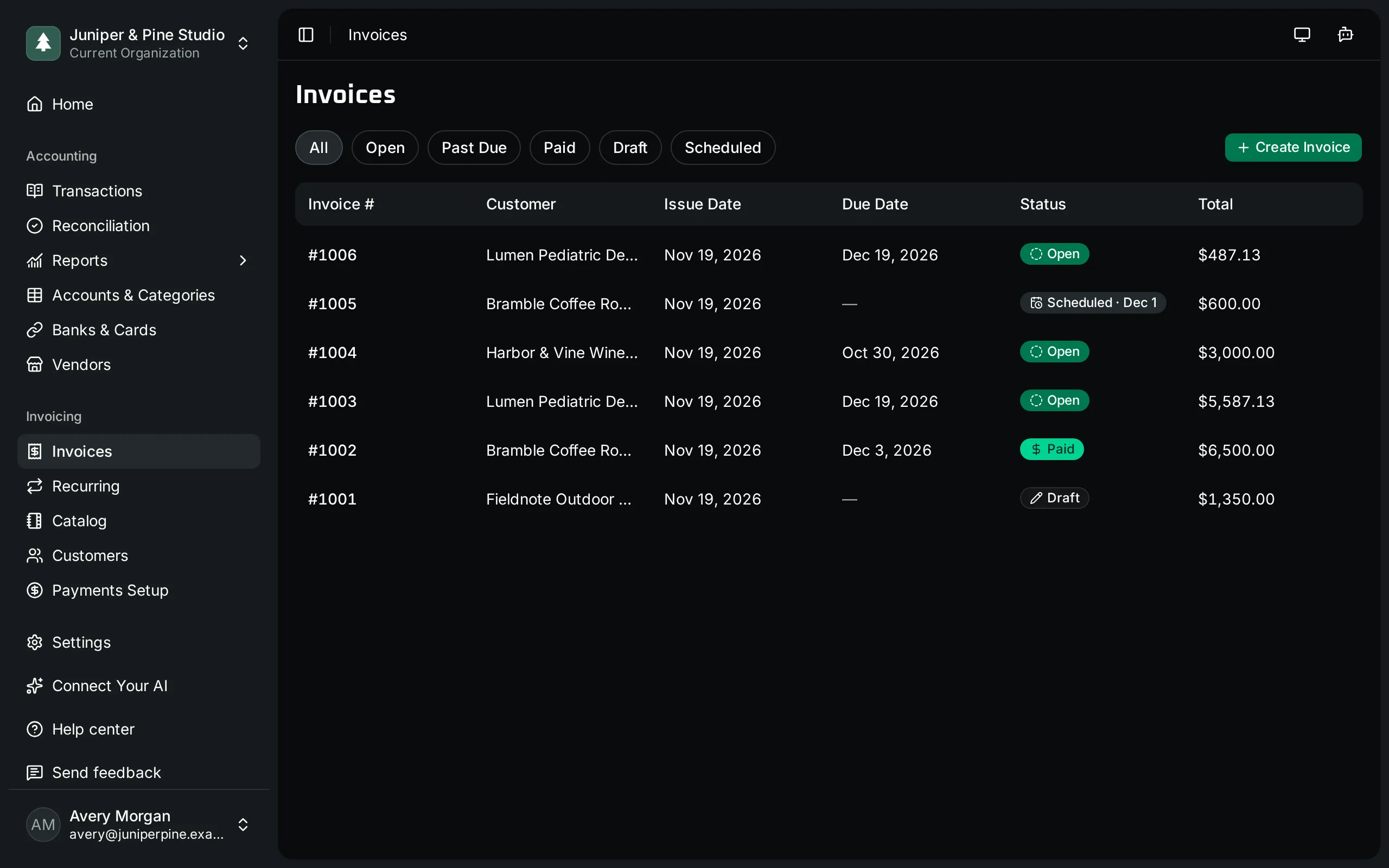
The Invoices page lists all your invoices with their status.
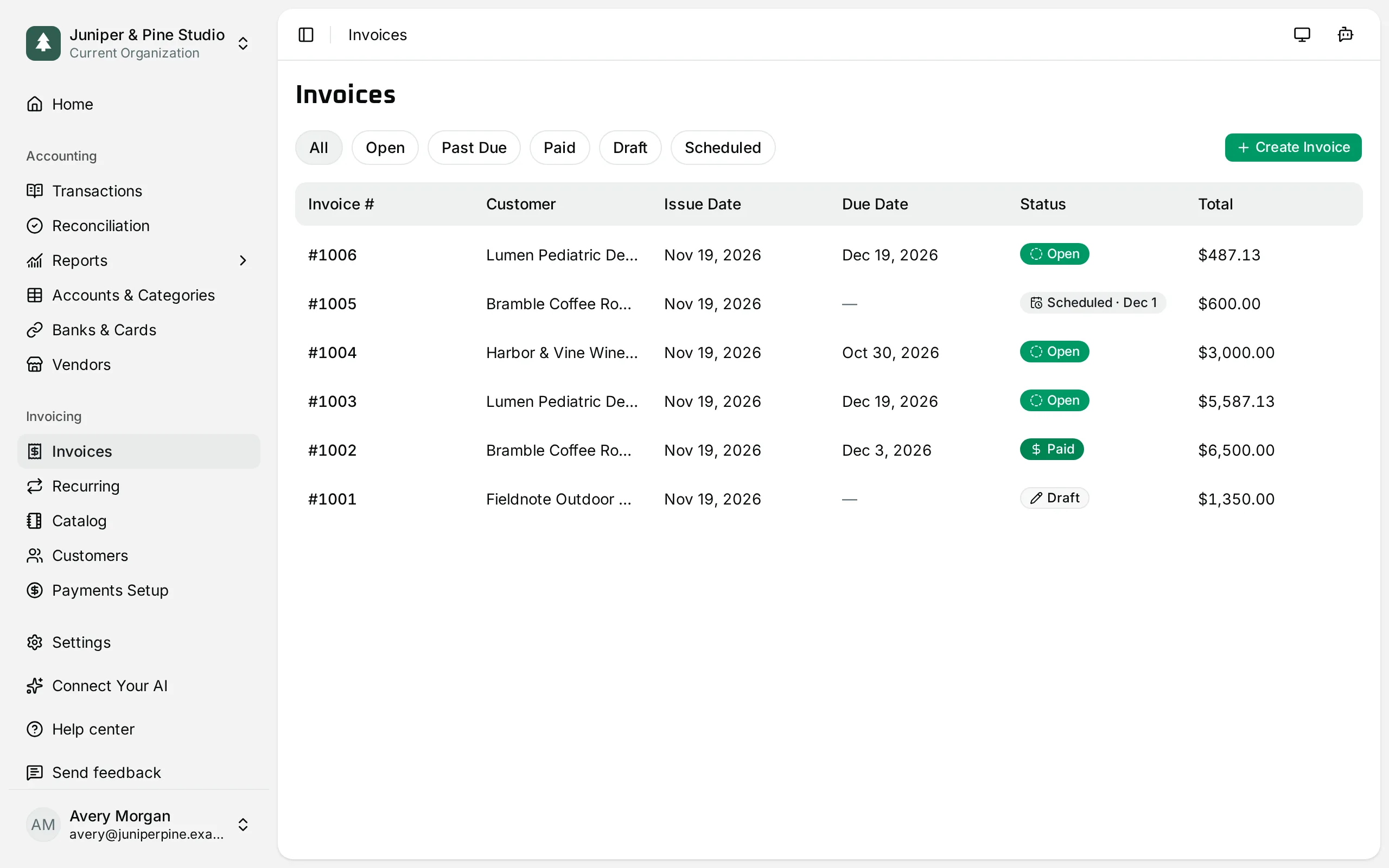
- Draft means that you can still change the invoice. Your customer cannot see it.
- Open means that you finalized the invoice, and it waits for payment.
- Overdue means that the invoice is open, and its due date is in the past.
- Paid means that the invoice is paid. Usually its payments cover its total: online payments, payments that you recorded, or both. An invoice can also be paid with no payment in LazyBooks. An invoice from your old books that was paid there shows Paid in your old books with the day. An invoice outside your books that you marked as paid shows Paid outside LazyBooks with the day.
- Void means that you canceled the invoice. Your customer cannot pay it.
- Scheduled with a day, for example Scheduled · Dec 1, means a draft that LazyBooks sends on that day. See Schedule an invoice.
- Not sent means that LazyBooks did not send a scheduled invoice. See If a scheduled invoice is not sent.
To filter the list, click All, Open, Past Due, Paid, Draft, or Scheduled. In the list, an invoice that is past its due date keeps the Open badge. The Past Due filter shows these invoices, and their invoice pages show Overdue.
Open an invoice
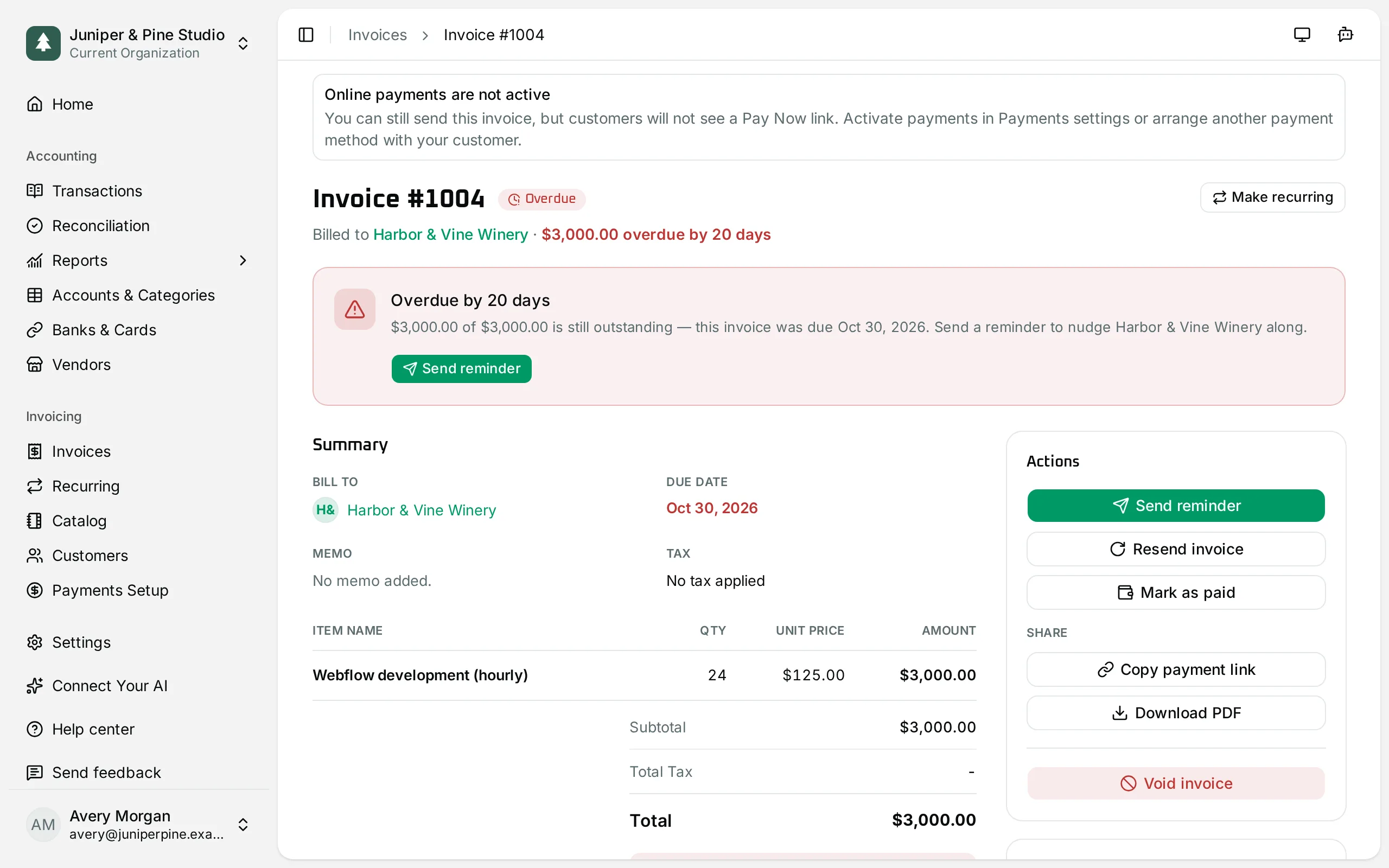
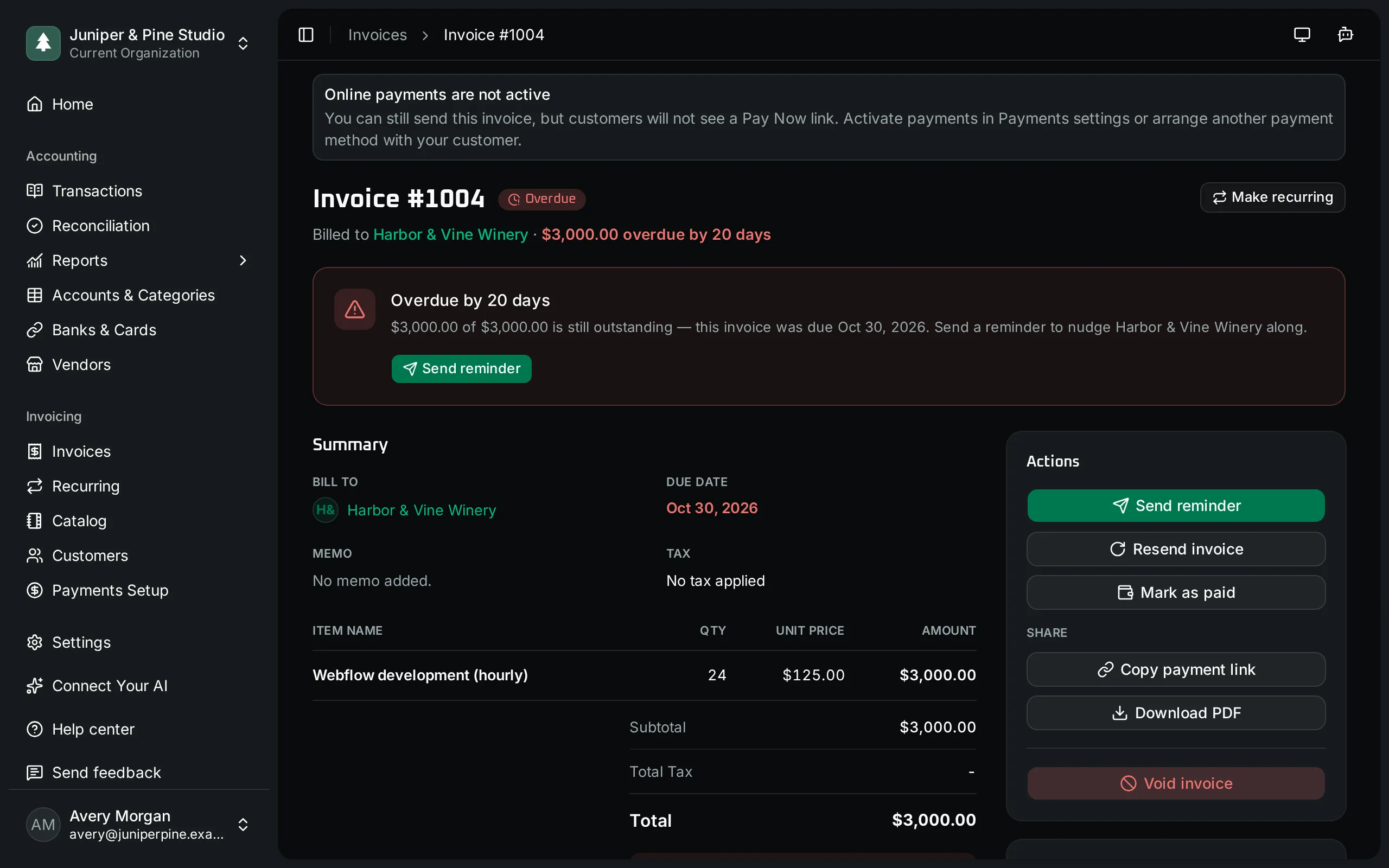
Click an invoice in the list to open its page. The top of the page tells you what happens next, for example Waiting on payment. The Actions card on the right has the actions for the status of the invoice.
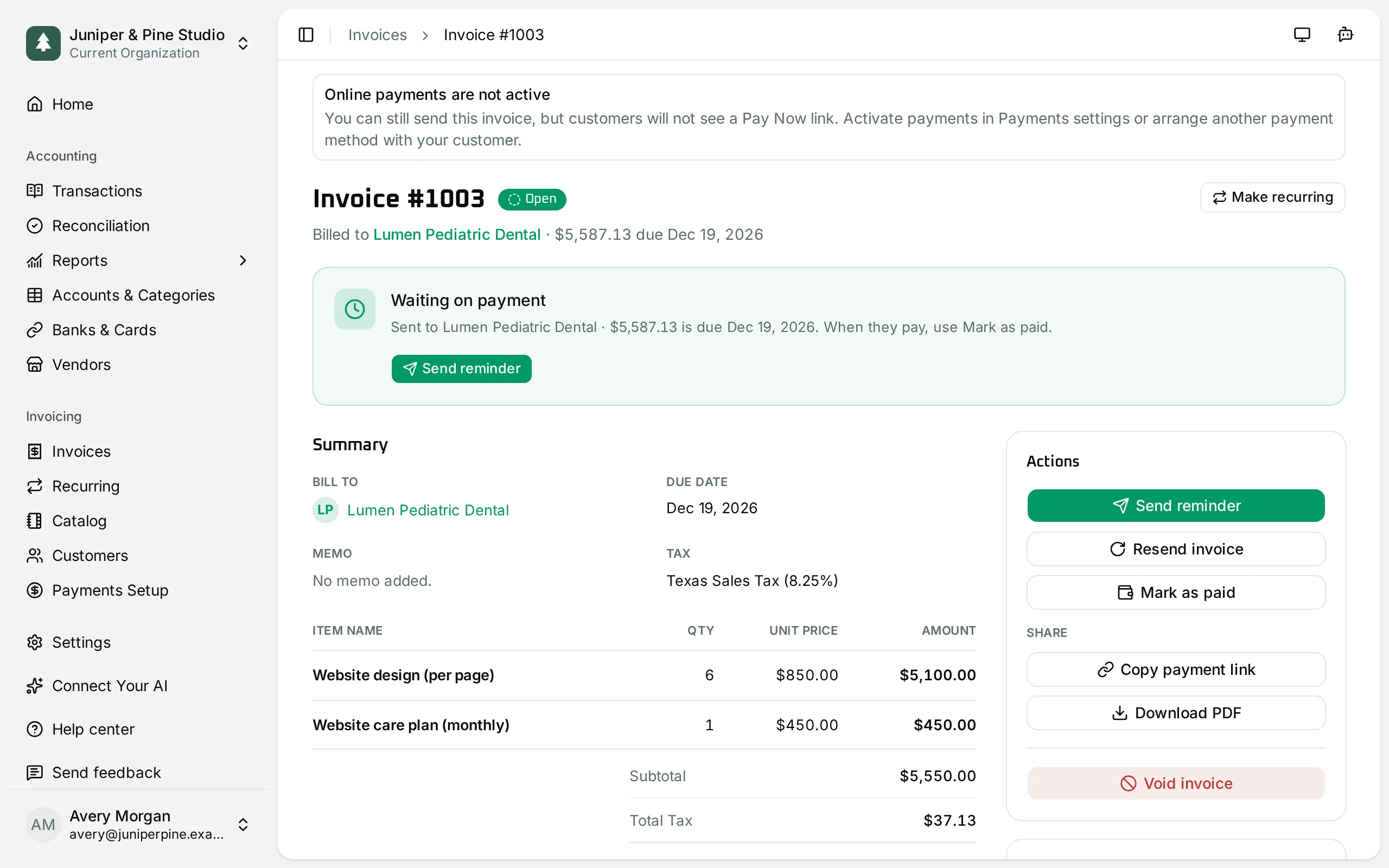
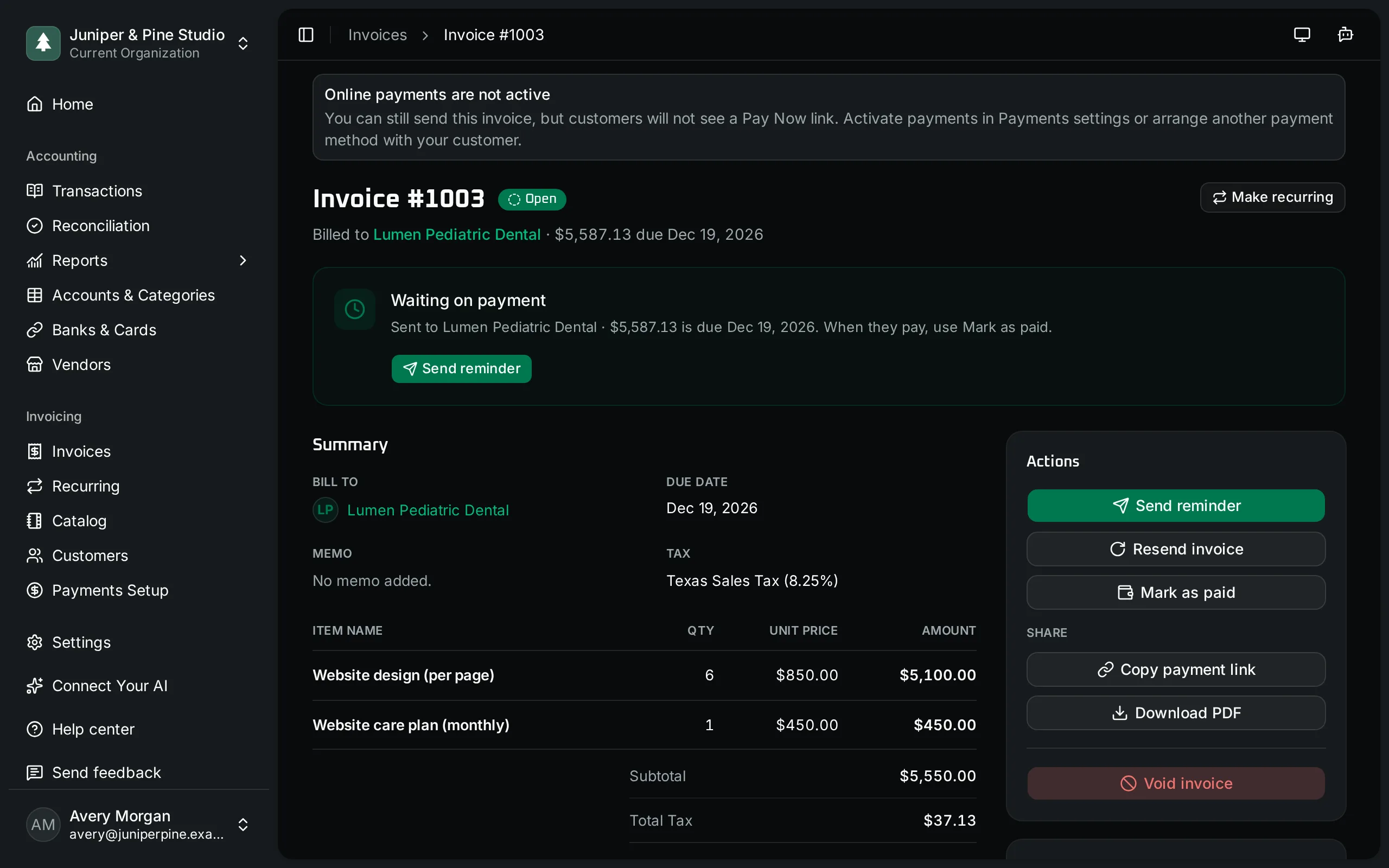
An open invoice has these actions:
- Send reminder emails a payment reminder to your customer.
- Resend invoice emails the invoice again.
- Mark as paid records a payment that your customer made another way.
- Copy payment link copies the link to the invoice page that your customer sees.
- Download PDF downloads the invoice as a PDF file.
- Void invoice cancels the invoice.
What your customer sees
The invoice email has a Pay Now button when online payments are active. Without online payments, it has a View Invoice button. Both buttons open the invoice page for your customer.
That page shows your business details, the line items, and the amount due. Your customer can click Download PDF to save a copy.
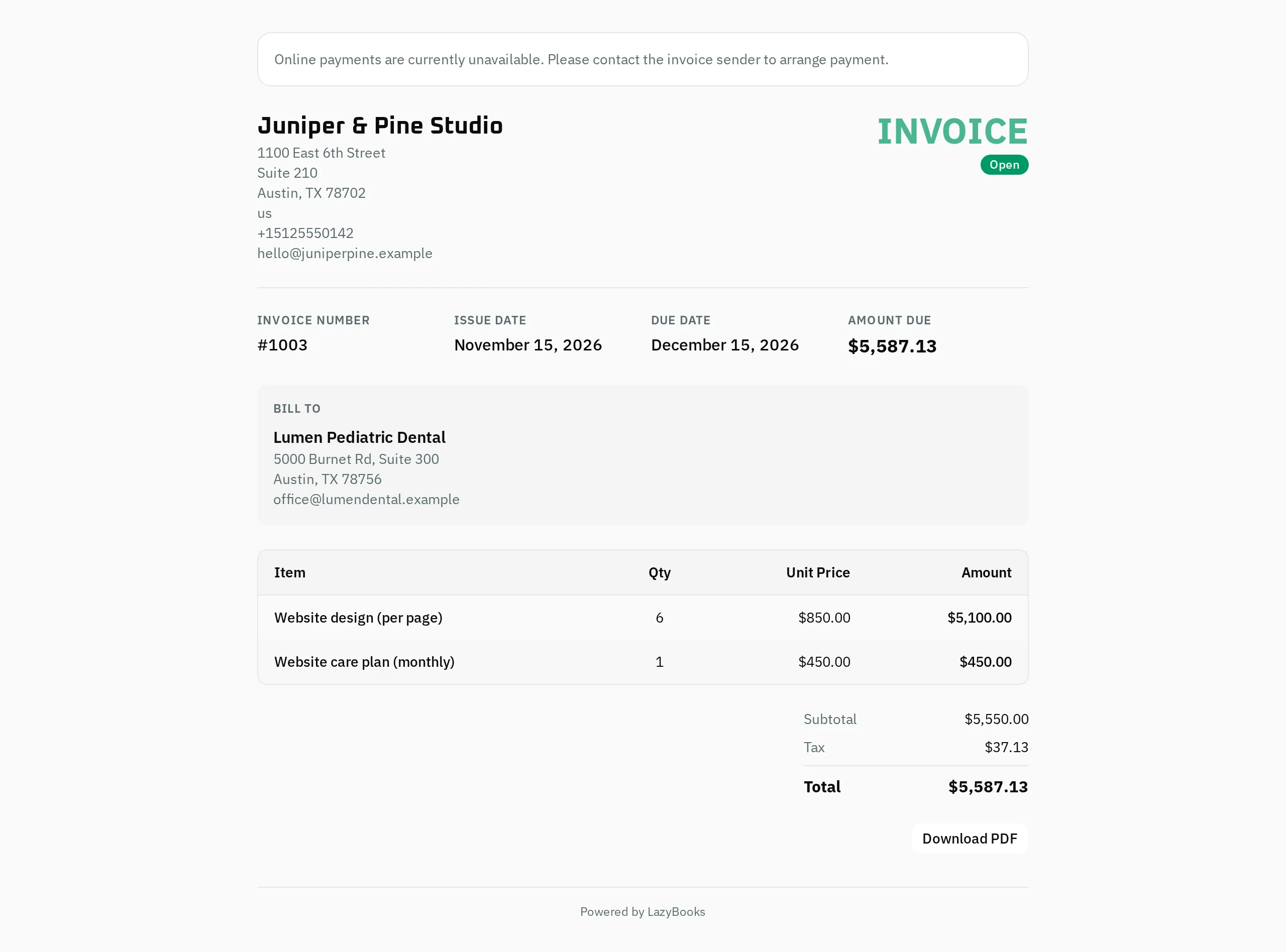
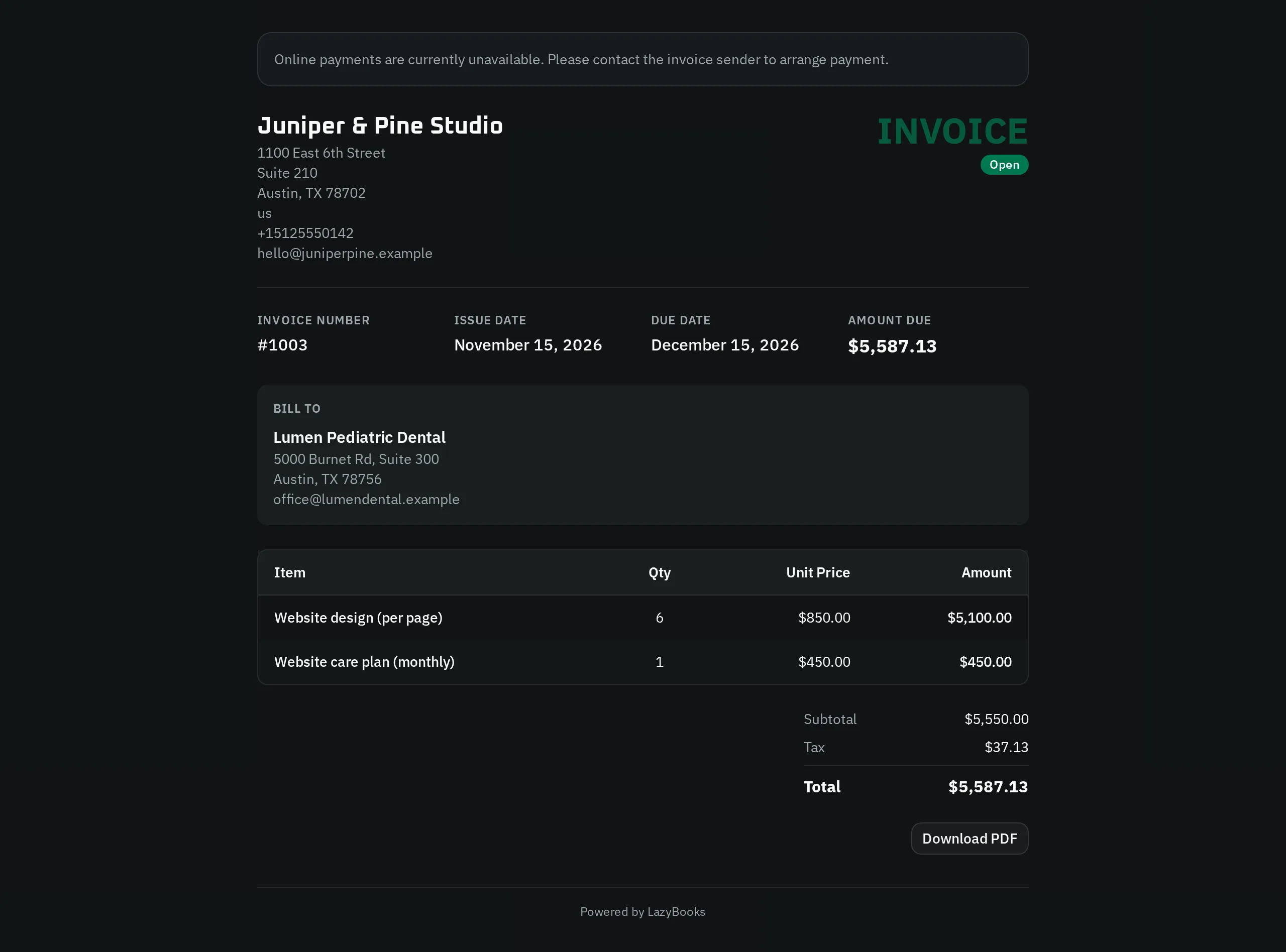
When online payments are active and the invoice is open, the page also has a Pay now button. Your customer clicks it and pays on a Stripe page with a card or from a bank account. After a card payment, LazyBooks shows Thank you for your payment! and a Back to invoice button.
Card payments have a minimum, so the page has no Pay now button when less than $0.50 is due.
A bank payment can take several business days to clear. Until then, the invoice page tells your customer that the payment is processing.
Without online payments, the page shows Online payments are currently unavailable. Please contact the invoice sender to arrange payment. See Set up online payments.
When a customer pays online
When Stripe confirms the payment, LazyBooks marks the invoice Paid. You do not have to do anything. The page of the invoice lists the payment under Payments. After Stripe records its fee, the page also shows Net to your bank, which is the amount after the processing fee.
Record a payment
If your customer pays another way, such as by check, cash, or bank transfer, record the payment yourself. Open and overdue invoices have this action, and every team member who can open the invoice can use it.
If your customer opened the Stripe payment page and left without paying, LazyBooks closes that page when you record a payment, so your customer cannot pay twice. If your customer clicks Pay now again, a new page opens for what is still due. LazyBooks does not let you record a payment while a card payment is going through, or while a bank payment is clearing.
For a check or cash:
- Open the invoice.
- In the Actions card, click Mark as paid. The Record a payment dialog opens.
- Check is selected, or Bank deposit when one deposit in Transactions equals the amount due. For cash, choose Cash.
- In Amount, enter the amount that you received.
- Pick the Date received.
- Click Record payment.
If a deposit in Transactions can pay the invoice, the dialog also offers Bank deposit. See Match a bank deposit.
Amount starts at the amount due. If you enter less, the invoice stays open, and Payments shows the Remaining balance. Click Mark as paid again to record the rest.
LazyBooks records the payment on that date. Under Payments, the invoice shows the method and the date of the payment. To take the payment back, click Undo on its line, and then click Undo payment. The amount of the payment is due again. If the invoice was paid, it is open again.
LazyBooks matches the bank deposit of the check or cash to the payment that you recorded. The amounts must be the same. One deposit can also match several payments, for example two checks that you deposited together.
The deposit and the payment can come in either order. If the deposit comes into Transactions after you record the payment, LazyBooks matches it then. If the deposit is already in Transactions, and you have not approved or categorized it, LazyBooks matches it when you record the payment. The invoice page then tells you which deposit it matched.
If you unmatch a deposit, LazyBooks does not match that deposit again.
LazyBooks matches a deposit to payments that you dated within 30 days of the deposit, before or after it. If two payments that wait have the same amount, a deposit that comes in takes the older one.
The Category column of a matched deposit shows the payment, for example Invoice #12 payment. Approve the deposit as you approve other transactions. See Review and approve transactions.
Match a bank deposit
When a customer pays by bank transfer, the money comes into your bank as a deposit, and no payment waits for it. Match the deposit to the invoice yourself, from Transactions or from the invoice. Match to invoice shows only when you have an open invoice or a payment that waits for a deposit.
To match a deposit from Transactions:
- Open the deposit, and click Match to invoice. You can also select the deposit, click Actions, and choose Match to invoice.
- Select the invoices and the payments that the deposit pays. The ones closest to the amount of the deposit are first.
- For a part payment of an invoice, lower its Amount.
- Click Match.
To match a deposit from the invoice:
- Click Mark as paid.
- Choose Bank deposit, and select the deposit.
- Click Record payment.
If exactly one invoice, payment, or deposit equals the amount, LazyBooks selects it for you. LazyBooks records a payment on each open invoice that you select, on the day of the deposit. Under Payments, the invoice shows Bank transfer.
A deposit can be larger than the invoices and payments that you select. From the invoice, a larger deposit pays the amount due. The rest of the deposit stays on its category, for example $50.00 on Sales, and you can change that category while the deposit is matched.
To unmatch a deposit:
- In Transactions, open the deposit.
- Click Unmatch deposit.
- In the dialog, click Unmatch Deposit.
The deposit goes back to the category it had before the match, or to review if it was not approved then. For a deposit that was larger than its invoices, only the matched part goes to review as uncategorized income, and the rest keeps its category. Cash and check payments wait for a deposit again. An invoice that shows the payment as Bank transfer loses that payment, and its amount is due again.
If the match is wrong, you can also pick another category for the deposit. LazyBooks unmatches it as Unmatch deposit does. If an invoice would lose a bank transfer payment, LazyBooks asks first. Click Change category to go on.
If you undo a payment that LazyBooks matched to a deposit, LazyBooks unmatches the deposit too. An undo is not an unmatch: if you record the payment again, LazyBooks can match the same deposit. If that deposit also covers other payments, unmatch the deposit first. The unmatch takes back a bank transfer payment. Undo a cash or check payment after the unmatch.
Deposits that LazyBooks matches for you
When a deposit comes into Transactions, LazyBooks looks for open invoices that it pays. It matches the deposit on its own when both of these are true:
- The bank description names exactly one of your customers.
- The deposit equals what that customer owes on one or more open invoices, to the cent.
If the customer has several open invoices of the same amount, the deposit pays the oldest one. LazyBooks records a Bank transfer payment on the day of the deposit, as a match by hand does. The deposit stays in review until you approve it.
A match like this comes before your rules. An invoice already counts the money as income, so a rule that puts the deposit on an income category would count it twice.
LazyBooks never matches a deposit to an invoice that is dated after the deposit. The name of your business or of a team member never counts as the name of a customer.
Deposits that may pay an invoice
Sometimes a deposit may pay an invoice, but LazyBooks is not sure. For example, the deposit names a customer but has another amount, or it equals an invoice but names no customer. Then LazyBooks does not match it. Under the category of the deposit, Transactions shows the invoices it may pay, for example Match #1002 · Hatch Group.


To match the deposit:
- Click the button under the category.
- Match to invoice opens with the invoices selected. Check the invoices and their Amount.
- Click Match.
If the deposit does not pay an invoice, pick a category for it as you do for any transaction.
While a deposit may pay an invoice, LazyBooks does not put it on an income category for you. The deposit stays on Uncategorized Income until you match it or pick a category. Your rules still apply to it.
If you unmatch a deposit that LazyBooks matched, the deposit goes back to Uncategorized Income. LazyBooks does not match that deposit again.
Invoices that are not in your books
An invoice that is dated before your books start date is not in your books. Mark as paid on such an invoice only changes its status to Paid, and you cannot undo it. The invoice page then shows Paid outside LazyBooks with the day it was paid. Its payment counts as income on the day that the money comes into your bank account, as any deposit does.
When you click Mark as paid on such an invoice, LazyBooks asks for the Date paid. It starts at today. Pick the day that your customer paid, and click Mark as paid. The date cannot be after today or before the invoice date. Mark as paid on the Invoices list asks for the date too. If the invoice date is after today, LazyBooks does not ask. It uses the invoice date.
Send a payment reminder
LazyBooks sends a reminder only when you ask for one. An overdue invoice shows how many days it is overdue, with a Send reminder button.
- Open the invoice.
- Click Send reminder.
- Make sure that Send To has the correct email addresses.
- To send copies to more people, select CC additional recipients.
- Type their addresses in CC Recipients.
- Click Send reminder.
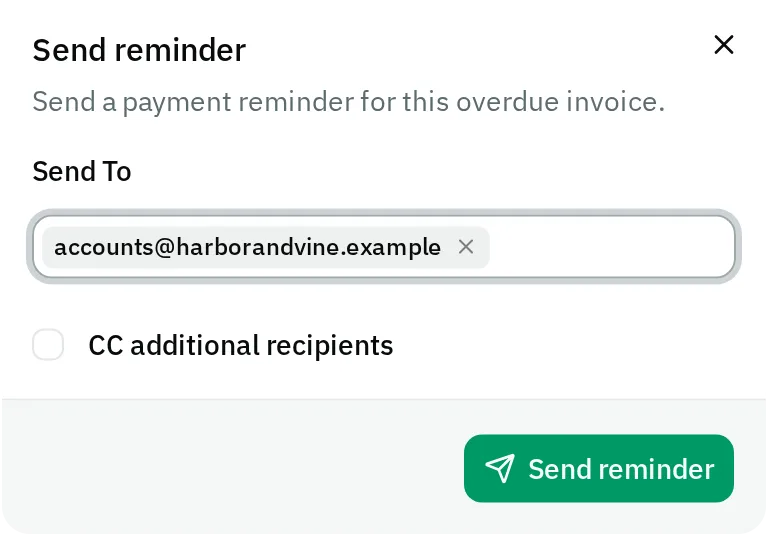
LazyBooks fills in Send To with the addresses of the last email of the invoice. If the invoice has no email yet, it uses the email address of the customer.
The to-do list on the Home page can also send reminders for your overdue invoices. See Home page. The assistant can send reminders too. See Ask the assistant.
Void an invoice
- Open the invoice.
- Click Void invoice.
- In the dialog, click Void invoice.
You cannot undo this. You cannot void a paid invoice, or an invoice while an online payment of it is going through or clearing. A Stripe payment page that your customer opened and left does not stop the void: LazyBooks closes it. A draft has no Void invoice button. To remove a draft, delete it. See Delete a draft.
The void takes the unpaid amount back out of your books on the day you void it. Your reports for earlier days do not change.
The payments that you received stay in your books after the void. If you recorded a payment by mistake, undo it before you void the invoice. After the void, you cannot undo a payment.
Refund a payment
If your customer paid online, the page of the invoice has a Refund payment button, also when the invoice is open or void. Click it, and then click Refund payment in the dialog. You cannot undo a refund.
Stripe sends the money back to your customer. The refund can take 5 to 10 days to arrive. Stripe does not return its processing fee. The invoice keeps its status, and it shows the refund under Refunded.
How payments show up in your books
When you send an invoice, LazyBooks records the amount that your customer owes in Accounts Receivable. This record does not show in Transactions, and your reports do not change yet. Your reports count income on the day that you are paid, not on the day that you send the invoice.
When a customer pays online, LazyBooks adds an approved transaction with the description Payment received for Invoice and the invoice number. The transaction records these amounts:
- The amount that Stripe pays you after its fee goes to Stripe Balance.
- The Stripe fee goes to Merchant Processing Fees.
- The payment amount comes out of Accounts Receivable, because your customer no longer owes it.
On the day of the payment, your reports count the invoice amount before tax as Revenue and the sales tax as Sales Tax Payable. For a part payment, they count the same share of each.
A payment that you record, by check, cash, or a matched bank transfer, works the same way on the day that you received it. The money waits in Payments to Deposit until its bank deposit comes in.
These are the default names of the accounts. If you renamed them, LazyBooks uses the same accounts with their new names.
An online payment shows the invoice in the Category column of Transactions. You cannot change that category or delete the payment. To give the money back, refund the payment. See Refund a payment.
LazyBooks dates card payments, refunds, and payouts on their day in the time zone of your organization. A refund is never dated before the payment that it refunds. To change it, see Change the time zone.
A refund adds an approved transaction with the description Refund issued for Invoice and the invoice number. It takes the amount out of Stripe Balance and records it in Returns & Refunds. If the payment that you refund included sales tax, the refund takes back the same share of that tax from Sales Tax Payable. For example, a refund of half of the payment takes back half of its tax. A payment that included no sales tax, such as an extra payment of an already-paid invoice for less or more than its total, takes none back, and the whole refund goes to Returns & Refunds.
When Stripe pays out to your bank account, LazyBooks adds an approved transaction for the payout. It moves the amount from Stripe Balance to Transfers in Transit. Transfers in Transit holds money that left one account and did not reach the other yet. LazyBooks matches the payout with the deposit in your bank account as a transfer when one deposit fits. If it does not find one, match them yourself. See Transfers and matching.