Use the Home page
Read the summary of your month on the Home page and work through the tasks that need you today.
After setup is done, your organization opens on the Home page. The page shows a summary of this month and a to-do list of the tasks that need you today.
Read the summary cards
To open the Home page from another page, click Home in the sidebar. The top of the page greets you and names the current month. Under the greeting, three cards summarize your books. Each card opens a page with the details when you click it.
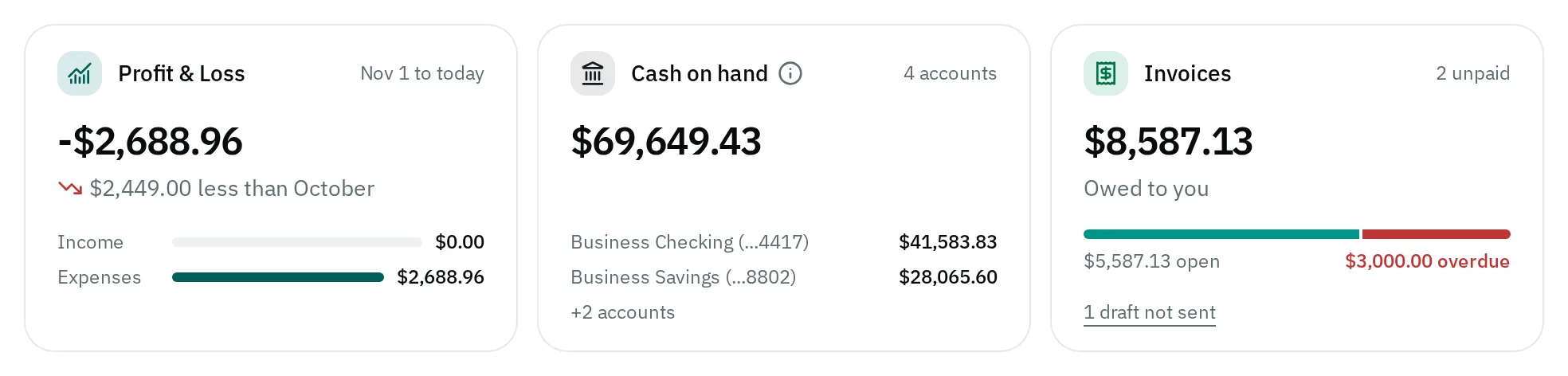
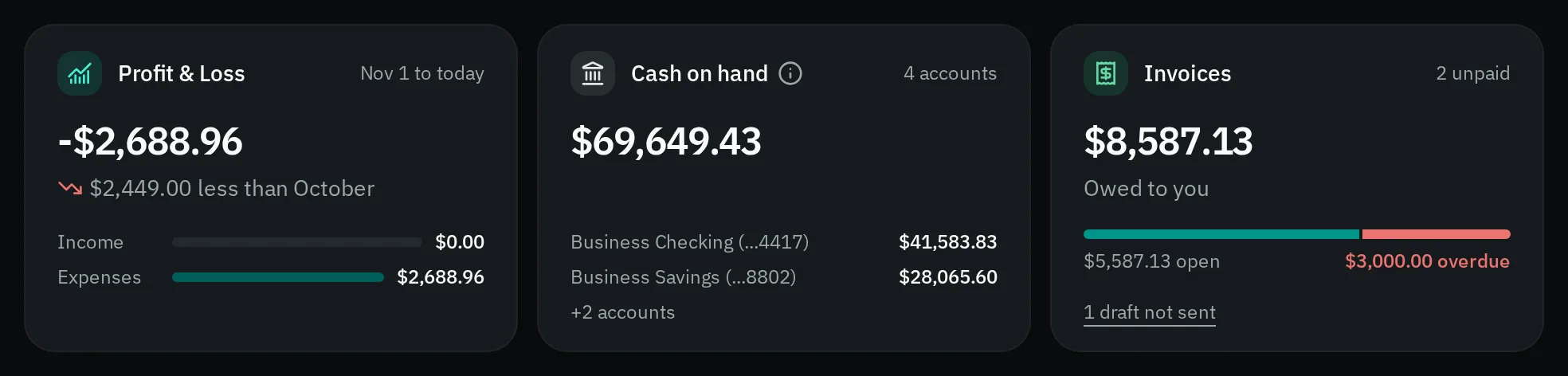
- Profit & Loss shows your net profit from the first day of this month to today. Under the amount, it compares your net profit with the same days of last month. Bars show your income and your expenses. Click the card to open the Profit & Loss report for this month.
- Cash on hand shows the total balance of your bank and cash accounts, with the largest accounts listed. Click the card to open the Cash Flow report.
- Invoices shows the amount that customers owe you, split into open and overdue. A line under it counts the drafts that you did not send. Click an amount or a line to see those invoices, or click the card to open all invoices.
The Profit & Loss and Cash on hand cards count approved transactions only. Until you approve your new transactions, these amounts can be different from your bank. See Review and approve transactions.
If you approved no transactions this month, the Profit & Loss card shows Go to Transactions. If you have no invoices, the Invoices card shows Create an invoice.
Work through the to-do list
The To do list shows the tasks that need you today. Each task has a button that does the task or opens the page for it. When you finish a task anywhere in LazyBooks, it leaves the list.
The list puts tasks into groups:
- Fix these first has the tasks that block your other work. Examples are a bank connection that needs you to sign in again, or an opening balance to confirm. See Fix a bank connection and Verify opening balances.
- Your daily upkeep has the regular work. Examples are transactions to approve, transactions that need a category, statements to reconcile, and overdue invoices. Sales tax returns and prepayments that are due within 14 days, or past due, are there too. So are filed returns that changed later, and returns that you filed outside LazyBooks whose payment LazyBooks has no record of: record what you paid, so your books show them paid. If your books already took payments off the account of that agency after those returns ended, the list asks you instead to link them to their returns on the Past payments page. See Link payments that are in your books and File and track sales tax returns.
- Done today lists the work that you finished today, on this page or anywhere in LazyBooks.
When no task is left, the list shows You're all caught up.
Approve transactions from the Home page
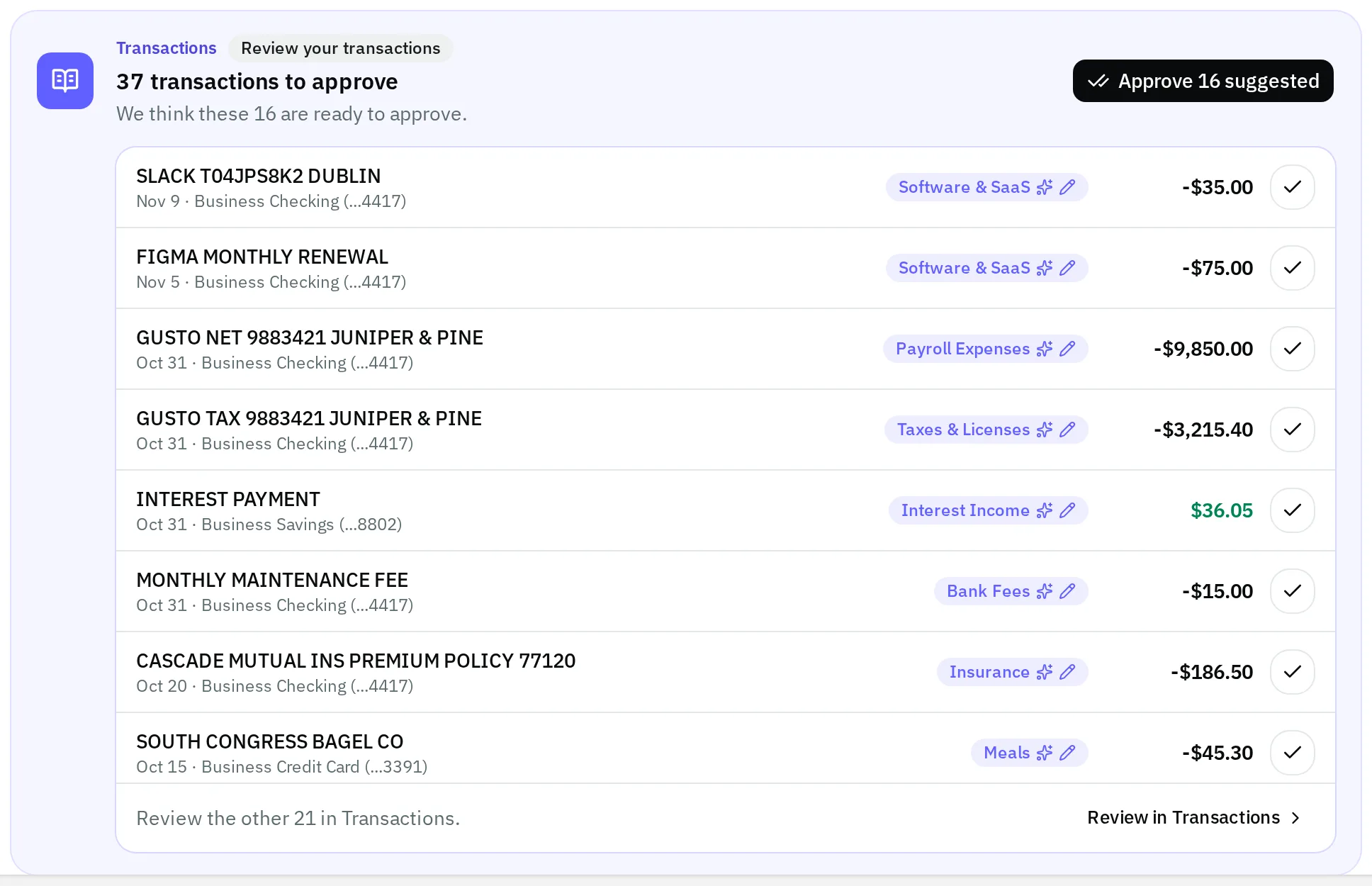
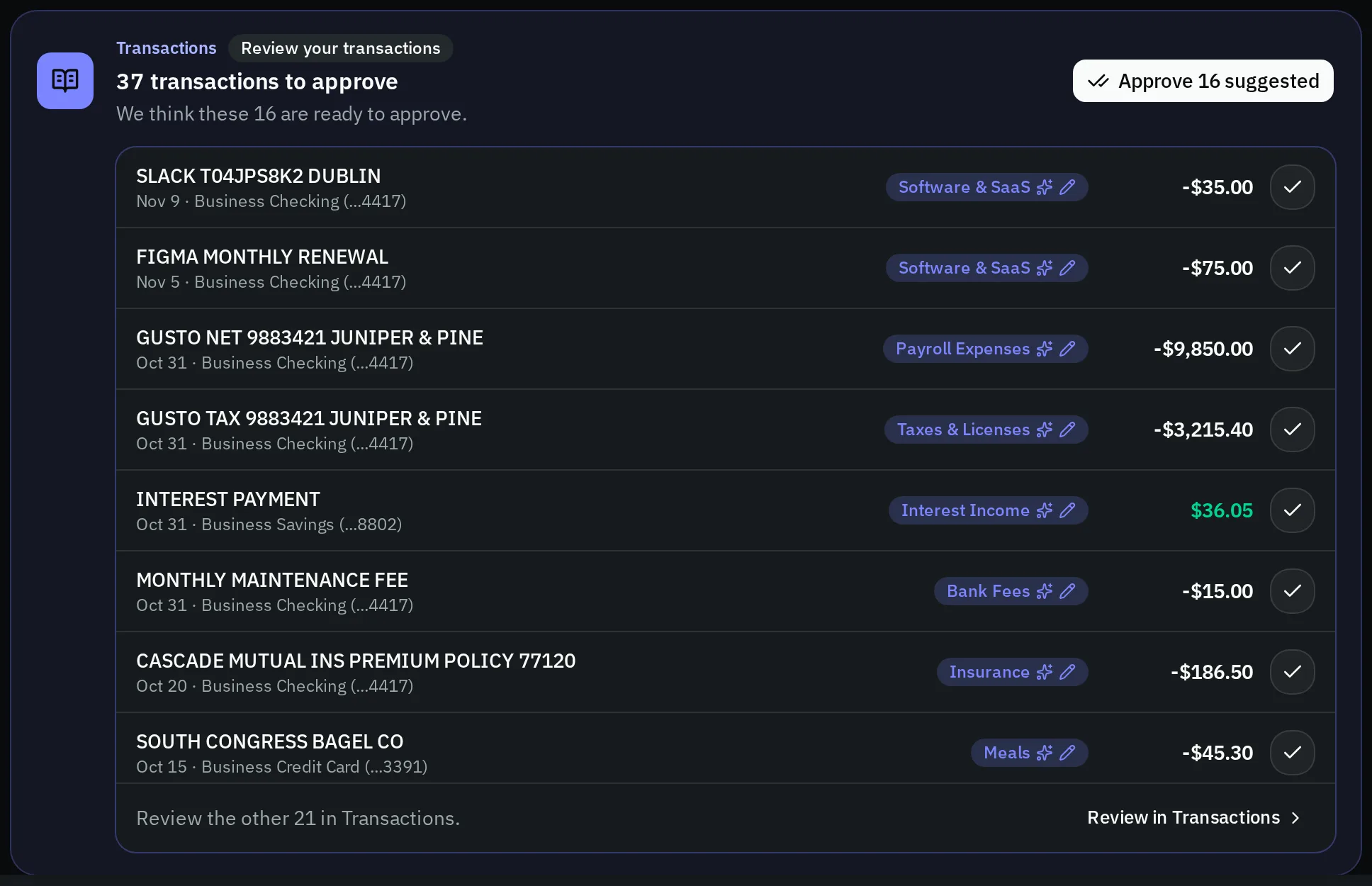
When LazyBooks is sure of the category of some transactions, the to-do list shows them in a panel. You can approve them without leaving the Home page.
- Scroll through the panel.
- Look at the category of each transaction.
- If a category is wrong, click the category and choose another one.
- Click the approve button at the top of the task, for example Approve 12 suggested.
The approve button approves every transaction in the panel. This includes the rows that you must scroll to see. The number on the button counts these rows. The panel holds up to 100 transactions. If more are ready, the task says how many the panel shows.
The button does not approve the other transactions that wait for review. The line under the panel counts them. To review them, click Review in Transactions. See Review and approve transactions.
To approve one transaction only, click the check mark at the end of its row.