Create your account
Sign up for LazyBooks with your email address, enter the code from your email, and add a passkey.
You create a LazyBooks account with only your email address. Instead of a password, you sign in with a code from your email or with a passkey.
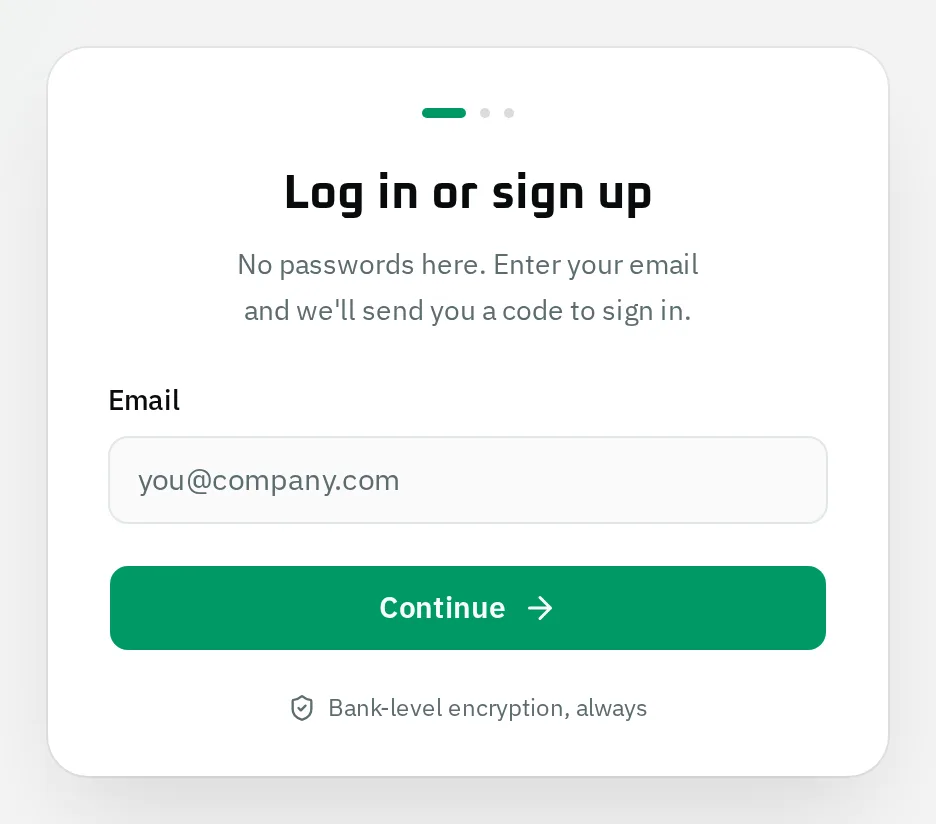
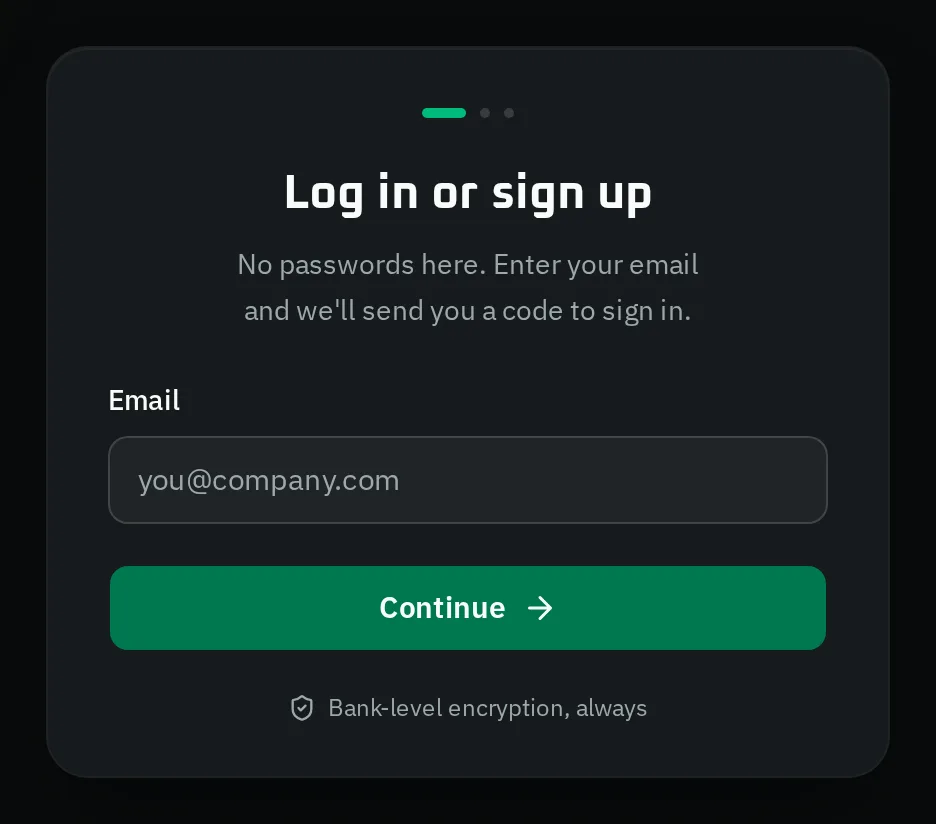
Sign up with your email
The Log in or sign up page is the same for new and existing accounts. If no account uses your email address, LazyBooks creates one when you continue.
- On the LazyBooks website, click Get started.
- In Email, type your email address.
- Click Continue.
When you continue, you agree to the LazyBooks Terms of Service. The links to the terms and the Privacy Policy are at the bottom of the page.
In Québec, the European Economic Area, the United Kingdom, and Switzerland, analytics and detailed browser diagnostics start off. They also start off in Canada when LazyBooks cannot tell your province. In these places, a Privacy choices prompt shows at the bottom of the page. Choose Essential only to keep both off, Allow both to turn both on, or Customize to choose either one. Both start on in every other place, with one exception. If your browser sends a Global Privacy Control signal from a US state whose privacy law recognizes that signal, Google Analytics starts off. Google Analytics also starts off when the signal comes from the United States and LazyBooks cannot tell your state. The signal does not change the record of how you found LazyBooks, which the Privacy Policy describes. You can change these settings under 9. Cookies and privacy choices in the Privacy Policy.
Enter the code from your email
LazyBooks sends you an email with the subject "Your authentication code". The sign-in code in the email has six letters and numbers. It works for 10 minutes.
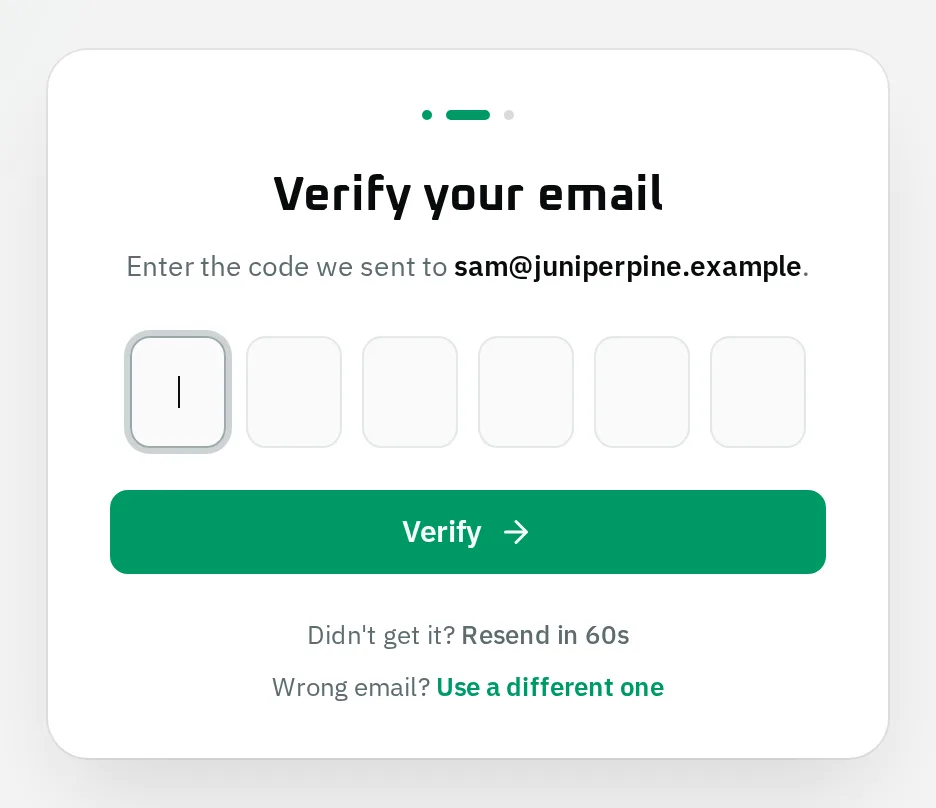
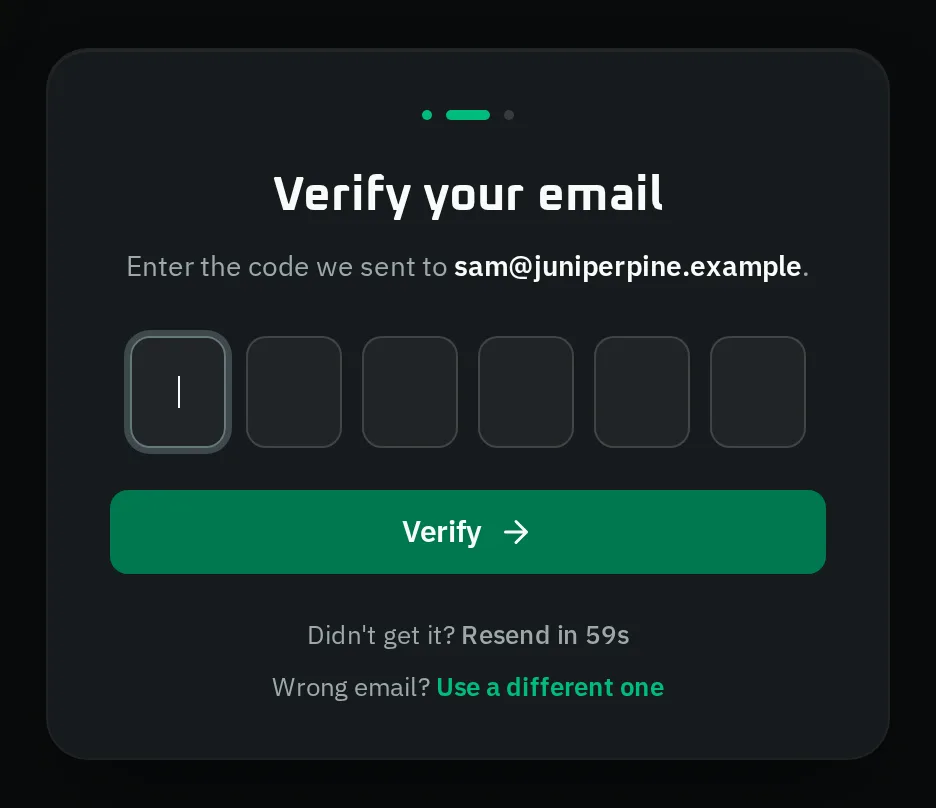
- Open the email from LazyBooks.
- On the Verify your email page, type or paste the code.
- Click Verify.
If the code is wrong or older than 10 minutes, the page shows "Invalid or expired code. Please try again." Ask for a new code and type the new one.
If the email does not arrive, click Resend code. You can ask for a new code one minute after the last one. Until then, the button counts down the seconds.
If you typed the wrong email address, click Use a different one.
Add a passkey
A passkey lets you sign in with Face ID, Touch ID, or the PIN of your device instead of a code. After you enter the code, LazyBooks shows the Add a passkey page if your account has no passkey yet.
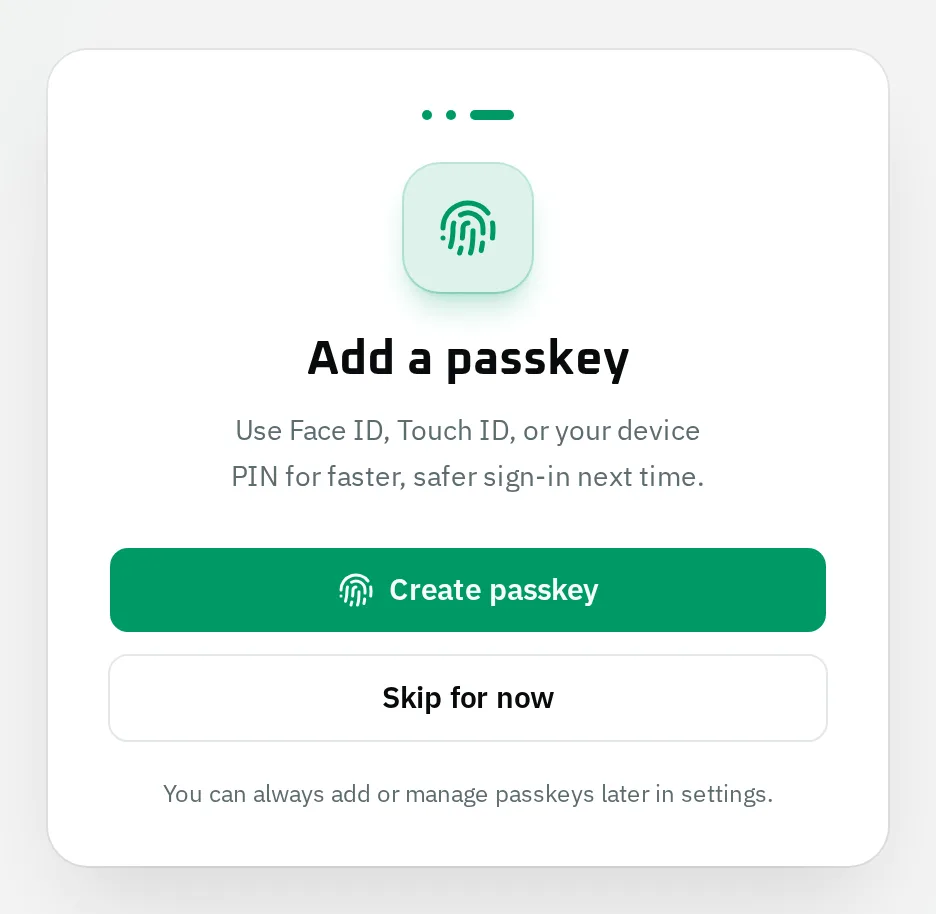
- Click Create passkey.
- Follow the prompt of your browser or device.
To continue without a passkey, click Skip for now. LazyBooks asks again each time you sign in with a code, until your account has a passkey. You can also add a passkey later. See Manage your profile and sign-in.
Sign in again later
- On the LazyBooks website, click Log in.
- In Email, type your email address.
- Click Continue.
- If your browser asks for your passkey, use your passkey.
If your account has no passkey, your browser does not ask for one. LazyBooks sends a code to your email at once and opens the Verify your email page. Type the code and click Verify, as in Enter the code from your email.
If you cancel the passkey prompt, LazyBooks sends a code instead. If the page shows an error about your passkey, click Continue again to get a code.
After you sign in for the first time
LazyBooks asks for your name and then helps you set up your first organization. See Set up your organization.
If someone invited you to their organization, open the link in the invitation email first. See Accept an invitation.