Manage your profile and sign-in
Change your name and profile image, add or remove passkeys, and sign out.
Your account settings belong to you, not to an organization. They hold your name, your profile image, and the passkeys that you sign in with.
Open your account settings
- In the sidebar, click Settings.
- Under Account, click Profile or Login & Security.
Your settings open in a panel over the page that you were on. If you reload the page, the panel stays open. The left side of the panel lists the pages in three groups. Organization has the settings of the organization that you are in: General, Branding, Projects, Team, and Rules. Account has Profile, Login & Security, Billing, and Privacy choices. Integrations has Connected Apps. Only the owner and admins see General, Branding, and Projects. Everyone in the organization sees Team and Rules. See Create rules. To close the panel, click the X or press Escape.
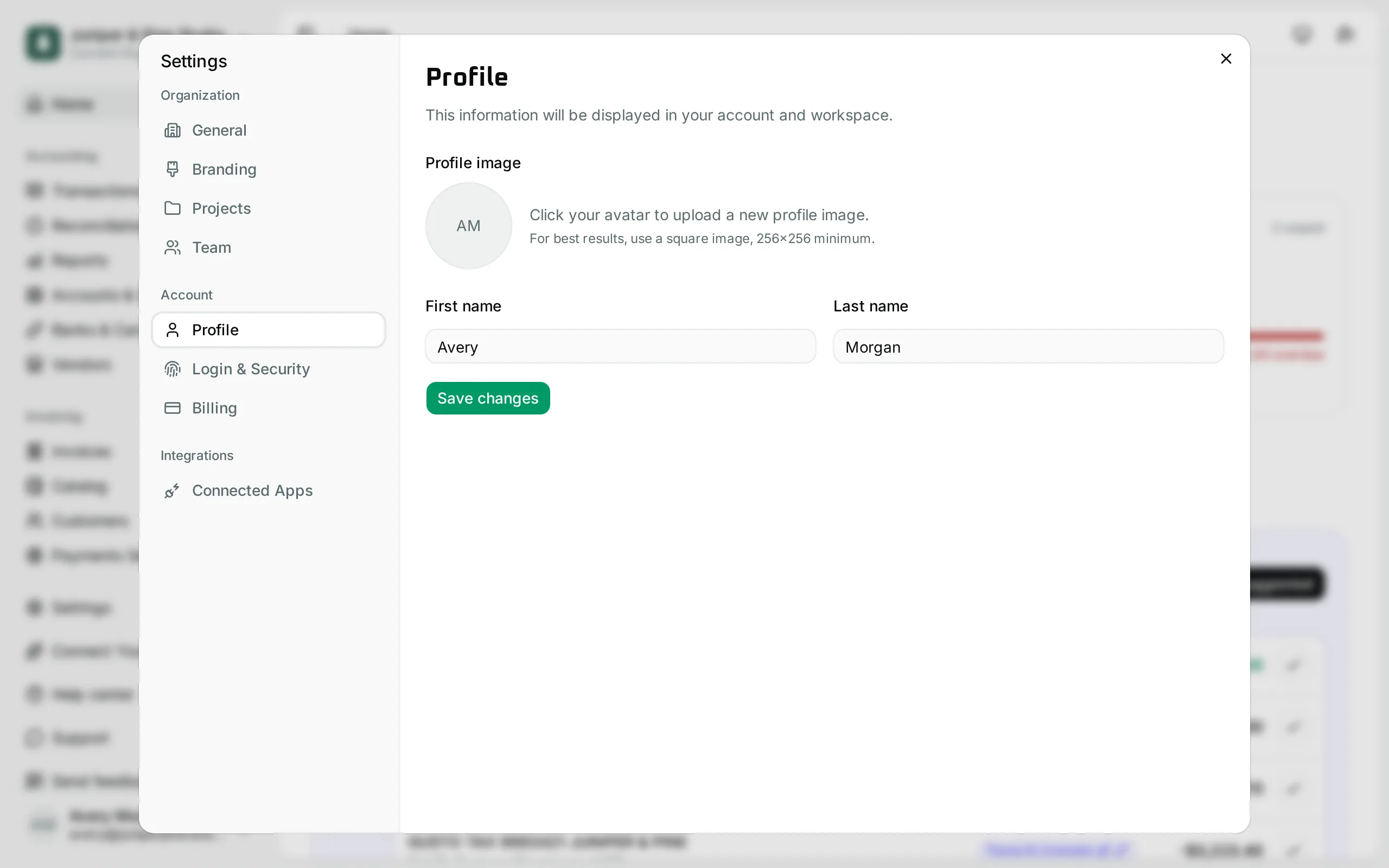
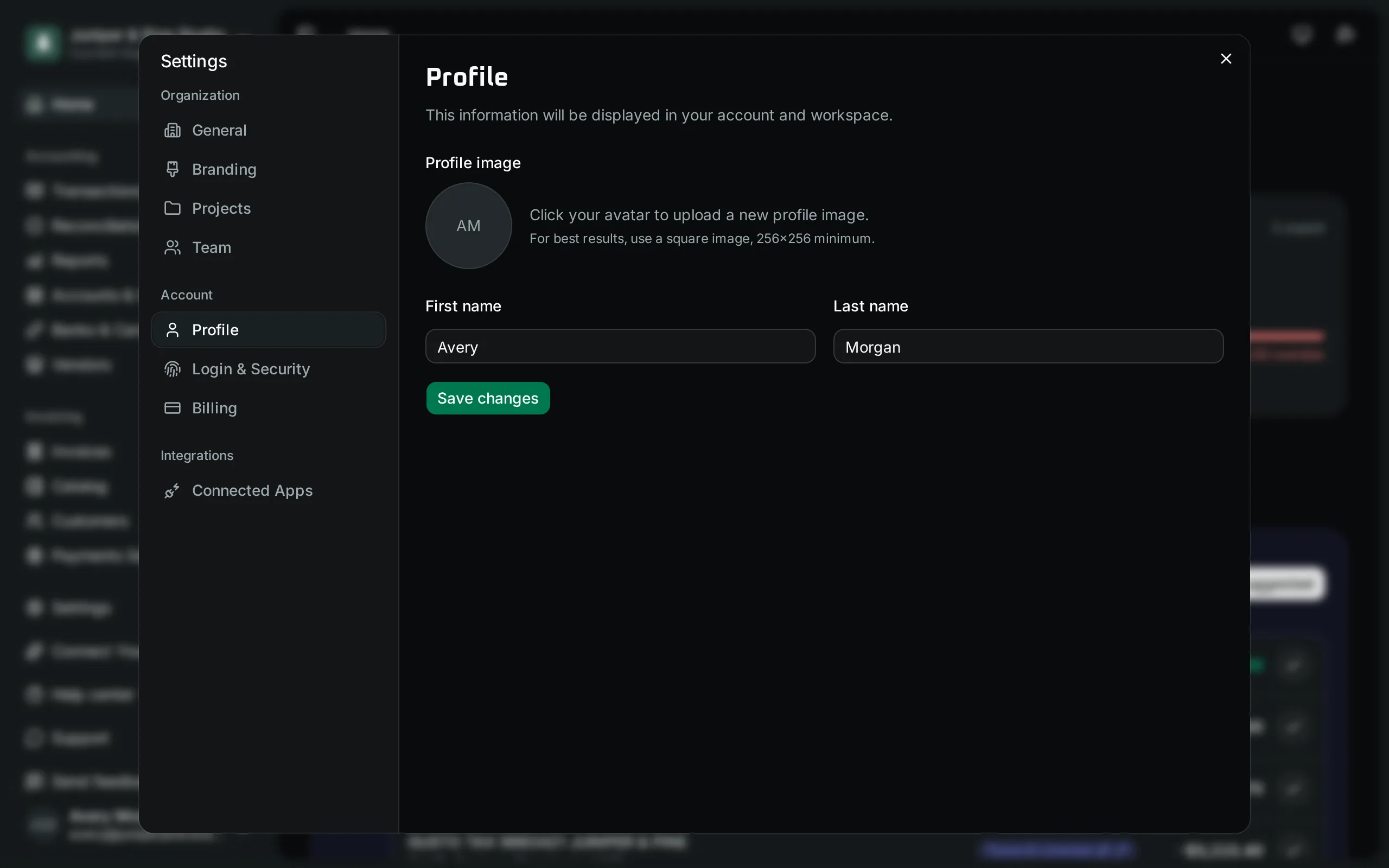
On a phone, your settings open as a sheet with the list of pages. Tap a page to open it. To go back to the list, tap Settings.
A link to a settings page, for example one that you get in an email, opens the full settings page. To go back to your books from there, click Back to and the name of your organization at the top of the page.
Connected Apps lists the apps, such as Claude or ChatGPT, that can access your LazyBooks data. See Connect your AI.
Manage privacy choices
- Click Settings.
- Under Account, click Privacy choices. The Privacy Policy opens.
- Select the options that you want for analytics and detailed browser diagnostics.
- Click Save privacy choices.
The choices apply to this browser.
If a Global Privacy Control signal from your browser turned Google Analytics off, a notice shows above the options. A choice that you save replaces the signal.
For a request about your personal information, such as access, correction, or account deletion, email support@lazybooks.com.
Change your name and profile image
The Profile page holds the name and the image that LazyBooks shows in your account and in your organizations.
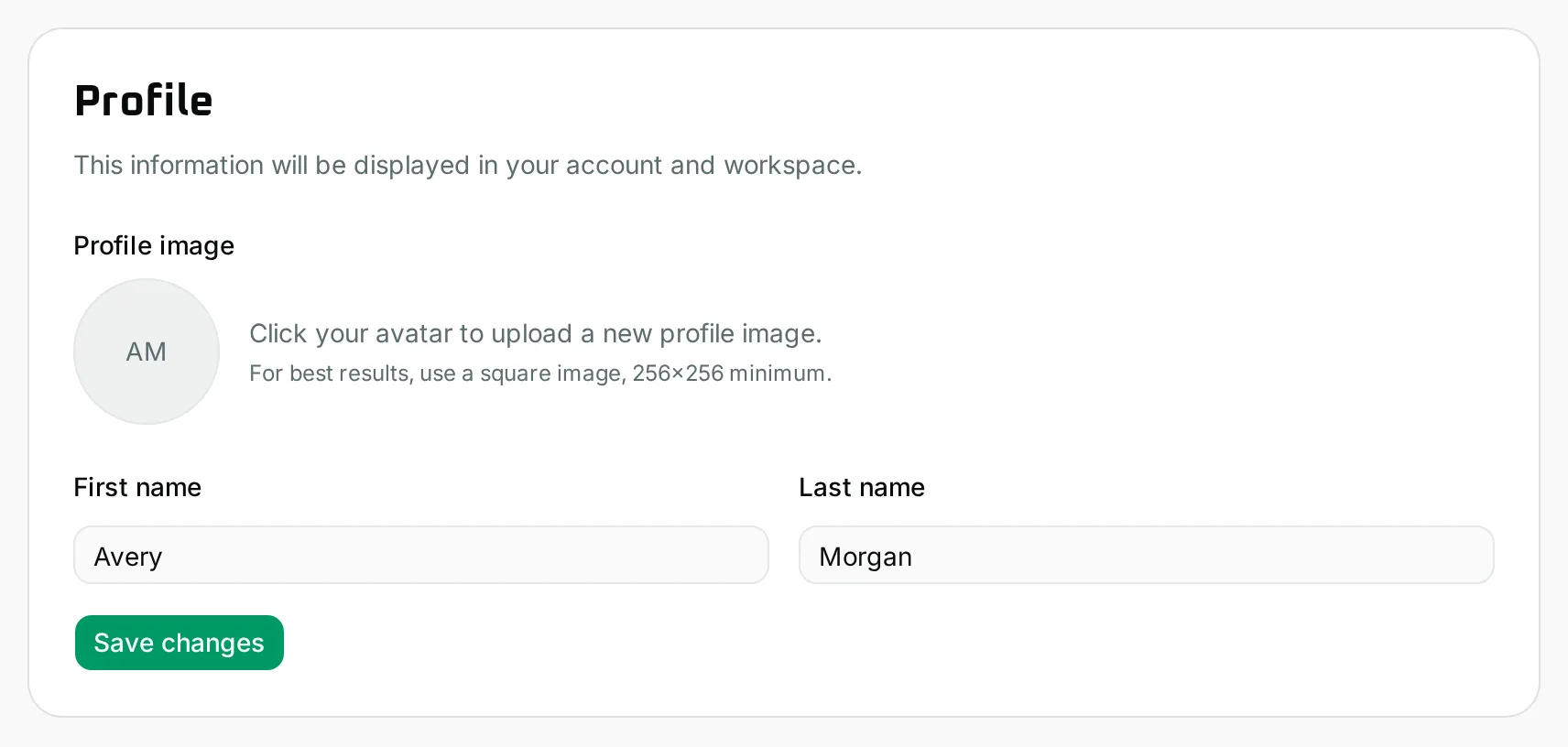
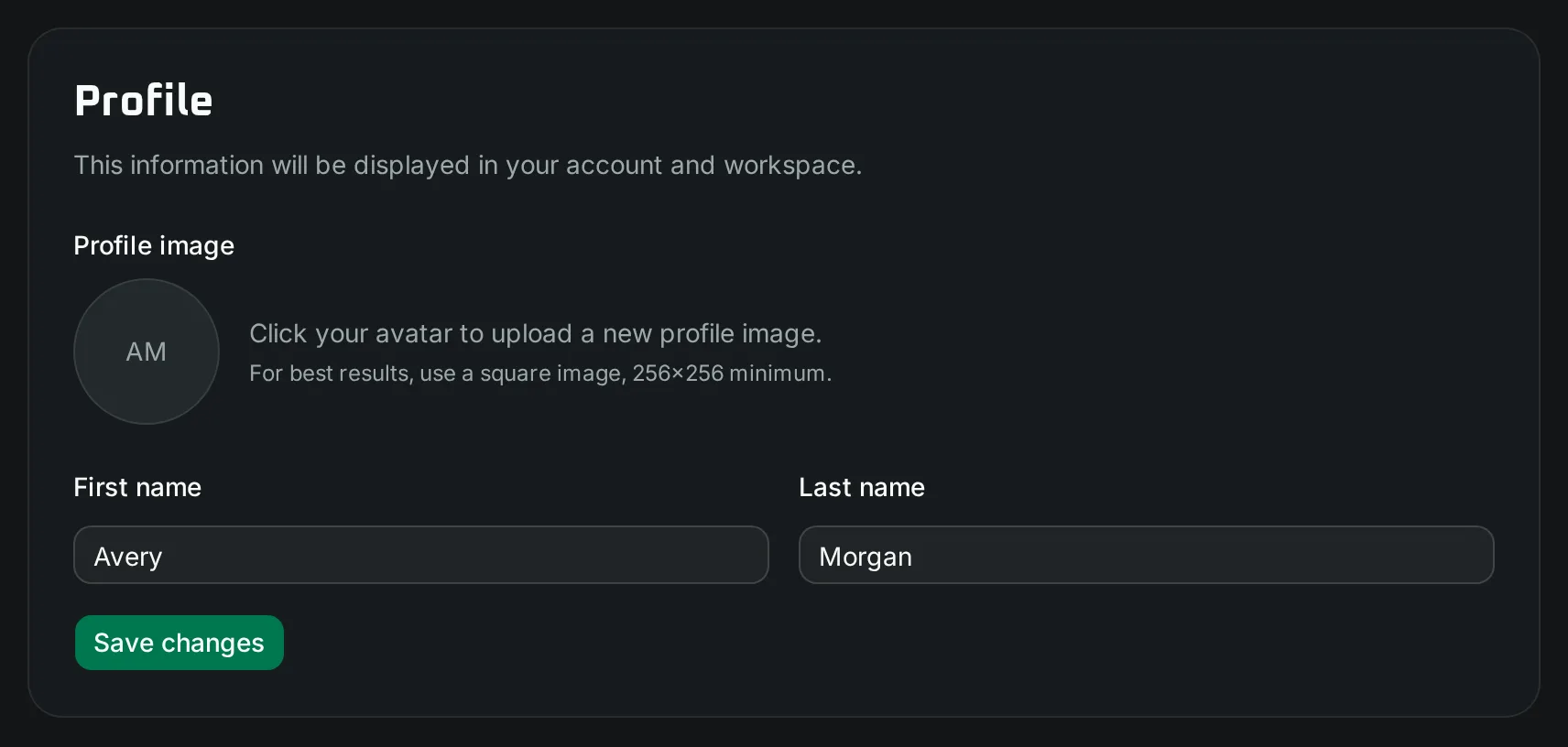
- To change the image, click your avatar and choose an image.
- To change your name, type it in First name and Last name.
- Click Save changes.
LazyBooks crops the image to a square. For best results, use a square image of at least 256 × 256 pixels. The Profile page does not change your email address.
Add a passkey
A passkey lets you sign in with Face ID, Touch ID, a security key, or another device instead of a code from your email. Add a passkey on each device that you sign in from.
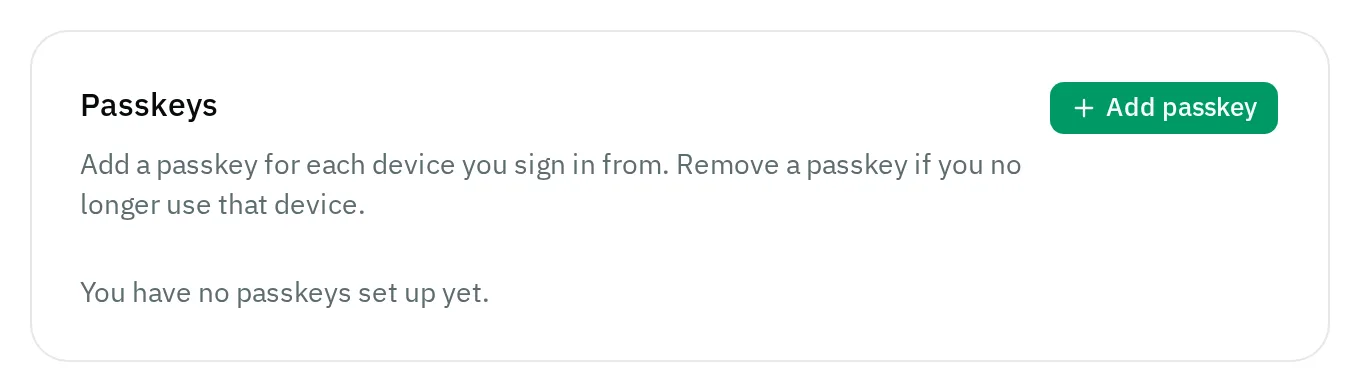
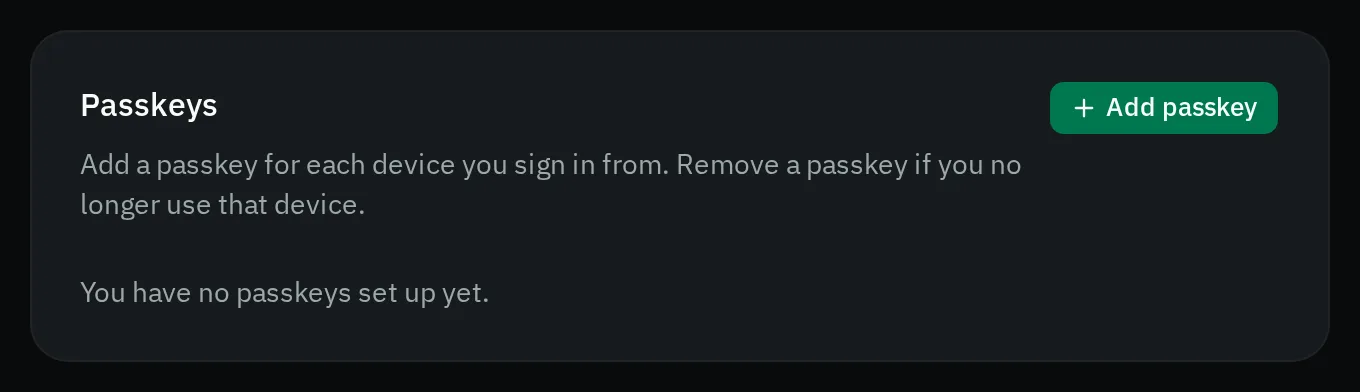
- Click Login & Security.
- In the Passkeys card, click Add passkey.
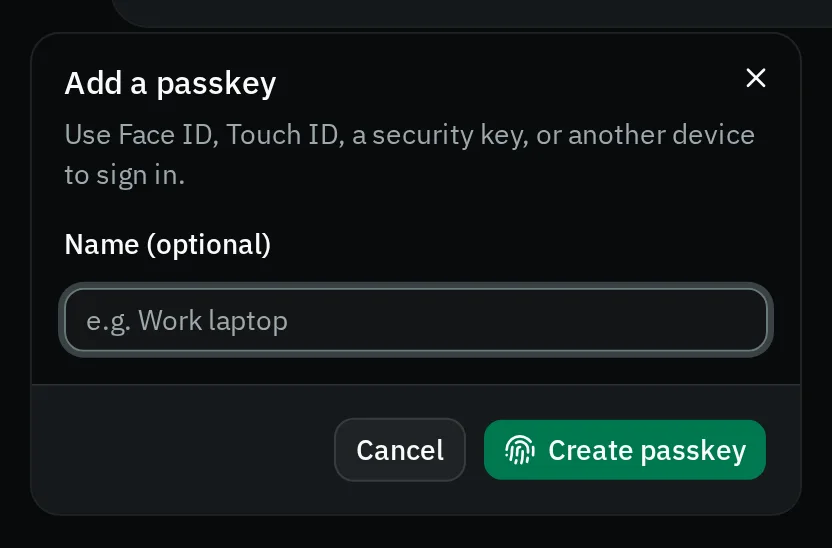
- If you want, type a name for the device in Name (optional), for example Work laptop.
- Click Create passkey.
- Follow the prompt of your browser or device.
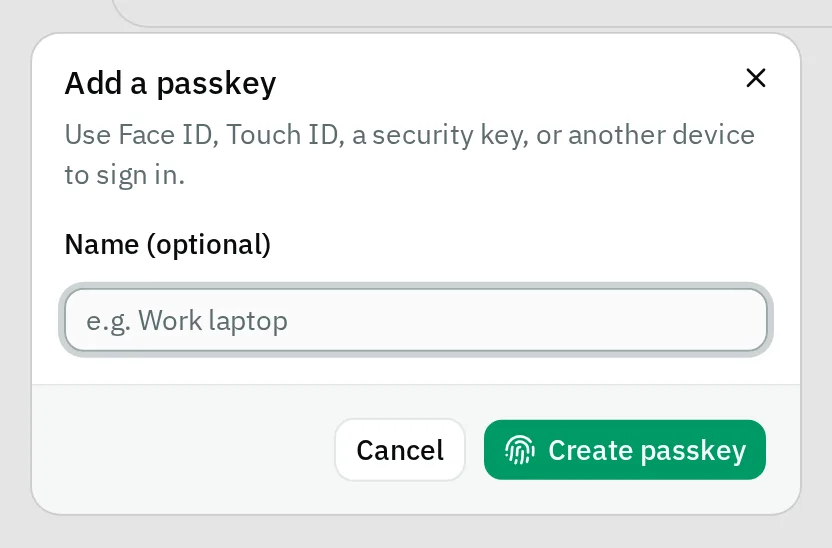
You can add a passkey only in the first 10 minutes after you sign in. If you signed in earlier, the dialog shows Sign out to sign in again after you click Create passkey. Click it, sign in again, and then go back to Login & Security.
If the device already has a passkey for your account, LazyBooks shows "This device already has a passkey for your account."
Remove a passkey
The Passkeys card lists each passkey with the date that you created it and the date that you last used it.
- Click Delete next to the passkey.
- Click Delete passkey.
You cannot use that passkey to sign in again. You can still sign in with a code from your email.
Sign out
- Click your name at the bottom of the sidebar.
- Click Log out.
LazyBooks signs you out on this device only. To sign in again, see Create your account.