Delete an organization
Permanently delete an organization and all of its data, and learn what happens to your subscription.
You can delete an organization that you no longer need, but you cannot undo a deletion. Only the owner of the organization can delete it.
What deleting does
When you delete an organization, LazyBooks deletes all of its data. This includes the transactions, invoices, bank connections, and team members. LazyBooks also disconnects its banks and closes its Stripe account.
Deleting an organization does not cancel your subscription:
- If you own other organizations, the subscription stays active for them.
- If it is your last organization, the subscription keeps running without it. To stop paying, cancel the subscription. See Manage billing and your subscription.
If Stripe still holds money for the organization, or a payout to your bank did not arrive yet, you cannot delete the organization. Wait until the money arrives in your bank, then try again.
Delete the organization
- In the organization menu at the top of the sidebar, open the organization that you want to delete.
- In the sidebar, click Settings, then click General.
- At the bottom of the General page, find the Delete organization card.
- Click Delete organization.
- In the dialog, type the name of the organization exactly as it shows.
- Click Delete organization.
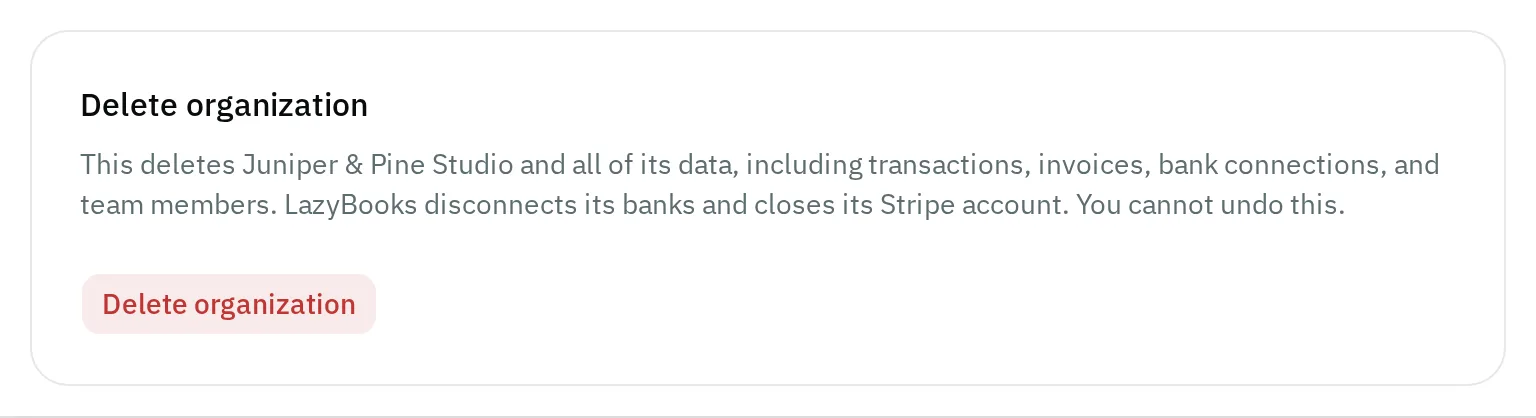
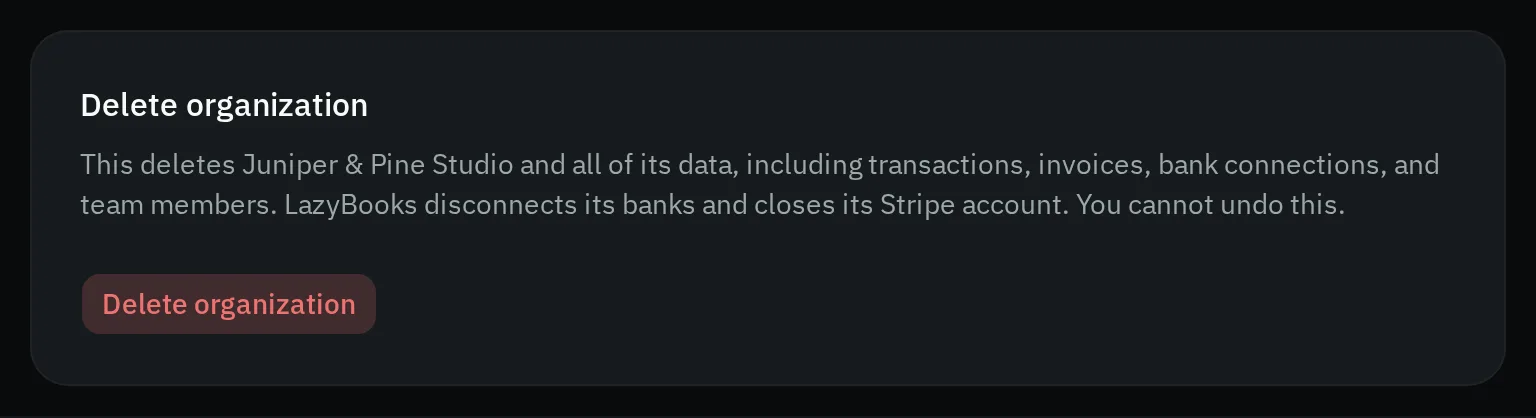
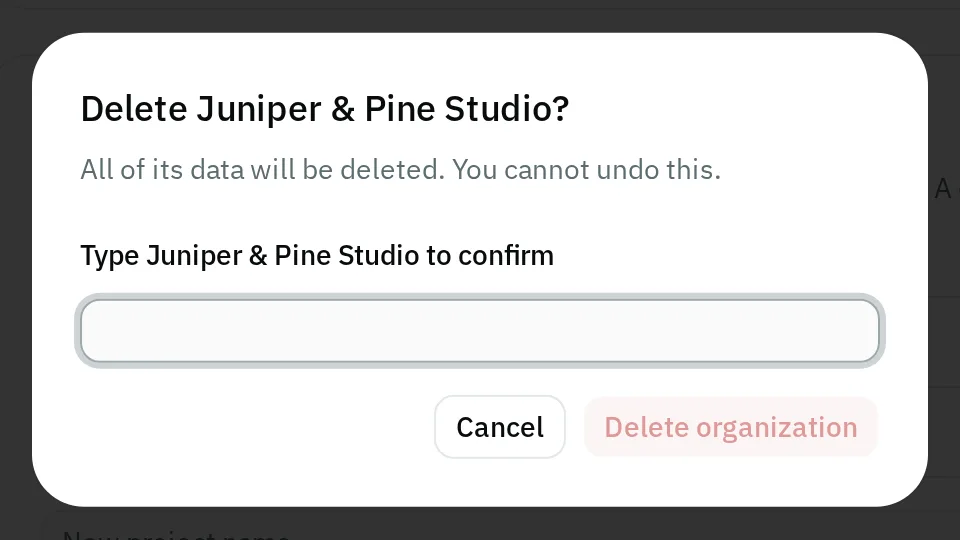
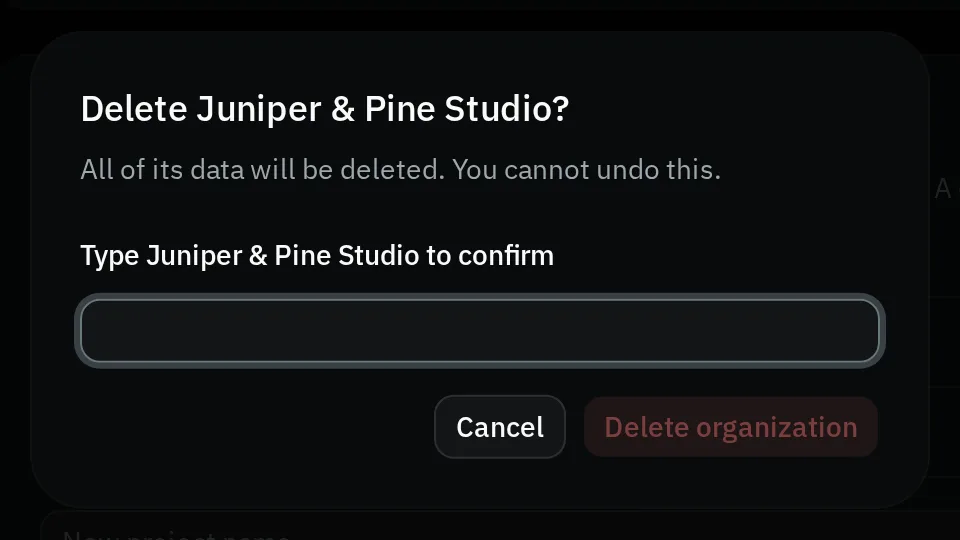
You can click Delete organization in the dialog only after the name matches. After the deletion, LazyBooks opens one of your other organizations. If you have no other organization, LazyBooks asks you to set up a new one.
Delete a locked organization
If an organization is locked because a payment failed or your subscription ended, you can still delete it.
- Open the organization. LazyBooks opens your Billing page instead.
- In the Organizations card, click Manage or delete next to the organization.
- Follow the steps in Delete the organization from step 3.
Redo a QuickBooks import
To redo a QuickBooks import, delete the organization, then create a new one. The new organization asks about QuickBooks again, so you can upload new exports. See Move from QuickBooks.