Move from QuickBooks
Bring your chart of accounts and your full history from QuickBooks Online into a new LazyBooks organization.
If you keep your books in QuickBooks Online, you can bring them into LazyBooks. LazyBooks imports your chart of accounts and your full history from two QuickBooks exports. Then your bank connection brings in the activity after the day that you switch.
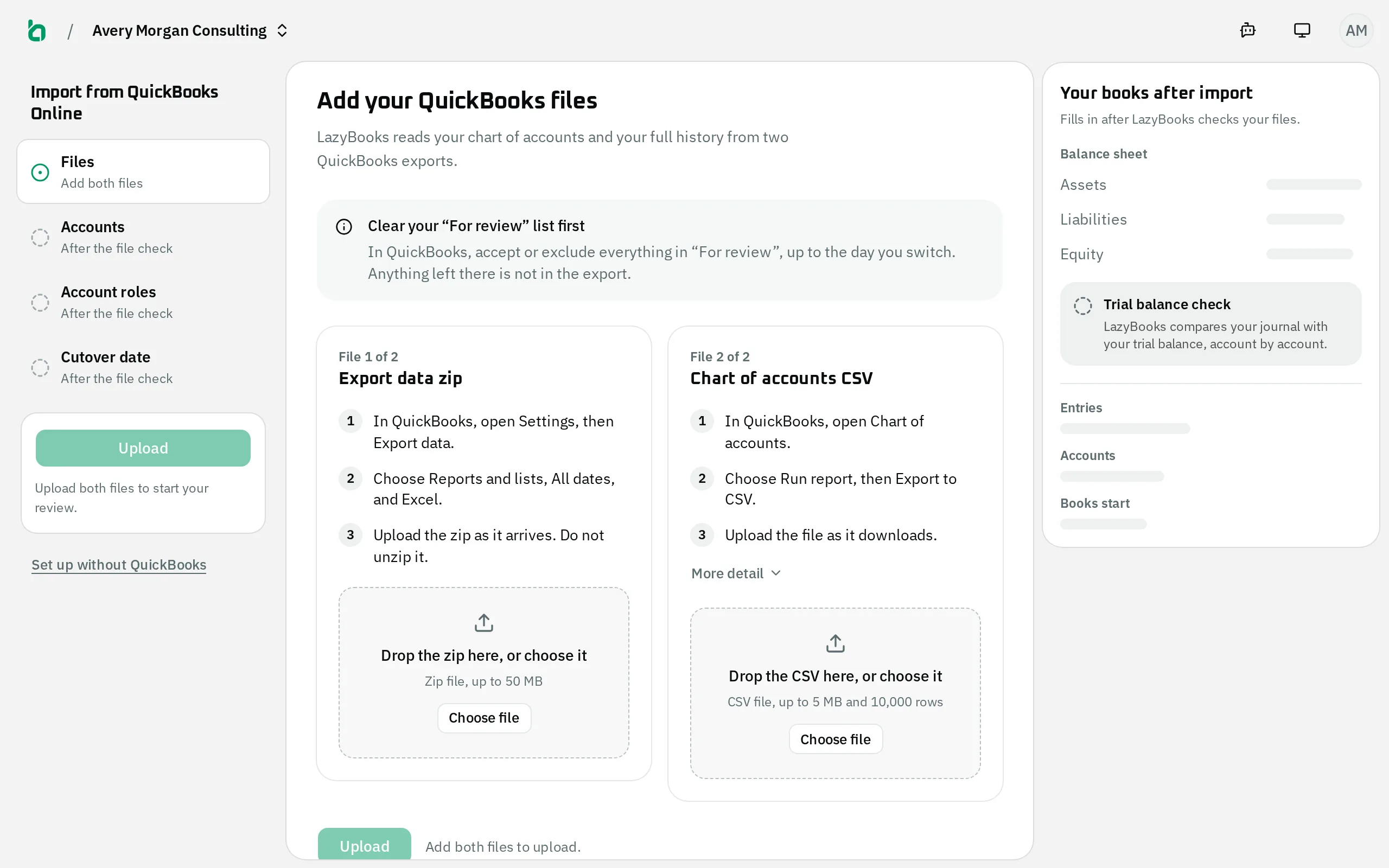
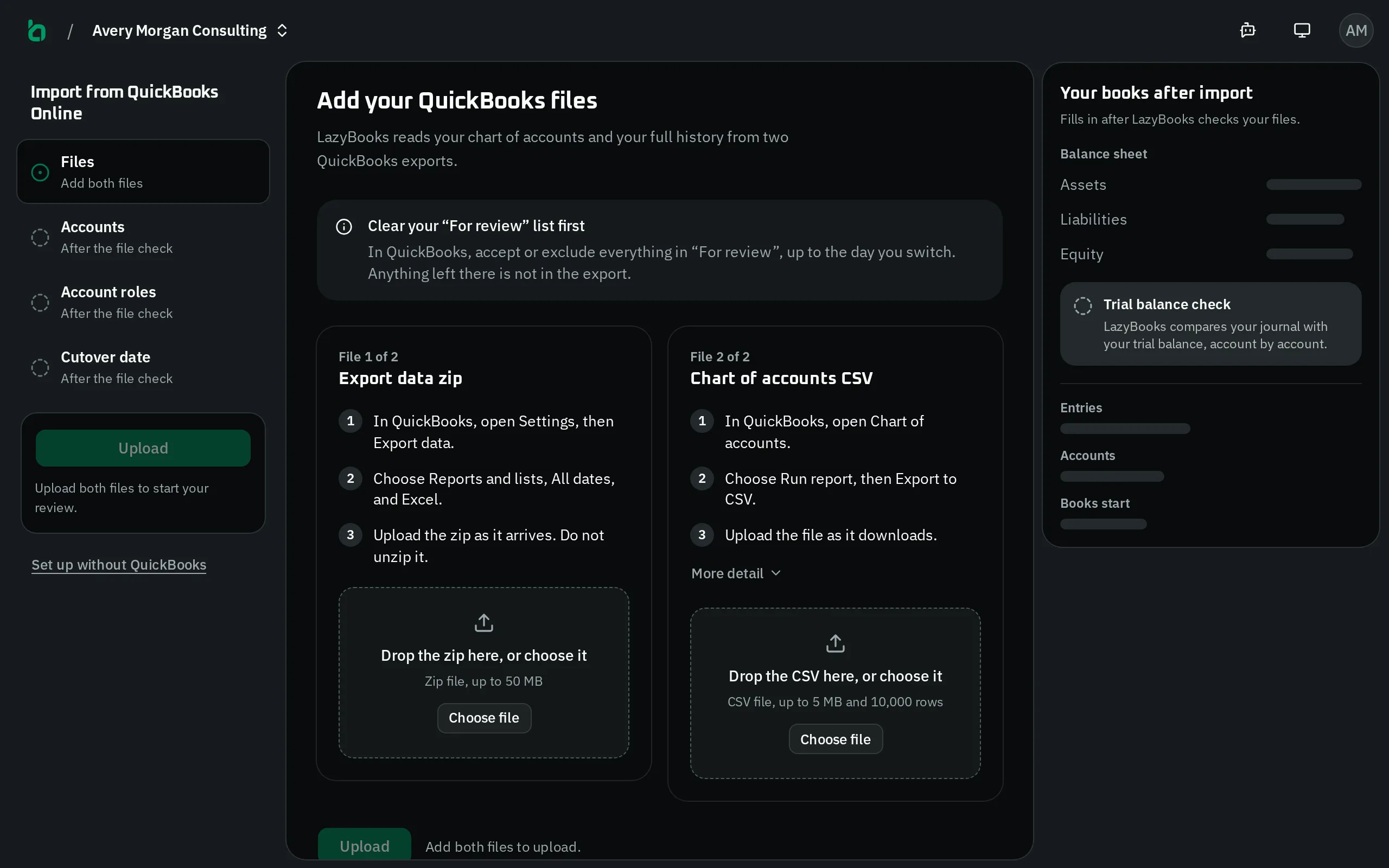
Choose QuickBooks when you set up the organization
You decide when you create the organization. LazyBooks asks Are you moving from QuickBooks Online?
- To import your books, choose Yes, bring my QuickBooks books.
- To start without QuickBooks, choose No, start fresh. You then pick the date your books start, and you connect your bank.
Choose Yes if you plan to import from QuickBooks. An organization that starts fresh cannot import from QuickBooks later. To import later, you must create a new organization.
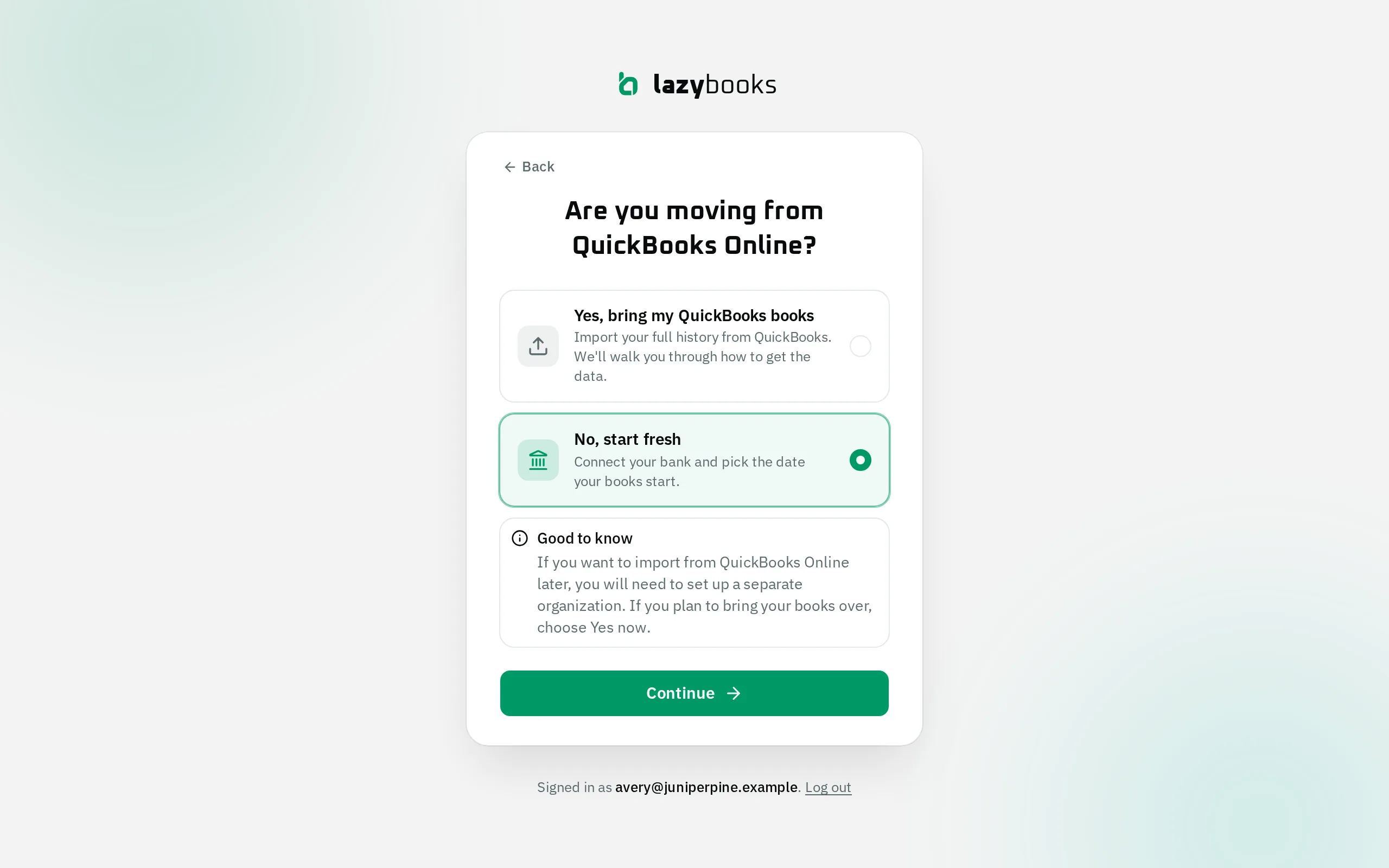
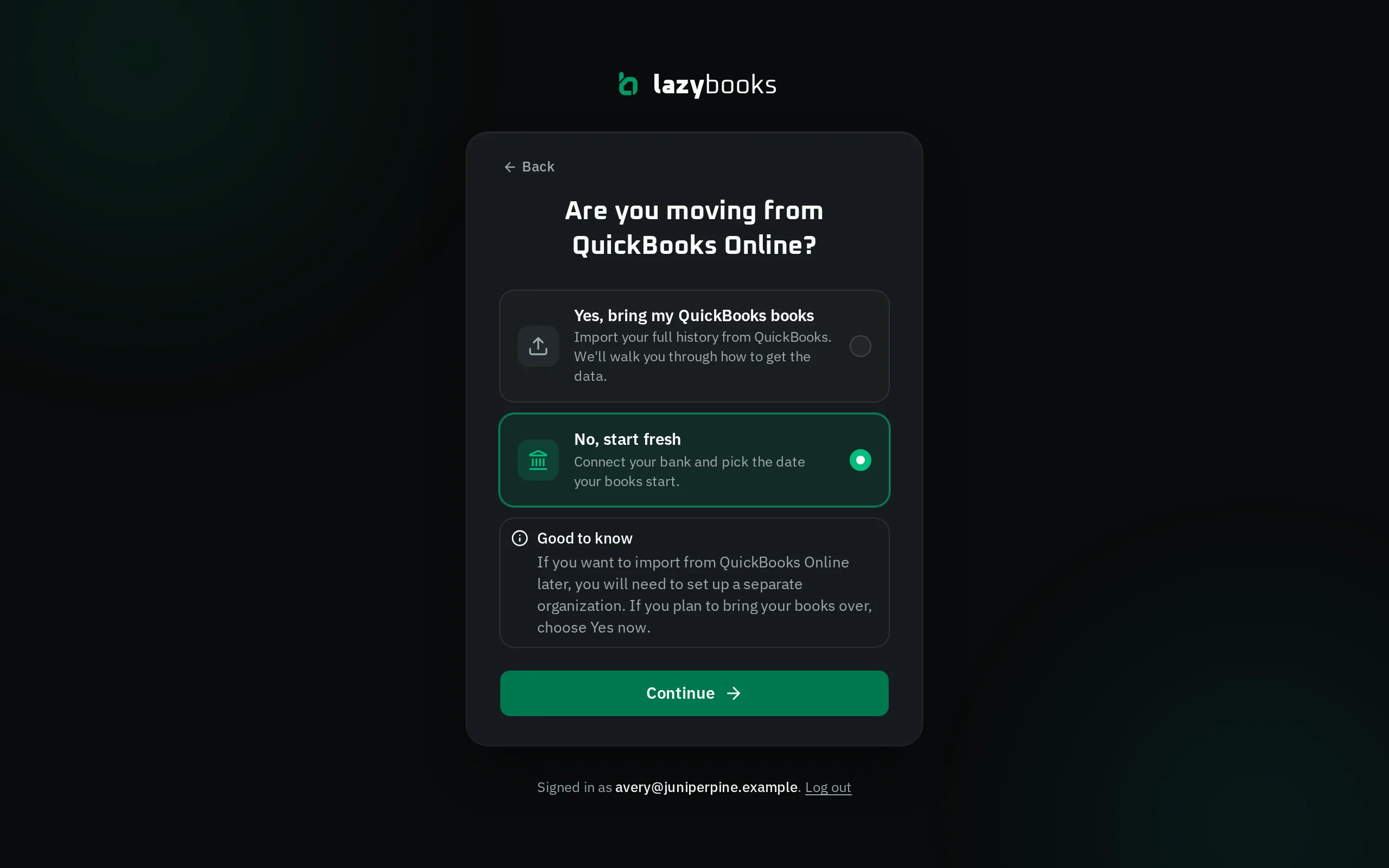
After you create the organization, LazyBooks opens the QuickBooks import. Every page of the organization opens the import until you finish it or leave it. For the other setup steps, see Set up your organization.
Export your books from QuickBooks
First, open QuickBooks and clear your For review list. Accept or exclude everything in it, up to the day that you switch. Anything that is left in For review is not in the export.
Then make two files:
- The Export data zip. In QuickBooks, open Settings, then Export data. Choose Reports and lists, All dates, and Excel. Do not unzip the file that you get.
- The chart of accounts CSV. In QuickBooks, open Chart of accounts. Choose Run report, then Export to CSV.
Do not open the CSV file in a spreadsheet app before you upload it. If you save it there, the app can change its format. LazyBooks reads the name, the account type, and the detail type of each account.
Upload the files
- On the Add your QuickBooks files page, drop the zip on the Export data zip card, or choose it.
- Drop the CSV on the Chart of accounts CSV card, or choose it.
- Click Upload. Keep the page open until the upload completes.
The zip can be up to 50 MB. The CSV can be up to 5 MB and 10,000 rows.
LazyBooks then reads and compares your files. For a long history, this takes about a minute. You can leave the page while it runs. LazyBooks makes sure that both files are for the same company, and that each account total equals your trial balance.
If LazyBooks finds a problem in your files, it tells you what to change. The page shows Your files need a fix or Your files need a few fixes. Fix the problem in QuickBooks, export the files again, and click Upload new files.
Your import stays open for 3 days after you upload. You can finish the review over several visits. Each choice that you make saves on its own. If you do not finish in 3 days, LazyBooks closes the import and deletes your files. Nothing is saved to your books, and you start again with new exports.
Review your books
The review has four sections. The list at the left of the page shows each section and what it still needs.
Files
This section tells you that your two files agree with each other, and shows what LazyBooks read from them. To go on, click Review accounts.
Accounts
Each QuickBooks account becomes an account in LazyBooks. Make sure that the kind of each account is correct.
- The Needs a type tab lists the accounts that need a kind. Choose one for each.
- The Suggested tab lists the accounts whose kind AI picked from the name and the QuickBooks account type. Change any kind that looks wrong.
- The Added by LazyBooks tab lists the accounts that LazyBooks adds for its own entries.
When every account has a kind, click Review account roles.
Account roles
LazyBooks posts some entries on its own, such as bank transfers, card sales, sales tax, and fees. For each of these, pick the account that the entries go to. The Needs a pick tab lists the roles that still need an account. When you are done, click Review cutover date.
Cutover date
The cutover date is the last day that QuickBooks covers. LazyBooks imports everything up to and including this day. Your books in LazyBooks start the next day, and your bank connection brings in the activity from then on.
- In Last day in QuickBooks, enter the date, or click one of the quick picks next to the field.
- Read how the date splits your history between QuickBooks and your bank feed.
The cutover date cannot be in the future. If your files have entries after today, LazyBooks leaves them out.
LazyBooks keeps cash-basis books. When an invoice or a bill is not paid on your cutover date, LazyBooks warns you. You can then do one of these:
- Pick a day on which everything is paid. LazyBooks suggests one when it can.
- Turn on Count unpaid invoices and bills when they’re paid. LazyBooks then leaves out the unpaid items, and counts each one when the money reaches your bank.
Import your books
- At the end of the Cutover date section, click Review and import. LazyBooks shows a summary of the accounts, the roles, and your balance sheet.
- Make sure that the summary is correct.
- Click Import.
The import takes about a minute. You can leave the page while it runs. When it ends, LazyBooks shows Your QuickBooks books are in LazyBooks and a list of what it changed.
Your bookkeeping start date is the day after your cutover date. The import sets this date. You cannot change it on the General page of the settings.
Unpaid invoices and bills when you upload your old books
When you upload your old books and LazyBooks reads them for you, it treats what is unpaid on the last day of your old books like this.
Invoices your customers still owe
When your old books have invoices that customers have not paid by the last day of your old books, LazyBooks asks which of them your customers still owe. It shows how much customers owe and on how many invoices. Choose one:
- All of them. Every unpaid invoice comes over as an open invoice, with its customer.
- Only the last 12 months. Only the invoices from the 12 months before the last day of your old books come over. LazyBooks offers this when some invoices are older than 12 months and some are newer.
- None of them. No unpaid invoice comes over.
LazyBooks brings over at most 5,000 open invoices at once, so it does not offer an answer that brings more.
An open invoice keeps its date and its number from your old books, when LazyBooks can use the number, and it has no due date. When a customer pays, match the bank deposit to the invoice, and the payment counts as income on the day it comes in. An invoice that was partly paid shows only what the customer still owes. An invoice that does not come over counts only if it is paid: LazyBooks counts it when the money reaches your bank.
After you choose, the review shows your answer, with Change to pick another one. When invoices come over, it also shows how many and what customers owe on them. For more about getting paid, see Get paid.
Unpaid bills
When a bill is not paid on the last day of your old books, or an amount owed to you has no customer, LazyBooks warns you. You can then do one of these:
- Pick another start date, on which everything is paid.
- Choose Count them when they are paid. LazyBooks then leaves out the unpaid amounts, and counts each one when the money moves.
Customers and paid invoices when you upload your old books
Your customer list comes over with the name, the contact name, the email, the phone, and the billing address of each customer. If you already have a customer with the same name in LazyBooks, LazyBooks keeps that customer as it is. An invoice for a job of a customer, which QuickBooks names like "Parent:Job", goes to a customer with that whole name.
Each invoice of a customer that was paid in full by the last day of your old books comes over as a paid invoice. It keeps its date, and its number when LazyBooks can use the number. The invoice page shows Paid in your old books with the day it was paid. LazyBooks does not ask about paid invoices. They do not change your books, because the payments are already in your transactions. A sales receipt stays a transaction and does not become an invoice. When LazyBooks cannot bring a paid invoice over, for example because the name of its customer is too long, its transaction still comes over.
The review shows how many customers and paid invoices come over.
Connect your bank after the import
- On the page that ends the import, click Connect your bank.
- Click Connect a bank, and sign in to your bank in the Plaid window.
- In the Confirm accounts to connect dialog, choose the imported account for each bank account.
- Click Confirm and connect.
LazyBooks suggests the imported account for each bank account:
- Matched by account number means that the name of the imported account has the last digits of the bank account.
- Suggested means that AI picked the account. Click Accept, or click Change to choose another.
- If no imported account matches, LazyBooks adds a new account.
An account that you link to an imported account keeps its QuickBooks history. Its opening balance date is your cutover date, and its bank feed starts the next day. For more about the connection steps, see Connect a bank or credit card.
If the imported account has subaccounts, LazyBooks asks you to move them out first, because a linked account cannot have subaccounts. Click the button that starts with Move, for example Move the subaccount out and link. The subaccounts move up beside the account, and keep their history and balances.
Verify the opening balances
After the bank history arrives, verify the opening balance of each linked account. The panel compares the bank balance on your cutover date with Your books on that date, and shows the Difference from the bank.
Some payments can be in your books twice. QuickBooks recorded them on or before your cutover date, and the bank posted them after it. LazyBooks lists them under Suggested matches. Click Match for each one, so that it counts once. See Verify opening balances.
Set up without QuickBooks
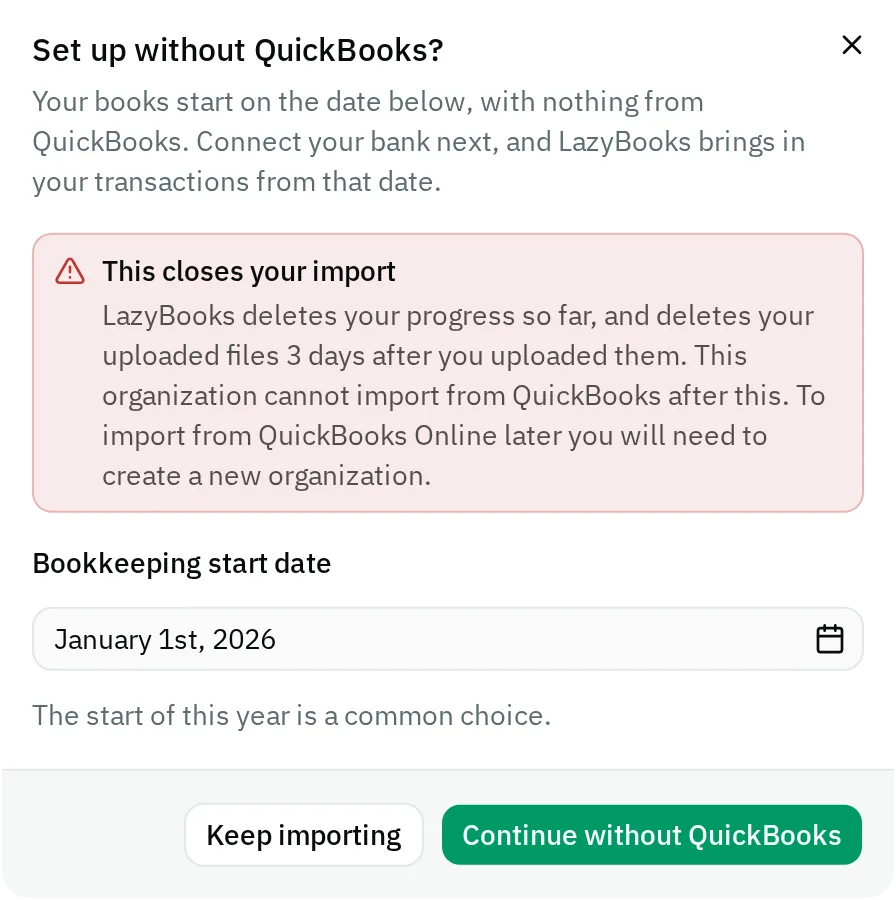
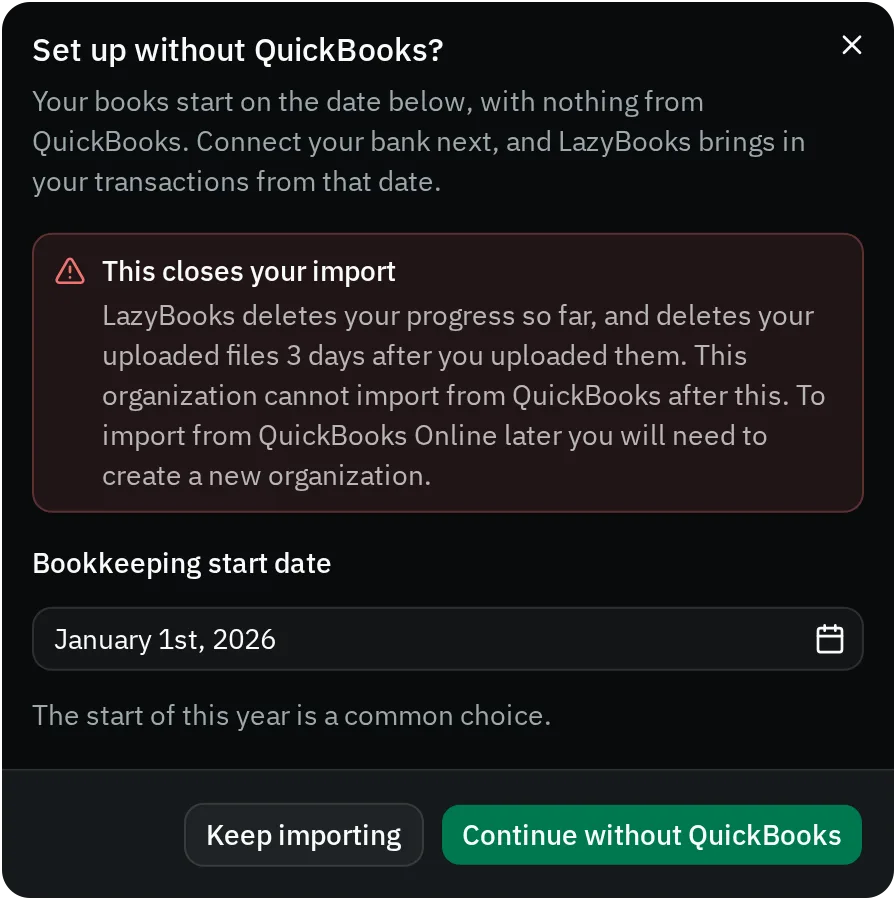
If you decide not to import, you can leave the import and set up the organization without QuickBooks.
- Before you import your books, click Set up without QuickBooks. It is below the list of sections.
- In Bookkeeping start date, choose the first day of your books.
- Click Continue without QuickBooks.
Leave the import only if you are sure. LazyBooks deletes your progress, and this organization can never import from QuickBooks again.
Import bank transactions from a file
Add transactions to an asset or liability account with a CSV file, and fill in the bank history that your bank feed did not send.
Review and approve transactions
Find the transactions that wait for your review, approve them one at a time or many at once, and move them back to review.