Fix a bank connection
Sign in to your bank again when a connection stops syncing, and add new accounts to a connection that you already have.
Sometimes a bank asks you to sign in again before it sends new transactions. Until you sign in, LazyBooks cannot import new transactions from that bank. You use Update connection to sign in again and to change the accounts of a connection.
Find a connection that needs attention
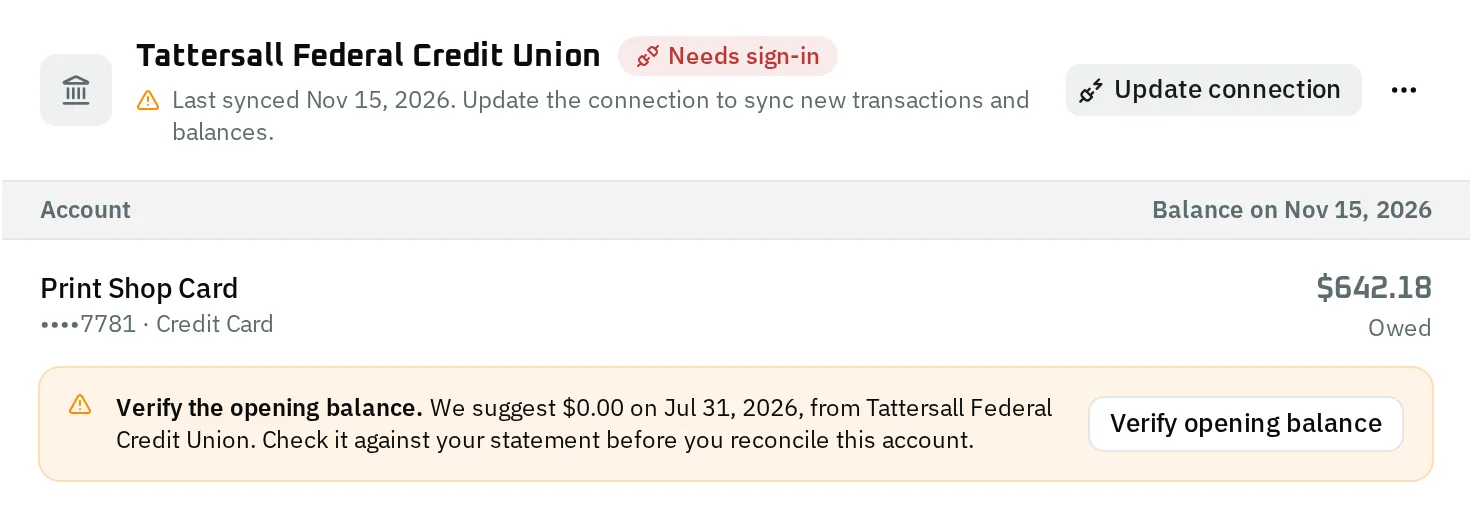
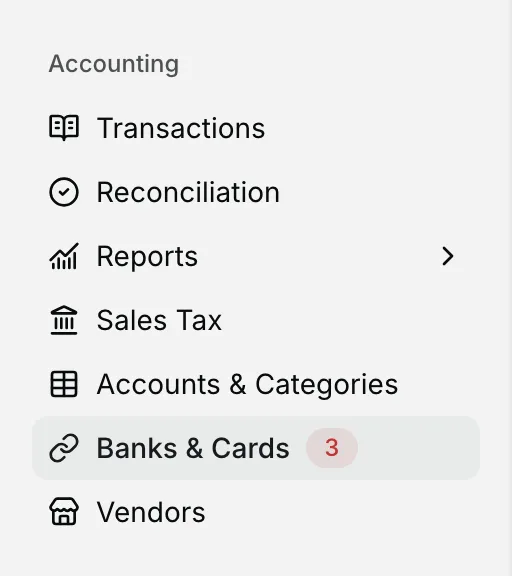
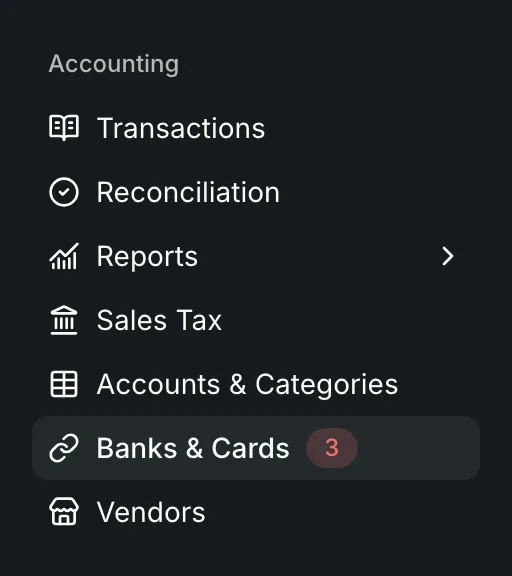
A number next to Banks & Cards in the sidebar tells you that something on that page needs you. The number counts the connections that need a new sign-in and the opening balances that wait for your review.
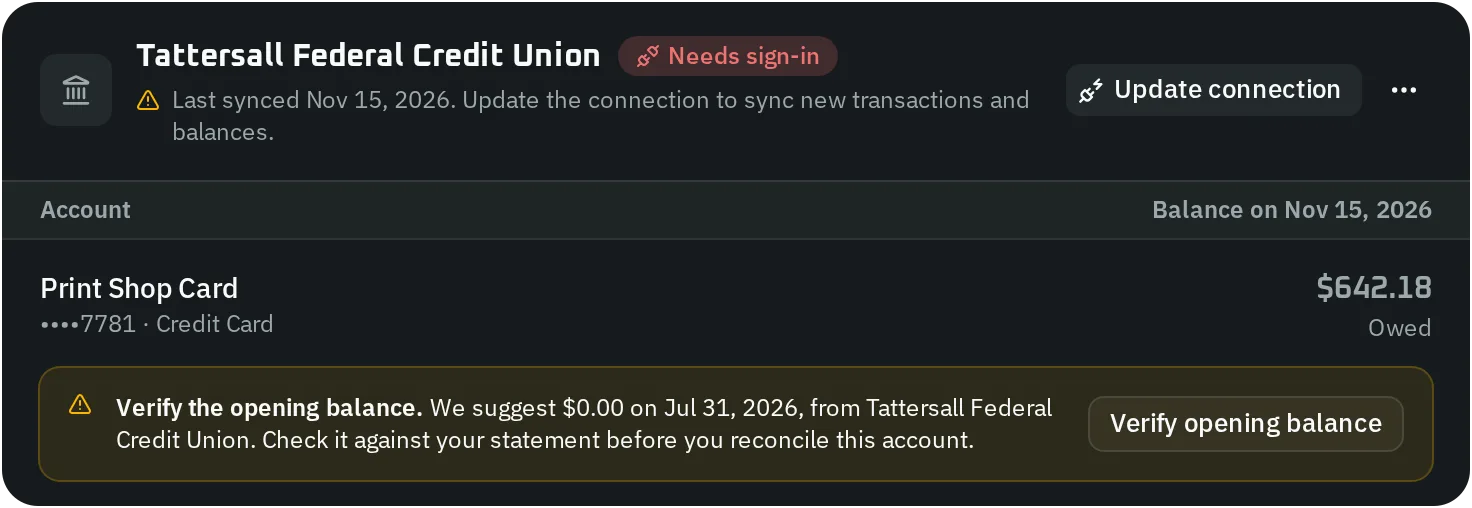
On the Banks & Cards page, a connection can show one of these badges:
- Needs sign-in: the bank stopped sending data until you sign in again. The connection says Update the connection to sync new transactions and balances. The balances are the balances from the last sync.
- Expires and a time, for example Expires in 5 days: the access that you gave through Plaid ends at that time. The connection says Update the connection before then to keep syncing.
LazyBooks also tells you in other places:
- The Home page shows a Reconnect item with the badge Syncing paused. Click Reconnect to open the Plaid window. See The Home page.
- The Reconciliation page shows Feed needs sign-in. You can still reconcile. under the account.
Plaid could not reach the bank on a connection means that the last try to reach your bank failed. This explains why no new transactions arrived since then.
Sign in to your bank again
- In the sidebar, under Accounting, click Banks & Cards.
- On the connection, click Update connection. The Plaid window opens.
- Sign in to your bank, and finish the steps in the Plaid window.
LazyBooks shows Connection updated. The connection syncs again the next time that your bank sends new data. If the bank shares a new account or stops sharing an account, LazyBooks asks you what to do with it.
If the bank shares accounts that you do not use in LazyBooks, the Add new accounts dialog opens. The connection is already updated. To add none of the accounts, click Skip.
Add accounts from a login that you already connected
When you open a new account at a bank that you already connected, add it to the same connection. Do not connect the bank a second time. At some banks, a second connection with the same login stops the first one from working. To use one login in two organizations, see Use one bank login in two organizations.
- On the Banks & Cards page, click the options button (three dots) of the connection.
- Click Update connection.
- In the Plaid window, select the new account together with the accounts that you already share.
- In the Add new accounts dialog, make sure that the new account is selected.
- Click Add accounts.
LazyBooks then imports the history of each new account. When the history is in, verify the opening balance of each new account. See Verify opening balances.
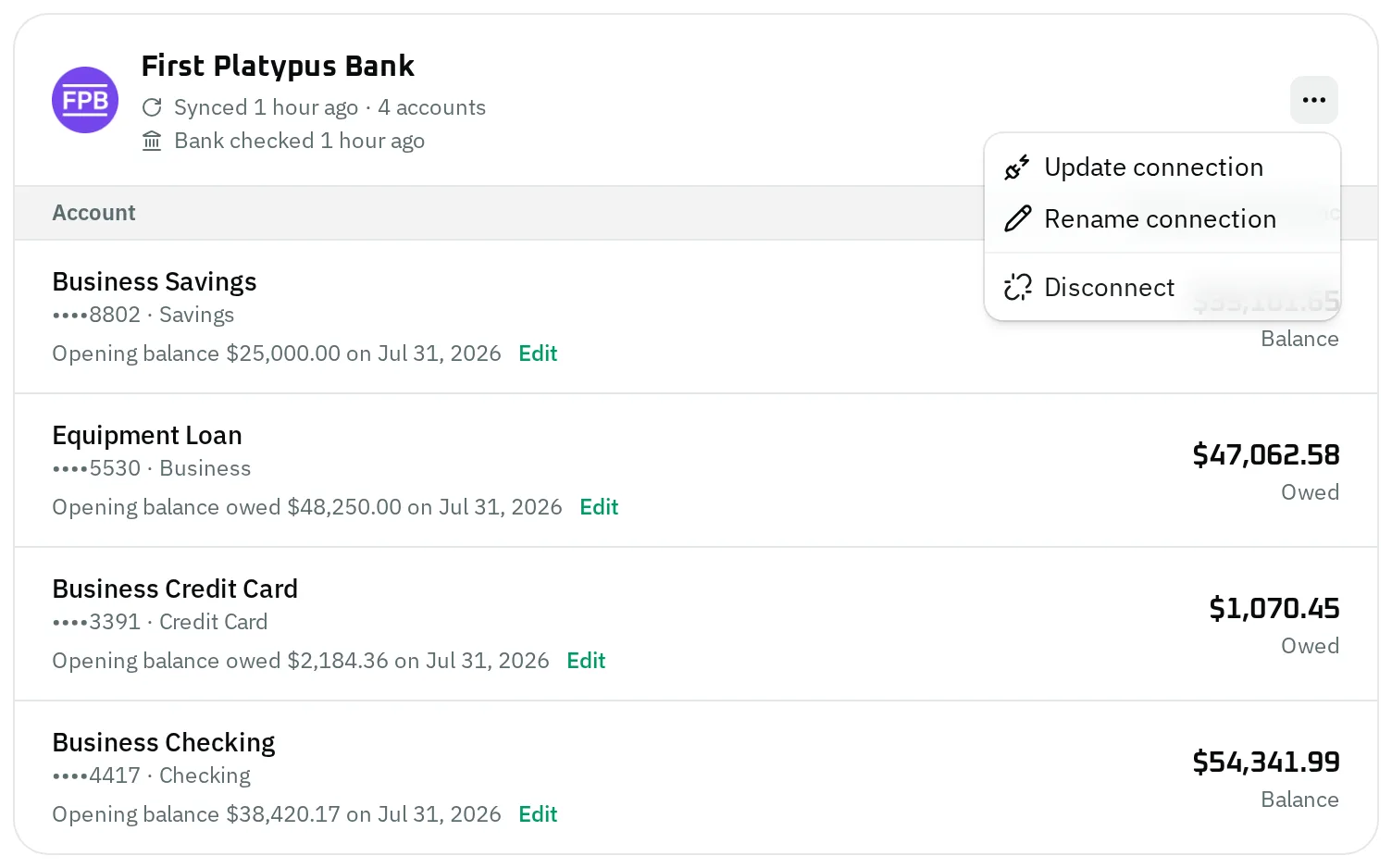
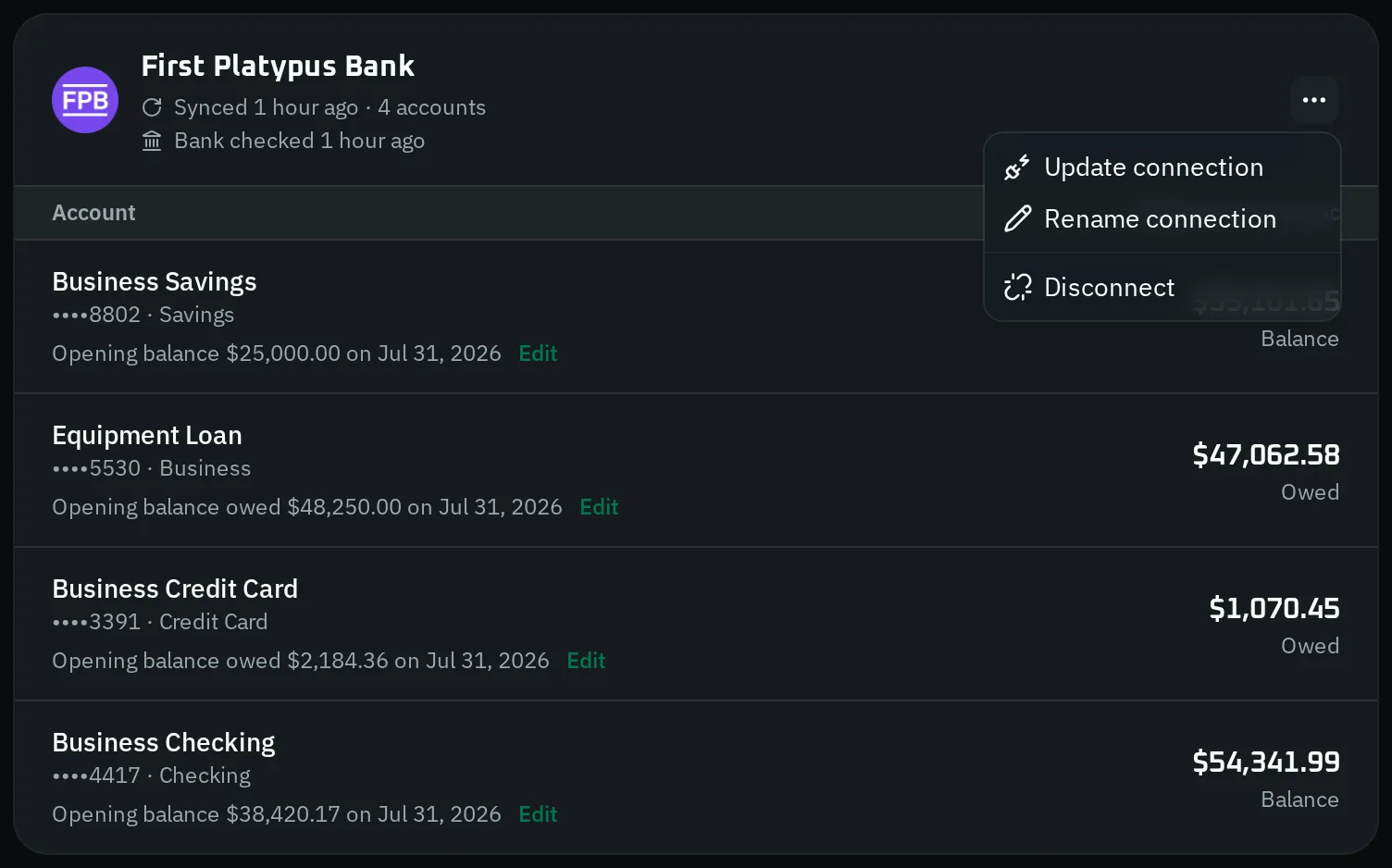
You can also click Connect a bank. When you already have a connection, a dialog lists your connections first. Click Update connection next to the connection that has the new account.
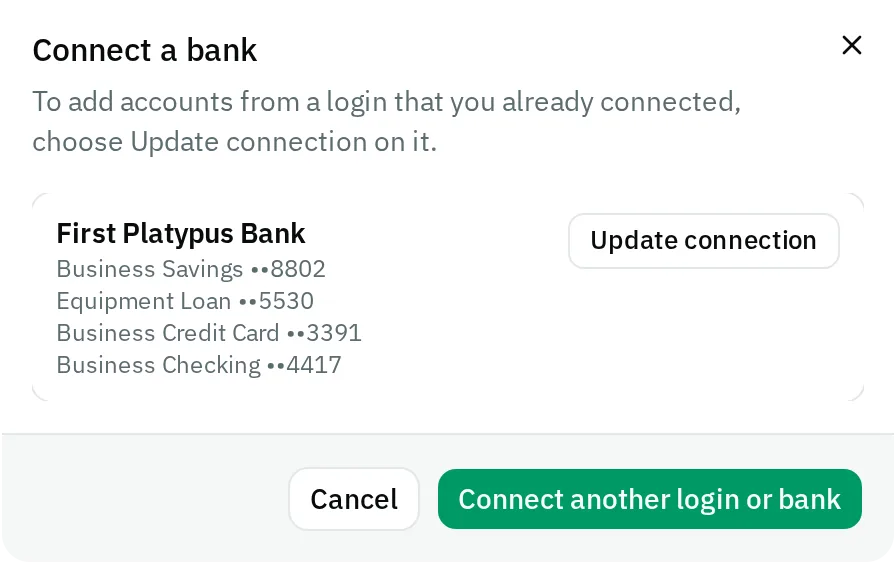
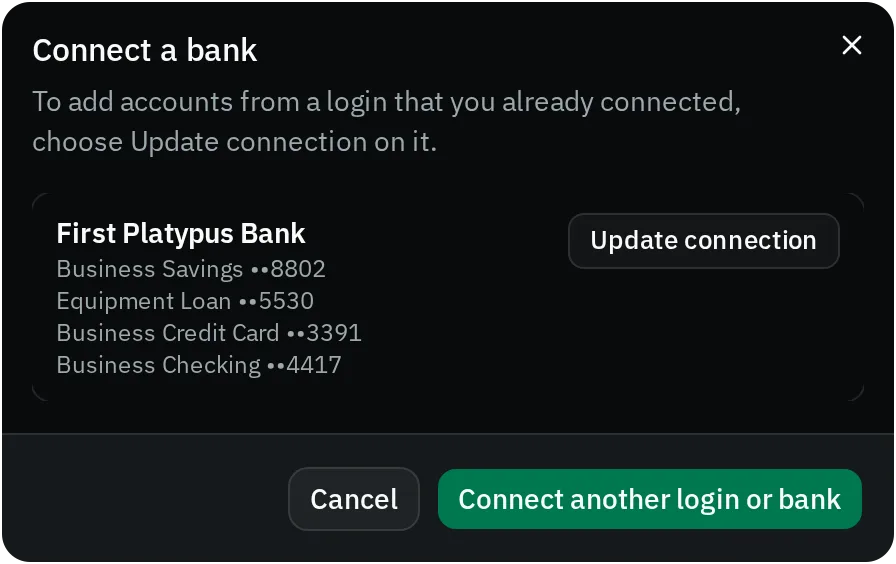
Connect another login or bank is for a different bank, for a second login at the same bank, or for a login that another organization uses. See Connect a bank or credit card.
Use one bank login in two organizations
Some banks, such as Chase, keep one list of shared accounts for each login. If two organizations share different accounts of the same login, the bank stops the older connection. To keep both connections working, share the same accounts in both organizations, and add only the accounts that each organization uses.
- In the first organization, on the Banks & Cards page, click the options button (three dots) of the connection.
- Click Update connection.
- In the Plaid window, select every account that either organization uses.
- In the Add new accounts dialog, click Skip. The dialog lists only the accounts that this organization does not use yet.
- Switch to the second organization. See Switch organizations.
- Do steps 1 to 4 for the connection of the second organization.
If an organization also has a new account of its own, clear the accounts of the other organization in step 4. Then click Add accounts instead of Skip.
If the second organization has no connection of this login yet, do these steps instead of step 6:
- On the Banks & Cards page of the second organization, click Connect a bank.
- If a dialog lists your connections, click Connect another login or bank.
- In the Plaid window, select every account that either organization uses.
- In the Confirm accounts to connect dialog, clear the accounts of the first organization.
- Click Confirm and connect.
After this, each update in either organization opens the Add new accounts dialog for the accounts of the other organization. Click Skip each time.
Stop syncing some accounts of a connection
- Open the options menu of the connection, and click Update connection.
- In the Plaid window, clear the accounts that you do not want to sync.
- Finish the steps in the Plaid window.
LazyBooks then shows An account stopped syncing. To keep the transactions of the account in your books, click Keep history. To remove them, turn on Delete associated data, type delete bookkeeping data in the box, and click Delete data. See Manage bank connections.
If LazyBooks asks you to review account changes
Sometimes the accounts that a bank shares change in a way that LazyBooks cannot sort out alone. For example, a login can switch to the accounts of another business. LazyBooks then changes nothing and pauses the sync of that connection.
The connection shows Syncing is paused until you review the account changes. It lists the accounts under Stopped syncing and New accounts. The Home page shows a Review account changes at item for the connection.
- To choose the accounts in the Plaid window again, click Choose accounts again.
- To keep the new accounts, click Keep the new accounts. LazyBooks stops the sync of the accounts under Stopped syncing. Then it asks you to add the new accounts.
The transactions of an account that stops syncing stay in your books. You can delete them later. See Manage bank connections.
Connect your banks again after your subscription ended
When a subscription ends, LazyBooks disconnects the banks of each organization that the subscription paid for. LazyBooks sends you an email when it does this. The transactions that are already in your books stay, and the accounts show under Unlinked accounts.
- Start your subscription again. See Billing and subscription.
- On the Banks & Cards page, click Connect a bank, and connect each bank again.
- If the dialog asks Is this the same account?, choose the account that is already in your books.
An account that you connect to an account in your books keeps its history. When LazyBooks is sure of the match, the dialog shows Already in your books as and the account name.
LazyBooks shows Your bank needs you to sign in again. Choose Update on the connection to continue. On the Banks & Cards page, click Update connection on that connection.
The bank did not answer Plaid. Wait a few minutes, and then try again.
Wait a minute, and then try again.
Plaid no longer has this connection. Disconnect it on the Banks & Cards page, and then connect the bank again. The transactions that are already in your books stay.
Plaid cannot read this account, so LazyBooks cannot connect it. Choose a different account.