Manage bank connections
Rename a bank connection, disconnect it, and delete the data of accounts that no longer sync.
You can give a bank connection a name of your own, disconnect it, and delete the data of accounts that no longer sync. You do all of this on the Banks & Cards page.
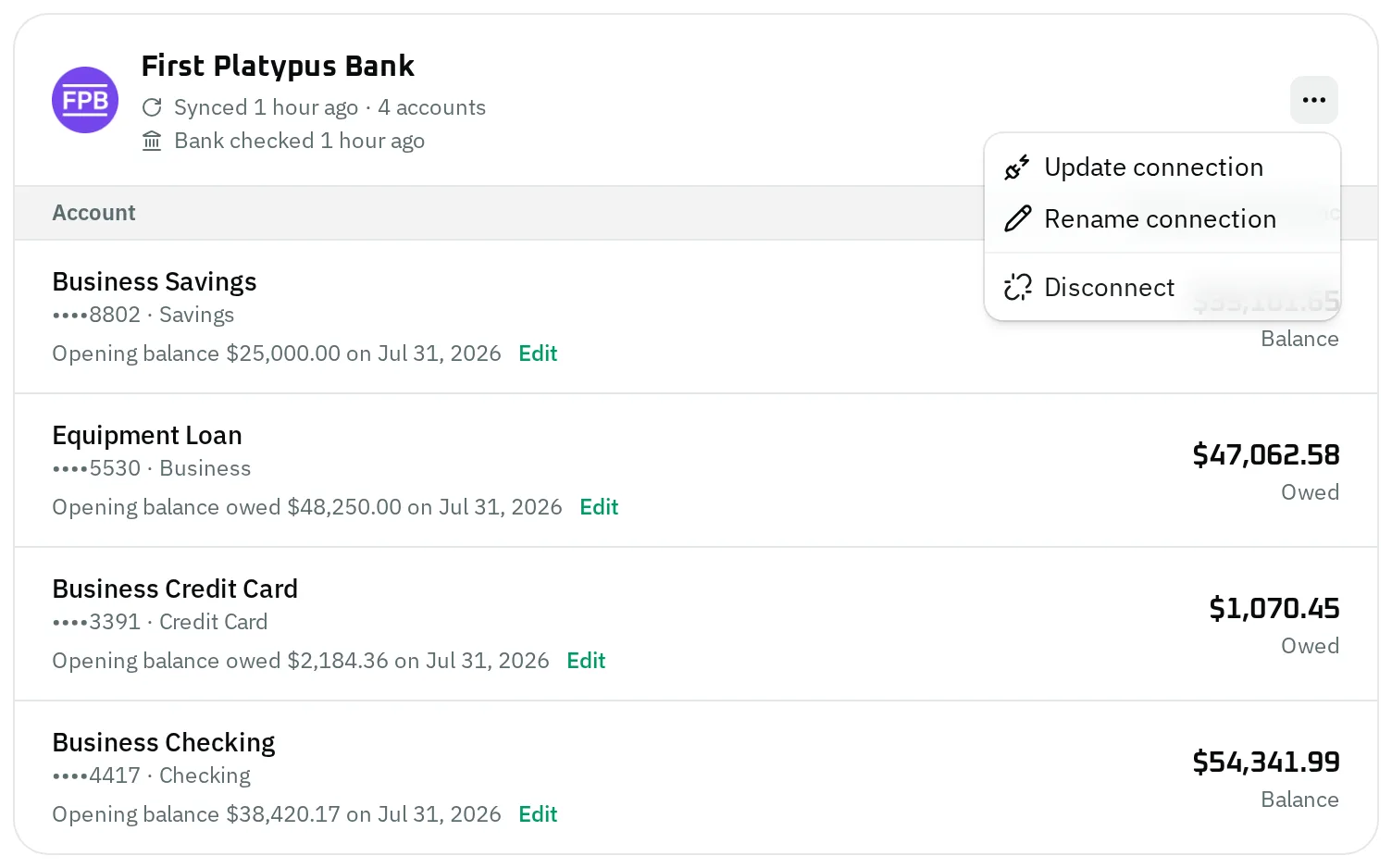
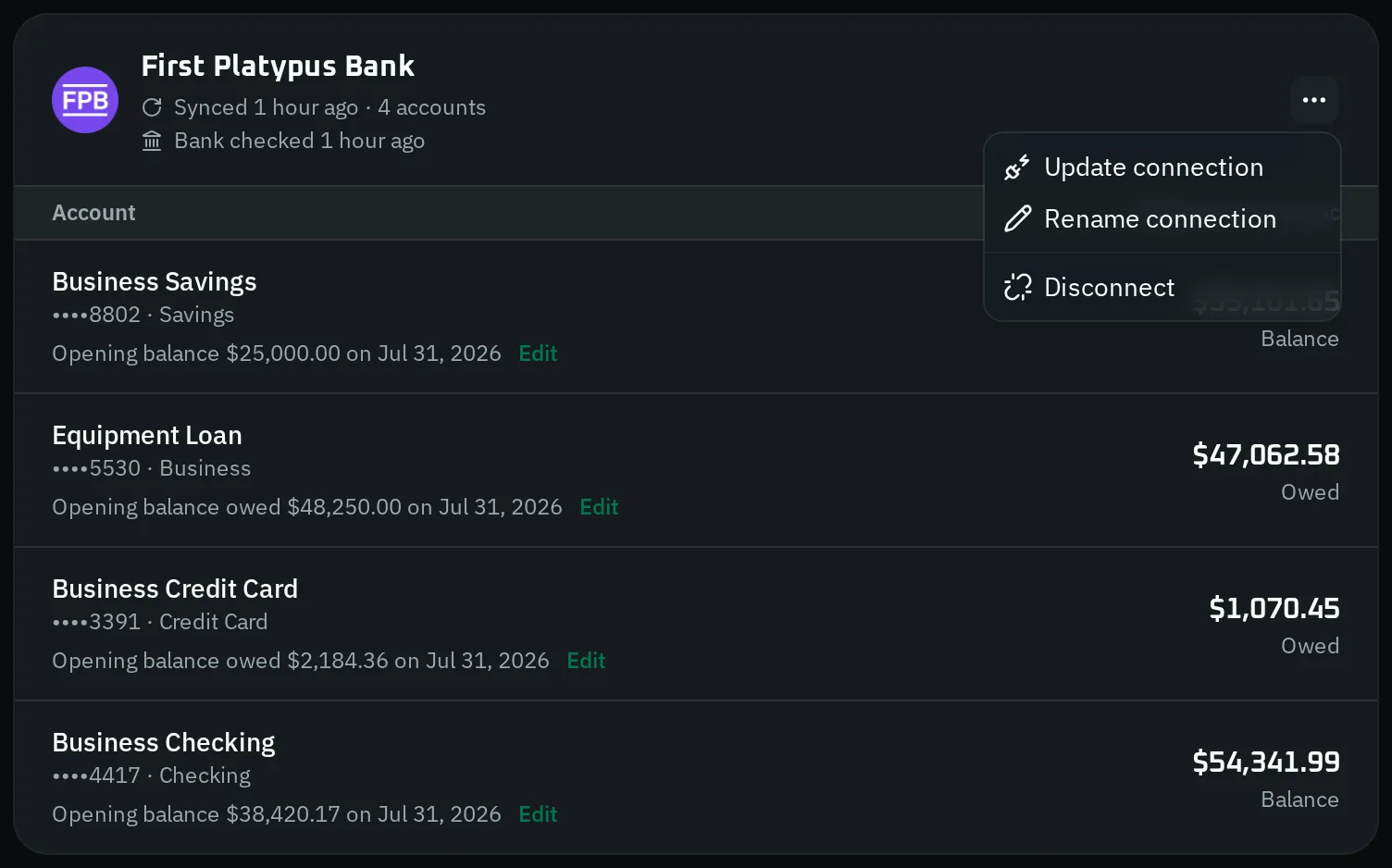
To open the menu, click the options button (three dots) at the right of the connection. The menu has three items:
- Update connection signs in to your bank again, or changes the accounts that you share. See Fix a bank connection.
- Rename connection gives the connection a nickname.
- Disconnect stops the sync of every account of the connection.
Rename a connection
LazyBooks shows each connection by the name of its bank. If you have two connections at the same bank, LazyBooks adds the last digits of an account number to each name. A nickname makes them easier to tell apart, for example the name of the business that each one belongs to.
- In the sidebar, under Accounting, click Banks & Cards.
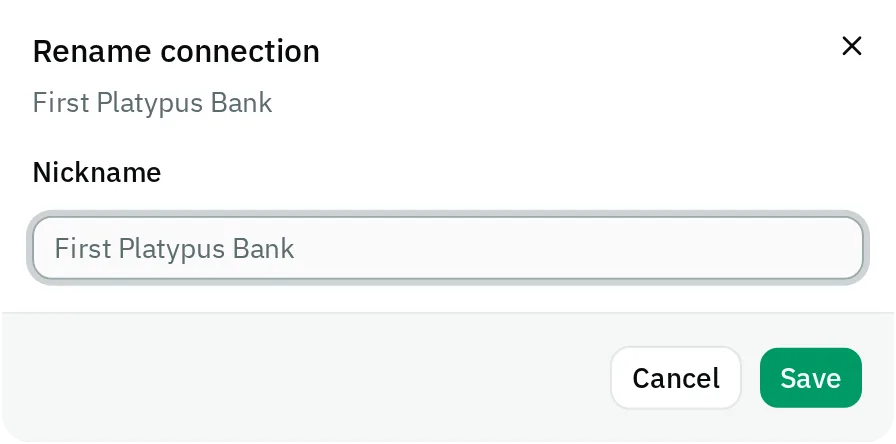
- Open the options menu of the connection, and click Rename connection.
- In Nickname, enter the new name. A nickname can have up to 60 characters.
- Click Save.
The nickname shows on the Banks & Cards page, on the Home page, and on the Get started page. To show the name of the bank again, delete the nickname and click Save.
Disconnect a bank
When you disconnect a bank, LazyBooks stops the sync of all the accounts of that connection. The transactions that are already in your books stay, together with their reconciliations.
- Open the options menu of the connection, and click Disconnect.
- Read the list of accounts that stop syncing.
- Click the Disconnect button with the name of the connection.
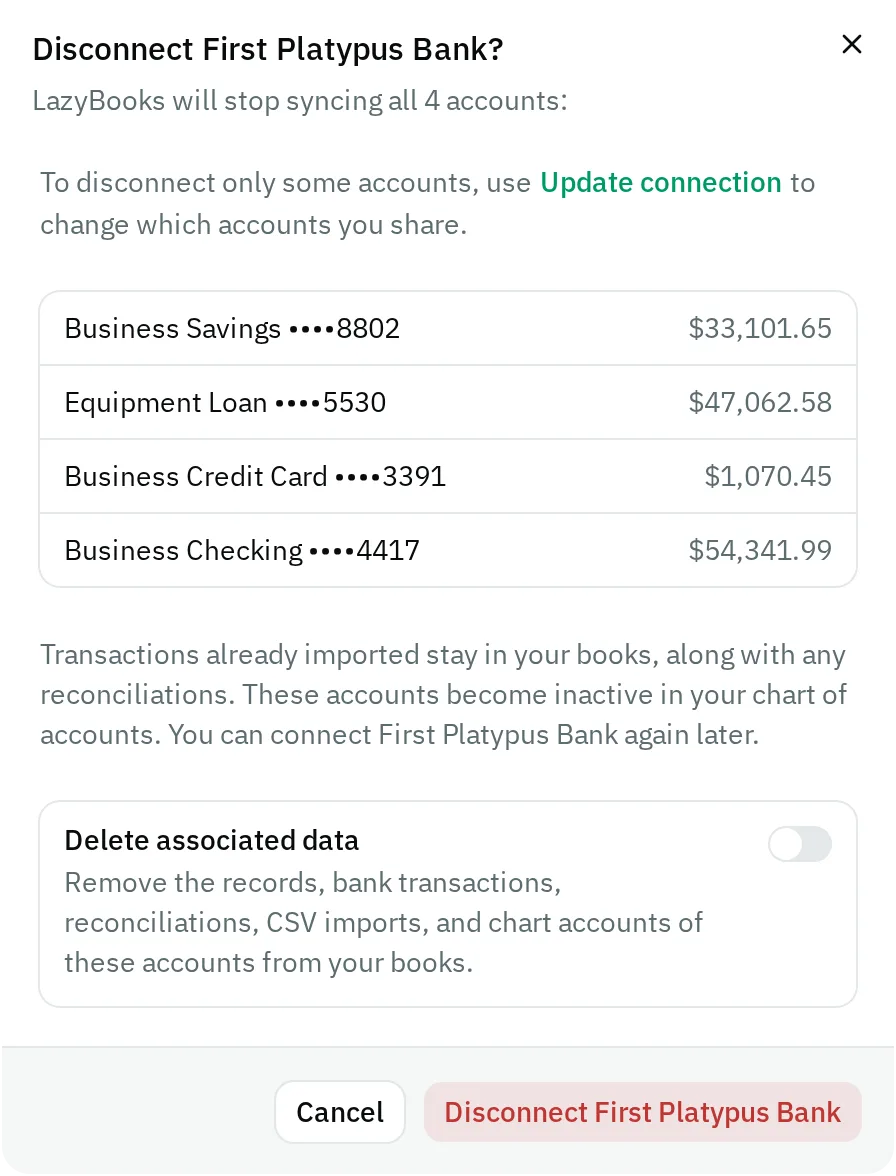
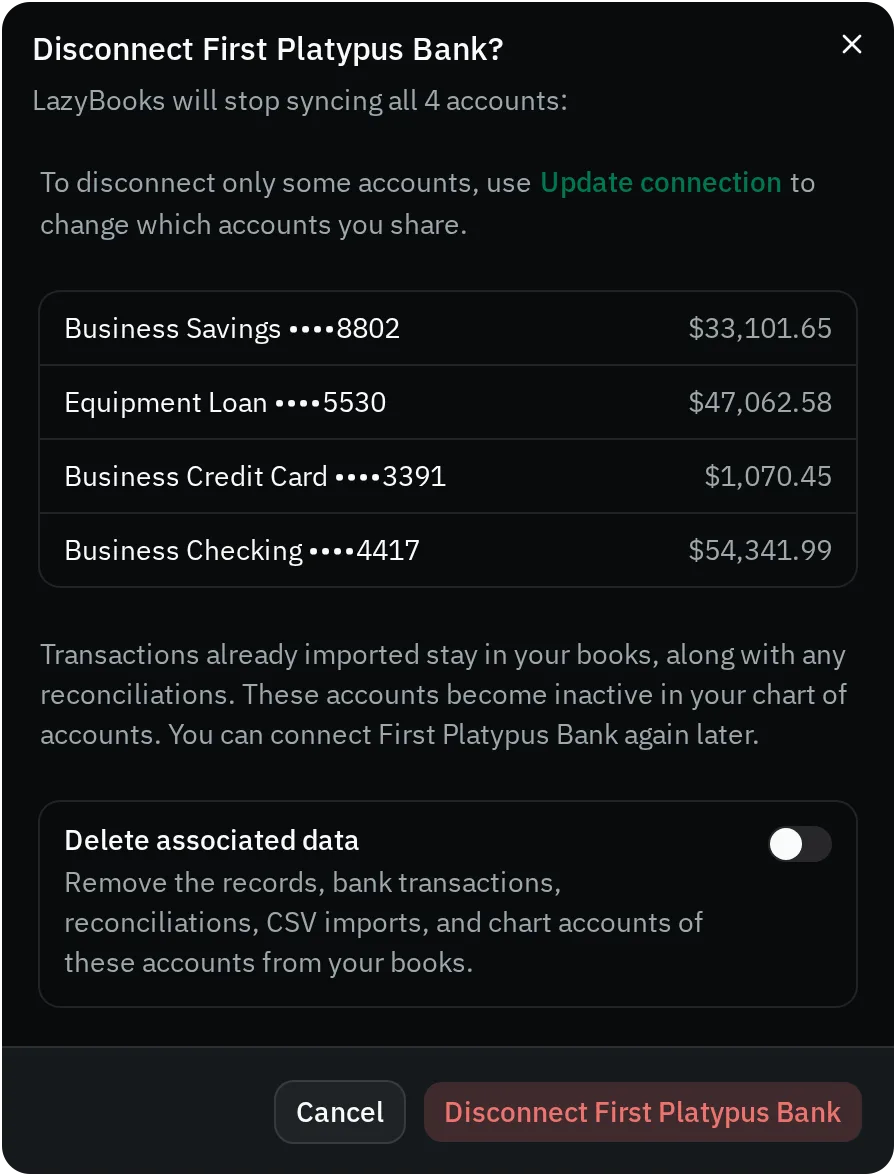
After you disconnect, these things are true:
- The accounts become inactive in your chart of accounts. An account with history from a QuickBooks import stays active.
- The accounts show under Unlinked accounts on the Banks & Cards page.
- You can connect the bank again later. LazyBooks then looks for each account in your books. If it finds the account, the account keeps its history and becomes active again.
To stop the sync of only some accounts of a connection, do not disconnect it. Use Update connection, and clear those accounts in the Plaid window. See Fix a bank connection.
Delete the data of a bank account
You can delete everything that a bank account brought into your books. For example, do this when you connected a personal account by mistake.
Do not delete the data of an account that belongs in your books. LazyBooks deletes the data permanently, and you cannot undo the delete.
The delete removes these items of each account that you choose:
- The transactions of the account in your books. The dialog calls them records.
- The bank transactions, which are the rows that your bank sent.
- The reconciliations and the CSV imports of the account.
- The account in your chart of accounts.
Some transactions of the account can be matched as transfers to your other accounts. The other side of each transfer then goes back to Needs Review without a category. If the account has history from a QuickBooks import, that history stays, and so does its account in your chart of accounts.
Delete the data when you disconnect
- Open the options menu of the connection, and click Disconnect.
- Turn on Delete associated data. LazyBooks counts what each account holds.
- Clear the check box of each account whose data you want to keep.
- Read the warning under This cannot be undone.
- Type delete bookkeeping data in the box below the warning.
- Click Disconnect and delete data.
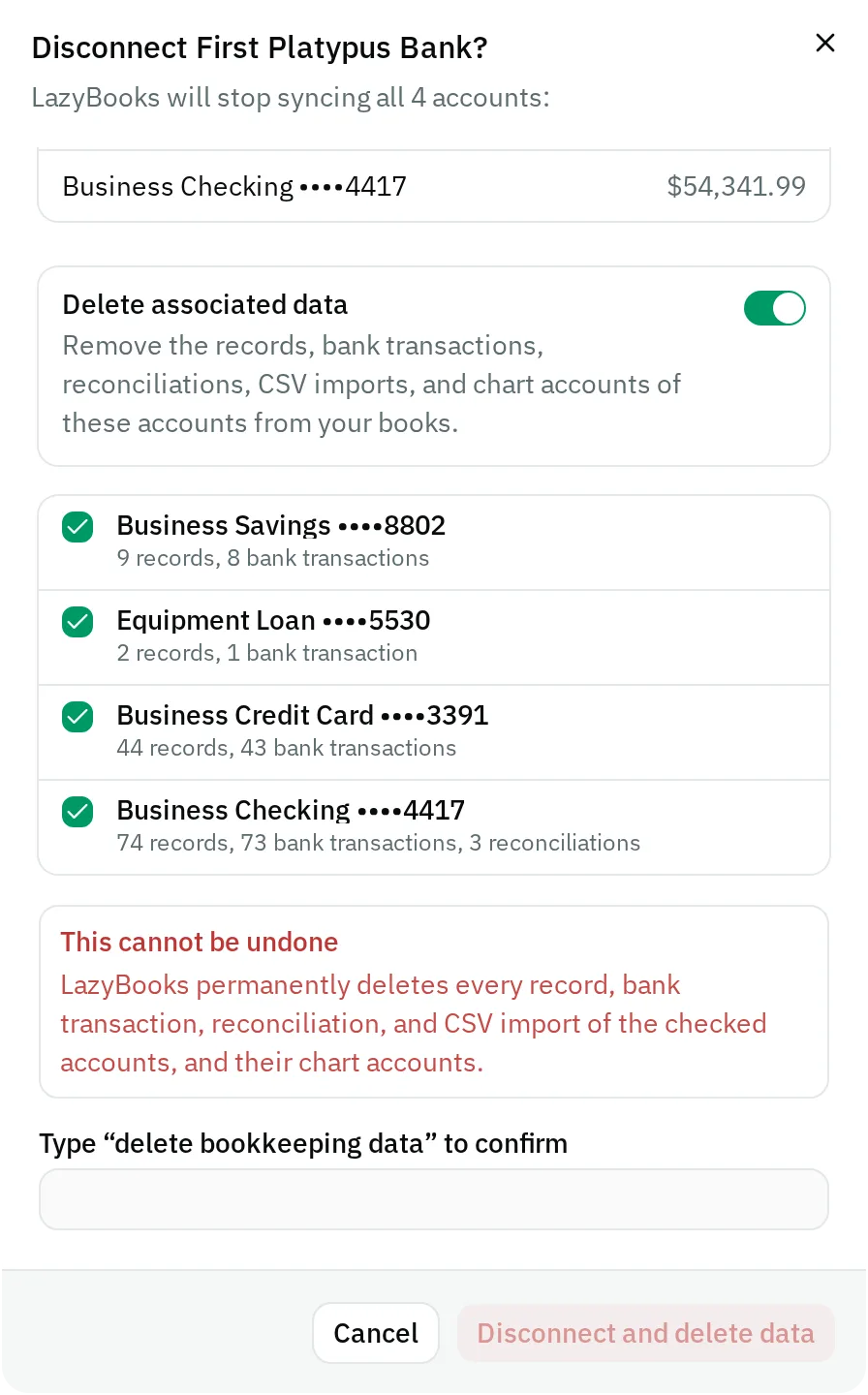
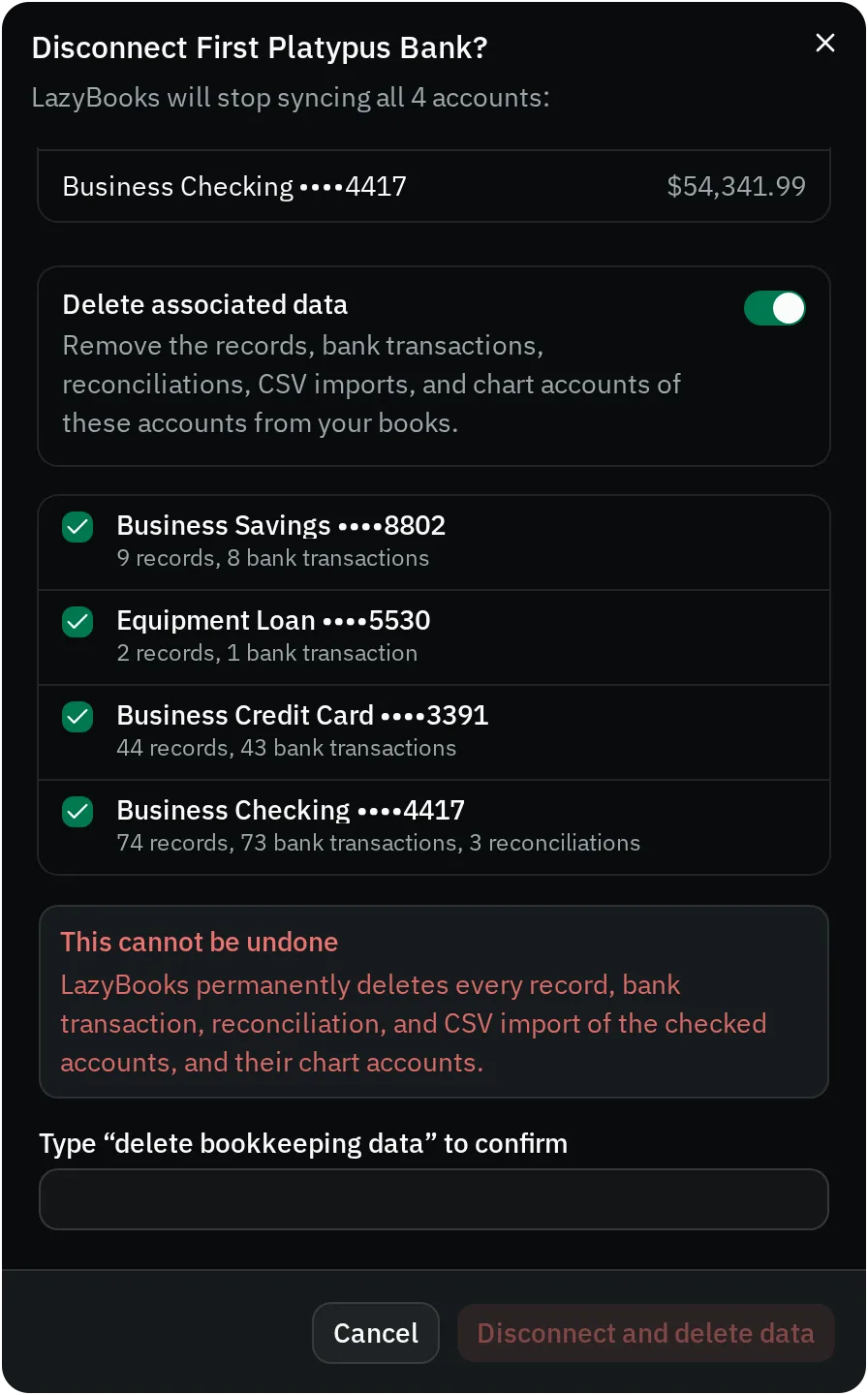
Delete the data of an unlinked account
An account that no longer syncs shows under Unlinked accounts. Its transactions stay in your books until you delete them.
- On the Banks & Cards page, find the account under Unlinked accounts.
- Click Delete data.
- Turn on Delete associated data.
- Type delete bookkeeping data in the box below the warning.
- Click Delete data.
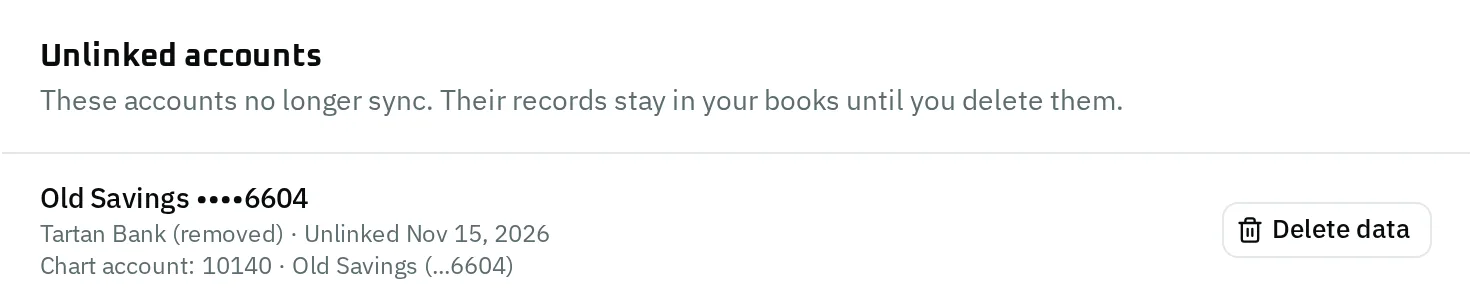
The delete runs in the background. While it runs, the account shows Deleting data. If the delete fails, the account shows The data was not deleted. and the reason. Click Delete data to try again.
When LazyBooks cannot delete the data now
The dialog shows The data cannot be deleted now and the reason. The reasons are these:
- The account imports transactions right now. Try again in a minute.
- A CSV import into the account is still running. Try again when it finishes.
- A reconciliation of another account includes transactions of this account. Reopen that reconciliation first.
To delete only some transactions, and not a whole account, see Delete or exclude transactions.
Fix a bank connection
Sign in to your bank again when a connection stops syncing, and add new accounts to a connection that you already have.
Import bank transactions from a file
Add transactions to an asset or liability account with a CSV file, and fill in the bank history that your bank feed did not send.