Import bank transactions from a file
Add transactions to an asset or liability account with a CSV file, and fill in the bank history that your bank feed did not send.
You can import transactions from a CSV file into any asset or liability account. The account does not need a bank connection. For a connected account, the file fills in the history that your bank feed did not send.
A CSV file is a plain text table that most banks and card companies let you download from their website. Look for an export or download option on the page of your transactions.
Before you start
- The account must be active and have the type Assets or Liabilities. A connected account and an account without a bank connection both work.
- For a connected account, the first import from your bank must be finished. If it still runs, LazyBooks says LazyBooks is still importing the history of this account from your bank. Try again when that import finishes.
- You cannot import a file into a connected loan account. LazyBooks says LazyBooks cannot import a bank file into a loan account. Loan accounts have entries, such as interest, that a bank file does not show.
LazyBooks leaves out the transactions from before your bookkeeping start date.
Accounts that cannot take a file
For some accounts, the Import transactions button is gray. Point at it to read the reason. These accounts cannot take a file:
- An account that LazyBooks uses itself, such as Transfers in Transit and Sales Tax Payable. LazyBooks posts to these accounts. Choose or create an account under the parent of the account.
- A parent account for linked accounts, such as Cash & Bank. LazyBooks keeps your linked accounts under it. Choose or create an account under it.
- A Stripe balance account. Stripe sends the transactions of this account.
- An account that groups linked accounts. The accounts under it get their transactions from your bank or from Stripe. Choose the account that the file is for.
- An account that you deactivated. LazyBooks says This account is inactive. Choose an active account.
Import a file
The import has four steps: Upload, Match columns, Review, and Import.
Upload the file
-
In the sidebar, under Accounting, click Accounts & Categories.
-
Find the account that the file is for.
-
Point at the row, and click Import transactions. On a phone or tablet, open the menu of the row, and choose Import transactions. The Import transactions page opens for that account.


-
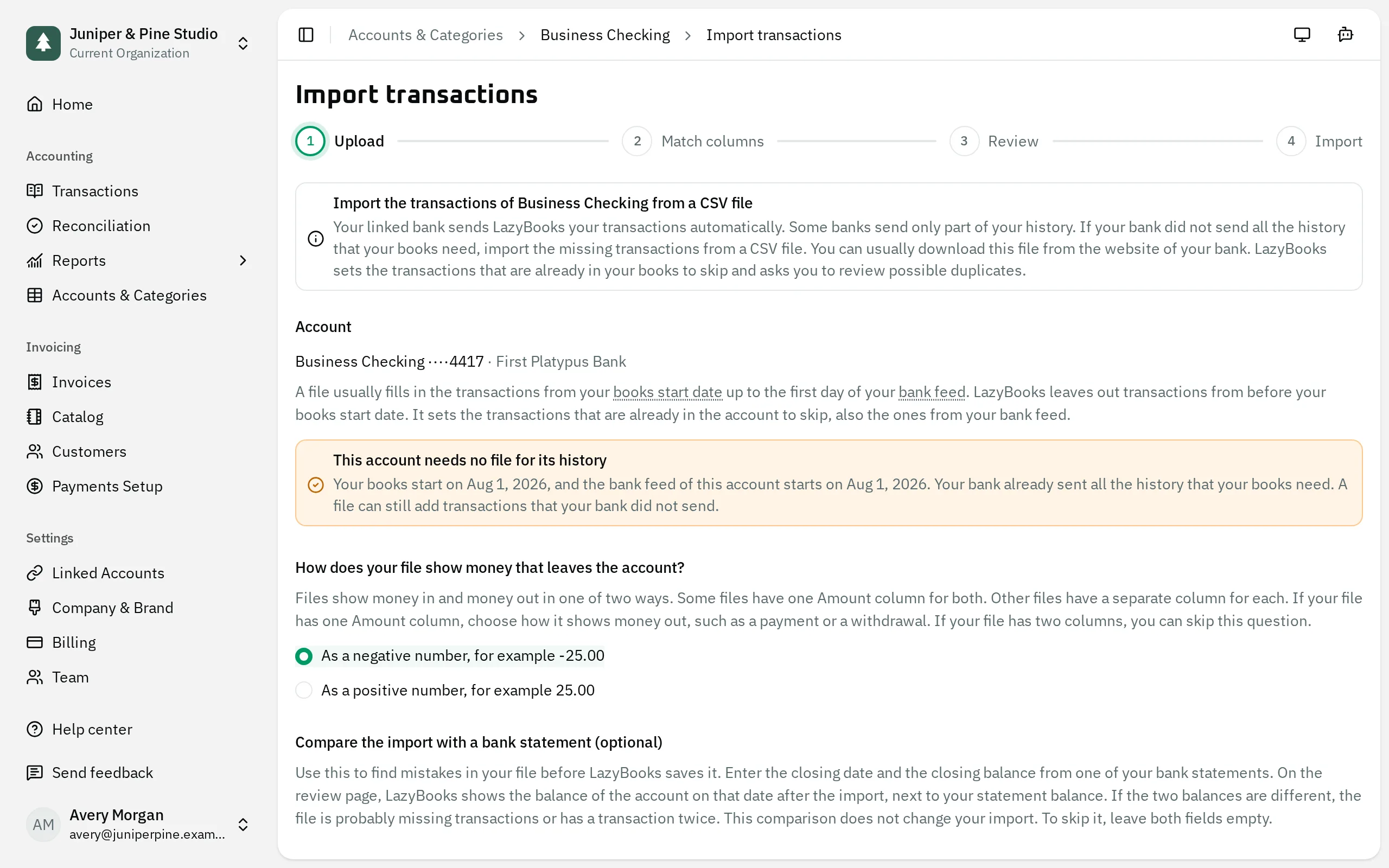
Read the note about the account. For a connected account, it shows the dates that your file needs. For other accounts, it says This account has no bank feed.
-
Under the question about your file, choose how your file shows a payment. See Choose how your file shows money out.
-
Optional: for a connected account, fill in Statement date and Statement balance. See Compare the import with a bank statement.
-
Drop your CSV file on the page, or click Choose file.
The upload starts when you drop the file, so fill in the fields above it first.
A file can be up to 10 MB and have up to 10,000 rows.
If LazyBooks says This account needs no file for its history, your bank already sent all the history that your books need. A file can still add transactions that your bank did not send.
Choose how your file shows money out
If your file has one Amount column for money in and money out, answer the question on the page. If your file has a separate column for each, you can skip the question.
The question uses the words of the account:
- For a bank or cash account: How does your file show money that leaves the account? For example, a payment or a withdrawal.
- For a credit card or another liability account: How does your file show a charge, which adds to what you owe? A payment to the account counts as money in.
- For any other asset account: How does your file show an amount that lowers the balance?
Under each question, choose As a negative number, for example -25.00 or As a positive number, for example 25.00.
Compare the import with a bank statement
This step is optional. It shows only for an account that has a bank connection. It helps you find mistakes in the file before LazyBooks saves it. Do it on the upload page, before you drop your file.
- In Statement date, enter the closing date of one of your bank statements. Use a date from the first to the last transaction of your file, or the day before the first one.
- In Statement balance, enter the closing balance of that statement. For a credit card, enter the amount that you owed.
On the review step, LazyBooks shows the balance of the account on that date after the import, next to your statement balance. If the two balances are different, the file is probably missing transactions or has a transaction twice. This comparison does not change your import.
Use the template
Your file needs a column for the posted date and for the description of each transaction. It also needs an amount column, or a column for money out and a column for money in. It can also have a column for the transaction date.
To see the columns that LazyBooks reads, click Download template at the bottom of the upload page. The template is a CSV file with a header for each column.


Match the columns
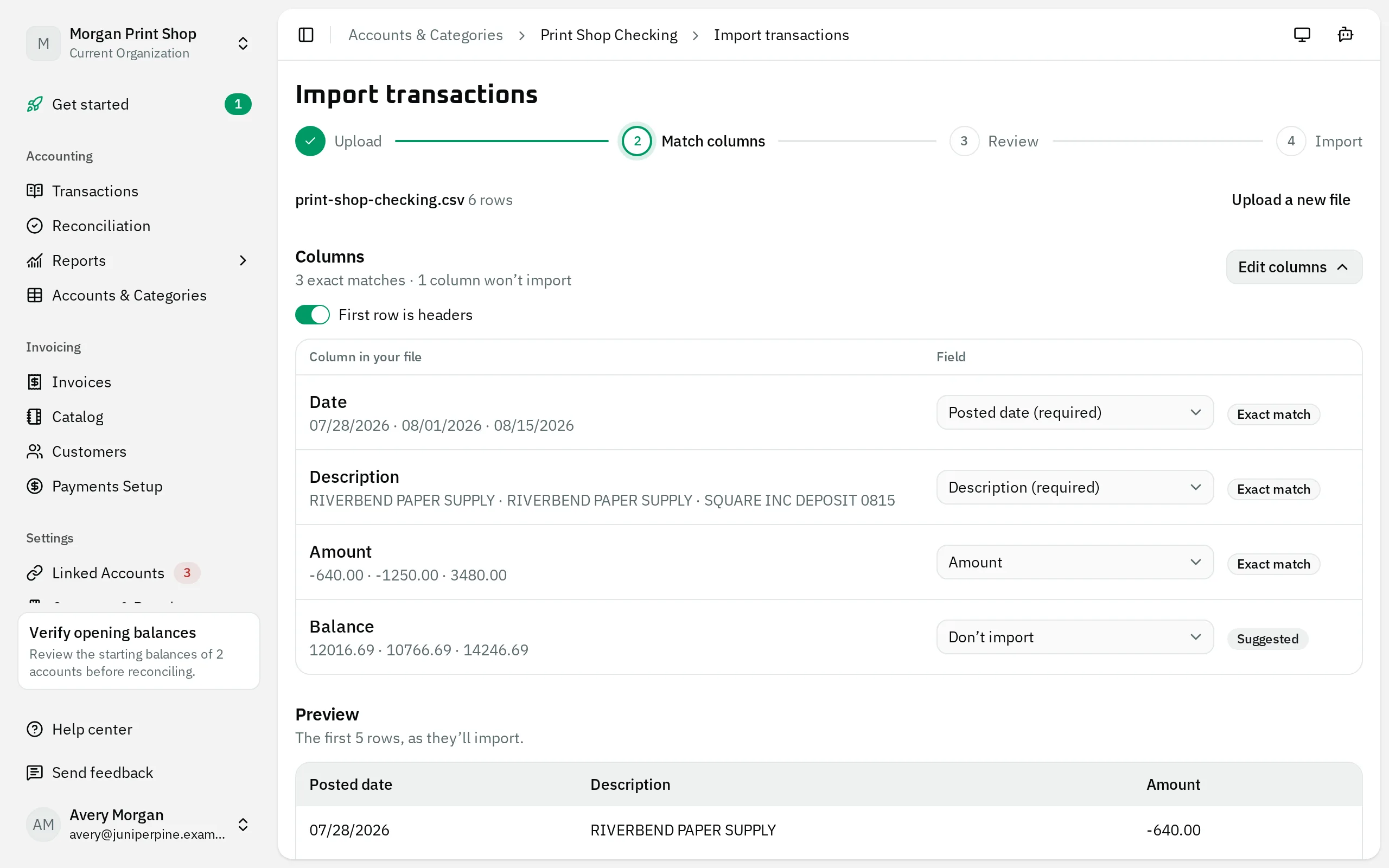
After the upload, LazyBooks suggests a field for each column of your file. A field is the kind of data that LazyBooks stores, such as Posted date or Description.
- Read the summary under Columns. To see the list of columns, click Edit columns. The list opens on its own when a column shows Check this or has no field. It also opens when a required field has no column.
- For each column of your file, make sure that the field next to it is correct. To leave a column out, choose Don’t import.
- If the first row of your file is not a header row, turn off First row is headers.
- Look at the Preview. It shows the first rows as LazyBooks will import them.
- Click Continue.
A badge next to each field tells you how sure LazyBooks is: Exact match, Suggested, or Check this. A field that you changed shows Changed.
Review the rows
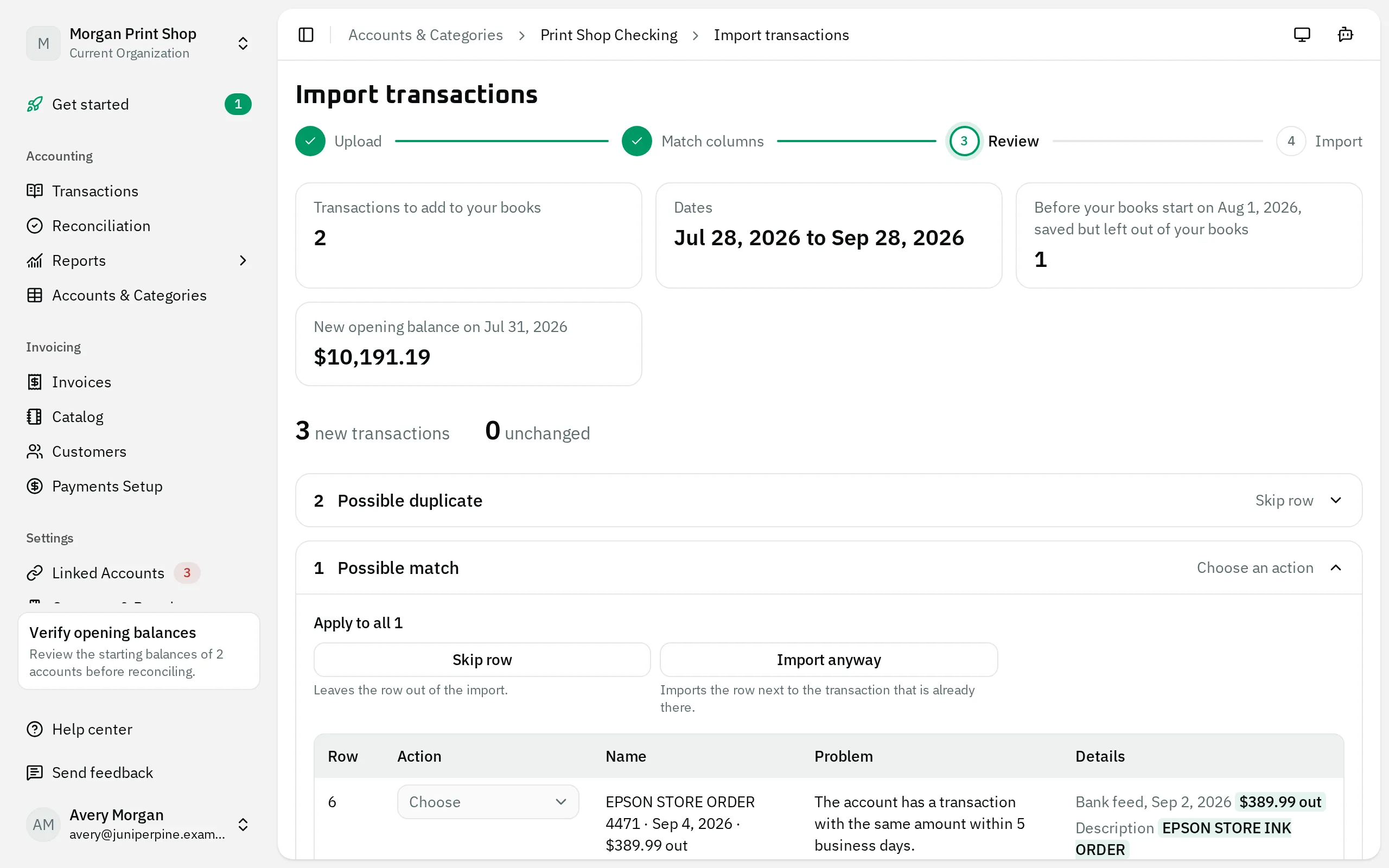
LazyBooks then compares each row with the transactions that are already in the account. It also compares each row with the journal entries that are already in your books for the account. It shows what the import will do:
- Transactions to add to your books and the Dates of the file.
- The number of rows from before your books start. LazyBooks saves them but leaves them out of your books.
- The new opening balance of the account, when the import changes it. This is only for an account with an opening balance.
- Your statement balance next to the balance after the import, when you entered a statement.
If LazyBooks finds a problem that does not stop the import, it shows Check the file before you import it. If a problem stops the import, it shows You cannot import this file yet and the reason.
LazyBooks puts the rows that need a decision into groups:
- Possible duplicate: the transaction is already in the account, or in a journal entry in your books. These rows start as Skip row.
- Possible match: the account has a transaction with the same amount within 5 business days. Choose an action for each of these rows.
- In a finished reconciliation: the row changes balances that you reconciled. You can only skip it. To import it, reopen that reconciliation first.
Each row shows what it matches, with the date and the amount of the match. The source of a match is Bank feed, Earlier CSV import, Stripe, or Journal entry. A journal entry can be a manual entry, an entry from QuickBooks, or the other side of a transaction in another account.
Each row has two actions:
- Skip row leaves the row out of the import.
- Import anyway imports the row next to the transaction that is already there.
To give every row of a group the same action, use the buttons under Apply to all.
If a row cannot be read, for example a date or an amount that LazyBooks does not understand, the review lists it. Fix the row in your file, and then click Upload a new file.
Import the rows
- Make sure that each row that needs an action has one.
- Click Import and the number of rows, for example Import 42 transactions.
The import can take up to a minute. You can leave the page while it runs. When it ends, LazyBooks shows Import finished and how many rows it imported and skipped. Click Go to Accounts & Categories to leave, or Import another file to import a file for the same account.
The imported transactions wait in Needs Review, like the transactions from your bank feed. Review and approve them on the Transactions page. See Review and approve transactions.
What the import does to the opening balance
An account without a bank connection and without an opening balance has no opening balance work in the import. LazyBooks adds the transactions of your file to the account. It does not change an opening balance. This is also true for an account that you disconnected from its bank.
If you set an opening balance on an account without a bank connection, the balance on its date stays the same. LazyBooks adds the transactions of your file after that date, and your current balance includes them. If the file has transactions from before the opening balance date, the opening balance moves to an earlier date. Verify the new opening balance on the Reconciliation page. A transaction that changes a finished reconciliation can only be skipped.
For a connected account, the upload page tells you what the import does to the opening balance. The opening balance is the balance of the account on the day before its first transaction in LazyBooks. There are three cases:
- If the account has transactions from your bank feed and its opening balance is not confirmed, your current balance stays the same. LazyBooks changes the opening balance to match the transactions of your file.
- If you confirmed the opening balance, the balance on its date stays the same. LazyBooks adds the transactions of your file after that date, and your current balance includes them.
- If the account has no transactions from your bank feed yet, the opening balance stays the same. Your current balance includes the transactions of your file.
If the file has transactions from before the opening balance date, the opening balance moves to an earlier date. After the import, make sure that the new opening balance matches a bank statement. See Verify opening balances.
Fix a wrong import
If you imported the wrong transactions, delete them on the Transactions page. See Delete or exclude transactions. If you import the same file again later, LazyBooks marks the rows that are already in the account as Possible duplicate.