Connect a bank or credit card
Connect your bank, credit card, and loan accounts so that LazyBooks imports their transactions and balances.
Connect your bank, credit card, and loan accounts to LazyBooks. After you connect an account, LazyBooks imports its transactions and balances without your help.
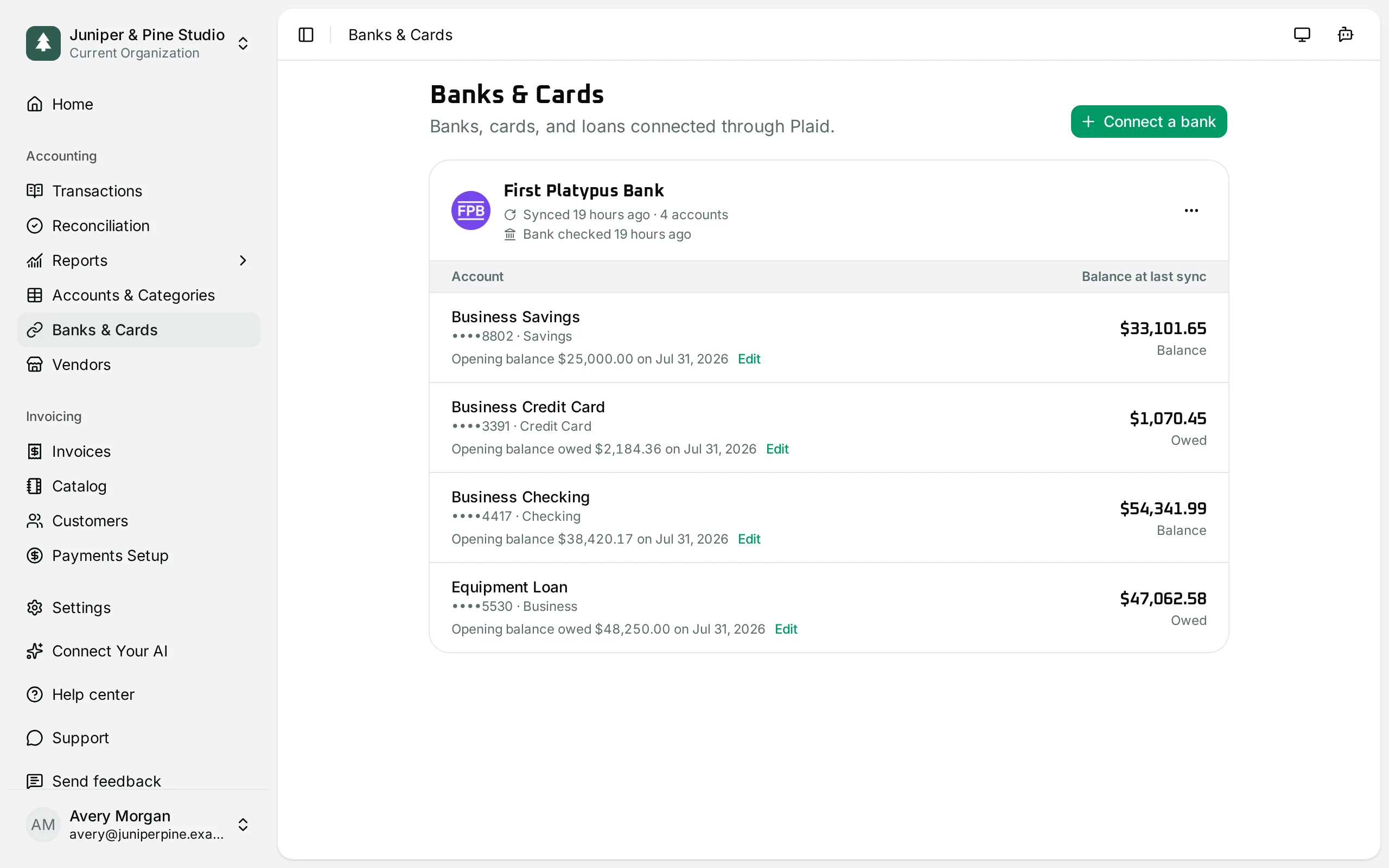
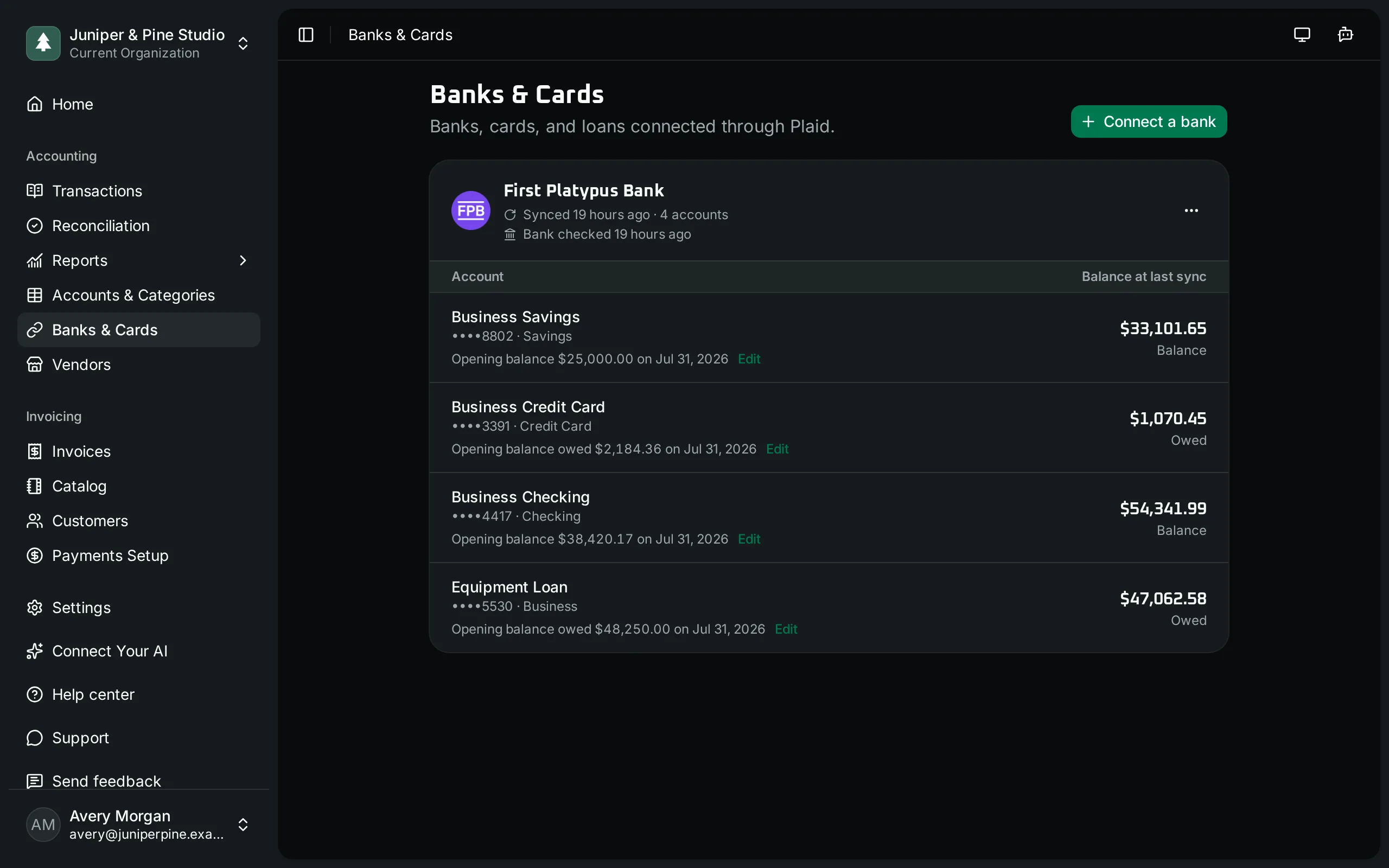
LazyBooks connects to banks through Plaid, a service that many finance apps use to read bank data. You sign in to your bank in the Plaid window, not on a LazyBooks page. LazyBooks does not see your bank password.
A connection is one sign-in at one bank. One connection can hold several accounts, for example a checking account and a credit card at the same bank.
What you can connect
Plaid shows you only the accounts that LazyBooks can import:
- Checking, savings, money market, cash management, and PayPal accounts.
- Credit cards.
- Loans and lines of credit, for example a business loan, an auto loan, a mortgage, a home equity line, or a line of credit.
LazyBooks does not import student loans, consumer loans, overdraft accounts, or investment accounts.
You can connect the banks of the country of your organization.
Each connected account uses the currency of your organization. If an account uses another currency, LazyBooks skips it and does not link it. Its transactions do not go into your books. When you connect a new bank, LazyBooks shows each skipped account and its currency. If every account of the connection uses another currency, LazyBooks does not save the connection. When you update a connection, LazyBooks does not add an account that uses another currency.
Before you start
Your books need a bookkeeping start date. LazyBooks leaves out the transactions from before this day. You choose the date when you set up your organization. See Set up your organization.
If you chose to move your books from QuickBooks Online, the QuickBooks import sets the date. Until you finish or leave the import, every page of the organization opens the import. See Move from QuickBooks.
Connect your first bank
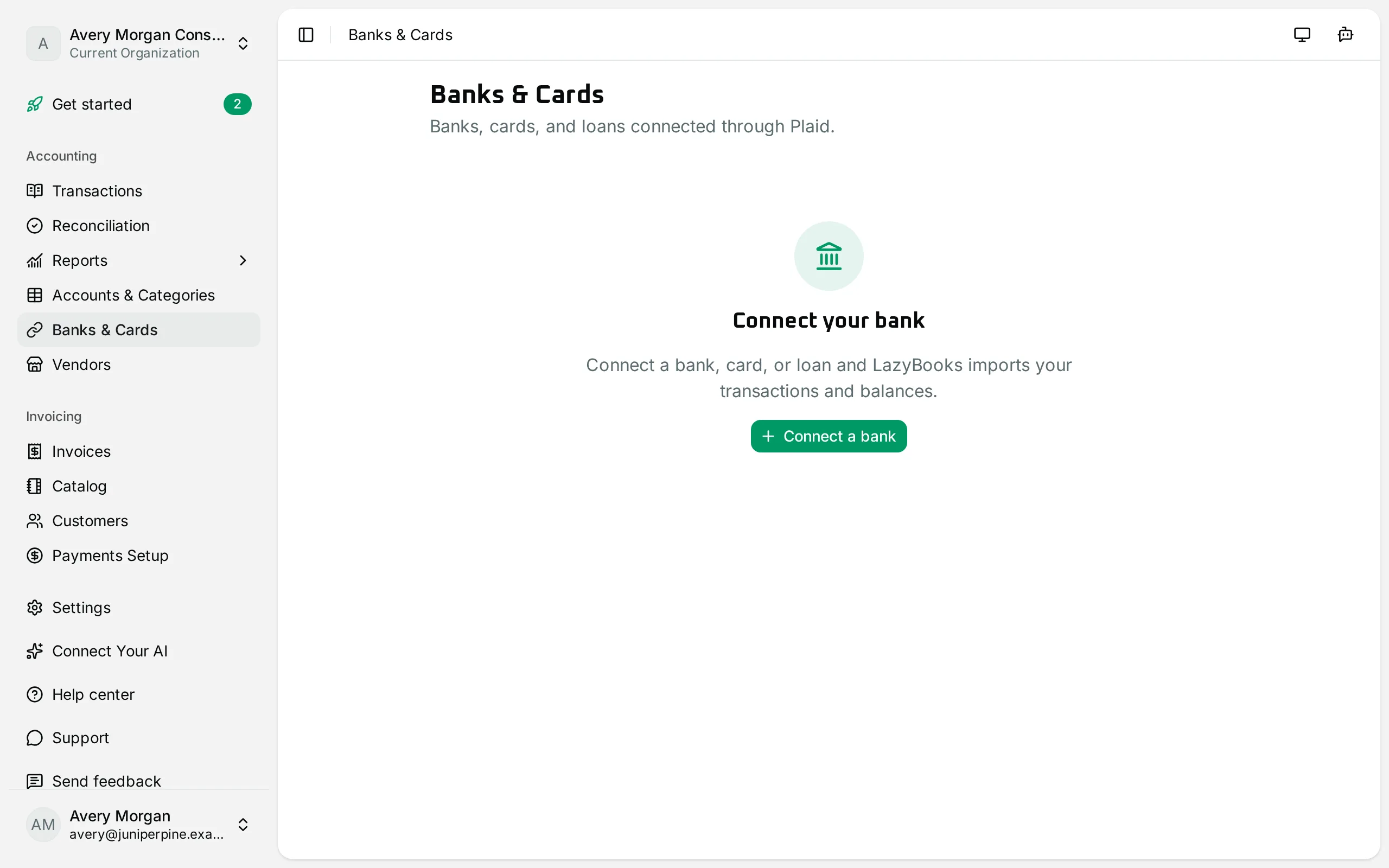
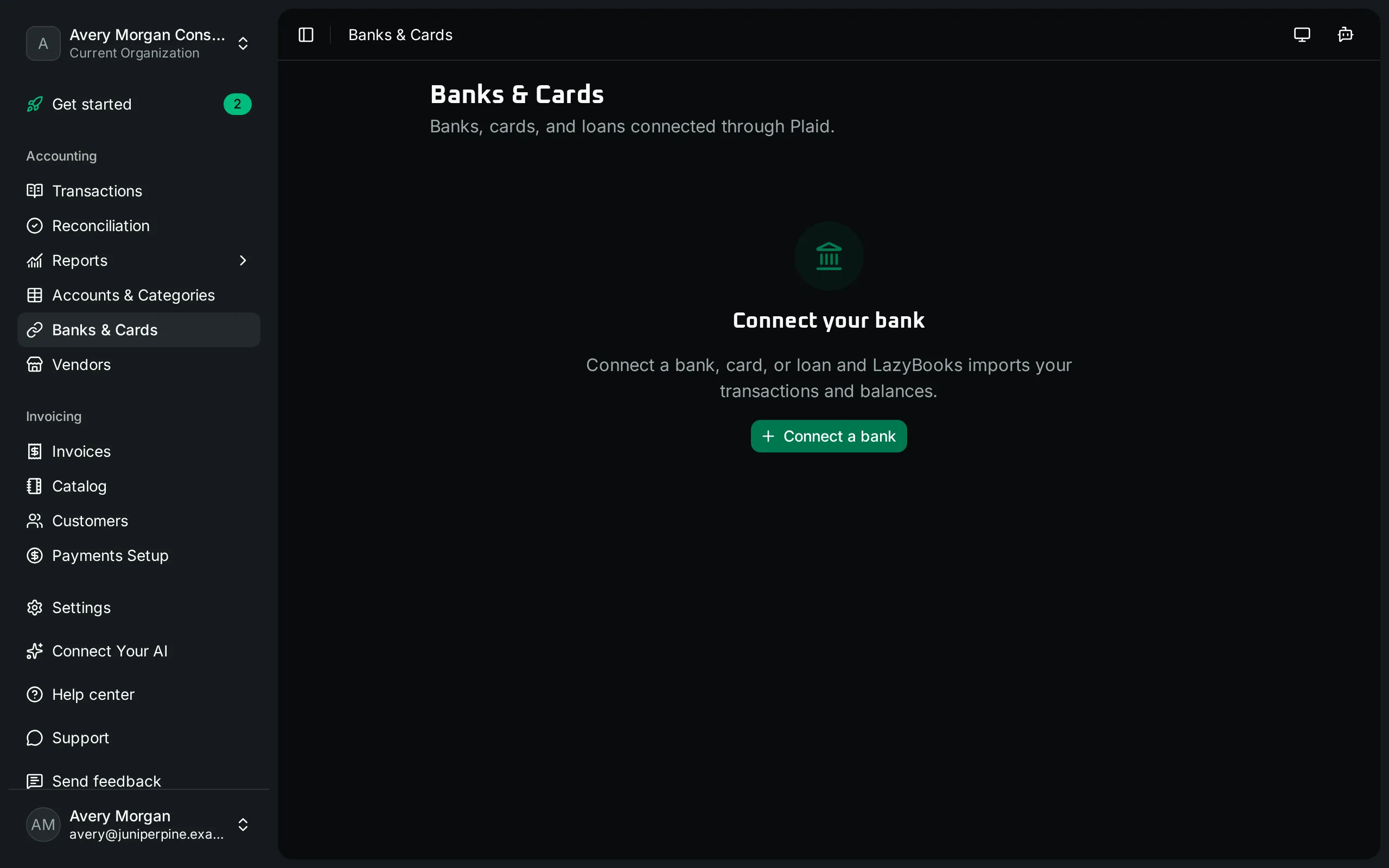
- In the sidebar, under Accounting, click Banks & Cards.
- Click Connect a bank. The Plaid window opens.
- Find your bank in the Plaid window and sign in.
- Choose the accounts that you want to share with LazyBooks, and finish the steps in the Plaid window.
- In the Confirm accounts to connect dialog, clear each account that you do not want in your books.
- Click Confirm and connect.
Some banks show their own sign-in page. After you sign in there, the Plaid window continues.
Connect from the Get started page
Before you finish setup, the Get started page has a Link your accounts step. Click Connect bank to open the Plaid window. The rest of the steps are the same. See The Get started checklist.


Choose where each account goes
In most cases, LazyBooks adds a new account to your chart of accounts for each bank account. In some cases, the Confirm accounts to connect dialog asks you first:
- If the account is already in your books, the dialog shows Already in your books as and the name of that account. For example, this happens when you connect an account again after you disconnected it. The account keeps its history.
- If your books have another account from the same bank with the same name, the dialog asks Is this the same account? Choose that account in the list, or choose Create a new account.
- If you imported your books from QuickBooks, choose the imported account for each bank account. See Move from QuickBooks.
Confirm and connect stays off until each of these accounts has an answer.
Where the accounts show in your books
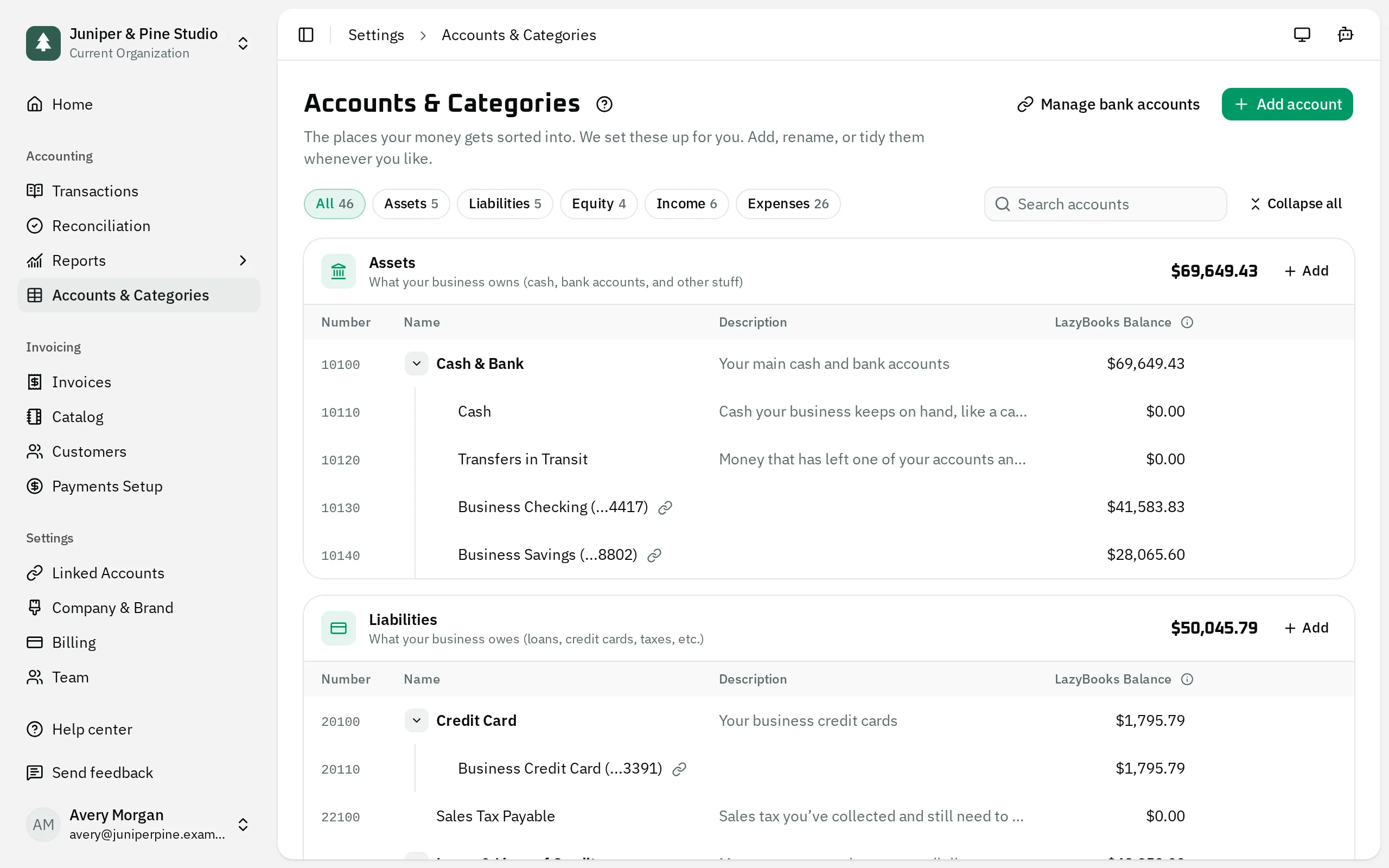
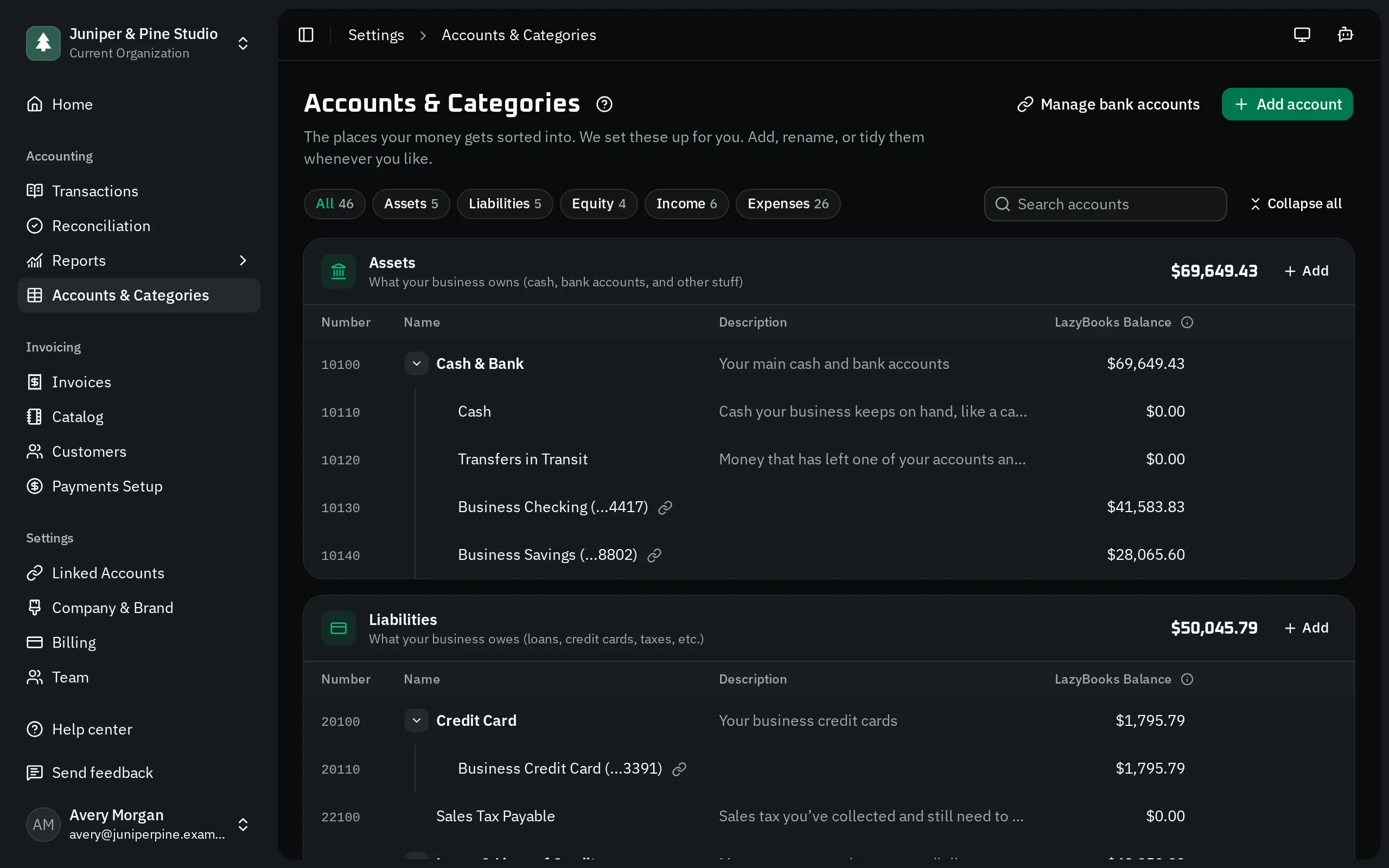
Each new account goes into your chart of accounts on the Accounts & Categories page. Its name is the name that your bank uses, followed by the last digits of the account number, for example "Business Checking (...1234)".
In the default chart of accounts, LazyBooks files each type of account under a parent account:
| Account type | Parent account |
|---|---|
| Bank account | Cash & Bank |
| Credit card | Credit Card |
| Loan or line of credit | Loans & Lines of Credit |
If your chart has no account for loans, LazyBooks adds Loans & Lines of Credit when you connect your first loan.
A link icon next to an account name tells you that the account is connected to your bank. Click the icon to open Banks & Cards. To learn more about the chart, see The chart of accounts.
How long the first import takes
The import starts after you click Confirm and connect. While it runs, the connection on the Banks & Cards page shows Importing history.
- Your recent transactions usually arrive in a few minutes. You can start to review them when they arrive.
- Your older history can take a few hours to arrive. You can leave the page while LazyBooks works.
When the older history is in, LazyBooks calculates the opening balance of each account. The opening balance is what the account held at the end of the day before your transactions in LazyBooks begin. Make sure that it matches your bank statement. See Verify opening balances.
After the first import, new transactions arrive when your bank has them. The connection shows when it last synced, and when Plaid last checked your bank.
How far back the history goes
LazyBooks asks your bank for up to 730 days of history. Each bank decides how much history it sends, and some banks send less. LazyBooks leaves out the transactions from before your bookkeeping start date.
If your bank sends less history than your books need, import the missing transactions from a CSV file. See Import bank transactions from a file.
Connect another bank
When you already have a connection, Connect a bank first opens a short dialog. The dialog lists the connections that you already have.
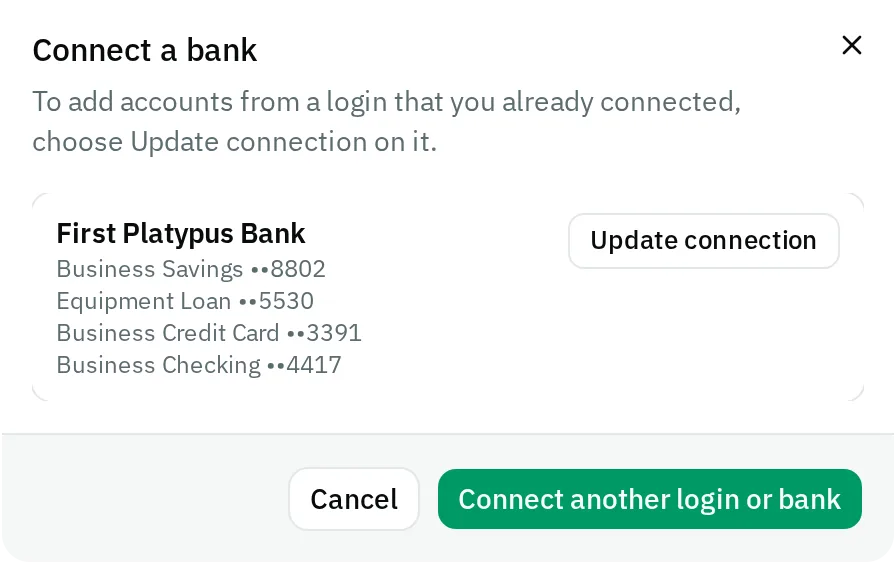
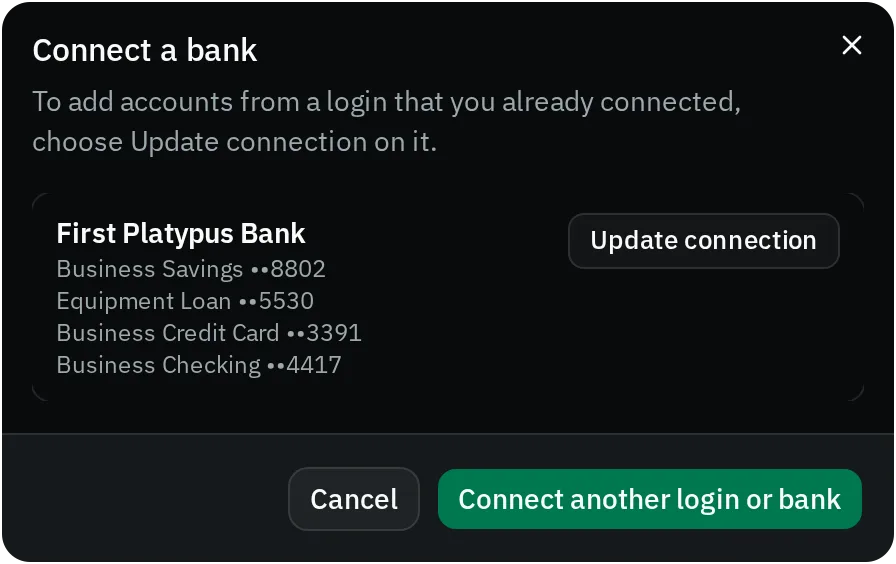
- To add an account from a login that you already connected, click Update connection next to that connection. See Fix a bank connection.
- To connect a different bank, or a second login at the same bank, click Connect another login or bank. A second login can be the login of another business.
Do not connect the same login a second time. At some banks, a second connection with the same login stops the first one from working.
LazyBooks shows We couldn't load the bank connection window. An ad blocker or a privacy extension can block the Plaid window. Allow plaid.com in the extension, and then click Connect a bank again.
LazyBooks shows Your bank connection session expired. Click Connect a bank to start again.
Plaid shows only the account types that LazyBooks imports. Investment accounts, student loans, consumer loans, and overdraft accounts do not show.