Set up your organization
Answer the setup questions for a new organization, choose the date your books start, and start your free trial.
An organization is the set of books for one business. After you sign in for the first time, LazyBooks asks a few questions and then creates your first organization.
Answer the setup questions
Each question has its own page. To change an earlier answer, click Back at the top of the page.
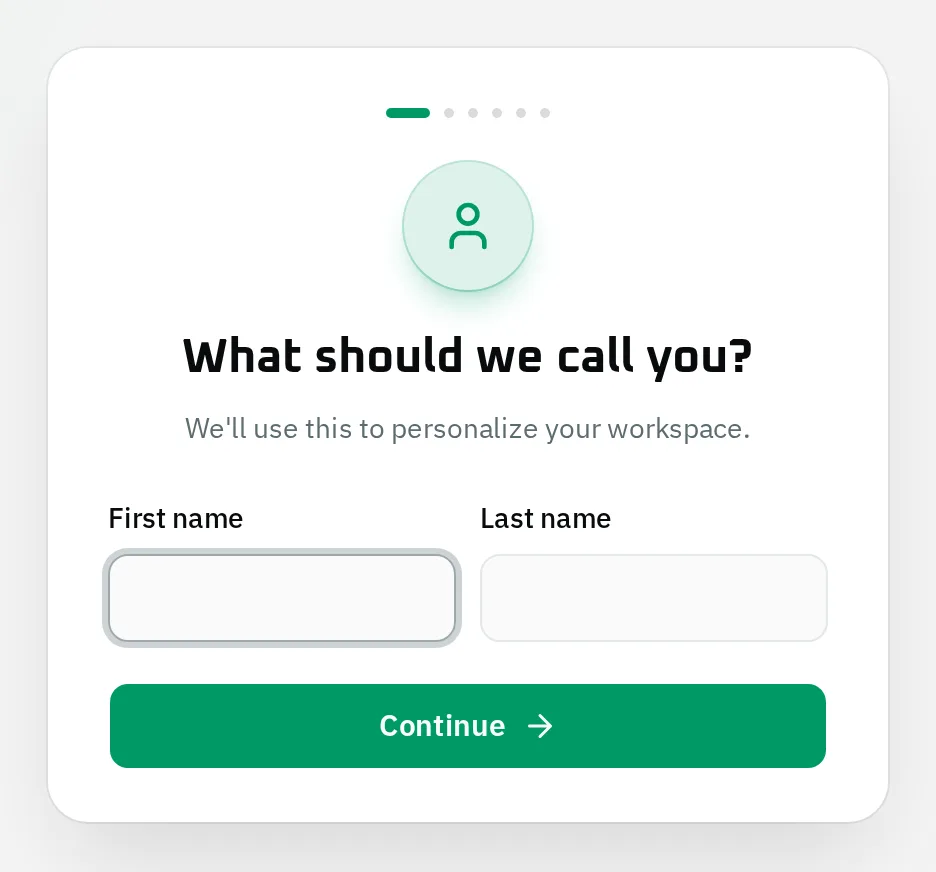
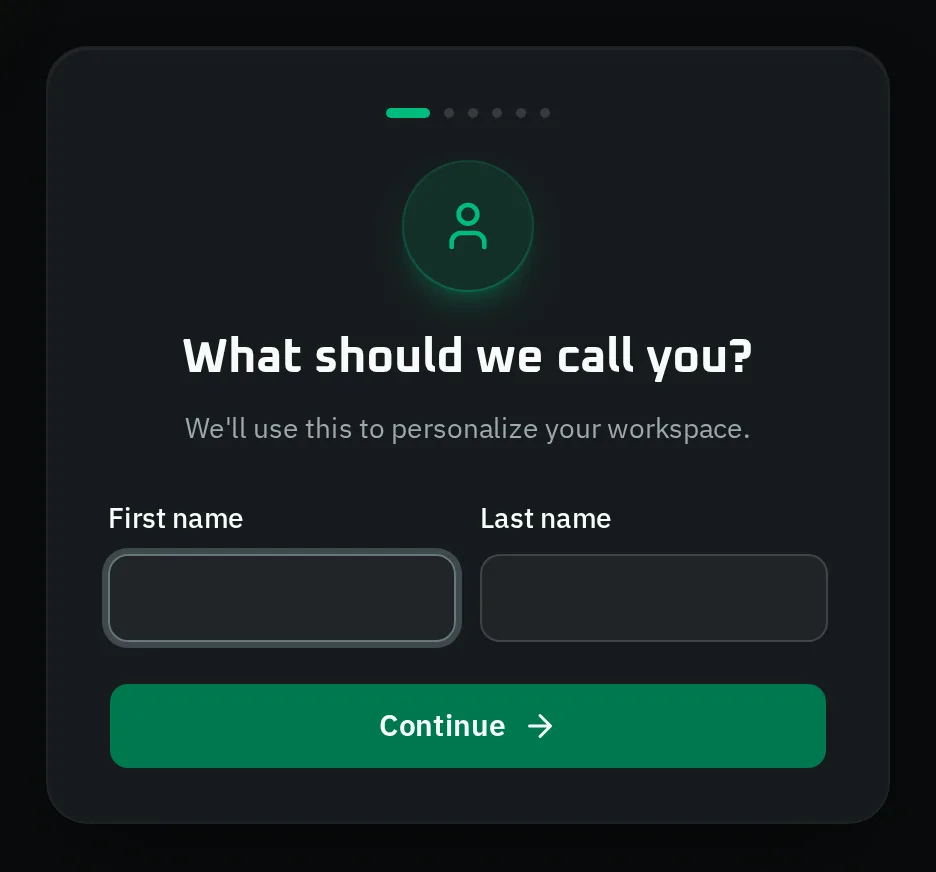
Enter your name
On What should we call you?, type your name in First name and Last name. Then click Continue. LazyBooks asks for your name only when your account does not have one yet.
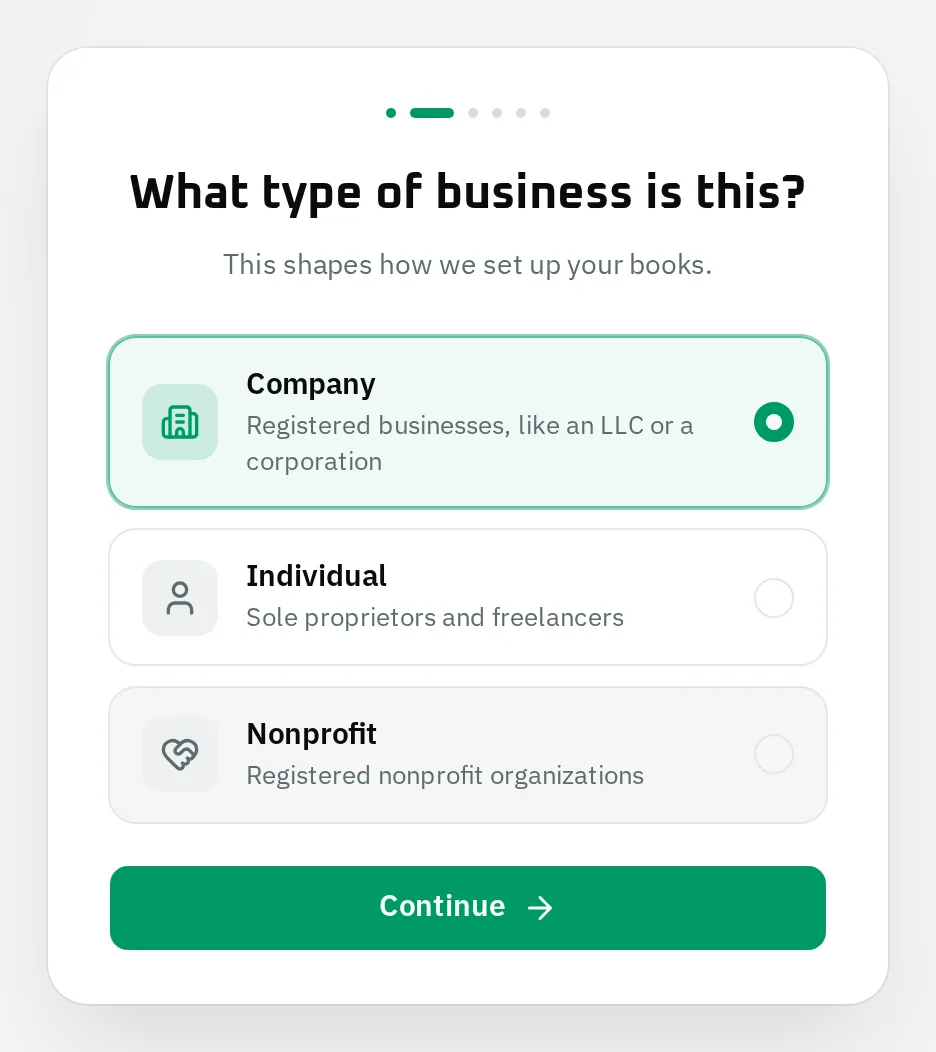
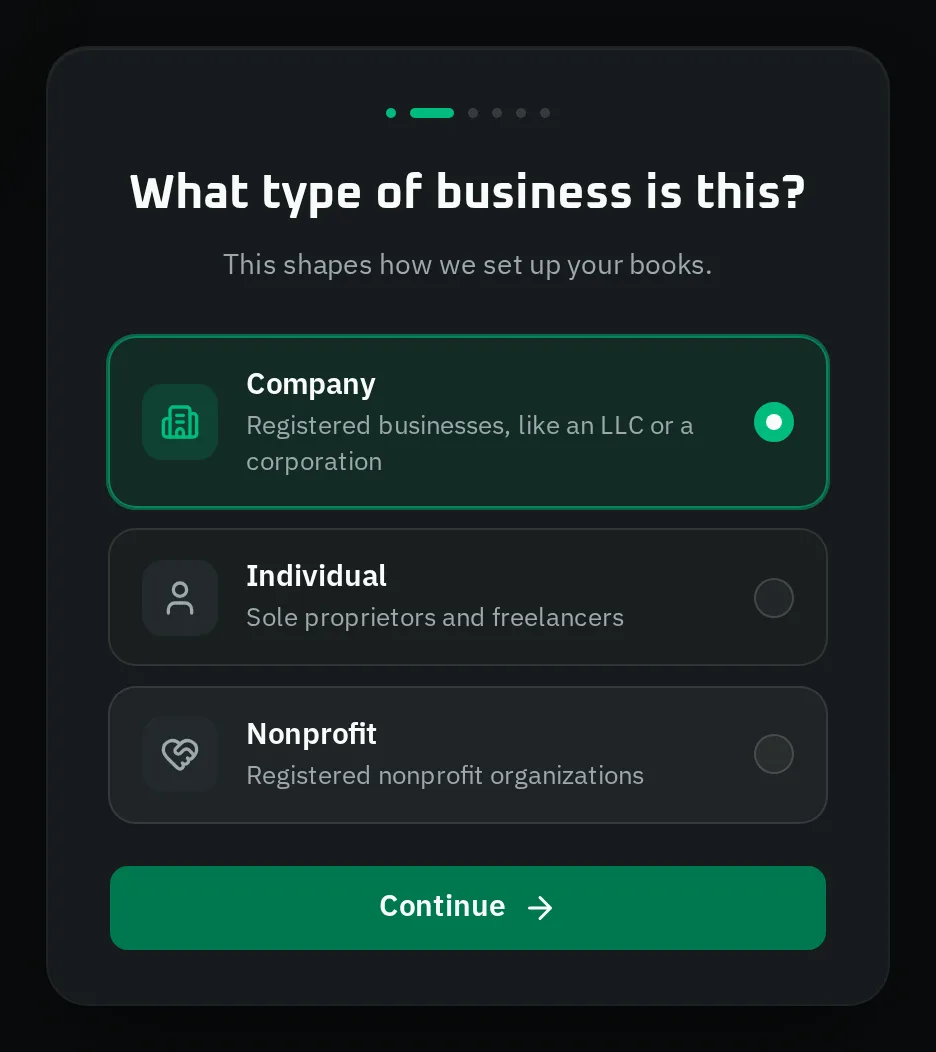
Choose the type of business
On What type of business is this?, click the type that fits your business. Then click Continue.
- Company is for registered businesses, like an LLC or a corporation.
- Individual is for sole proprietors and freelancers.
- Nonprofit is for registered nonprofit organizations.
Answer the QuickBooks question
On Are you moving from QuickBooks Online?, choose one answer. Then click Continue.
- Yes, bring my QuickBooks books imports your full history from QuickBooks Online. After setup, LazyBooks opens the import. See Move from QuickBooks.
- No, start fresh starts empty books. You connect your bank and choose the date your books start.
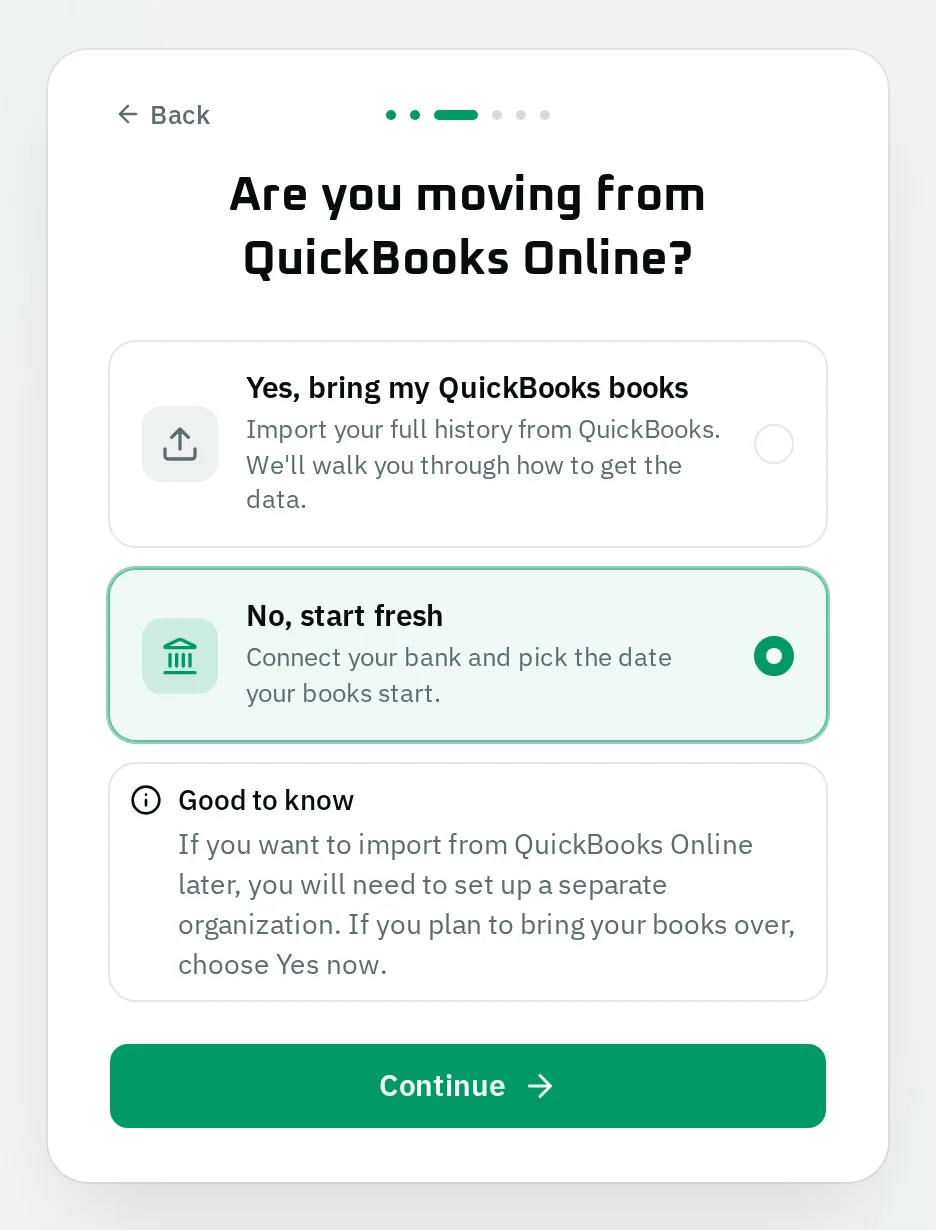
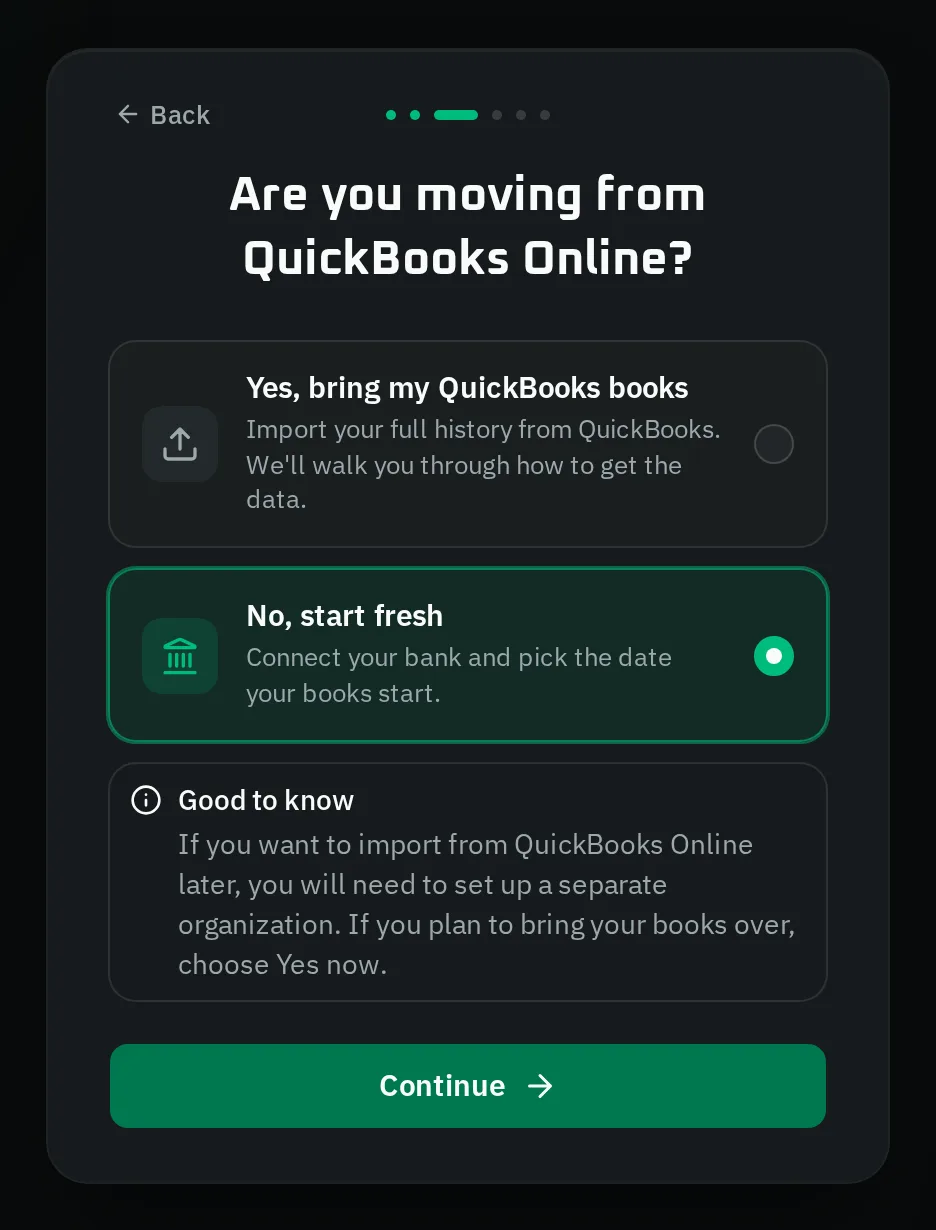
Choose Yes, bring my QuickBooks books if you plan to import from QuickBooks Online. An organization that starts fresh cannot import from QuickBooks later. To import later, you must set up a separate organization.
Name the organization and choose the start date
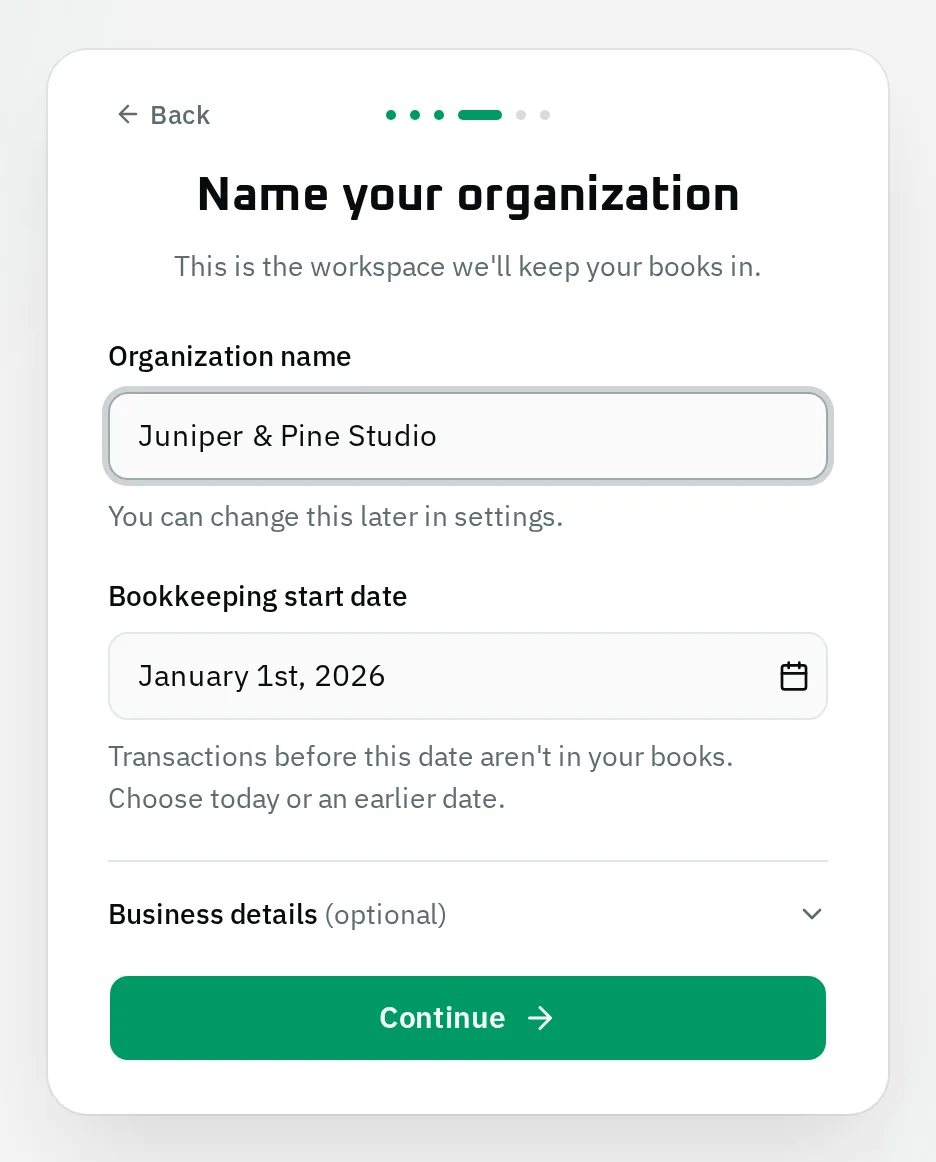
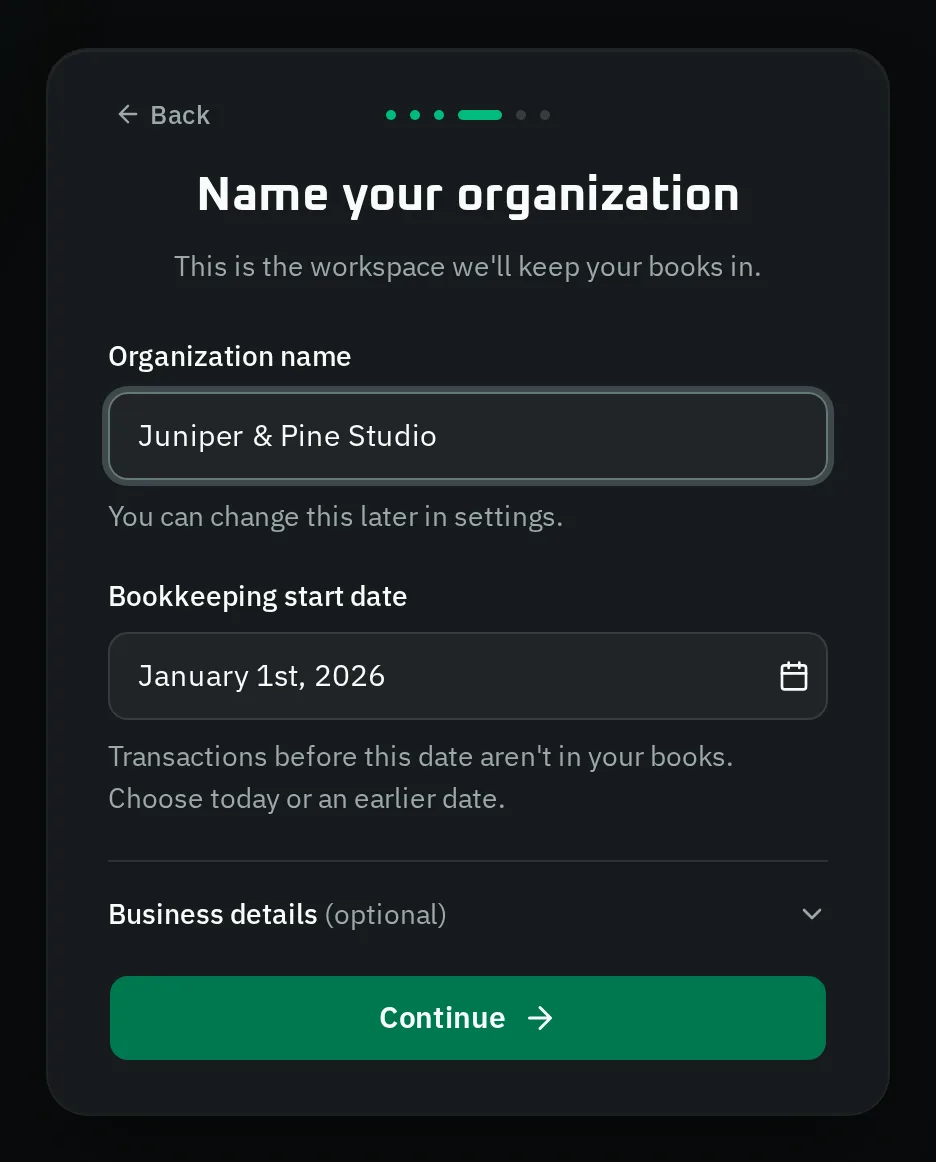
On Name your organization, type the name of your business in Organization name. You can change the name later.
The bookkeeping start date is the first day of your books. Bank transactions before this date do not go into your books. In Bookkeeping start date, choose today or an earlier date. The date is January 1 of this year until you change it.
If you answered Yes, bring my QuickBooks books, this page has no start date. The QuickBooks import sets it.
To add the contact details of your business, click Business details (optional). The fields are Legal business name, Business website, Business support email, Business phone, and the business address. The address and the phone number must be valid in the country of the organization, and none of the fields is required. If you chose Individual, the page has no business details. Then click Continue.
The address shows on your invoices. When you set up card payments, LazyBooks gives Stripe the Business support email. If you leave it empty, Stripe gets the email address that you sign in with. See Set up payments.
Describe your business
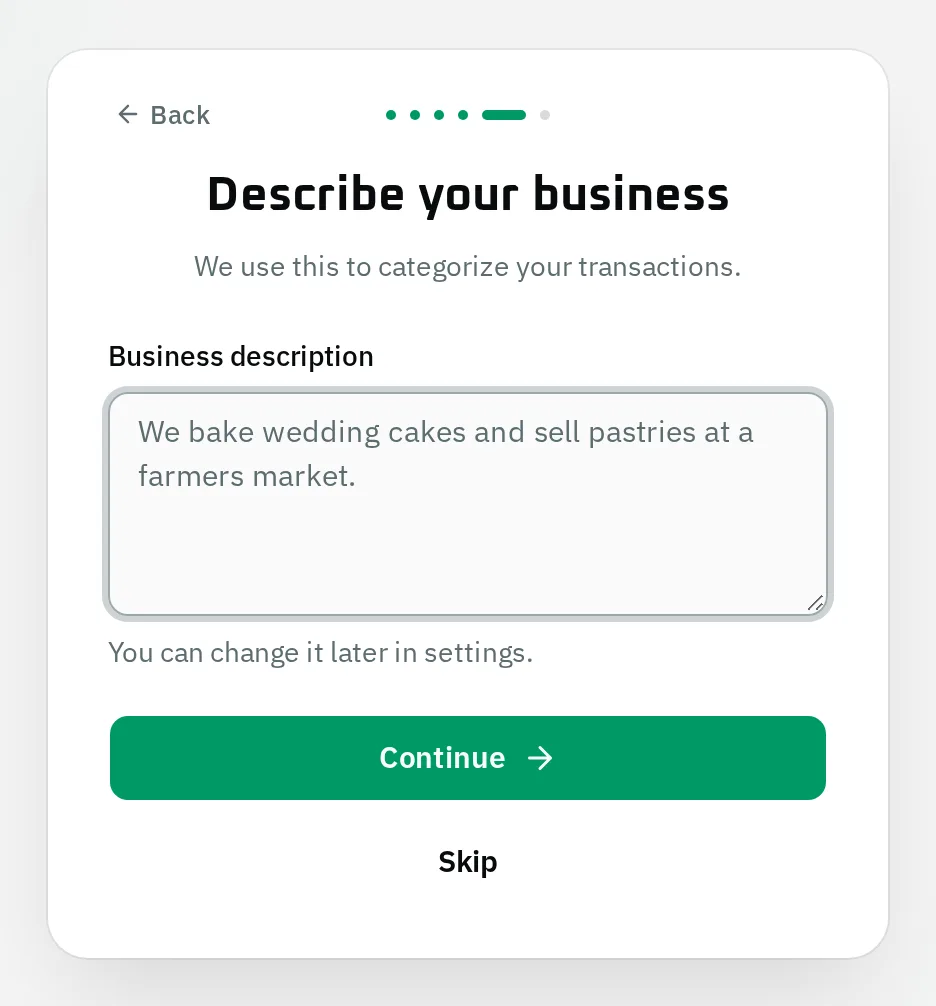
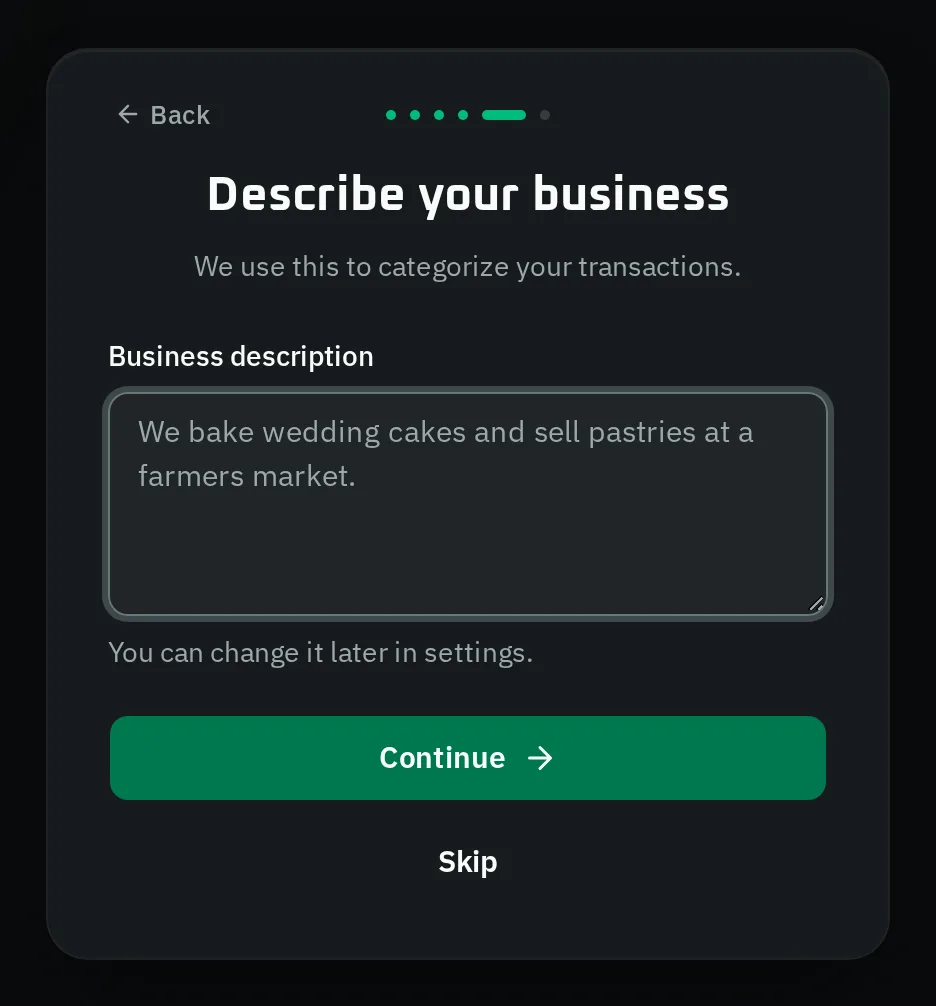
On Describe your business, tell LazyBooks what your business does in Business description. LazyBooks reads this description when it suggests a category for each transaction. You can change it later.
Then click Continue, or click Skip to leave the description empty.
Start your free trial
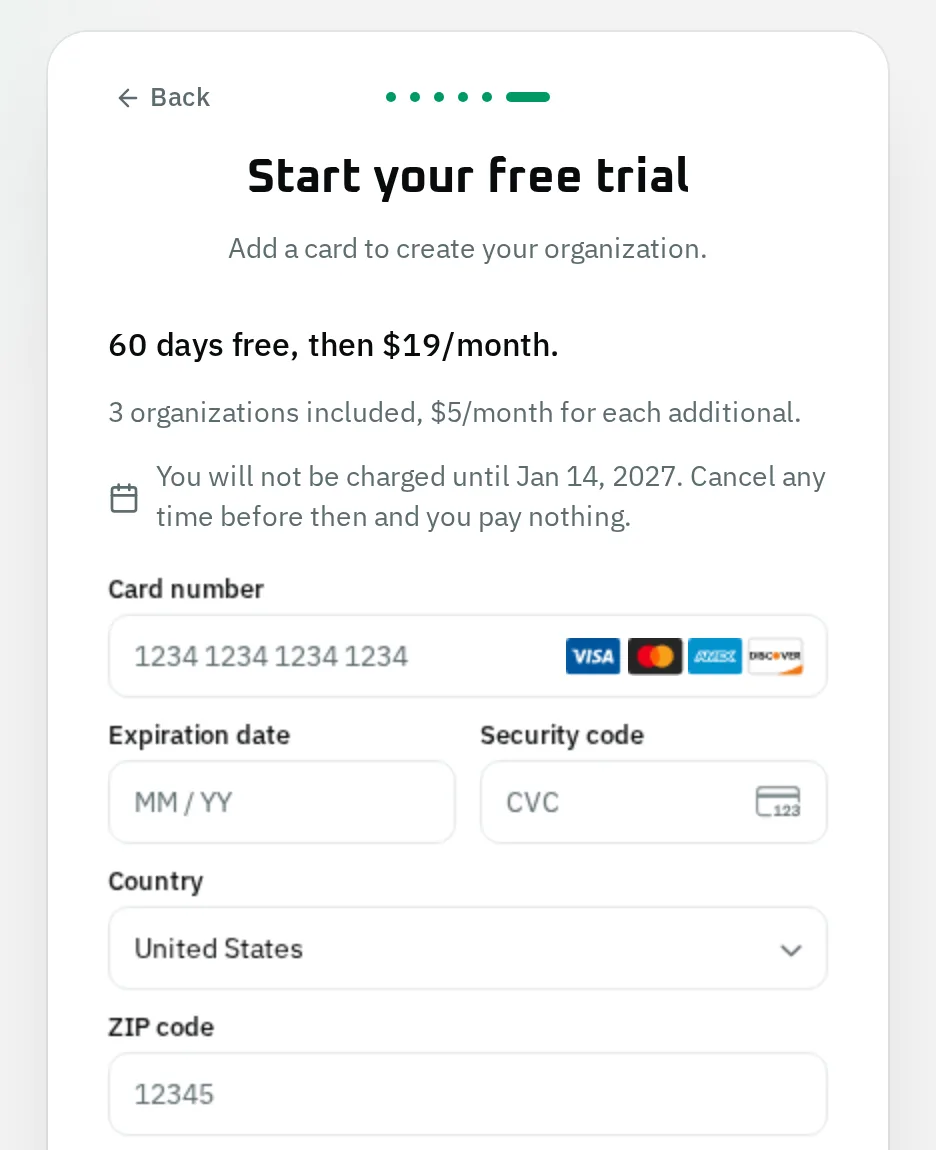
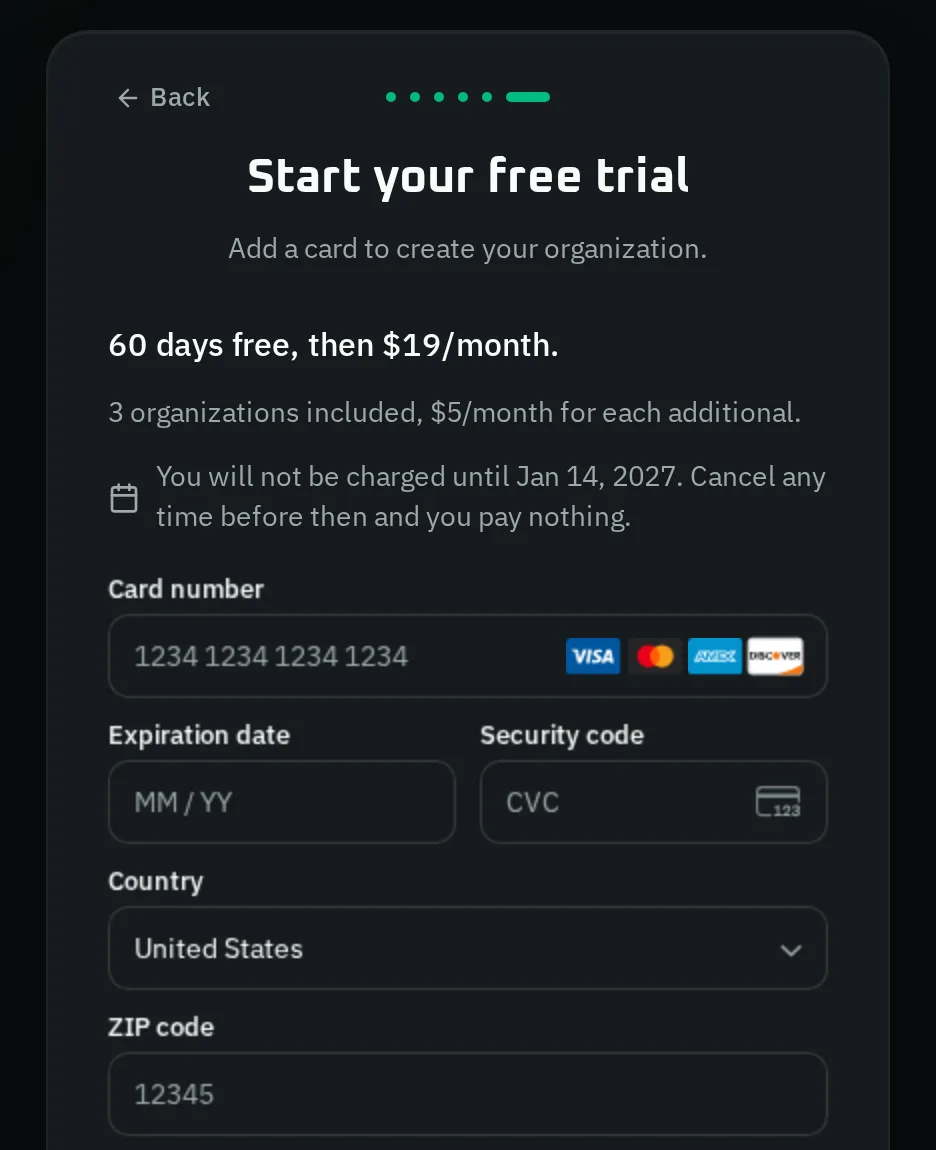
If you have no LazyBooks subscription yet, the last page is Start your free trial. A new subscription starts with 60 days free. After the trial, the plan costs $19 a month and includes 3 organizations. Each additional organization costs $5 a month.
- Type your card details.
- Click Start trial and create organization.
LazyBooks does not charge your card until the date on the page. If you cancel before that date, you pay nothing. If the card is declined, the page shows a message. Try another card.
If you already have a subscription, LazyBooks does not ask for a card. See Add another organization.
After LazyBooks creates the organization
LazyBooks shows Setting things up while it adds your accounts and categories. Then it opens your new organization:
- If you started fresh, the Get started page opens. See Use the Get started checklist.
- If you chose to bring your QuickBooks books, the QuickBooks import opens. See Move from QuickBooks.
To change the details of the organization later, see Change your organization settings.
Add another organization
If you keep books for more than one business, give each business its own organization. Your subscription covers every organization that you own.
- Click the organization name at the top of the sidebar.
- Click Add Organization.
- Answer the same questions as for your first organization.
LazyBooks does not ask for your name again. To leave without creating the organization, click Cancel on the first question.
With a subscription, Describe your business is the last question unless your plan needs the extra charge. Its button is then Create organization instead of Continue, and Skip also creates the organization without a description.
Your plan includes 3 organizations. If your subscription already covers 3 or more, the last page is Add another organization. It shows the extra $5 a month and the date of the bill that includes it. LazyBooks does not charge your card when you add the organization. If you canceled your subscription, the page says that the new organization is not billed.
If your subscription needs attention, LazyBooks shows Your billing needs attention instead of the questions. For example, a payment failed, the subscription ended, or a payment waits for your bank to confirm it. Click Go to billing settings and fix the problem first. See Manage billing and your subscription.