Find your way around
The sidebar, the header, and the menus you use on every page of LazyBooks.
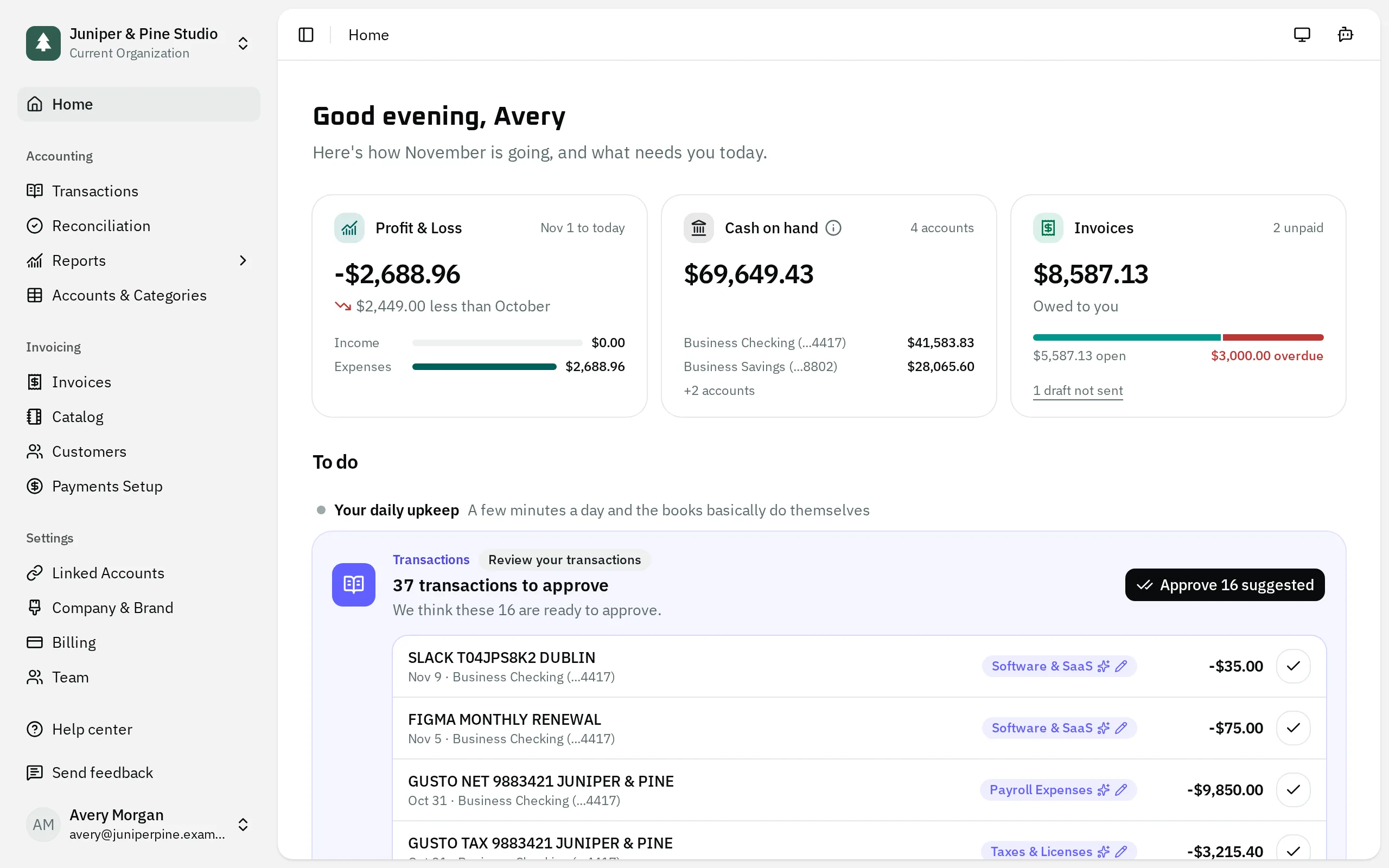
LazyBooks has the same layout on every page. The sidebar on the left takes you to each part of your books. The header at the top shows where you are and opens the assistant.
The sidebar
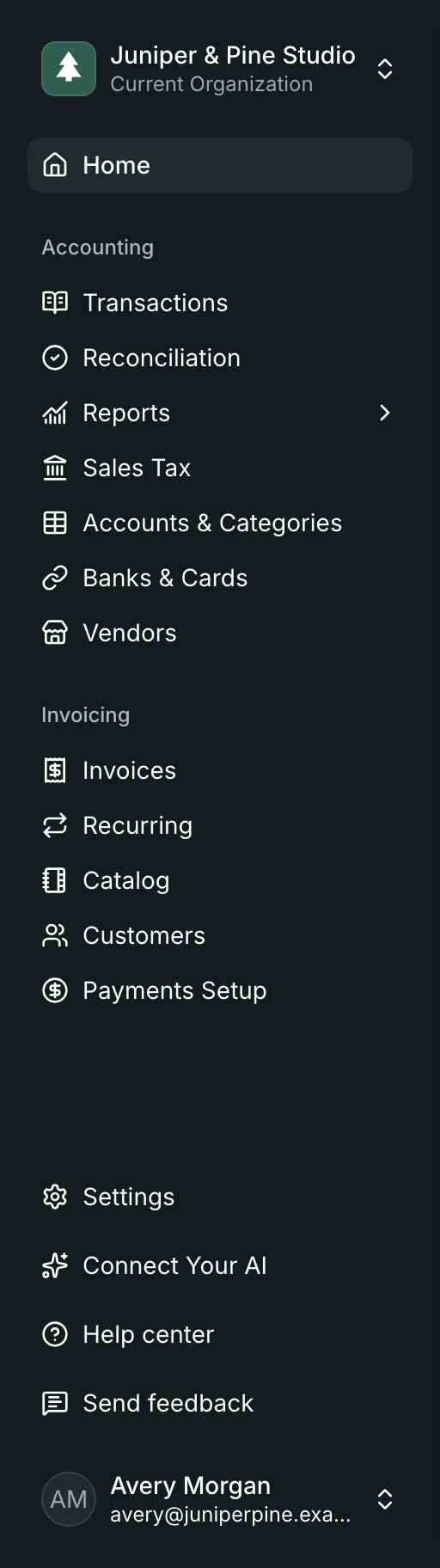
The sidebar groups the pages of your organization into three sections, with more links under them.
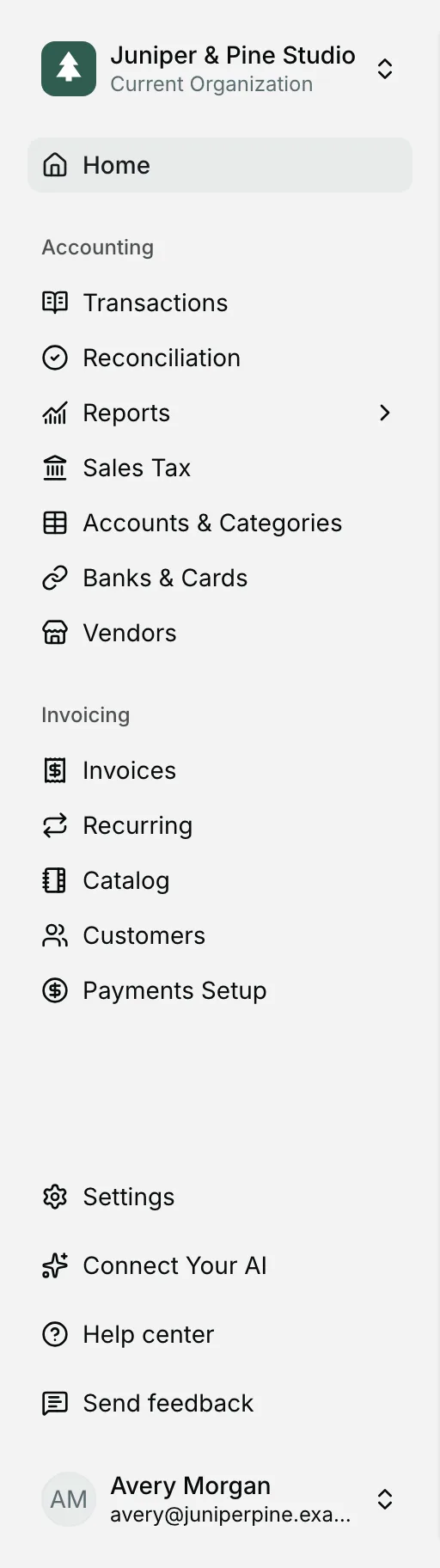
- Home shows a summary of your books and the tasks that need your attention. Before you finish setup, this item is Get started instead, with the number of setup steps that remain.
- Accounting has Transactions, Reconciliation, Reports (Profit & Loss, Balance Sheet, Cash Flow, Expenses by Vendor, and Sales Tax), Sales Tax, Accounts & Categories, Banks & Cards, and Vendors. The Sales Tax page shows what is due and the agencies that you file with. See Set up sales tax agencies.
- Invoicing has Invoices, Catalog, Customers, and Payments Setup.
- Settings opens the settings panel over the page that you are on. It has the settings of the organization (General, Branding, Projects, Team, and Rules) and your own settings, such as Billing. See Manage your profile and sign-in.
- Connect Your AI lets apps such as Claude or ChatGPT work with your books. See Connect your AI.
A number next to Banks & Cards tells you that a bank connection needs attention, or that an opening balance needs your review. When an opening balance needs your review, a Verify opening balances card also shows at the bottom of the sidebar.
To make the sidebar smaller, click the sidebar button at the left end of the header. The sidebar then shows only icons. Click the button again to show the full sidebar.
Switch organizations
If you keep books for more than one business, each business is a separate organization. The organization menu at the top of the sidebar shows the organization you work in now.
- Click the organization name at the top of the sidebar.
- Under Your Organizations, click the organization you want to open.
To set up a new business, click Add Organization in the same menu.
The header
The header shows the path to the page you are on, for example Reports and Profit & Loss. Some parts of the path are links. Click one to go back to that page.
The right side of the header has two icon buttons:
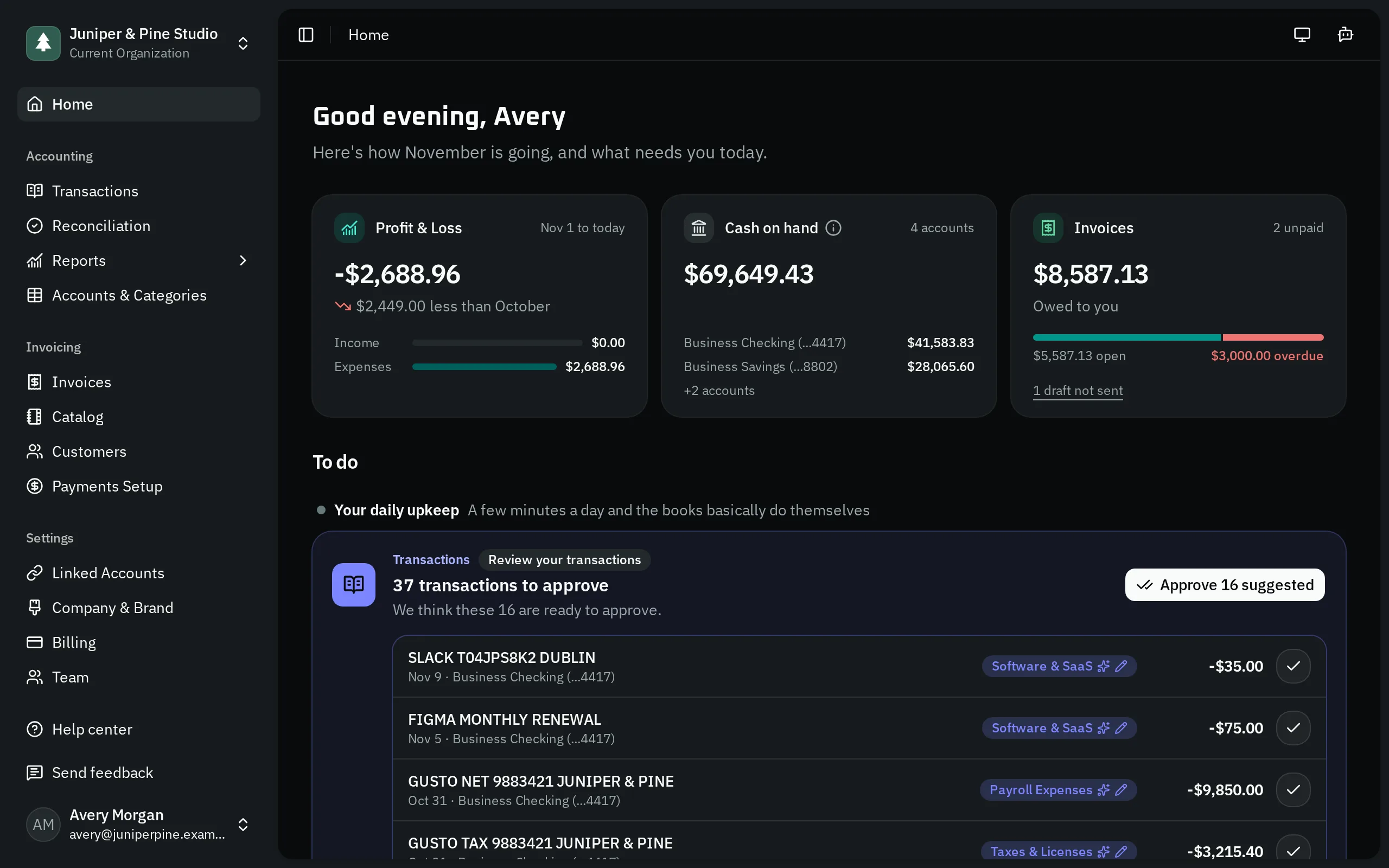
- The first button changes the theme. Each click moves to the next theme: light, dark, or the theme of your device.
- The second button opens the LazyBooks assistant, which can answer questions about your books. See Ask the assistant.
Your account menu
Your name is at the bottom of the sidebar. Click it to open your account menu. Log out signs you out of LazyBooks on this device. Your profile, sign-in, and billing settings are under Settings.
Above your name, Help center opens this help center in a new tab. Send feedback opens a menu with Report a bug and Request a feature. A bug report opens a support ticket. LazyBooks includes the address of the page you were on with your report or request.
Get help from LazyBooks
On the public LazyBooks site, click Help in the header to open this help center.