Connect your AI
Connect Claude, ChatGPT, or another AI app to LazyBooks, and remove the access of an app that you no longer use.
You can connect an AI app, such as Claude or ChatGPT, to your LazyBooks account. The app can then read your books, review and categorize your transactions, and add transactions and adjustments. It can also work with your customers, catalog items, sales taxes, invoices, scheduled sends, recurring invoices, and invoice payments, and match bank deposits to your invoices. It can do the same tasks as the assistant in LazyBooks. See What the assistant can do.
The connection uses MCP (Model Context Protocol), an open standard that lets AI apps use tools. Your AI app must support remote MCP servers. You do not need an API key.
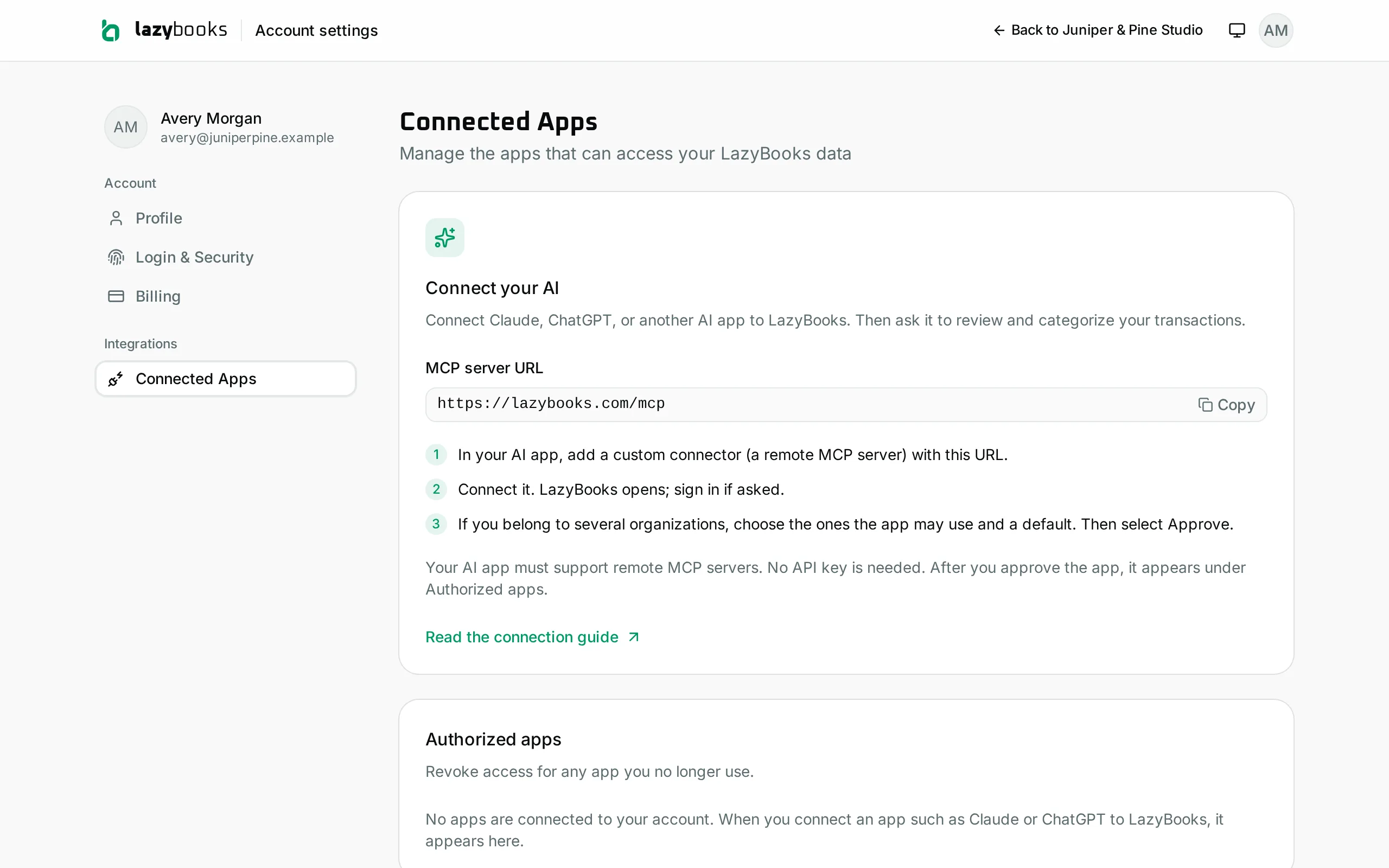
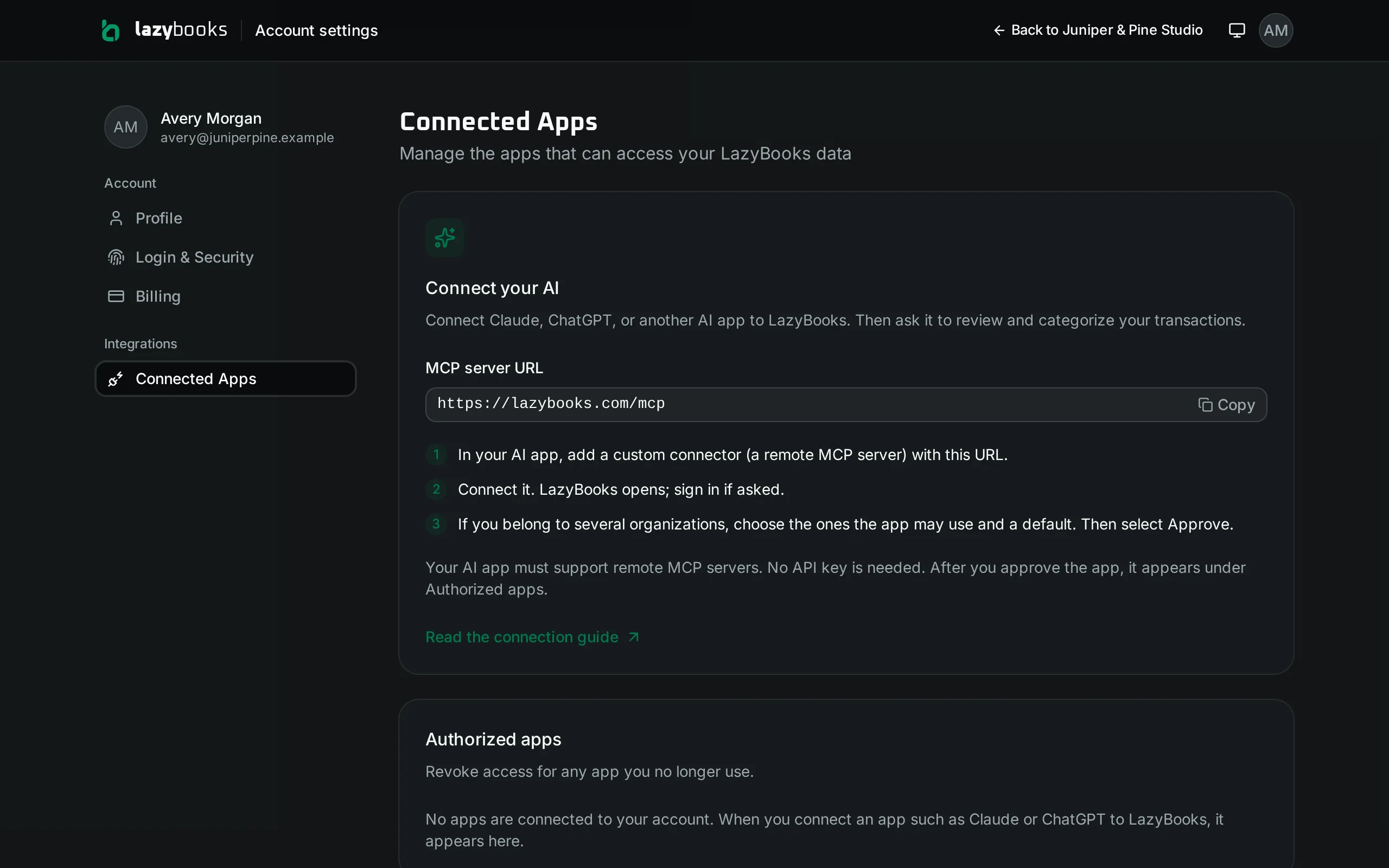
Connect an AI app
- In the sidebar, click Connect Your AI. The Connected Apps page opens in your settings panel.
- Under MCP server URL, click Copy.
- In your AI app, add a custom connector with this URL. Some apps call it a remote MCP server.
- Connect the connector. LazyBooks opens in your browser.
- If LazyBooks asks, sign in.
- If you belong to several organizations, select the organizations that the app can use.
- If you belong to several organizations, choose a Default organization.
- Click Approve.
The approval page lists what the app can do, for example View your organization's data and Make changes in your organization. After you approve, the app shows under Authorized apps.
For the steps in Claude, ChatGPT, Claude Code, and Cursor, see Connect LazyBooks to AI assistants.
Connect Your AI belongs to your own login, not to one organization. Each team member connects their own apps.
LazyBooks does not show an approval card for a change that an app makes. It asks the app to get your approval in the chat of the app.
Remove the access of an app
- In the sidebar, click Connect Your AI.
- Under Authorized apps, find the app.
- Click Revoke.
- Click Revoke access.
The app loses access to your LazyBooks data at once. To use the app again, connect it again from the app.
Each app in the list shows its permissions, such as Read and Write. It also shows the organizations that it can use, the date that you authorized it, and the date that it was last used.