Set up online payments
Connect Stripe so that your customers can pay your invoices online by card or from a bank account.
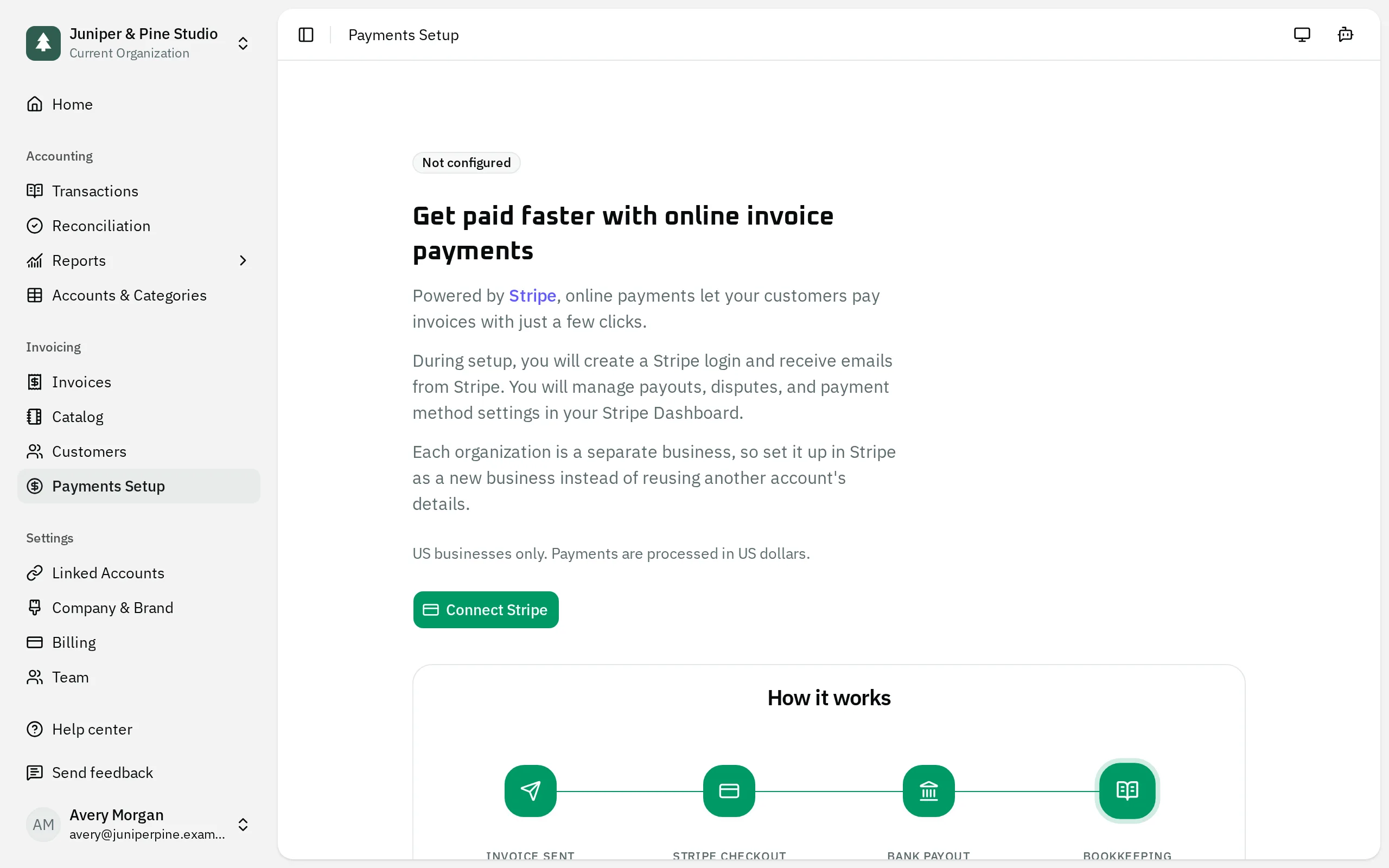
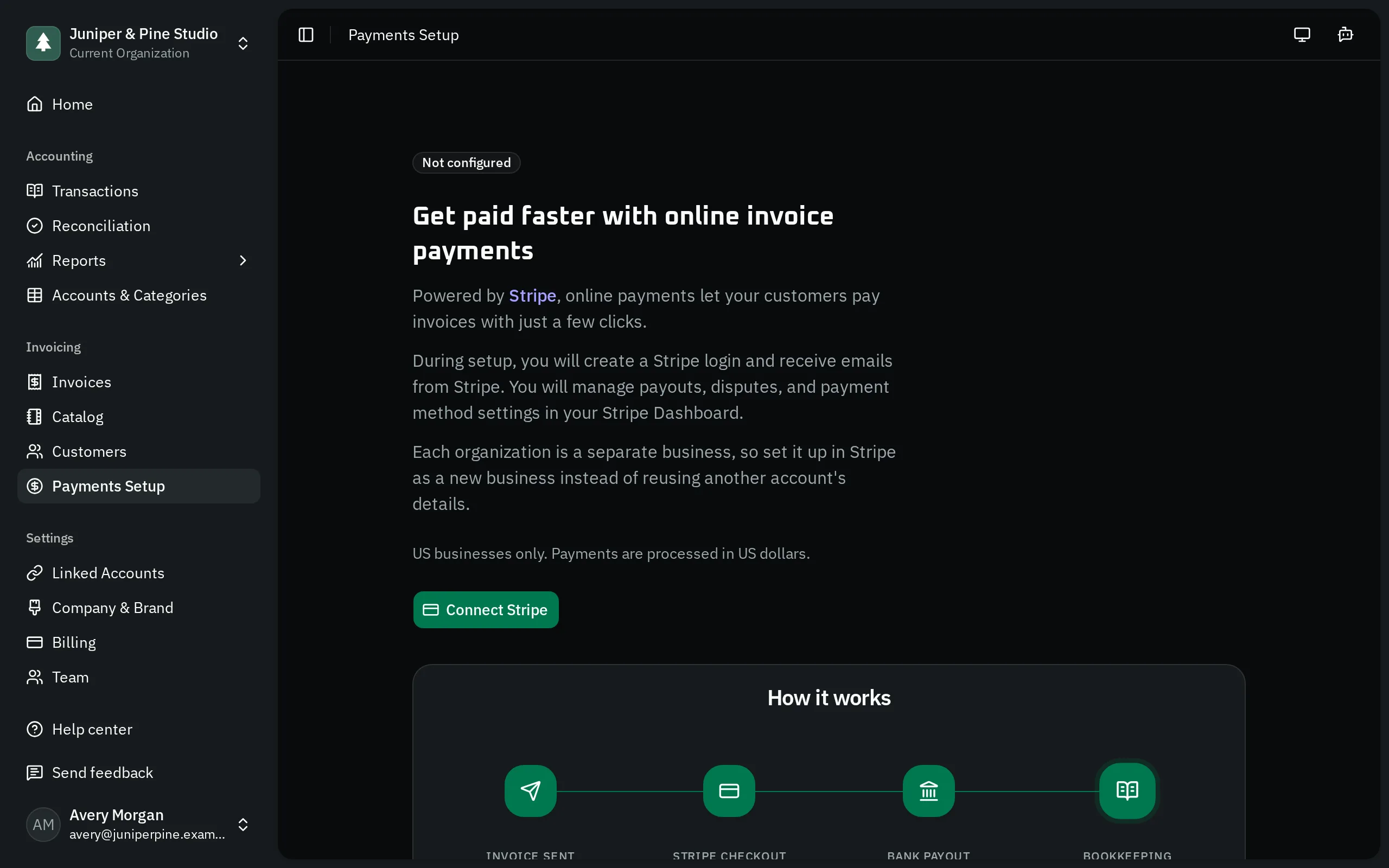
Connect a Stripe account in Payments Setup, and your customers can pay your invoices online. Until you connect Stripe, you can still send invoices, but your customers cannot pay them online.
Before you start
Make sure that these conditions are true before you connect Stripe:
- You are an owner or an admin of the organization. Other team members see Ask an owner or admin to manage Stripe setup.
- Your business is in a country that LazyBooks supports. LazyBooks supports businesses in the United States. Stripe processes the payments in the currency of your organization.
LazyBooks starts your Stripe account with details that you already gave LazyBooks. The organization name, the logo, the icon, and the brand color come from the General and Branding pages of the settings. See Change your organization settings. The email address is the Business support email that you entered when you created the organization. If you did not enter one, LazyBooks uses the email address of your login.
Each organization is a separate business in Stripe. Set up each organization as a new business. Do not reuse the details of another Stripe account.
Connect Stripe
- In the sidebar, under Invoicing, click Payments Setup.
- Click Connect Stripe. LazyBooks opens the setup pages of Stripe.
- Create a Stripe login.
- Give Stripe the details of your business that it asks for.
- Finish the steps on the Stripe pages. Stripe then sends you back to Payments Setup.
When you come back, the page shows Checking your account with Stripe… for a short time. Then it shows the status of your setup. During setup, Stripe also sends you emails.
When you click Connect Stripe, LazyBooks adds an account named Stripe Balance under Cash & Bank in your chart of accounts. LazyBooks records your online payments in this account. See Get paid.
How online payments work
Before you connect Stripe, Payments Setup shows a How it works section with the four steps of an online payment.
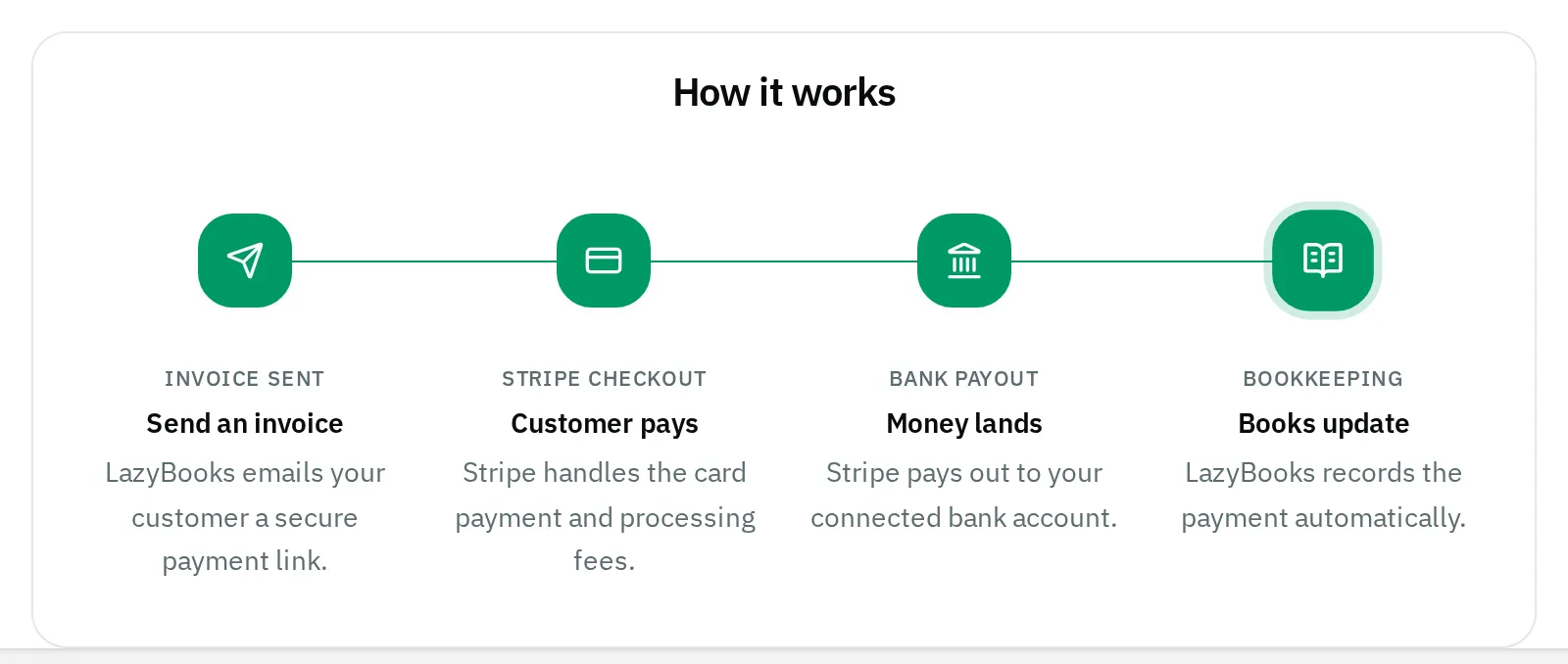
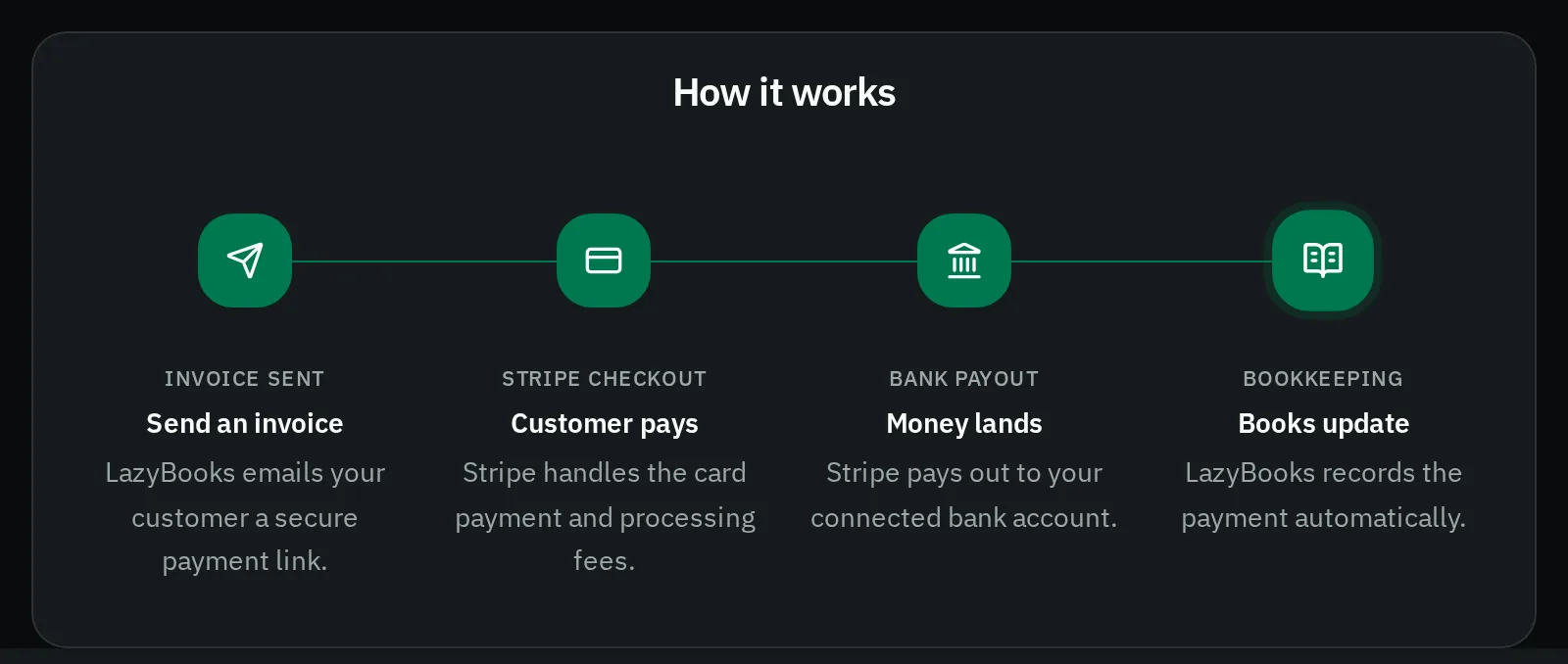
- You send an invoice, and LazyBooks emails your customer a link to pay.
- Your customer pays on a Stripe page. Stripe takes care of the payment and its processing fee.
- Stripe sends the money to your bank account.
- LazyBooks records the payment in your books.
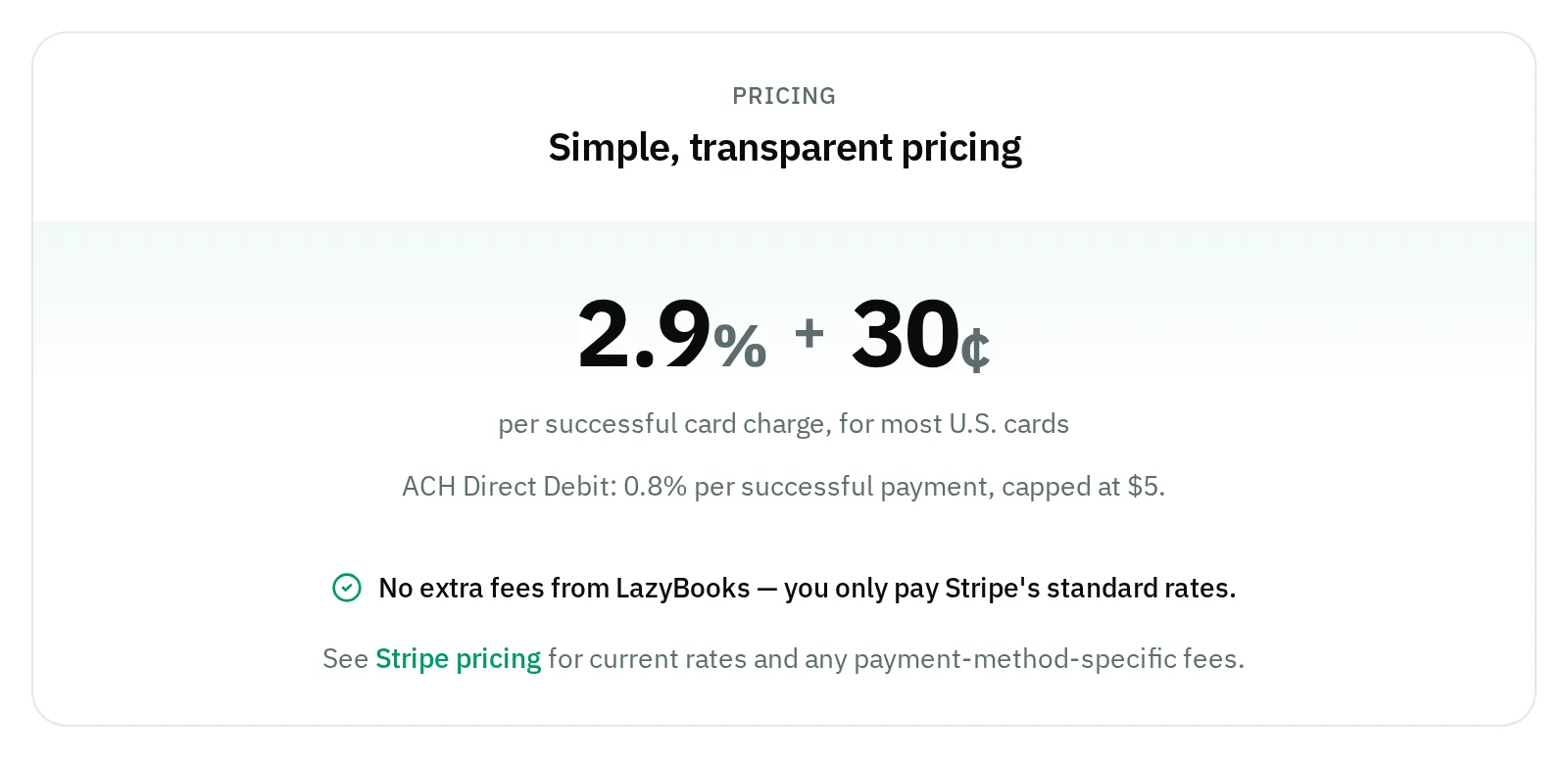
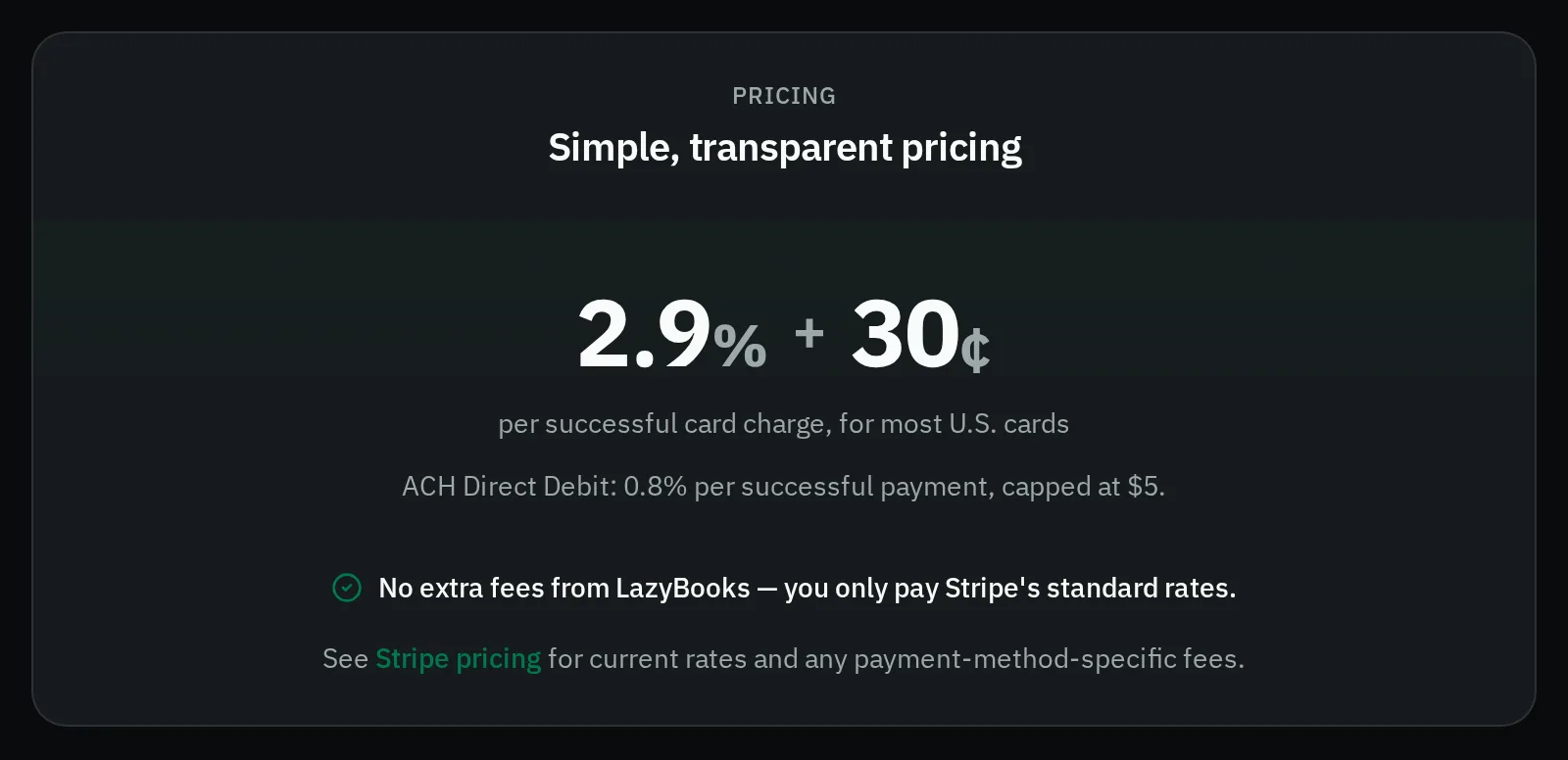
Stripe charges a fee for each successful payment. Before you connect Stripe, the Pricing section of the page shows the Stripe fees for cards and for bank debits. LazyBooks adds no fees of its own.
Follow your setup progress
After you start setup, Payments Setup shows a status badge and Your onboarding progress. The progress has four steps:
- Connect Stripe account
- Create Stripe login and add details
- Stripe review
- Payments active
The status badge tells you what to do next:
- Verifying means that Stripe is reviewing your details. You do not have to do anything.
- Action required means that Stripe needs more information. Click Continue setup and finish the steps in Stripe.
- Contact Stripe means that Stripe must help you with a problem on your account. Click Contact Stripe.
- Unavailable means that some payment features are not available. The How your customers can pay section shows which ones.
- Active means that your customers can pay your invoices online.
The How your customers can pay section shows a status for Cards, the bank debit of your country, and Bank payouts. In the United States, the bank debit is ACH bank debit. If one of them needs more details, click the setup button under it.
If a setup link expired or was already used, the page shows Continue Stripe setup. Click Continue with Stripe to get a new link.
After you connect Stripe, click Open Stripe Dashboard to manage payouts, disputes, and payment methods. Sign in with your Stripe login.
Disconnect Stripe
- In the sidebar, under Invoicing, click Payments Setup.
- Click Disconnect Stripe.
- Click Confirm disconnect.
Your invoices then stop offering online payment. LazyBooks keeps your earlier payment records, and your Stripe account stays open. To connect again, click Connect Stripe again on Payments Setup.