Add and edit accounts
Add an account or a subaccount, change its details, move it, or deactivate it when you no longer use it.
You can add your own accounts to the Accounts & Categories page, put an account inside another one, and change the details of an account. When you no longer use an account, you can deactivate it. To learn how the page works, see The chart of accounts.
Add an account
- On the Accounts & Categories page, click Add account. You can also click Add on the card of a type. The Add an account panel opens at the right side of the page.
- In Name, type a name for the account.
- Under Where does it go?, select a top level, such as Top level of Expenses. To put the new account inside another account, select that account.
- Under Category type, select the category type. It decides where the account shows on your reports.
- Optional: type an Account number. If you leave it blank, LazyBooks picks a number when it can.
- Optional: for an asset or liability account, type an Account mask, the last 4 digits of the bank or card number, as they appear on statements and transfer descriptions.
- Optional: for a bank, cash, card, or loan account, type the opening balance and select its date. See Set an opening balance.
- Optional: type a Description. A clear description helps LazyBooks sort your transactions into the right account.
- Click Add account.
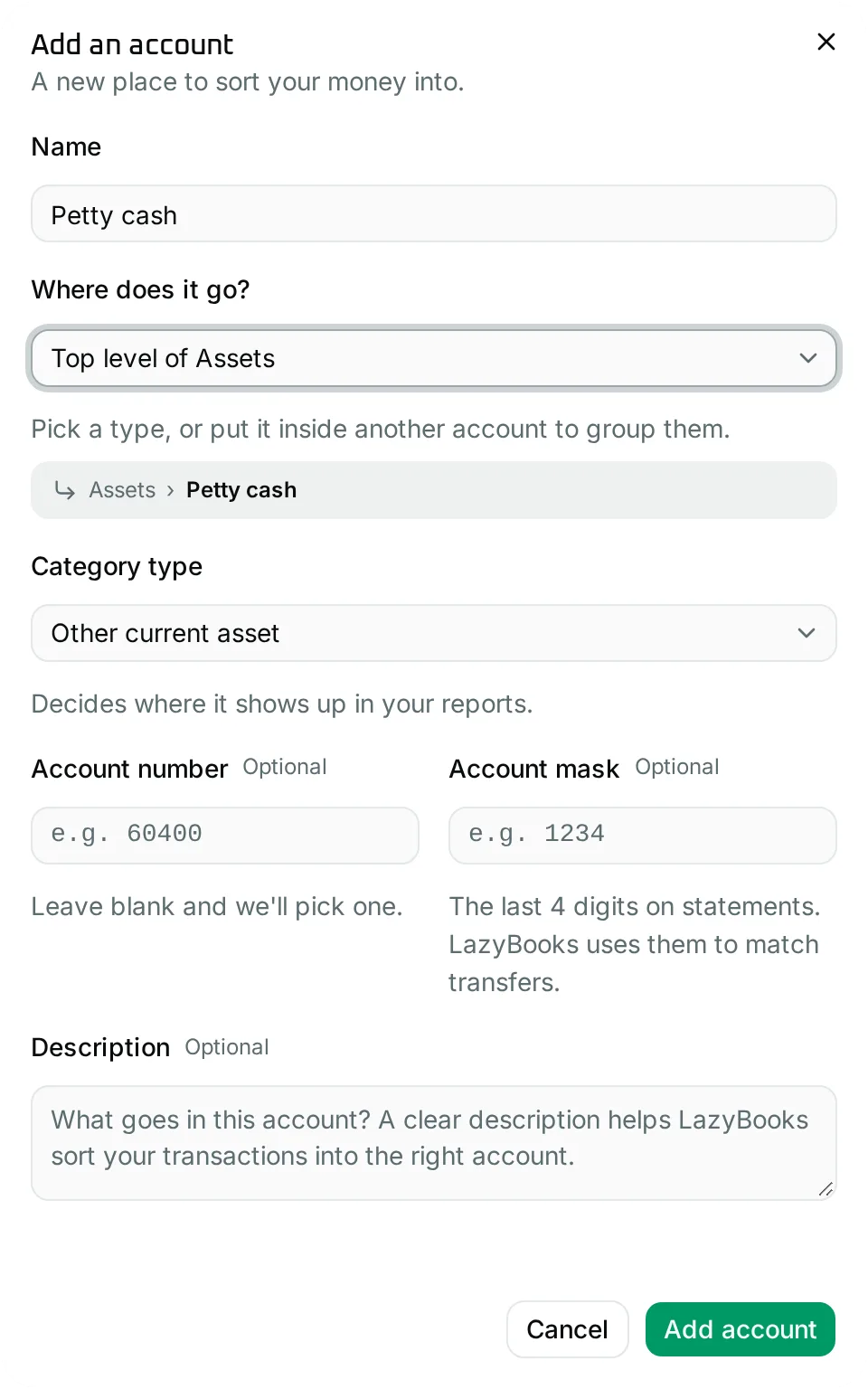
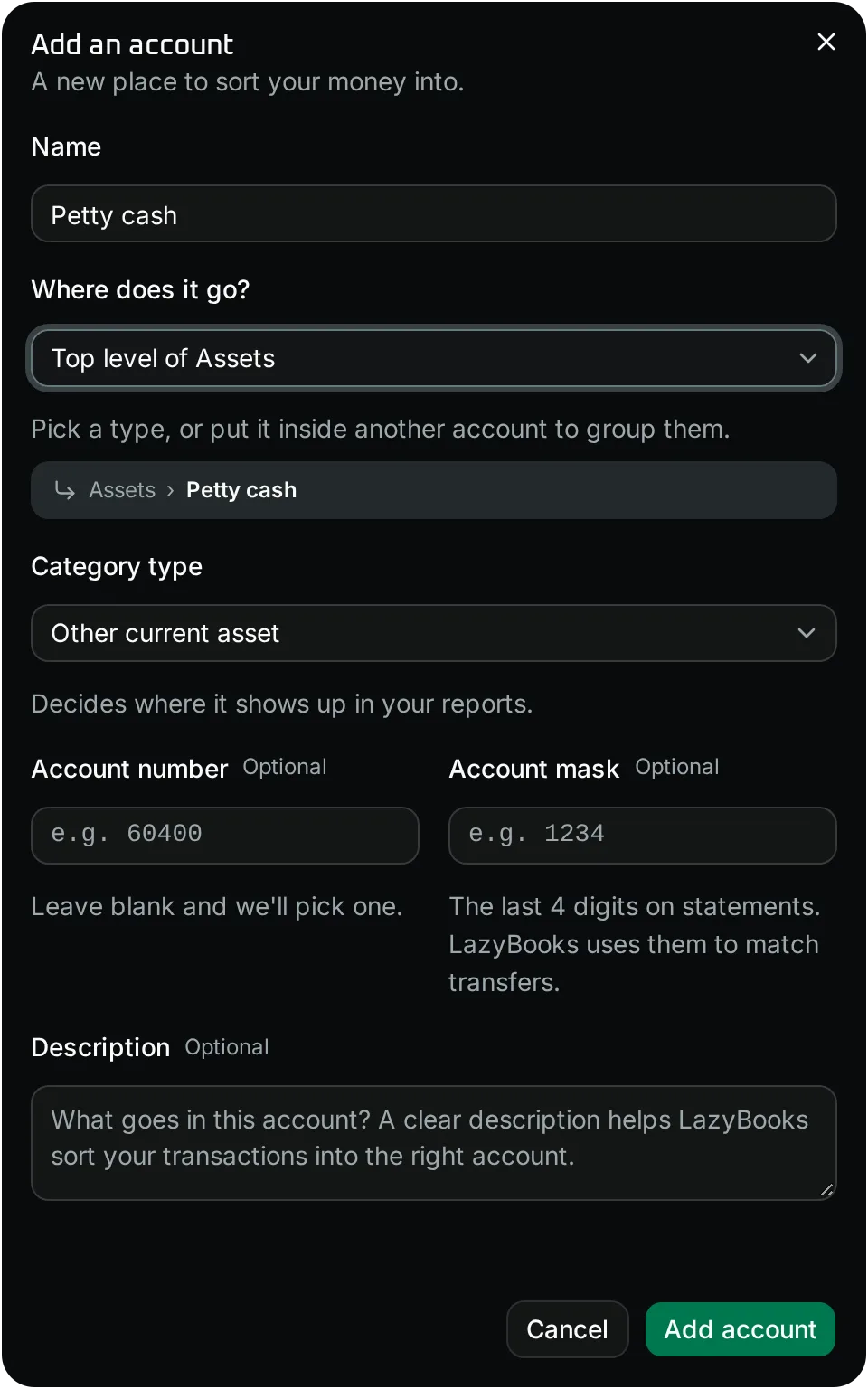
Under Where does it go?, a line shows the path of the new account, for example Assets › Petty cash. To find a place fast, type part of its name in the box.
An account number can have up to 20 characters. Two accounts cannot have the same number. The numbers of deactivated accounts stay taken.
Add a subaccount
A subaccount is an account inside another account. Use subaccounts to break an account into smaller parts. On your reports, the subaccounts show under their parent, and the parent has a total line.
- Hold the pointer on the row of the parent account.
- Click the plus button, Add a subaccount.
- Complete the Add an account form as in Add an account.


A subaccount has the same type as its parent. It starts with the category type of its parent, and you can change it. These limits apply:
- Accounts go at most five levels deep.
- A connected bank, card, or loan account cannot have subaccounts.
On a touch screen, the row shows a menu button instead of the three buttons. Tap it to see Add a subaccount, Edit, and Deactivate.
The row of an asset or liability account also has Import transactions. See Import bank transactions from a file.
Edit an account
- Hold the pointer on the row of the account.
- Click the pencil button, Edit. The Edit account panel opens at the right side of the page.
- Change the Name, Where does it go?, Category type, Account number, Account mask, Opening balance, or Description.
- Click Save changes.
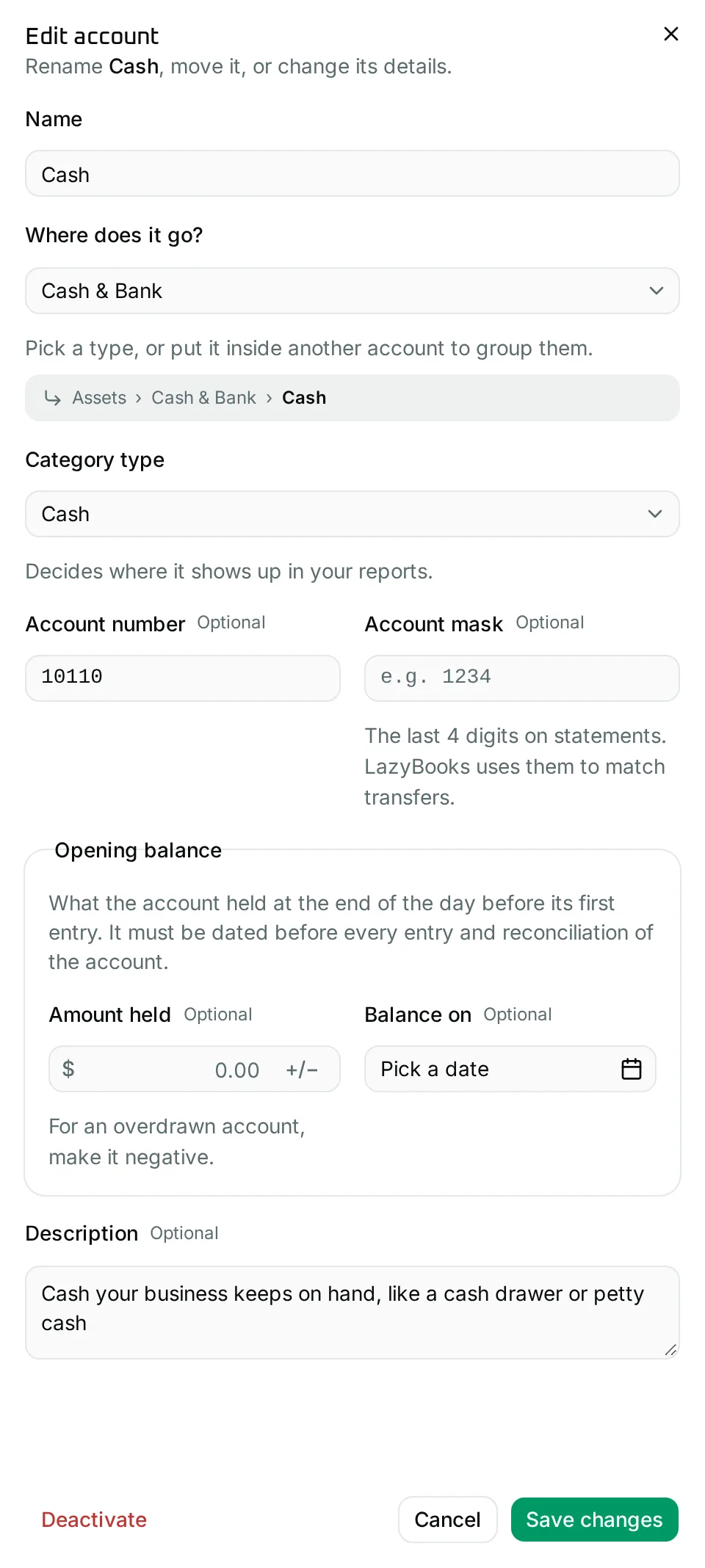
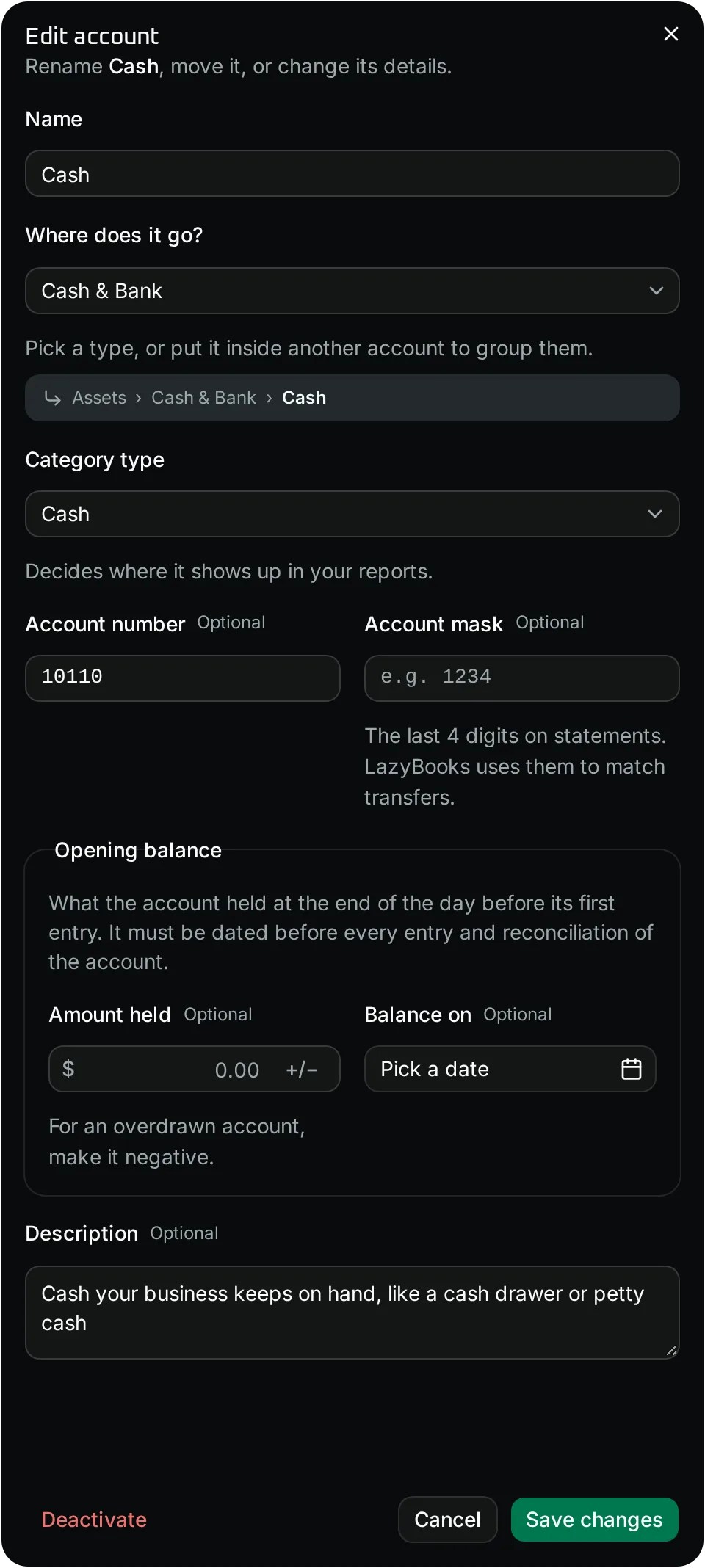
LazyBooks uses the Account mask to match transfers between your accounts. Only asset and liability accounts have a mask. Type 4 digits, or leave the box empty. For a connected account, your bank sets the mask. The panel shows it, and you cannot change it.
You cannot change the type of an account. Where does it go? lists only the accounts of the same type. The category type decides where the account shows on your reports.
LazyBooks uses some accounts for its own work. For these accounts, LazyBooks can refuse a change of the category type. See Accounts that LazyBooks uses.
Set an opening balance
A bank, cash, card, or loan account without a bank connection needs an opening balance before you reconcile it. The opening balance is what the account held, or owed, at the end of the day before its first entry. The form shows the Opening balance fields for these accounts:
- Amount held, or Amount owed for a liability, such as a card or a loan.
- Balance on, the date of the balance.
If the account was overdrawn, or if the card company or lender owes you, the amount is negative. Type a minus sign, or click +/− in the box.
When you save, LazyBooks posts the opening balance against the Opening Balance Equity account. The balance counts as verified at once.
The opening balance must be the first entry of the account. If the account has a transaction or a reconciliation on or before the date, LazyBooks refuses the date. Your other changes to the account are still saved.
A connected account gets its opening balance from your bank. See Verify opening balances.
Deactivate an account
Deactivate an account only when you no longer use it. You cannot turn it back on yourself.
- Hold the pointer on the row of the account.
- Click the deactivate button, the circle with a line through it. You can also click Deactivate in the Edit account panel.
- In the Deactivate category dialog, type the name of the account in the box.
- Click Deactivate.
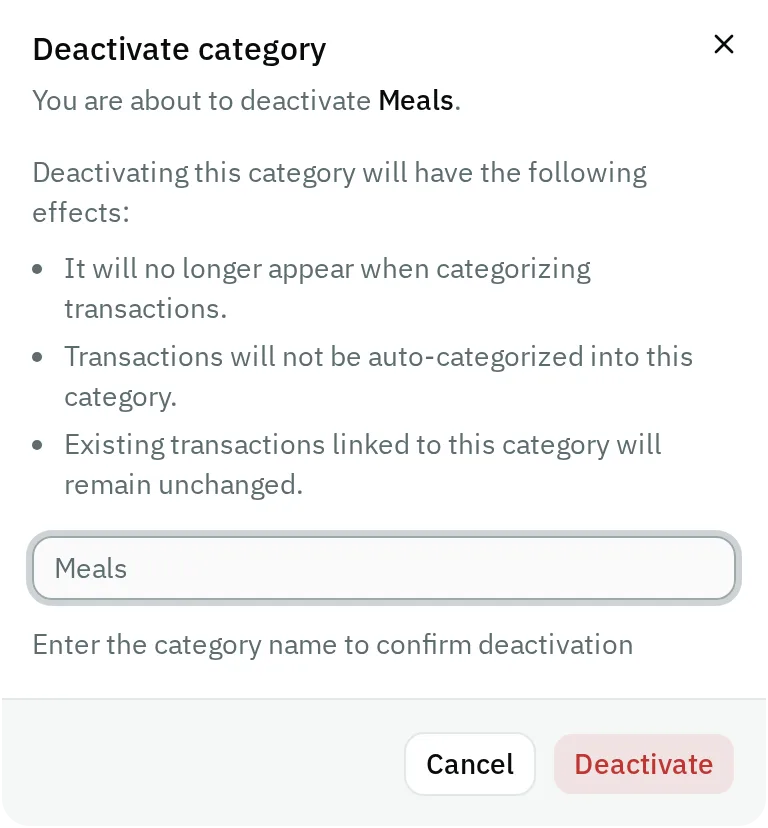
When you deactivate an account:
- It no longer shows when you categorize transactions.
- LazyBooks does not categorize new transactions into it.
- The transactions that are already in it do not change.
- LazyBooks turns off the rules that put transactions into it. See Rules.
- It leaves the Accounts & Categories page.
The Profit & Loss and the Balance Sheet still show a deactivated account when it has amounts in the period of the report. An Inactive badge shows next to its name.
The app has no control that turns a deactivated account back on. When you disconnect a connected bank, card, or loan account and connect it again, LazyBooks makes its account active again.
LazyBooks also turns the account of a sales tax agency on again when it posts new tax to the account. See Change or deactivate an agency.
You cannot deactivate some accounts. Hold the pointer on the deactivate button to see why:
- Move or deactivate the accounts inside it first. The account has active subaccounts.
- Its bank still syncs. Disconnect it on the Banks & Cards page first. A connected bank, card, or loan account posts to the account. See Manage bank connections.
- LazyBooks uses this for a job, for example LazyBooks uses this for new bank connections.
Ask the assistant
The assistant can add, edit, and deactivate accounts for you. Tell it what you need, for example "Add an asset account named Due from Related Entity with number 1350". The assistant shows a card with the change, and it makes the change only after you approve the card. See Ask the assistant.
- The assistant can add an account of any type, at the top level or inside another account. You can give the account number. If you give none, LazyBooks picks the next free number.
- The assistant can change the name, number, description, category type, parent, and account mask of an account.
- For a bank, cash, credit card, line of credit, or loan account, the assistant can also set the opening balance.
- If LazyBooks refuses a change, the assistant tells you why. The rules are the same as on this page.