Create rules
Make rules that give future bank transactions the category you choose, preview what a rule matches, and delete rules that you no longer need.
A rule tells LazyBooks how to categorize future transactions from your linked accounts. When the bank description of a new transaction matches a rule, the transaction gets the category of the rule.
How rules work
A rule has three parts: a match type, the text to match, and a category. LazyBooks compares the rule with the bank description of each new transaction. The bank description is the text that your bank sends with the transaction.
These are the match types:
- is exactly matches only the whole bank description.
- has the word matches the text as a whole word. Spaces and punctuation separate words. For example, "bud" matches "bud lawncare" but not "buddy", and "amazon" matches "AMAZON.COM*AB12" and "AMAZON MKTPL*X1".
- starts with matches the text at the start of the bank description.
- ends with matches the text at the end of the bank description.
- contains matches the text anywhere in the bank description, also inside a word.
All match types ignore capital letters and extra spaces. If you save a rule with the same match type and text as a rule you already have, LazyBooks changes the category of that rule instead of adding a second one. LazyBooks saves the text of all rules except is exactly in lowercase. For example, a rule that you type as "Adobe" shows as "contains adobe" on the Rules page. The text of a contains, starts with, or ends with rule must have at least three characters.
LazyBooks applies your rules before the LazyBooks AI. A deposit that LazyBooks matches to an invoice does not go through your rules. See Deposits that LazyBooks matches for you. If no rule matches, the LazyBooks AI chooses a category. If more than one rule matches, the rule with the most exact match type wins, in the order of the list above. If two rules have the same match type, the rule with the longer text wins.
A transaction that a rule categorized still waits on the Needs Review tab until you approve it. Its category has no sparkle icon, because the LazyBooks AI did not choose it.
Create a rule from a transaction
After you approve one transaction, LazyBooks can offer to make a rule from its category.
- On the Needs Review tab, click Approve at the end of the row.
- In the Create a rule? notice at the bottom of the screen, click Create rule.
- In the Create a rule dialog, choose a match type under When the bank description. The dialog starts with is exactly and the memo of the transaction.
- If necessary, change the text to match. The rule compares this text with the bank description, not with the memo. If you changed the memo, type the bank description instead.
- Optional: click Show matches to preview the rule.
- Select or clear Apply to transactions that need review. See Apply a rule to the transactions that wait for review.
- Click Save rule.
The notice shows for 10 seconds. It stays while the pointer is on it. If you approve more transactions, their notices stack. Two approvals that would make the same rule share one notice. To close a notice, click its X.
LazyBooks offers the notice only when these conditions are true:
- You approved the transaction with its own Approve button, not with the selection bar.
- The LazyBooks AI or a person chose the category, not a rule.
- The transaction has a memo.
- The transaction is not a matched transfer.
You can also ask the assistant to make a rule for you. See Ask the assistant.
Create a rule on the Rules page
- On the Transactions page, click Rules. You can also click Settings in the sidebar, then click Rules.
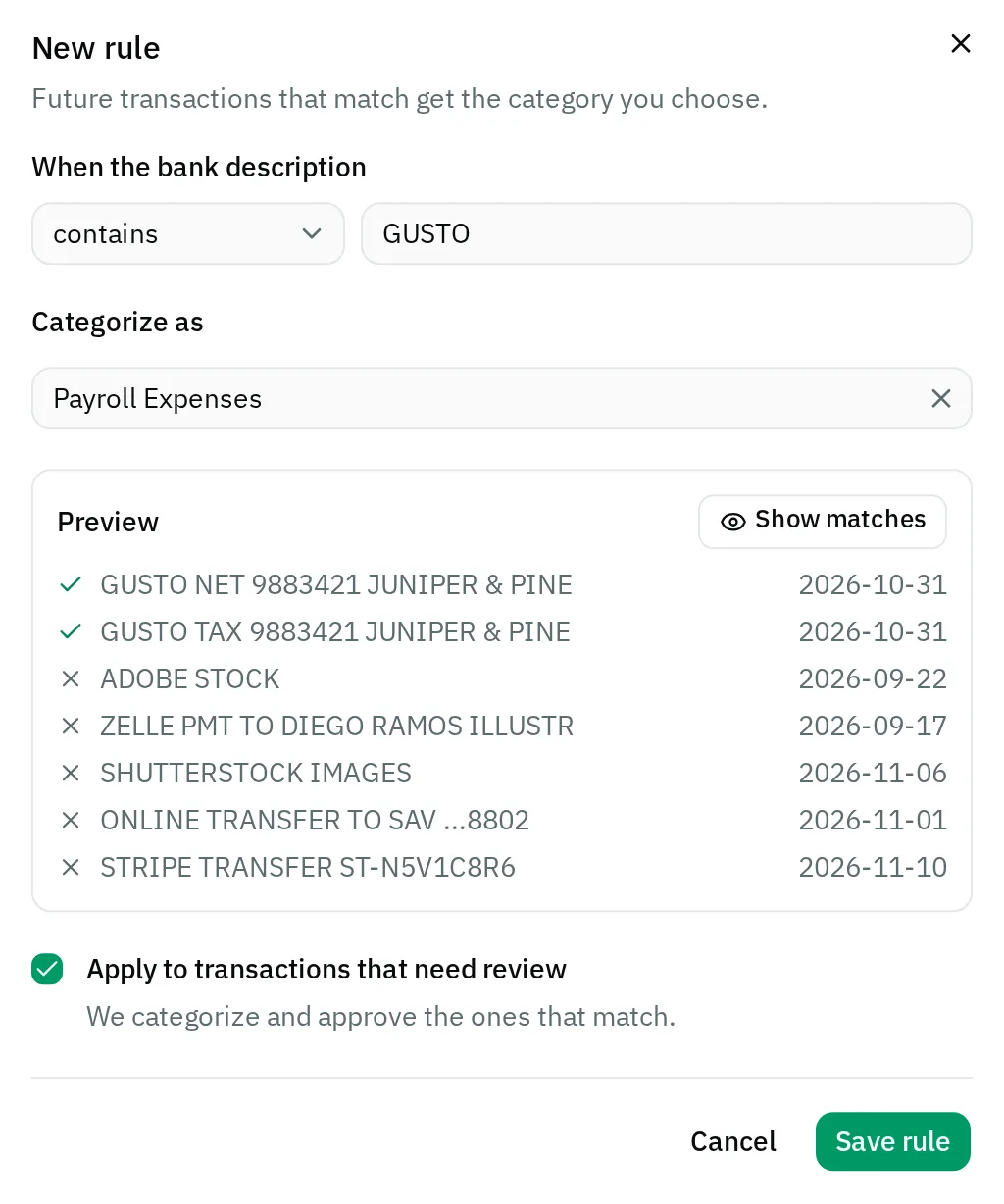
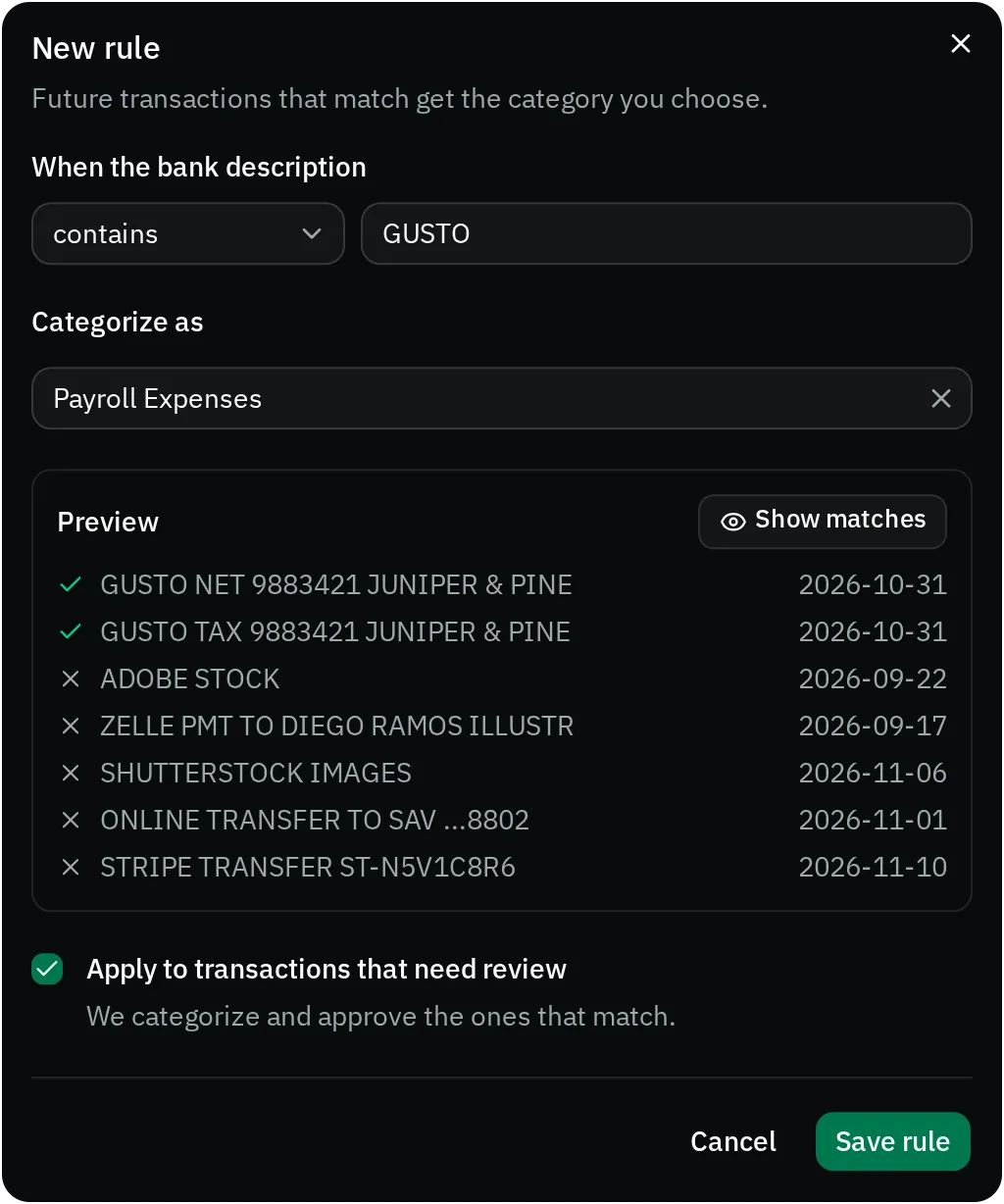
- Click New rule.
- Under When the bank description, choose a match type.
- Type the text to match.
- Under Categorize as, choose a category.
- Optional: click Show matches to preview the rule.
- Select or clear Apply to transactions that need review.
- Click Save rule.
The Categorize as list does not show the bank accounts and credit cards that a bank feed fills. A rule cannot send transactions to those accounts.
A new rule can have the same match type and text as a rule that you have. LazyBooks then updates that rule with the new category. You cannot edit a rule in any other way. To change the text or the match type, delete the rule and make a new one.
Preview what a rule matches
Before you save a rule, click Show matches in the Preview section of the dialog. The preview counts every bank transaction in your books that the rule matches, and lists them in groups:
- Transactions from the same merchant form one group, such as Amazon with 163 matches. The group also shows one of its bank descriptions.
- A transaction with no merchant groups with the transactions that have the same bank description.
- A check mark shows a group that the rule matches. The largest groups come first.
- Under Won't match, an X shows the most similar groups that the rule does not match, for comparison.
If you change the match type or the text, the preview shows Out of date. Click Show matches again to see the new result.
The preview checks this rule alone. If another rule with a more exact match type also matches a bank description, the other rule wins for that transaction.
Apply a rule to the transactions that wait for review
The option Apply to transactions that need review is selected when the dialog opens. With this option, LazyBooks also gives the category to the matching transactions on the Needs Review tab, and it approves them. A message tells you how many transactions it categorized and approved.
To use the rule only for future transactions, clear the option before you save. In both cases, LazyBooks does not change the transactions that you already approved.
The option skips split transactions, pending transactions, and matched transfers.
The Rules page
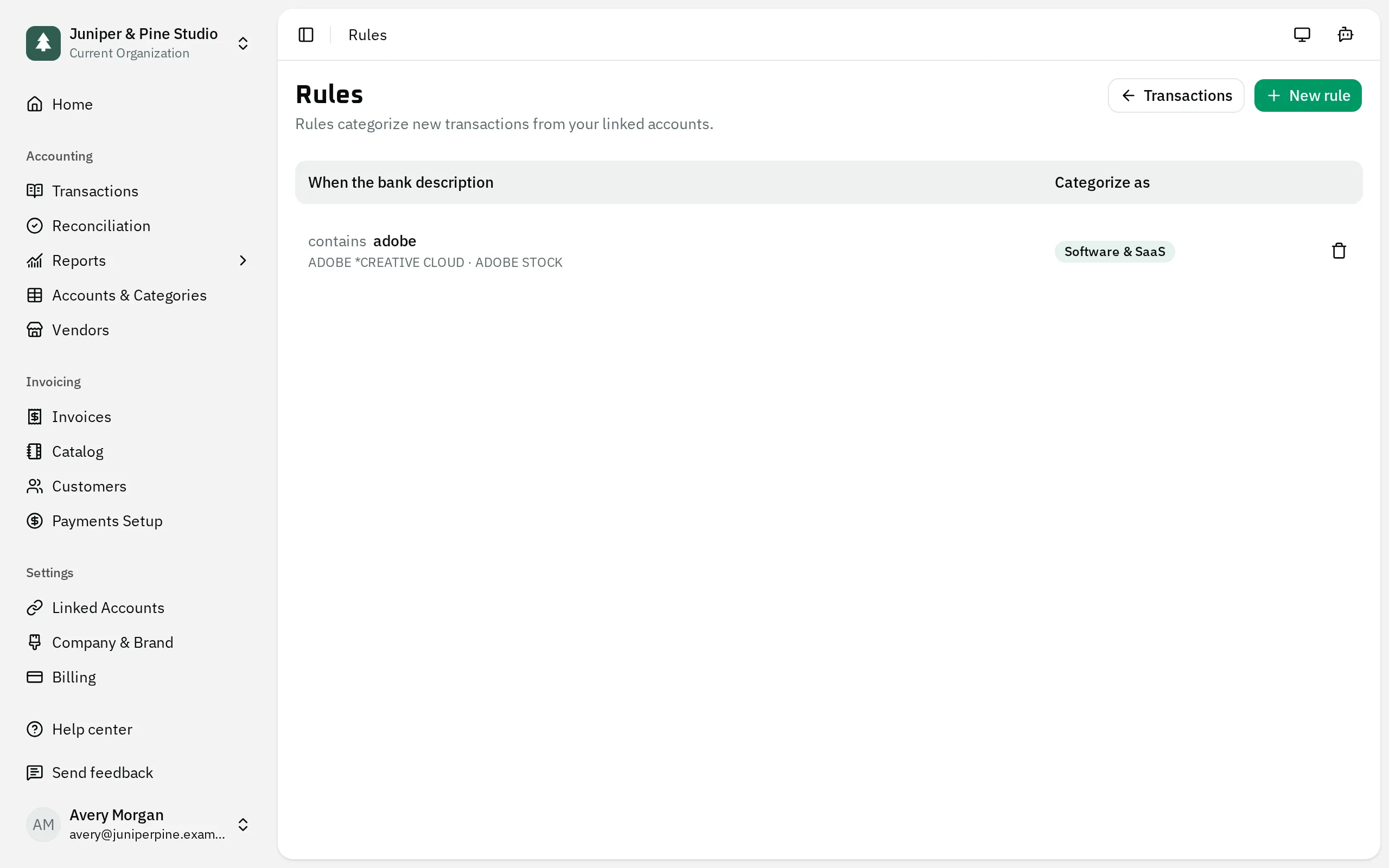
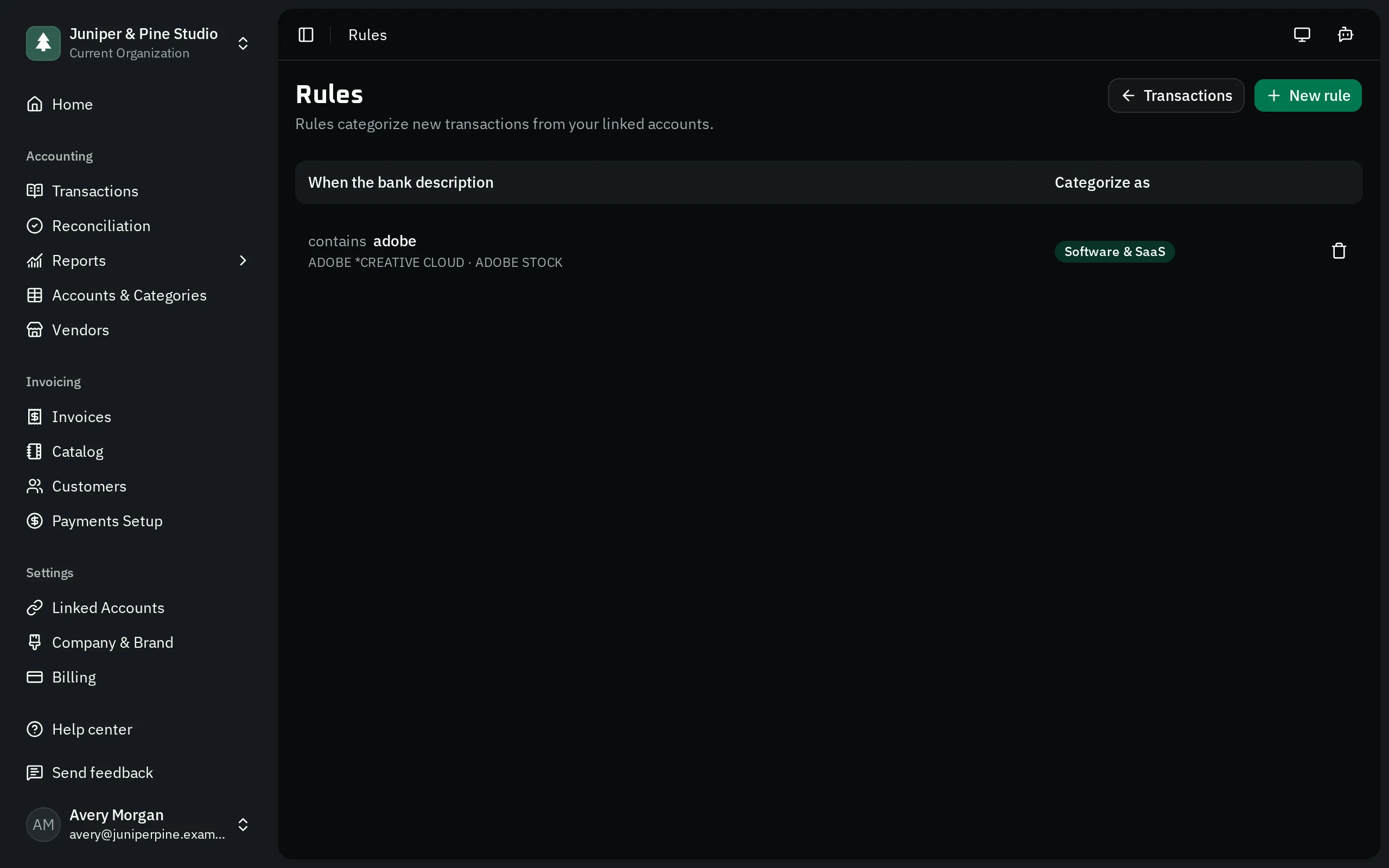
The Rules page is in the settings panel. To open it, click Rules at the top of the Transactions page, or click Settings in the sidebar and then click Rules. The settings panel opens over the page that you were on. Close the panel to go back. The Transactions page keeps its tab and filters.
Everyone in the organization can see and change the rules.
Each row shows one rule:
- When the bank description shows the match type and the text. Under them, the row lists some bank descriptions that the rule matches.
- Categorize as shows the category that the rule gives.
- The trash button at the end of the row deletes the rule.
A rule with the badge Disabled does not run. LazyBooks turns off a rule when you deactivate its category in your chart of accounts. To turn the rule on again, save a rule with the same match type, the same text, and another category.
Delete a rule
- On the Rules page, click the trash button at the end of the row.
- In the Delete this rule? dialog, click Delete rule.
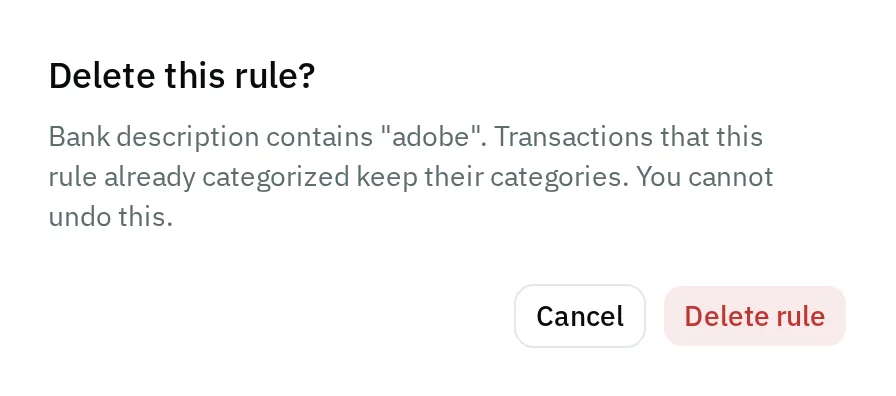
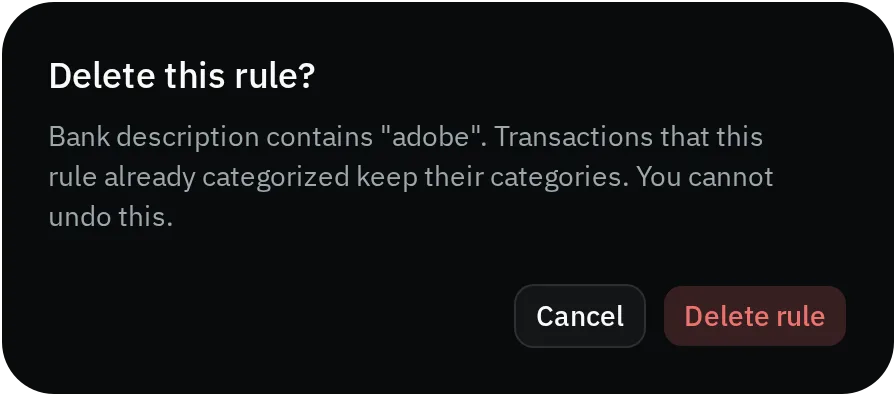
Transactions that the rule already categorized keep their categories. You cannot undo the delete.
Categorize transactions
See the category that LazyBooks suggests, choose a different one, add a new category, split a transaction, and assign a project.
Search and filter transactions
Filter transactions by date, amount, memo, vendor, account, or project, sort them by date or memo, and export the transactions that you select to a CSV file.