See where a transaction came from
Find the source of a transaction, such as your bank feed, a bank file, or Stripe, and see which of its details you can change.
Each transaction shows where it came from and where it is in your books. Open the transaction to see its source, its status, and the details that you can change.
Open a transaction
- In the sidebar, click Transactions.
- Click the transaction.
Transaction Details opens on the right side of the page.
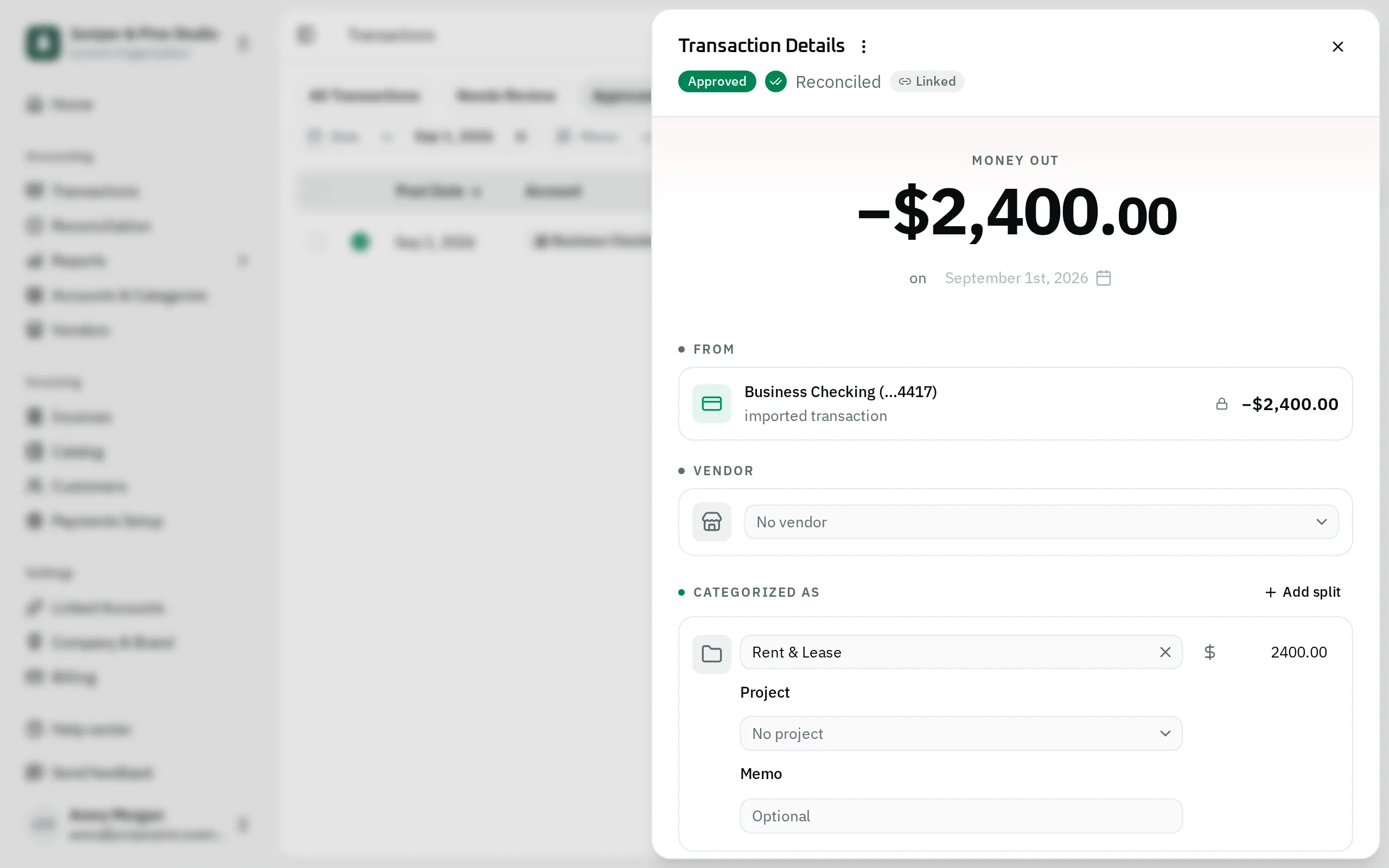
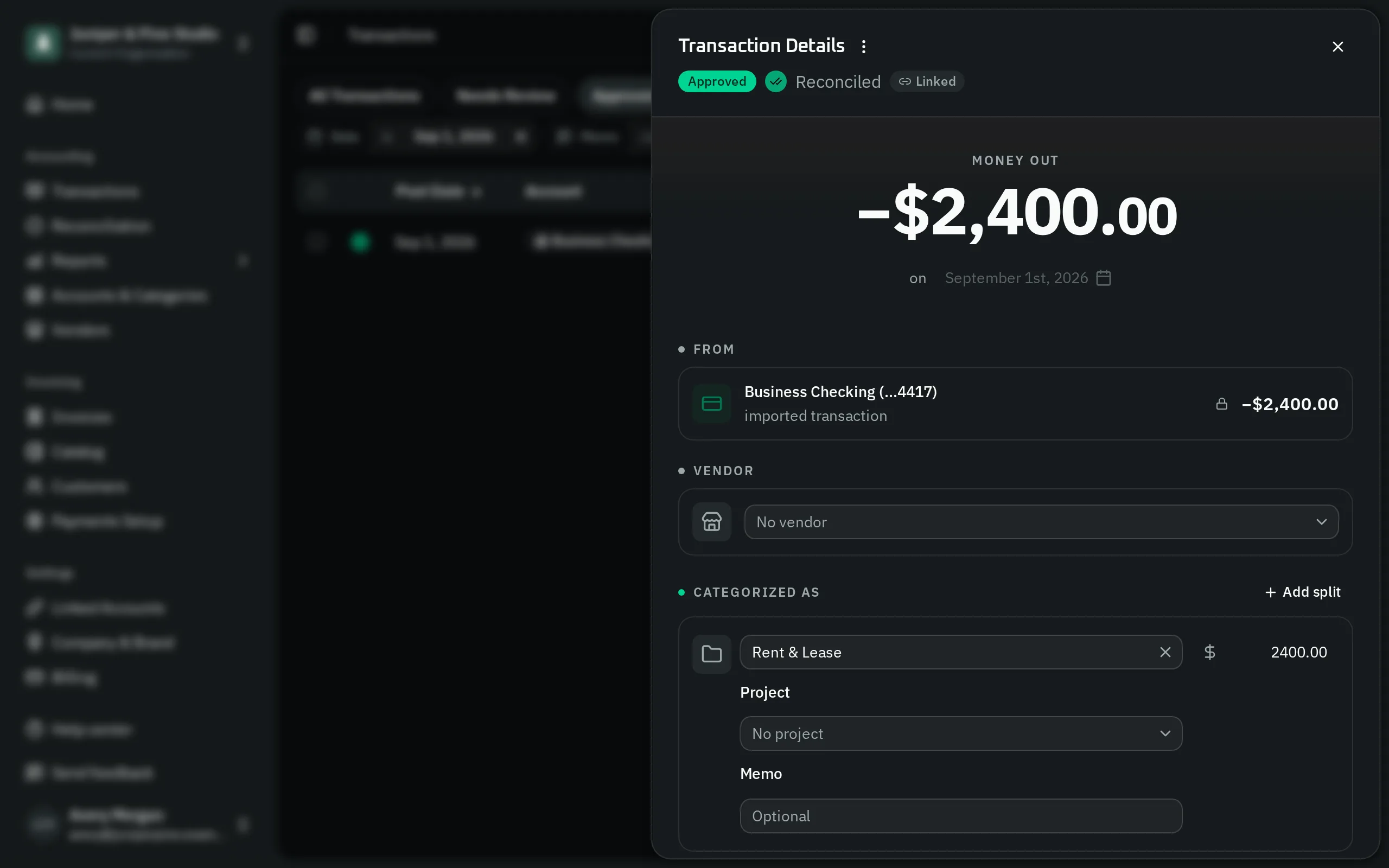
The badges under the title
The badges under Transaction Details tell you the state of the transaction:
- Needs review or Approved is the review status. See Review and approve transactions.
- Reconciled tells you that a finished reconciliation includes the transaction. Point to the badge to see the statement period.
- Linked tells you that the transaction came from one of your linked accounts.
- Adjustment tells you that someone made the transaction with the Adjustment tab of Manual Entry. See Add and edit transactions.
A transaction that someone entered by hand does not have the Linked badge.
Where this came from
A transaction from a linked account has a Where this came from section near the bottom of Transaction Details.
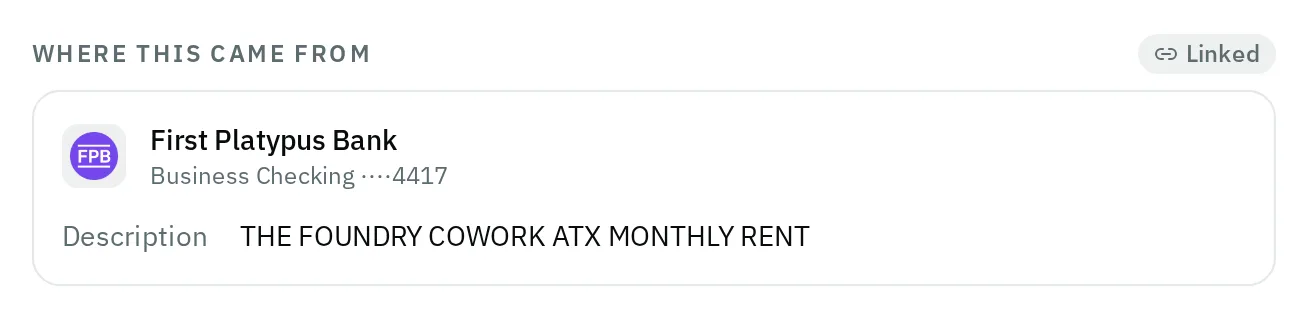
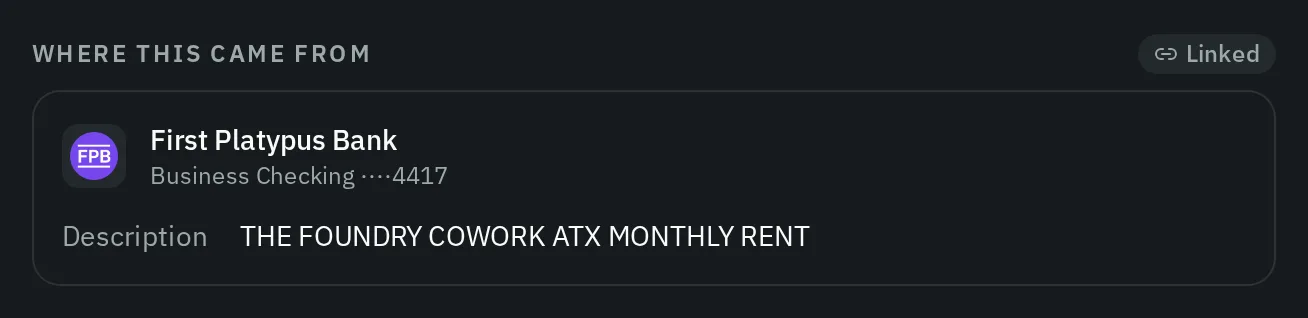
For a bank transaction, the section shows:
- The name of the bank, and its logo if the bank has one.
- The name of the account and the last four digits of its number.
- Description: the text that the bank sent.
The vendor of the transaction is in the Vendor section of Transaction Details. When your bank names the business of a transaction, LazyBooks gives the transaction that vendor. See Give a transaction a vendor.
If the transaction came from a bank file, the section also shows Imported from CSV. See Import bank transactions.
For a Stripe payout, the section shows Matched to Stripe payout, the Amount, and the Arrival date.
The section can also show a message from your bank:
- Removed by bank tells you that your bank deleted the transaction. It no longer shows in your bank feed.
- If your bank changed the transaction after LazyBooks imported it, a notice says that the bank changed it and that it needs your review.
What you can change
Some details of a transaction from a linked account come from the source, so you cannot change them. The account, the amount, and the date of a bank transaction stay as your bank sent them. A lock icon shows next to the amount, and the date shows in gray.
For most transactions, you can change the category and the Note about this transaction, and you can add receipts. See Categorize transactions and Receipts and attachments. The category of a matched transfer stays locked until you unmatch it. See Transfers and matching.
For a transaction that someone entered by hand, you can also change the account, the amount, and the date. After a finished reconciliation includes the transaction, these details are locked too. Reopen the statement to change them. See Reconcile an account.
Who chose the category
In the Category column of the transaction list, a sparkle mark next to a category tells you that the LazyBooks AI chose the category. When you pick a category yourself, the mark goes away. See Categorize transactions.