Categorize transactions
See the category that LazyBooks suggests, choose a different one, add a new category, split a transaction, and assign a project.
Each transaction needs a category. The category tells LazyBooks where the money goes in your reports, for example Meals or Software & SaaS. You can change the category of a transaction, split it across several categories, and assign it to a project.
How new transactions get a category
LazyBooks gives each new transaction from your bank a category before it shows in the list:
- If the transaction is one side of a transfer between two of your linked accounts, LazyBooks matches the two sides. See Transfers and matching.
- If one of your rules matches the transaction, the transaction gets the category of the rule. See Create rules.
- If no rule matches, the LazyBooks AI chooses a category from your chart of accounts.
- If the LazyBooks AI is not sure, the transaction gets an uncategorized category, such as Uncategorized Expenses.
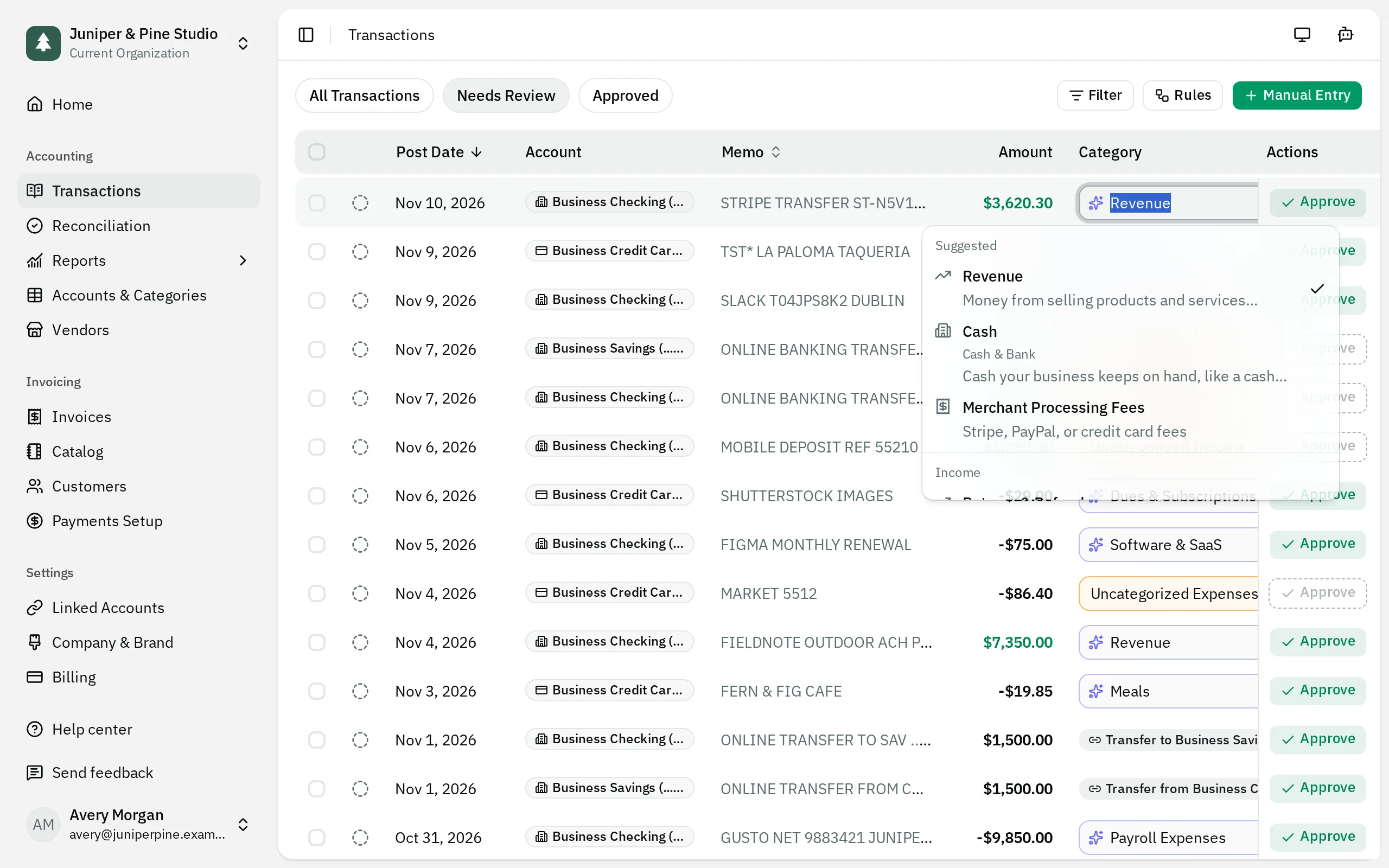
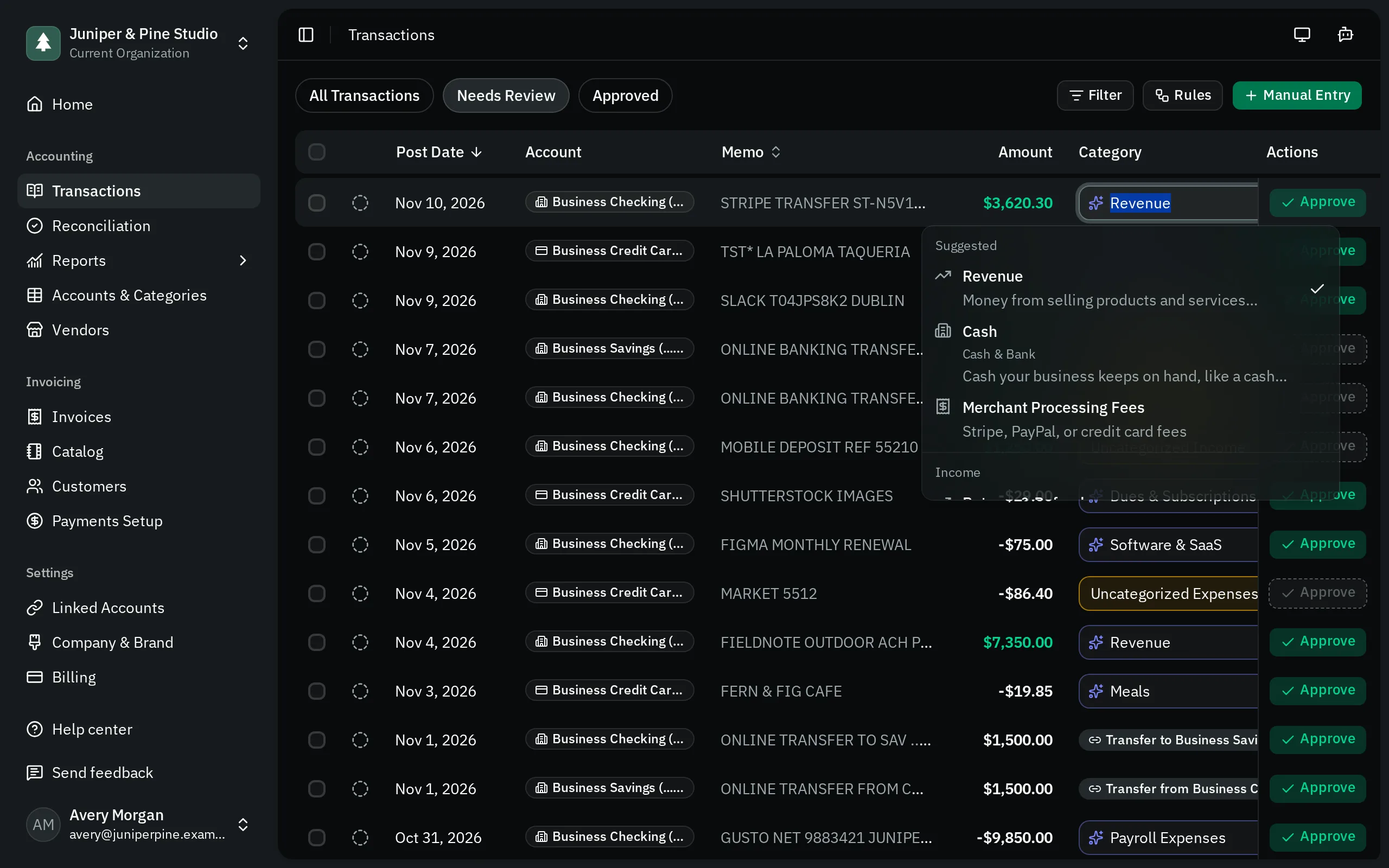
A category that the LazyBooks AI chose has a sparkle icon in its field. Point to the icon to see the message This category was selected by our AI assistant. Click to change it. An uncategorized category has a name that starts with Uncategorized. You must choose another category before you can approve that transaction.
Every new transaction waits on the Needs Review tab until you approve it, also when a rule or the LazyBooks AI categorized it. See Review and approve transactions.
Choose a category
- On the Transactions page, click the category field of the transaction in the Category column.
- To find a category, type part of its name.
- Click the category.
LazyBooks saves the change at once. The search also finds a category by its description and by the name of its parent category.
On a phone, tap the category of the transaction. The Pick a category sheet opens from the bottom of the screen, with the search field and the list of categories. Tap a category to choose it.
The categories that the LazyBooks AI suggested for the transaction show first, under Suggested. For money out, the expense categories come next. For money in, the income categories come next.
If you change the category of an approved transaction, it stays approved. If you change it to an uncategorized category, it moves back to the Needs Review tab.
A split transaction shows the number of its categories, for example 2 categories. To change a split, see Split a transaction across categories. A transfer shows the other account, for example Transfer to Savings. See Transfers and matching.
Add a new category while you categorize
If no category fits, you can make a new one from the category list.
- Click the category field of the transaction.
- Type the name of the new category. The Create: option shows only when the name has more than three characters and no category has the same name.
- Click the option that starts with Create:.
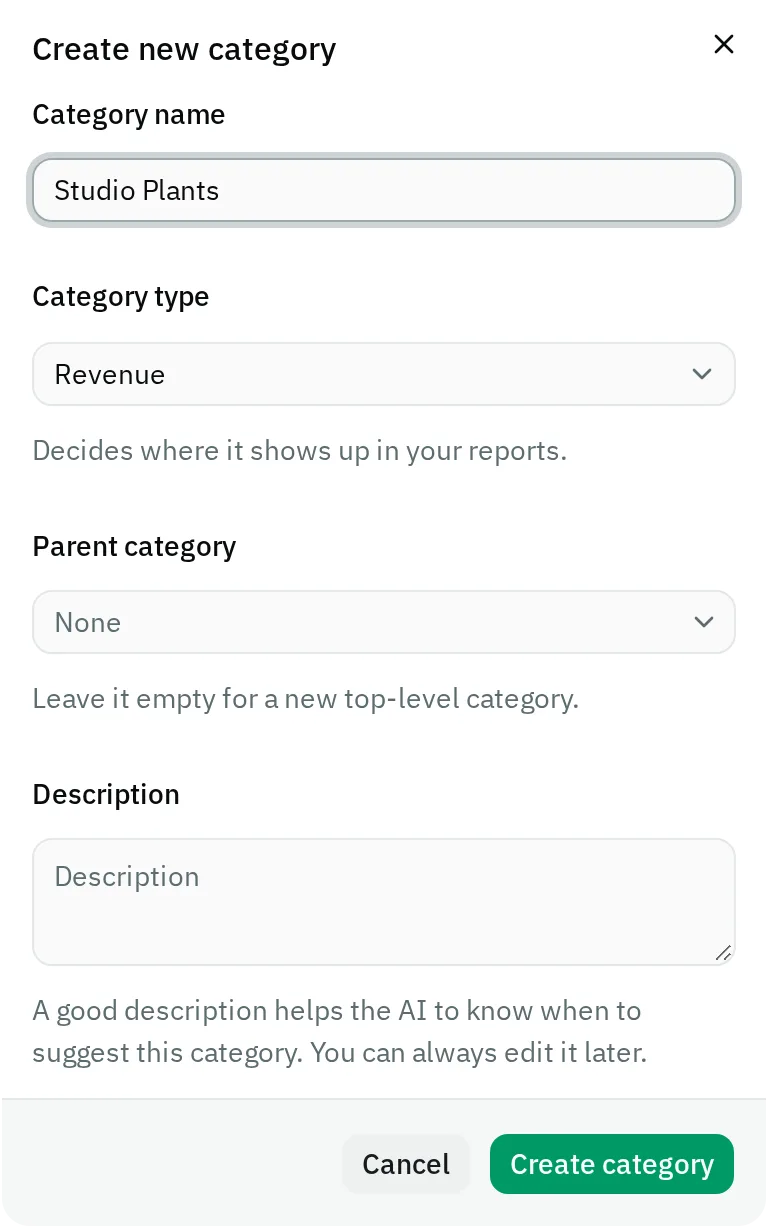
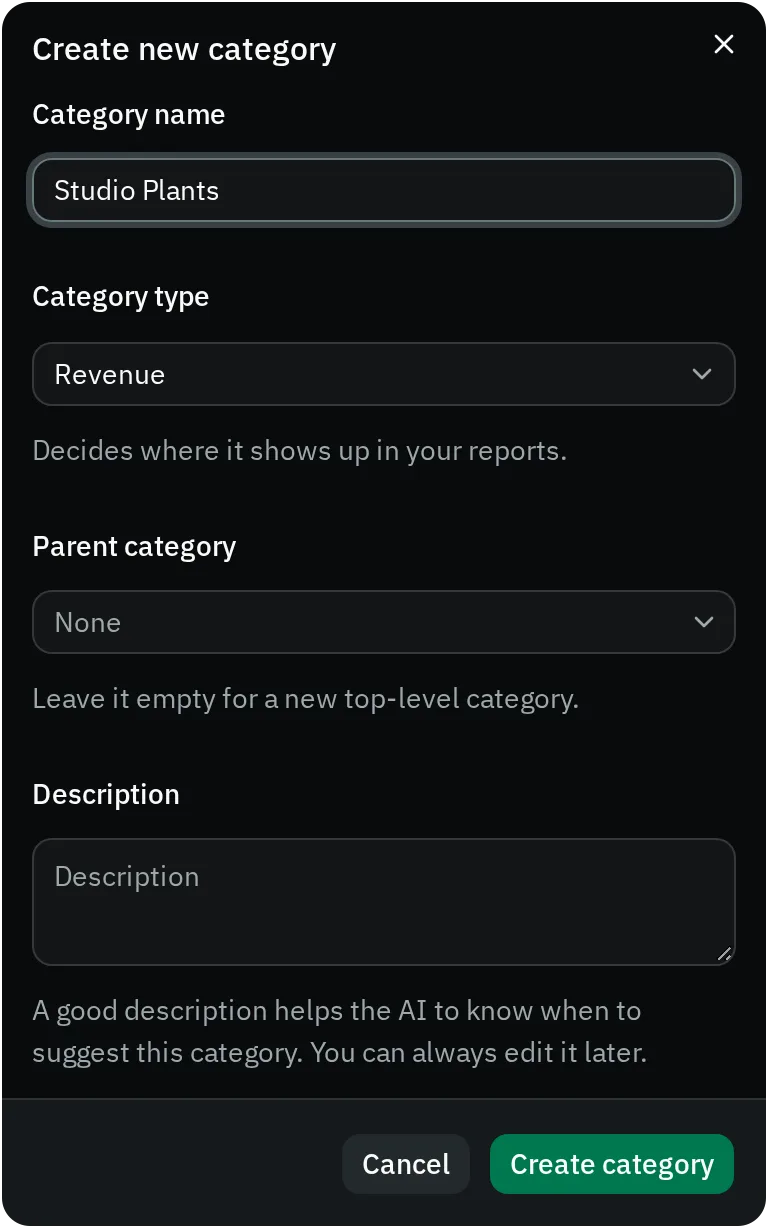
- In the Create new category dialog, make sure that the Category name is correct.
- In Category type, choose the type. The type decides where the category shows in your reports.
- To put the new category under another category, choose it in Parent category. Leave this field empty for a top-level category.
- Optional: type a Description. The LazyBooks AI reads it to decide when to suggest this category.
- Click Create category.
LazyBooks adds the category to your chart of accounts and gives it to the transaction. To change the category later, see Add and edit accounts.
Split a transaction across categories
A split puts parts of one transaction in different categories. For example, one store receipt can hold office supplies and a meal.
- Click the row of the transaction. The Transaction Details panel opens.
- In the Categorized as section, click Add split. A new line shows.
- On each line, choose a category.
- On each line, type the amount.
- Click Save Split.
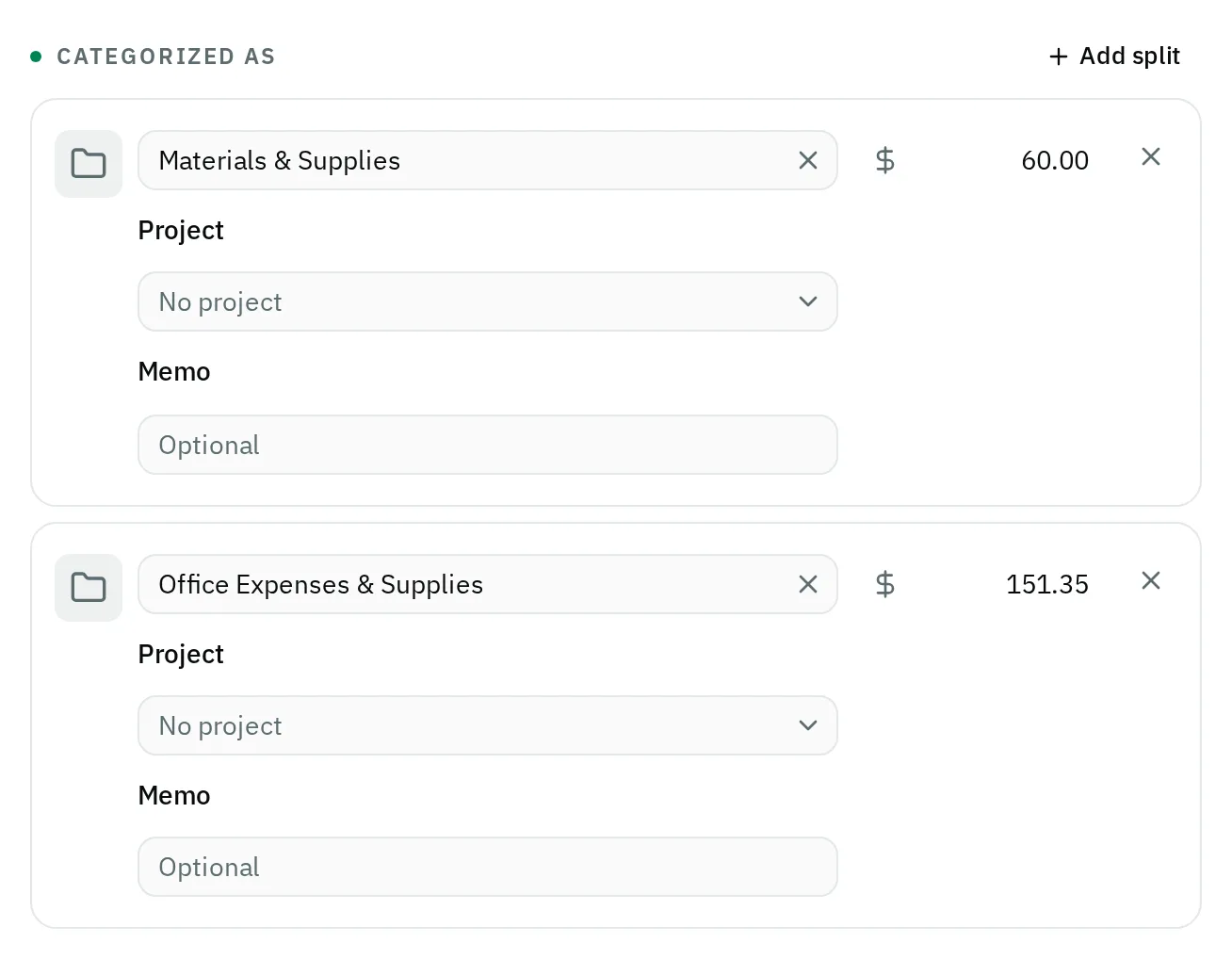
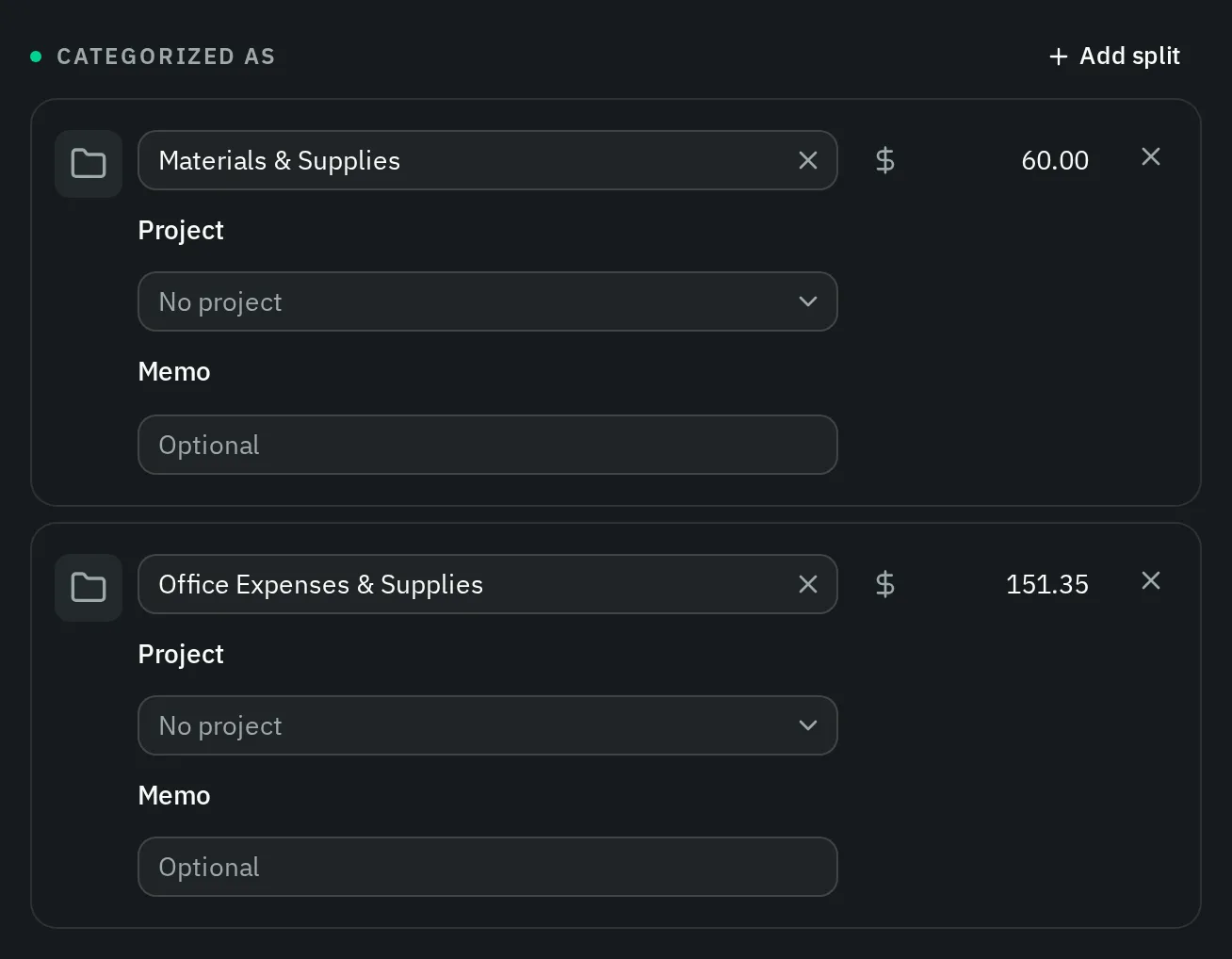
The amounts of the lines must add up to the total of the transaction. Two lines can have the same category only when they have different projects. Each line also has its own Project and Memo fields. The Memo of a line is not the memo in the Memo column. The memo of the whole transaction is in Note about this transaction.
To remove a line, click the X button at the far right of the line. LazyBooks saves the change at once. When one line is left, it gets the full amount of the transaction.
Assign a project
The Project column lets you track what you earn and spend on each project, for example each client job.
To assign a project to one transaction:
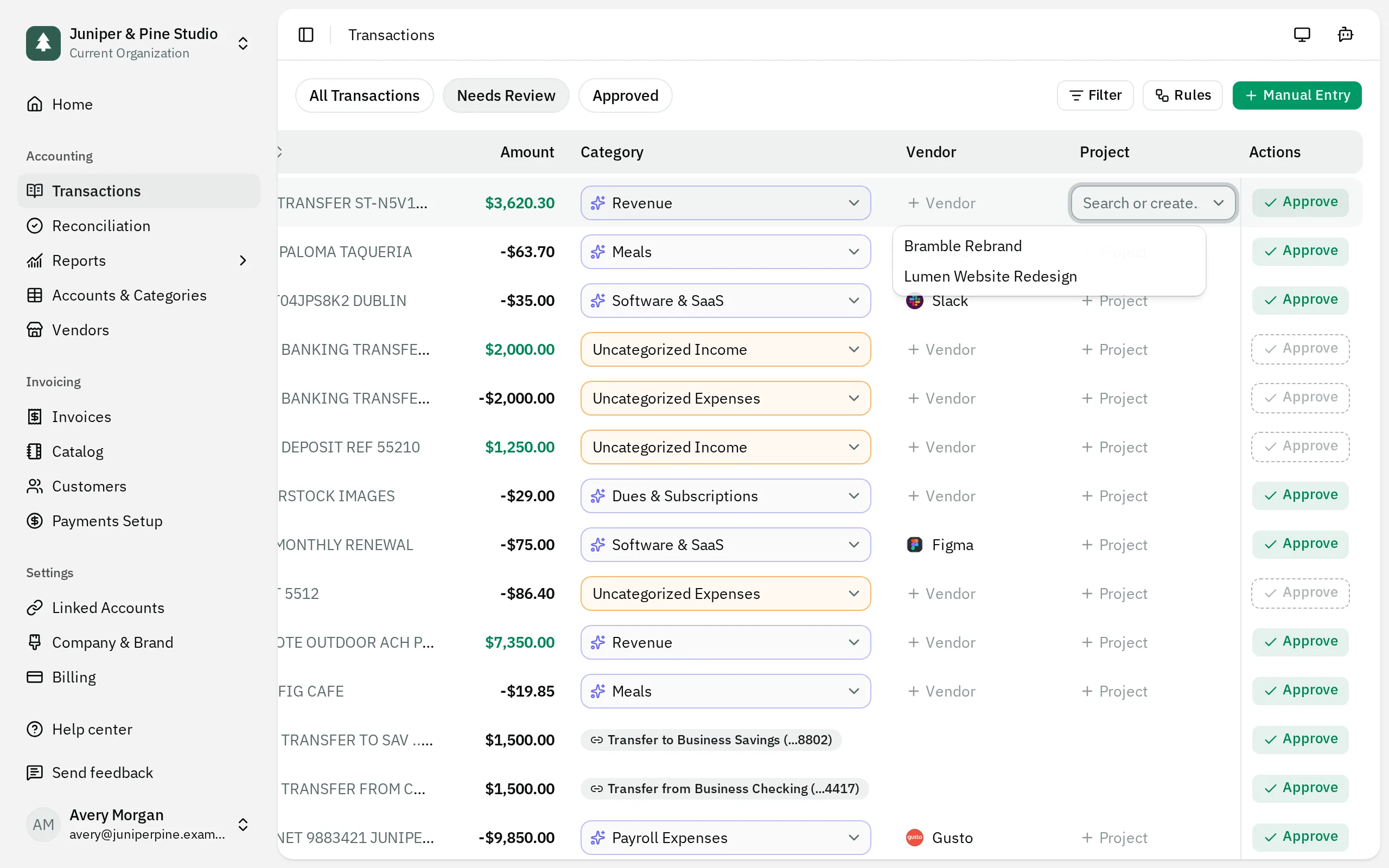
- In the Project column, click the field of the transaction.
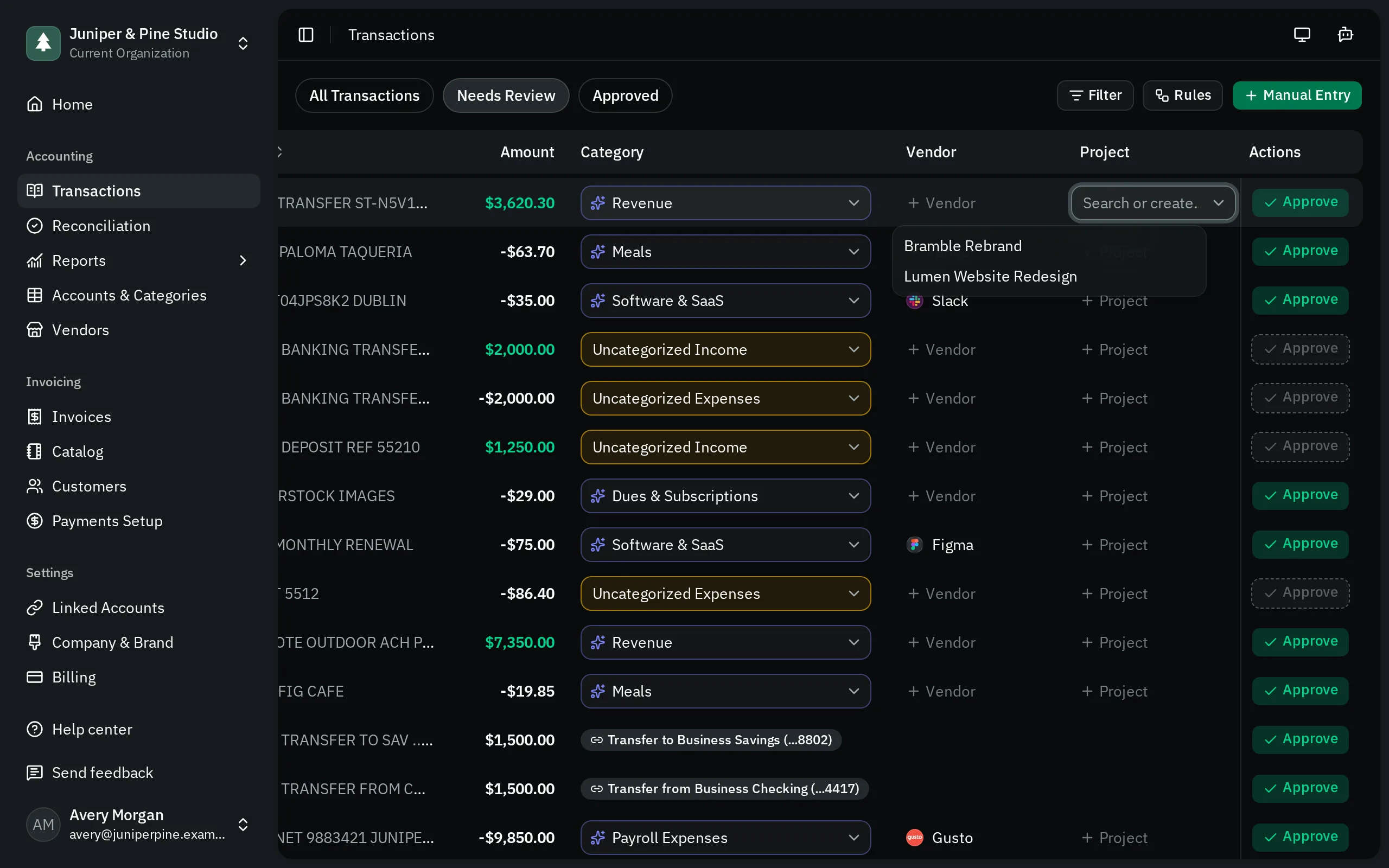
- Click a project in the list. If the project is not in the list, type its name and click the option that starts with Create.
LazyBooks saves the project at once. To remove the project, open the field and click the X in it.
To assign a project to many transactions:
- Select the checkboxes of the transactions.
- In the bar at the bottom of the page, click Actions, or press A. The Actions dialog opens.
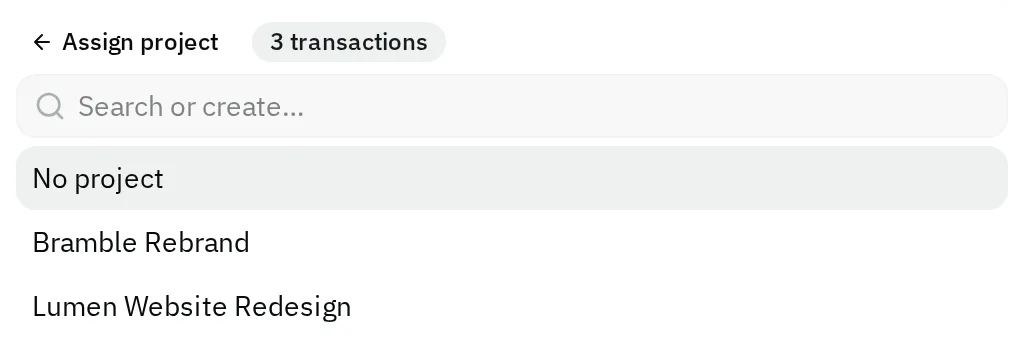
- Click Assign project. The dialog shows the list of projects.
- Click a project. To find a project, type its name. If the project is not in the list, type its name and click the option that starts with Create.
To remove the project from the selected transactions, click No project in step 4. It shows while the search field is empty.
To go back to the actions, click Assign project at the top of the list, or press Backspace in the empty search field. To close the dialog without a change, press Escape.
A matched transfer cannot have a project, so LazyBooks skips it. You can also change the project in the Transaction Details panel, where each category line has its own Project field.
Owners and admins can rename or deactivate a project on the Projects page of the settings. See Manage your projects. To see the numbers of one project, filter the Profit and loss report by project.
Review and approve transactions
Find the transactions that wait for your review, approve them one at a time or many at once, and move them back to review.
Create rules
Make rules that give future bank transactions the category you choose, preview what a rule matches, and delete rules that you no longer need.