Search and filter transactions
Filter transactions by date, amount, memo, vendor, account, or project, sort them by date or memo, and export the transactions that you select to a CSV file.
Filters show only the transactions that you need, for example one month, one account, or one vendor. You can also save the transactions that you select to a CSV file.
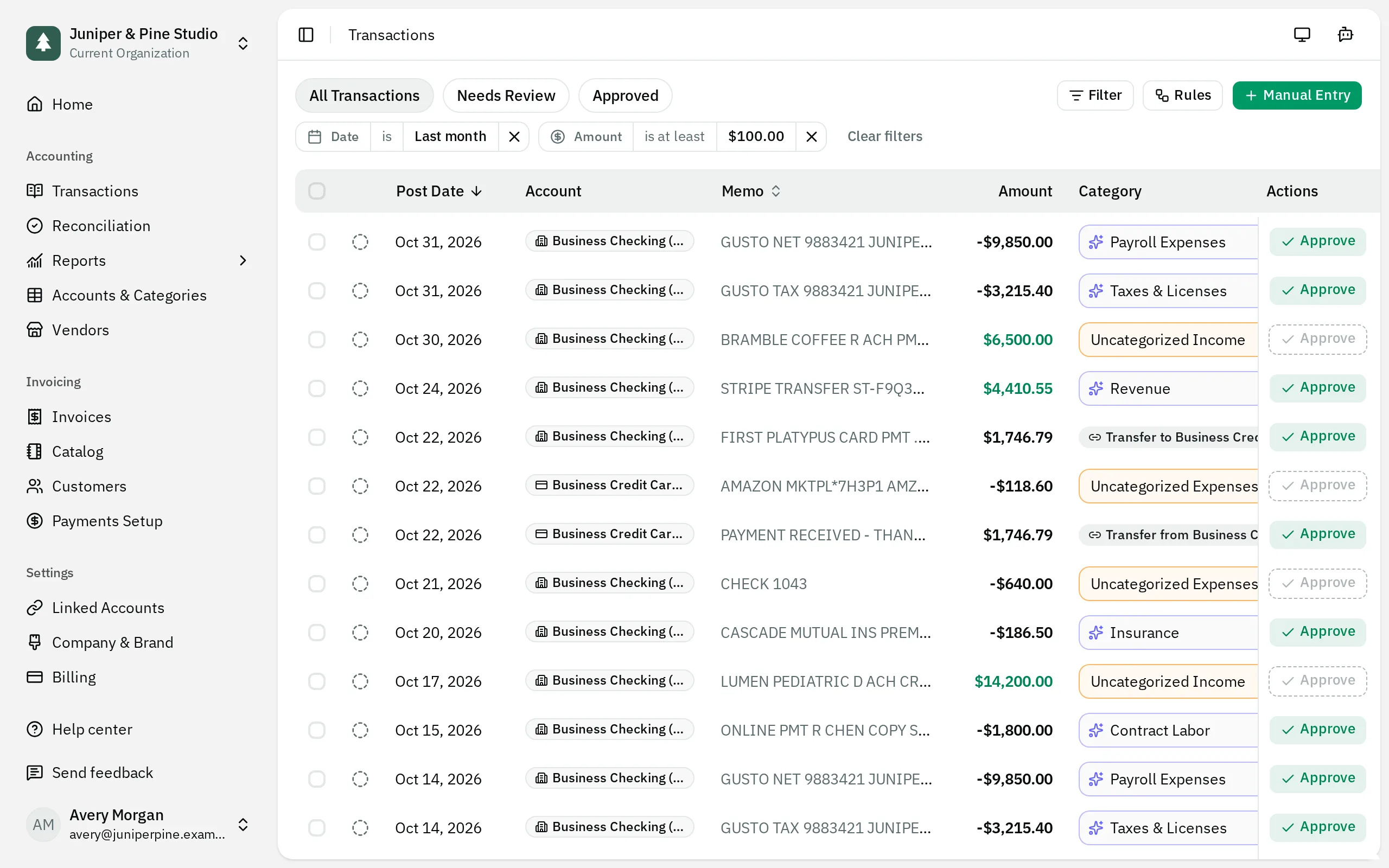
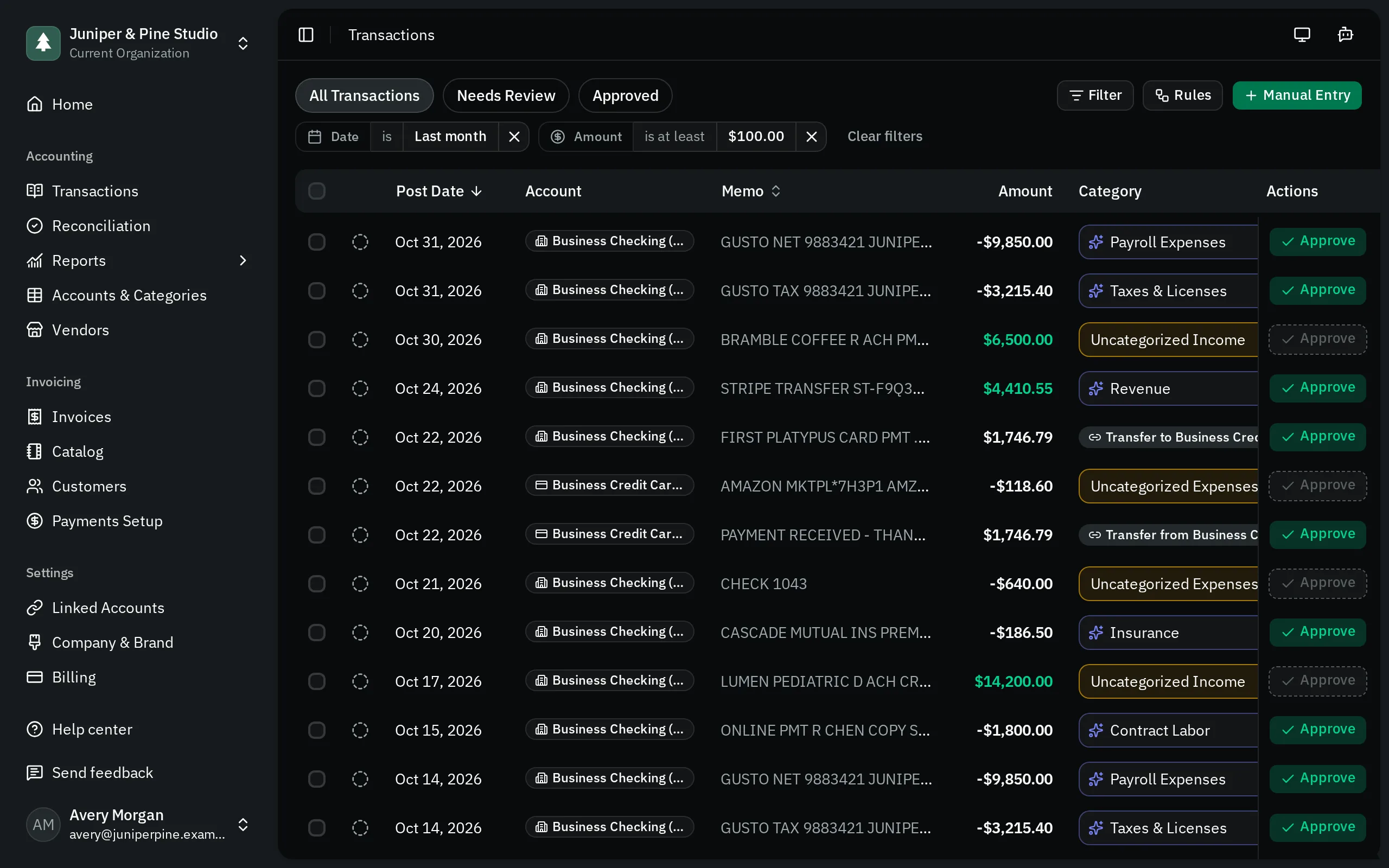
Add a filter
- On the Transactions page, click Filter. You can also press the F key.
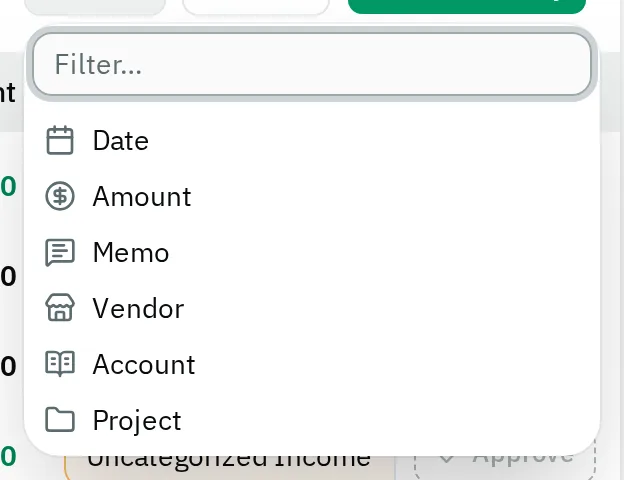
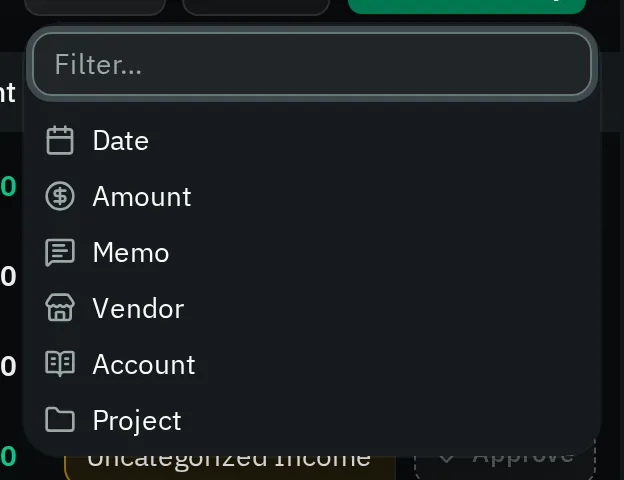
- Click the type of filter that you want.
- Set the value of the filter.
When you switch between All Transactions, Needs Review, and Approved, the filters stay on. The filters are also part of the page address, so you can bookmark a filtered list.
The types of filters
You can use these filters together:
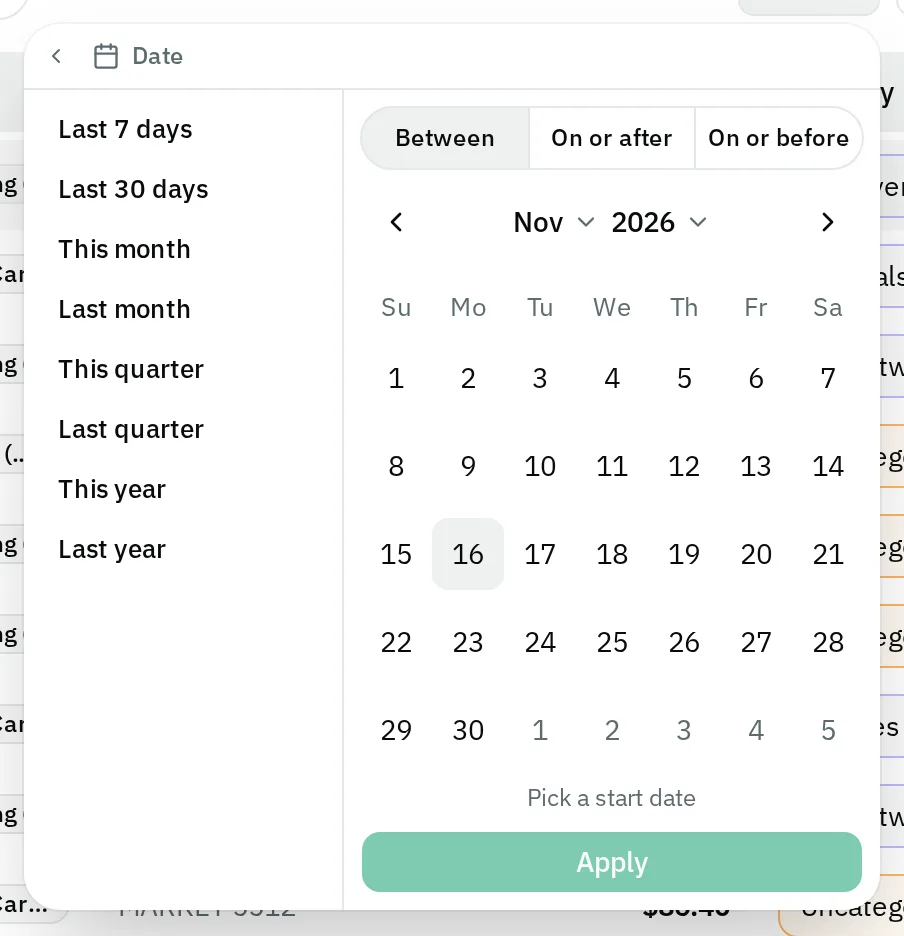
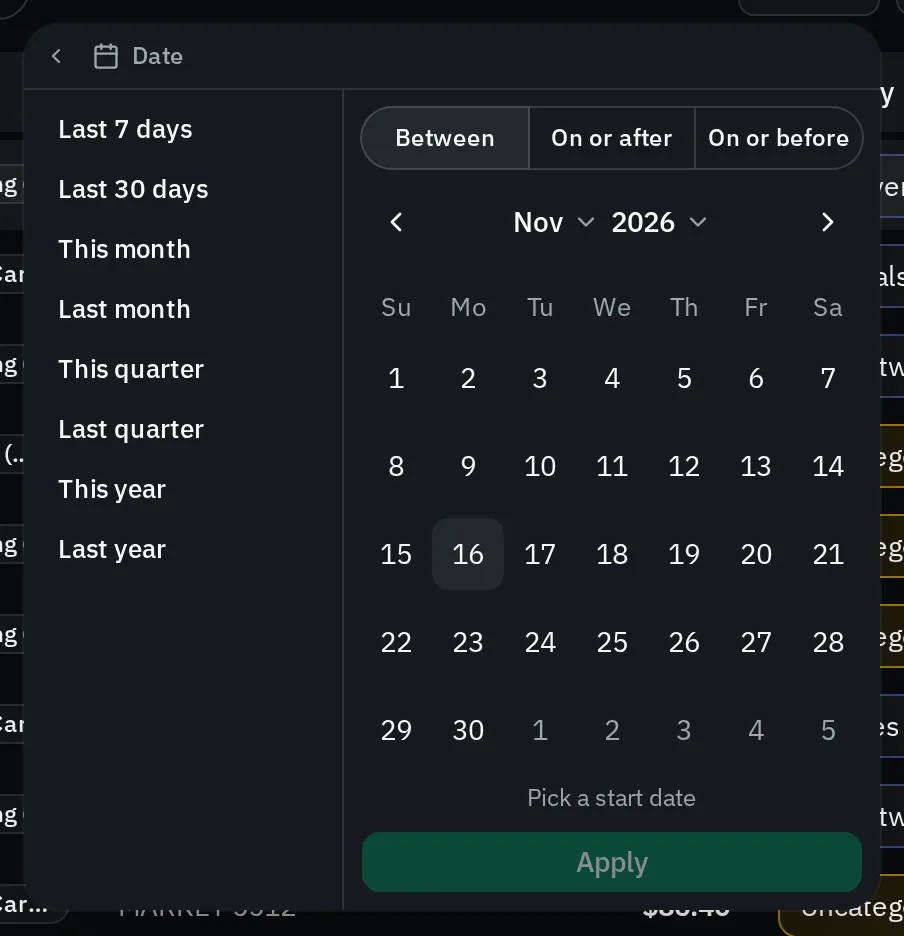
- Date shows the transactions with a post date in a range. Click a preset, such as Last 30 days or Last quarter. You can also choose Between, On or after, or On or before, pick the dates in the calendar, and click Apply.
- Amount compares the total of each transaction with the amount that you type. Choose Is, At least, At most, or Between, type the amount, and click Apply. The filter ignores the minus sign, so it matches money in and money out.
- Memo shows the transactions with a memo that contains the text that you type, in any letter case. Click Apply to use it.
- Vendor shows the transactions of the vendors that you select. Type to search. The list also has inactive vendors, marked Inactive. Select No vendor to see the transactions without a vendor. See Vendors.
- Account shows the transactions that use the accounts that you select. An account can be a bank account, a credit card, or a category. If you select a parent account, the filter also includes its subaccounts.
- Project shows the transactions of the projects that you select. Select No project to see the transactions without a project.
For the Vendor, Account, and Project filters, each item that you select applies at once. You can select more than one item.
Search from the Filter menu
You can type in the search box at the top of the Filter menu. The menu then shows the filter types that match your text. When you type two or more characters, it also shows these options:
- Memo contains your text, which adds a memo filter.
- Vendors matching your text, which opens the vendor list with your search.
- The accounts and projects that match your text. A bank name also finds the accounts of that bank.
Click an option to add it as a filter.
Change or remove a filter
Each filter that is on shows as a chip under the tabs. The chip shows the type of filter, how it compares, and its value. If you picked a preset date range, the chip shows its name, such as Last month.
- To change the value, click the value in the chip.
- For a Vendor, Account, or Project filter, click the comparison and choose is or is not. With more than one item, the choices are is any of and is none of.
- To remove one filter, click the X at the end of its chip.
- To remove all filters, click Clear filters.
If no transaction matches, the page shows No transactions match these filters. Click Clear filters to see all transactions again.
Sort transactions
The list shows the newest transactions first. You can also sort it by post date or by memo. An arrow next to the column name shows the direction of the sort.
Click the Post Date column name to switch between the newest and the oldest transactions first. If the list is sorted by memo, the first click shows the newest first.
Click the Memo column name to sort the memos from A to Z. Click it again to sort them from Z to A. A third click shows the newest transactions first again.
A memo sort ignores letter case and spaces at the ends of the memo. Transactions without a memo come last. Transactions with the same memo sit together, with the newest first. This helps you find repeated memos that a rule can categorize.
The sort stays on when you change a filter or switch between the tabs.
Export transactions to a CSV file
You can save transactions to a CSV file that opens in a spreadsheet program. The export includes only the transactions that you select.
- Set the filters, so that the list shows the transactions that you want.
- Select the checkbox of each transaction. To select all the rows that the list loaded, select the checkbox at the top of the column.
- In the bar at the bottom of the page, click Actions, or press A. The Actions dialog opens.
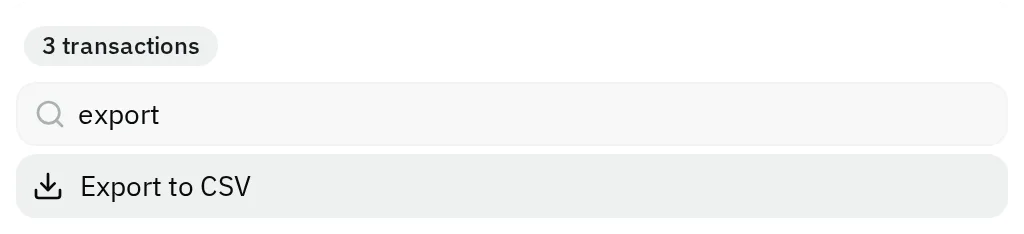
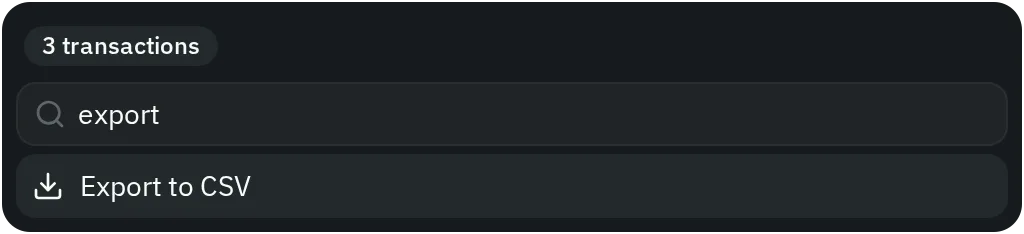
- Click Export to CSV. To find it fast, type
exportin the Search actions… field.
The list loads 200 transactions at a time, and it loads more when you scroll down. The checkbox at the top selects only the rows that the list loaded. To export more rows, scroll to the end of the list before you select them.
The file has the columns Date, Account, Memo, Amount, Category, and Status. Money out has a minus sign. A split transaction lists all its categories in one cell. The file does not include projects.