Transfers and matching
Match the two sides of a transfer between your own accounts, such as a credit card payment from checking, and unmatch them again.
A transfer moves money between two accounts of your business, for example a credit card payment from your checking account. You can match the two transactions of a transfer, and you can unmatch them if LazyBooks matched them by mistake.
When both accounts are linked to LazyBooks, a transfer shows as two transactions: money out of one account and money into the other. Matching tells LazyBooks that the two transactions are one transfer. A matched transfer is not income and not an expense.
How LazyBooks finds transfers
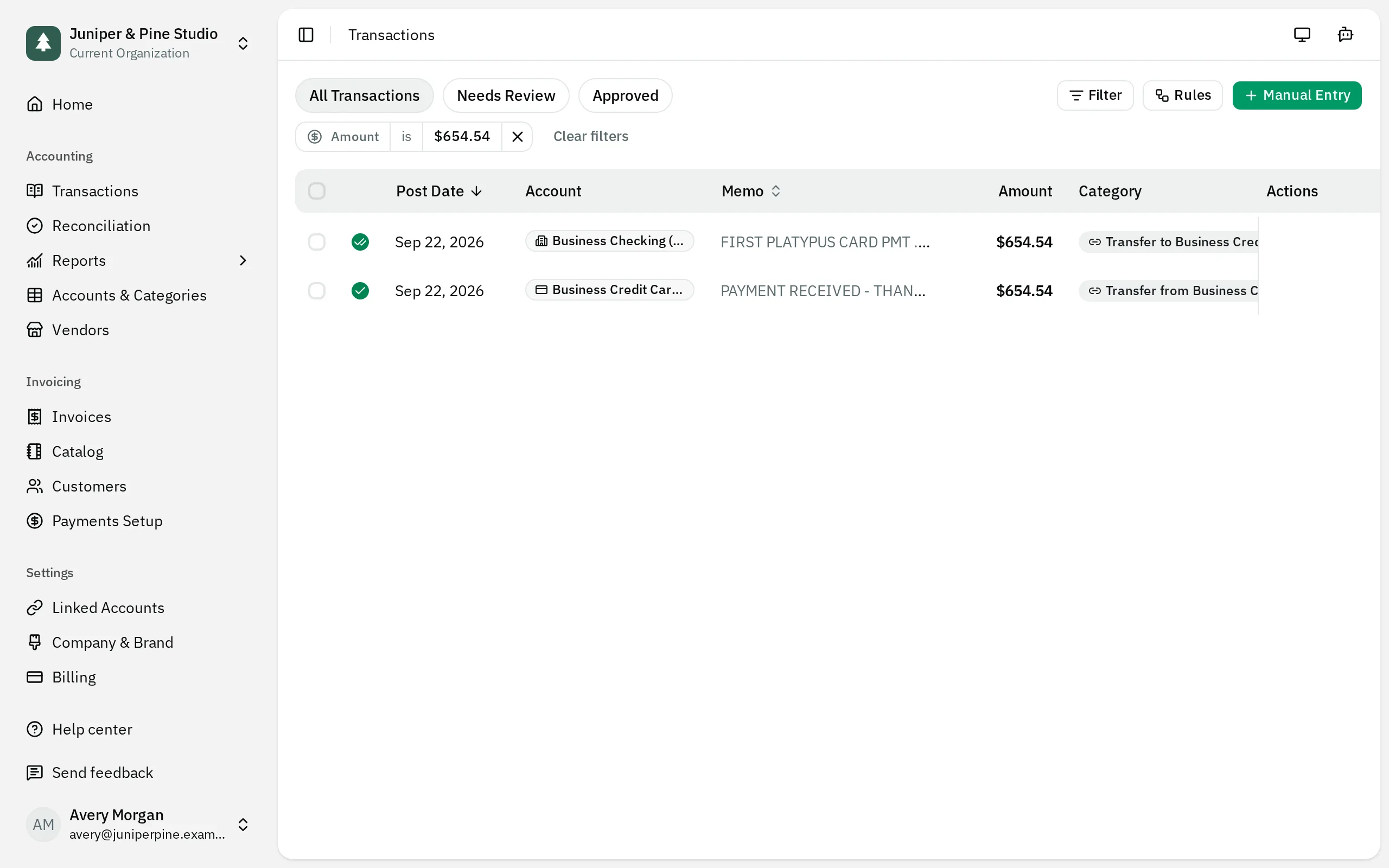
When LazyBooks imports new transactions from your linked accounts, it looks for transfers. For each new transaction, it looks for the other side in your other linked accounts. The other side has the same amount in the opposite direction, and it posted no more than five business days before or after. When the two transactions clearly belong together, LazyBooks matches them. The matched transactions stay in Needs Review until you approve them. When you approve one side, LazyBooks approves the other side too.
In the Category column, a matched transaction shows Transfer to or Transfer from and the name of the other account, with a link icon.
Sometimes LazyBooks finds a transaction that looks like a transfer before the other side is in your books. The transaction stays uncategorized and shows Pending transfer? in the Category column. LazyBooks tries to match it when the other side arrives. If the transaction is not a transfer, categorize it. See Categorize transactions.
Match two transactions
If LazyBooks did not match a transfer, match the two transactions yourself.
- In the sidebar, click Transactions.
- Select the checkbox of the transaction that takes the money out.
- Select the checkbox of the transaction that brings the money in.
- In the bar at the bottom of the page, click Actions, or press A. The Actions dialog opens.
- Click Match transactions.
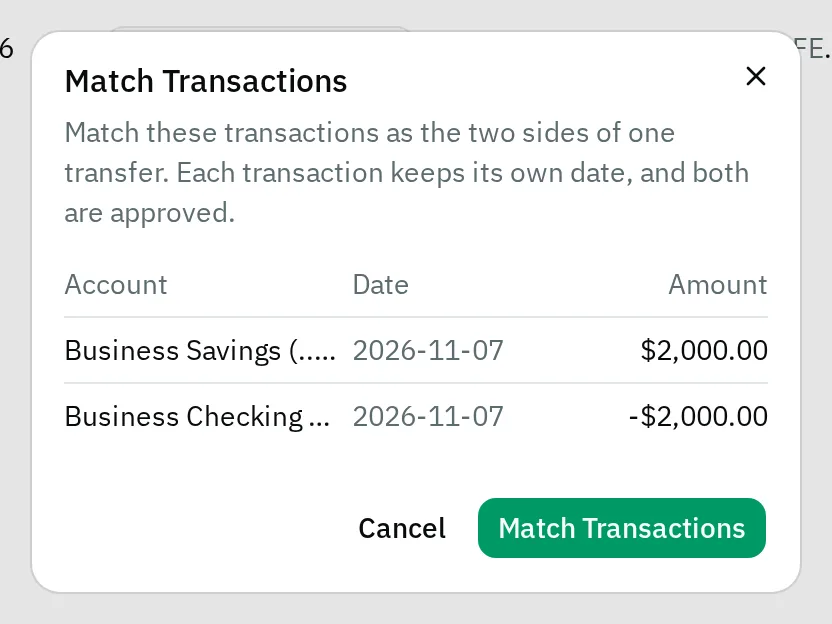
- Make sure that the dialog shows the accounts, dates, and amounts that you expect.
- Click Match Transactions.
LazyBooks matches the two transactions and approves both. Each transaction keeps its own date. If you matched them on the Needs Review tab, LazyBooks opens the Approved tab. It also opens Transaction Details of one of the two transactions.
The Actions dialog shows Match transactions only when the two selected transactions can be one transfer:
- Each transaction came from your bank feed, a bank file import, or a Stripe payout.
- One transaction takes money out, and the other brings money in.
- The two amounts are the same.
- The two transactions are on different accounts.
- Neither transaction is split into more than one category.
- Neither transaction is matched already.
You cannot match a transaction that you entered by hand. You also cannot pick a linked account as the category of a transaction. If you try, LazyBooks tells you to match the two transactions instead.
Transfers to an account that is not linked
If the other account is not linked to LazyBooks, there is no second transaction to match. Categorize the transaction to that account instead, for example a loan that you did not connect. The Category column then shows Transfer to or Transfer from and the account name, without the link icon.
To record a transfer between two accounts that are not linked, use the Transfer tab of Manual Entry. See Add and edit transactions.
See a matched transfer
Click a matched transaction to open Transaction Details. In place of the category, the Transfer to or Transfer from section shows the other account, the date of the other transaction, and the amount.
You cannot change the category of a matched transaction. To change it, unmatch the two transactions first.
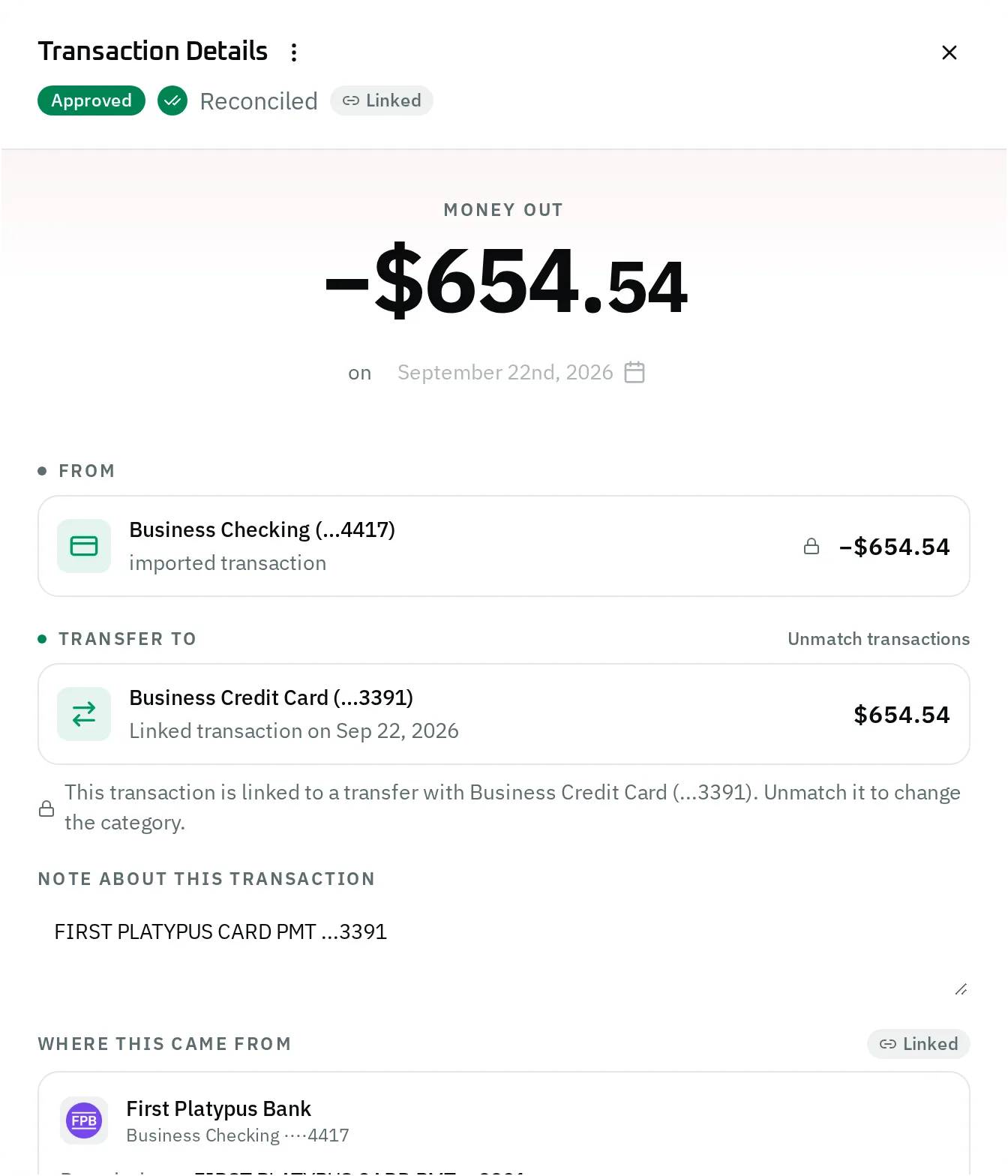
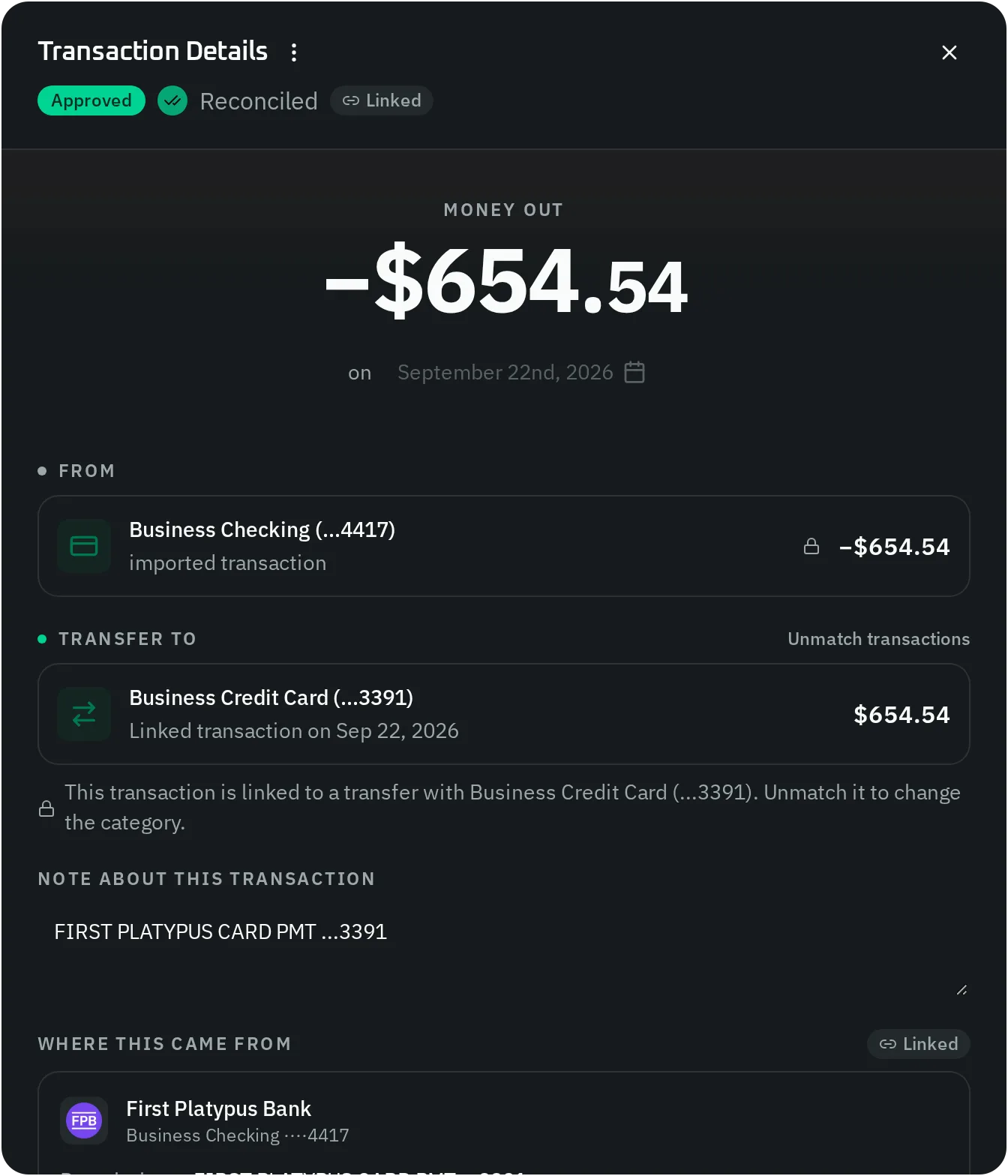
Unmatch a transfer
Unmatch two transactions when they are not one transfer.
- Click one of the matched transactions to open Transaction Details.
- In the Transfer to or Transfer from section, click Unmatch transactions.
- Click Unmatch Transactions.
You can also unmatch from the list. Select one matched transaction. In the bar at the bottom of the page, click Actions, and then click Unmatch transactions.
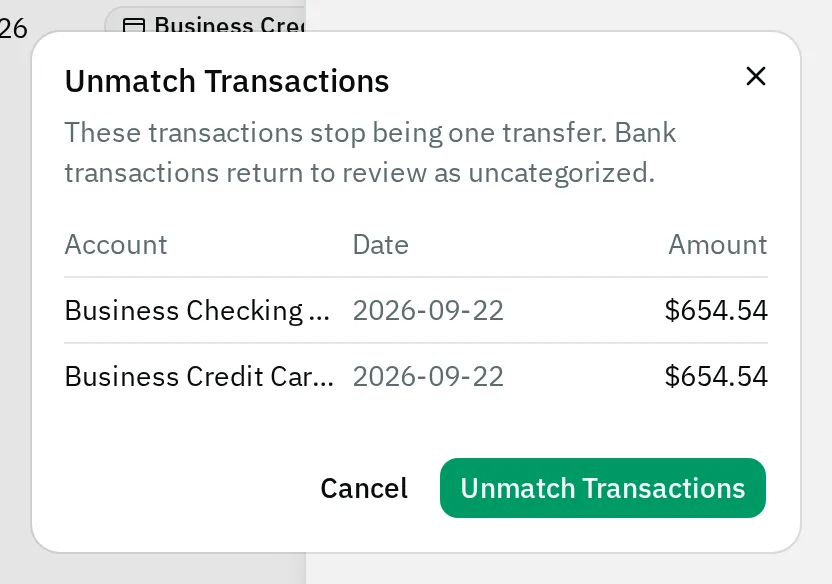
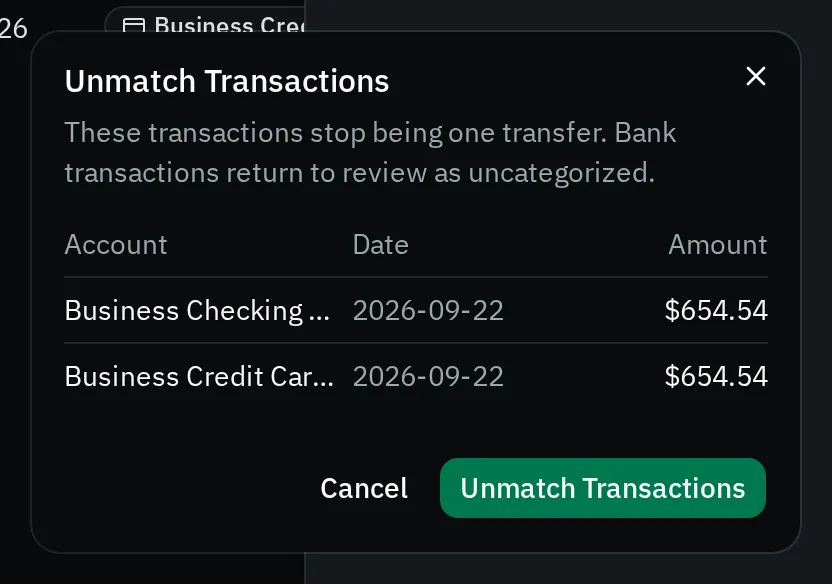
After the unmatch, the bank transactions go back to Needs Review with an uncategorized category, such as Uncategorized Expenses. A Stripe payout does not change. Categorize each bank transaction, or match it with the correct transaction. LazyBooks does not match the two transactions again on its own.
If you recorded interest on a loan payment, the unmatch also removes that interest. Interest that a finished reconciliation includes stays. See Split a loan payment.
The Transfers in Transit account
Your chart of accounts has an account named Transfers in Transit, under Cash & Bank. It holds money that left one of your accounts and did not reach the other account yet.
When LazyBooks matches a transfer, it puts the category of each side on Transfers in Transit. The side that takes money out adds the amount, and the side that brings money in takes it away again. If the two sides have different dates, the amount stays in Transfers in Transit between those dates. After the later date, the transfer adds nothing to its balance.
Not while it is matched. Unmatch the two transactions first. See Delete transactions.
The payment is a transaction on your checking account and a transaction on your credit card account. Match the two transactions, so that your books show one transfer.