Add and edit transactions
Add a transaction by hand, make an adjustment to an account, and change the details of a transaction.
Most transactions come from your linked bank accounts. You can also add a transaction by hand, for example a payment in cash, and you can change the details of any transaction.
Add an expense or income
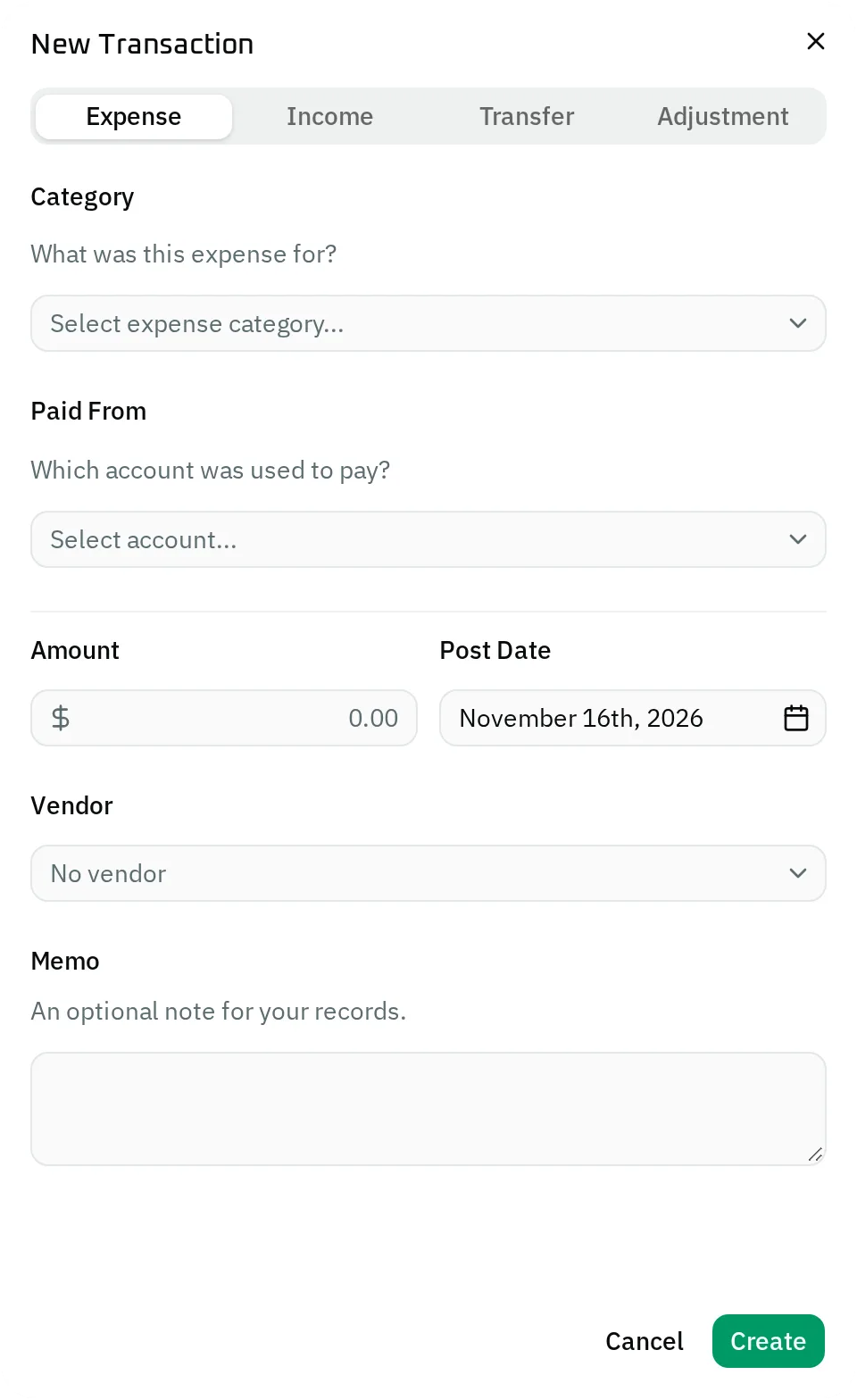
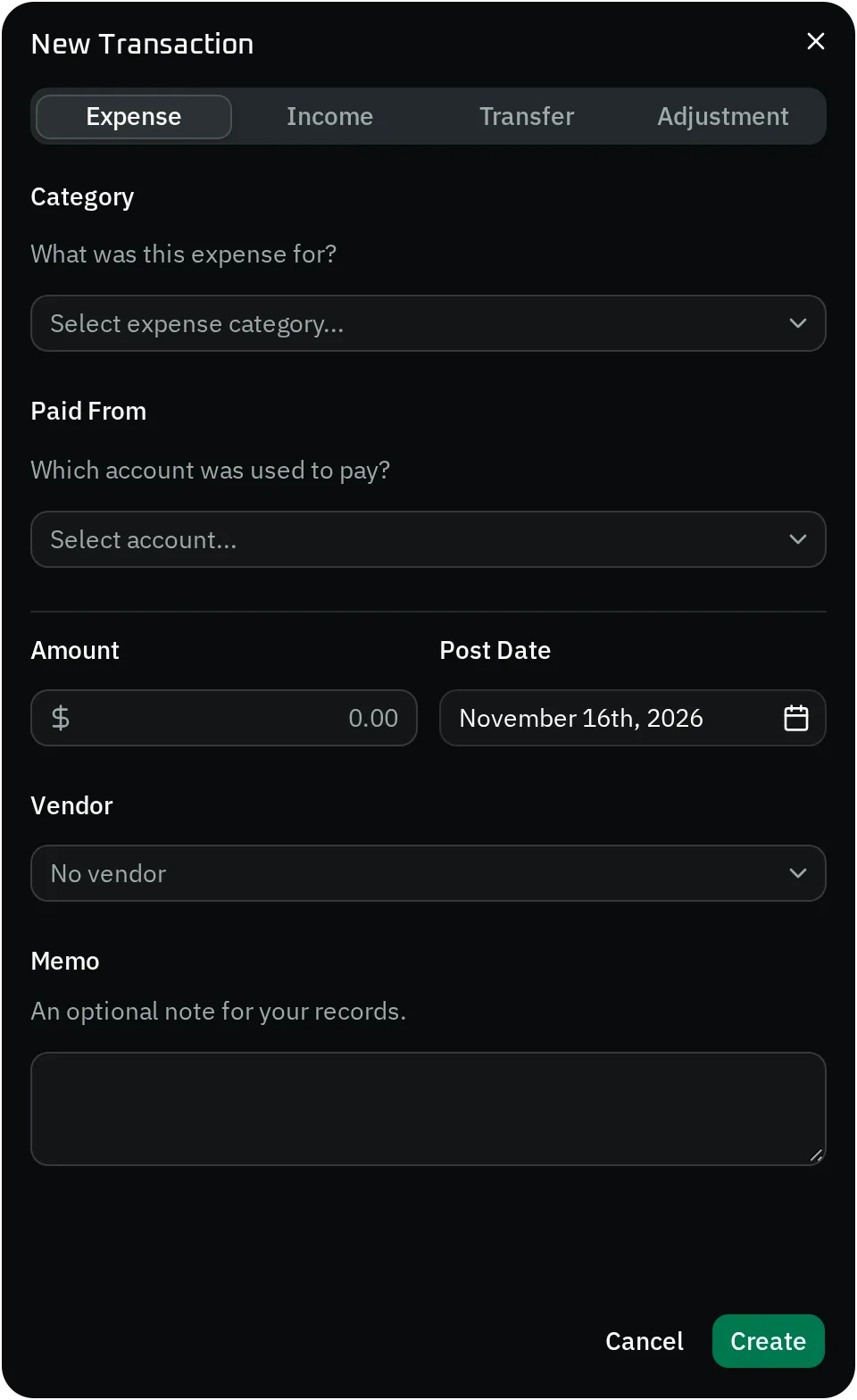
- On the Transactions page, click Manual Entry.
- In the New Transaction dialog, click Expense or Income.
- Choose the category. For an expense, the field is Category. For income, the field is Income Source.
- Choose the account. For an expense, the field is Paid From. For income, the field is Deposited Into.
- Type the Amount.
- Choose the Post Date.
- Optional: choose a Vendor. To add a new vendor, type its name and click the option that starts with Add.
- Optional: type a Memo.
- Click Create.
The Transfer and Adjustment tabs also have an optional Vendor field. See Give a transaction a vendor.
The new transaction is approved at once. If its category is an uncategorized category, it goes to the Needs Review tab instead.
An expense or income cannot have a date before your books start date.
The account lists do not show the accounts that a bank feed fills, such as your linked checking account. The bank sends those transactions, so you do not add them by hand. To add many transactions to an asset or liability account from a file, see Import bank transactions.
If no category fits, type a new name in the category field and click the option that starts with Create:. See Categorize transactions.
Add a transfer
A transfer moves money between two of your accounts, for example from cash to a savings account that is not linked.
- Click Manual Entry, and then click Transfer.
- In From Account, choose the account that the money leaves.
- In To Account, choose the account that the money goes to.
- Type the Amount.
- Choose the Post Date.
- Click Create.
The account lists do not show the accounts that a bank feed fills. For a transfer between two linked accounts, see Transfers and matching.
A transfer cannot have a date before your books start date.
Make an adjustment
An adjustment changes the balance of the accounts that you pick, also the accounts that a bank feed fills. Use it to correct a balance when there is no bank transaction for the change.
- Click Manual Entry, and then click Adjustment.
- In Account, choose the account to adjust. The list marks each account that a bank feed fills with Linked account.
- Under Side, click Debit or Credit.
- Type the Amount.
- Choose the Post Date.
- Under Credit lines or Debit lines, choose an account on the other side.
- Type the amount of that line.
- To add another account, click Add line.
- In Reason, type why the books need this change.
- Click Create.
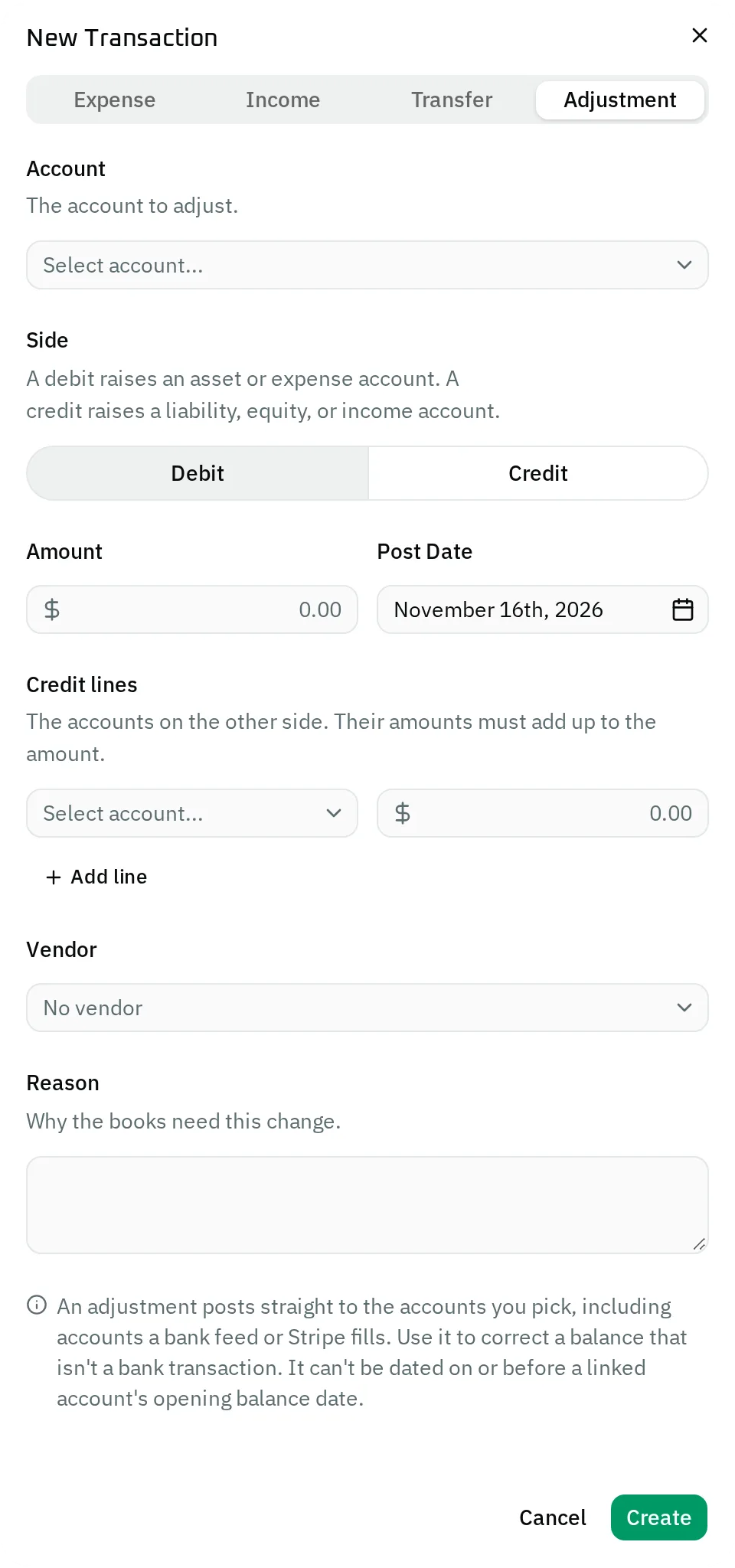
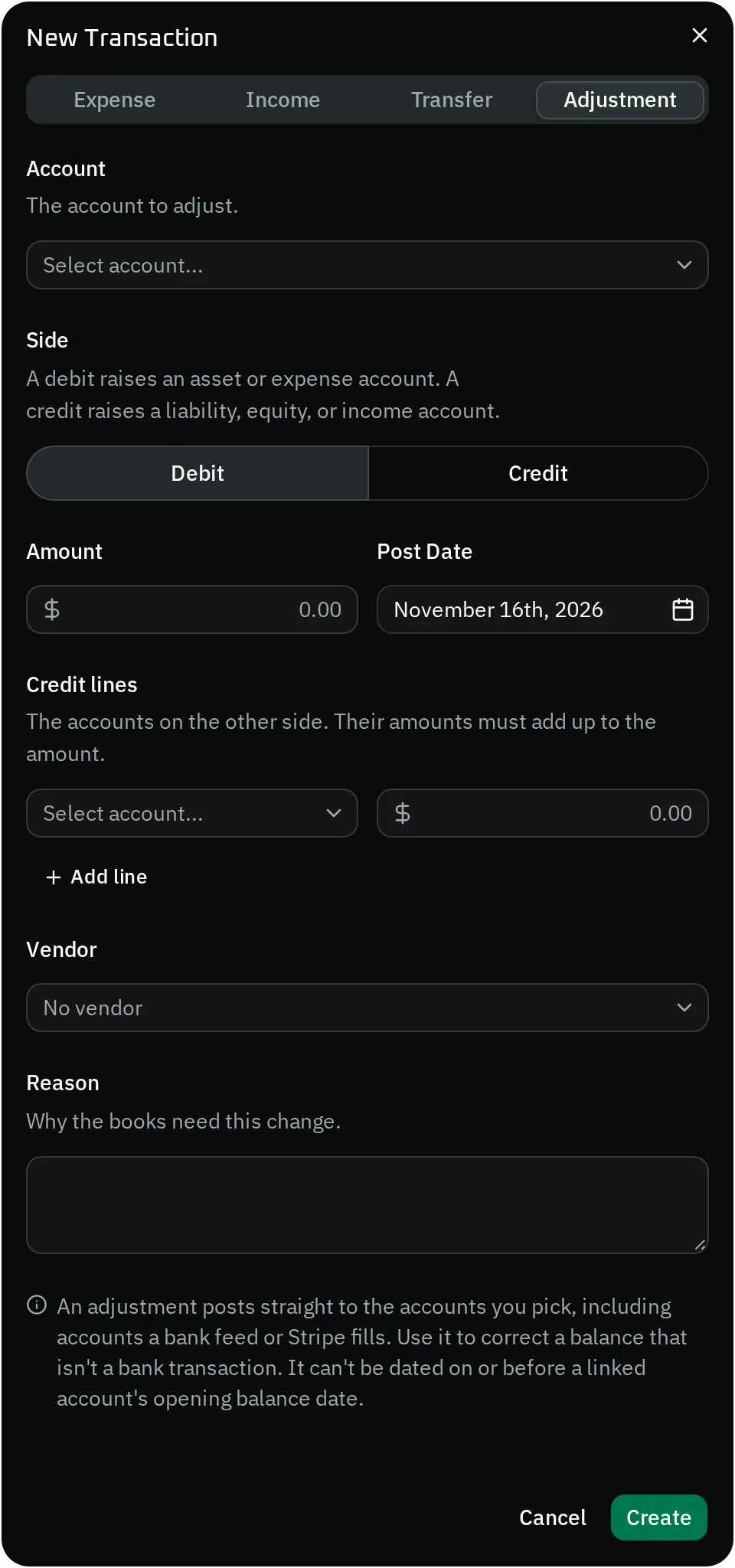
The dialog explains the sides. A debit raises an asset or expense account. A credit raises a liability, equity, or income account. The amounts of the lines must add up to the Amount. The text under the lines shows Balanced when they do, or the amount that is left.
An adjustment cannot have a date before your books start date. If it uses a linked account, its date must be after the opening balance date of that account. To correct an opening balance, see Verify opening balances.
In the list, a pen icon in the Memo column marks an adjustment. The Transaction Details panel of an adjustment shows the badge Adjustment.
Ask the assistant to add a transaction
The assistant can add an expense, income, transfer, or adjustment for you. Each adjustment shows as a card that waits for your approval, even when the assistant makes other changes automatically. See Approve changes. An AI app that you connect can add them too. See Connect your AI.
Edit a transaction
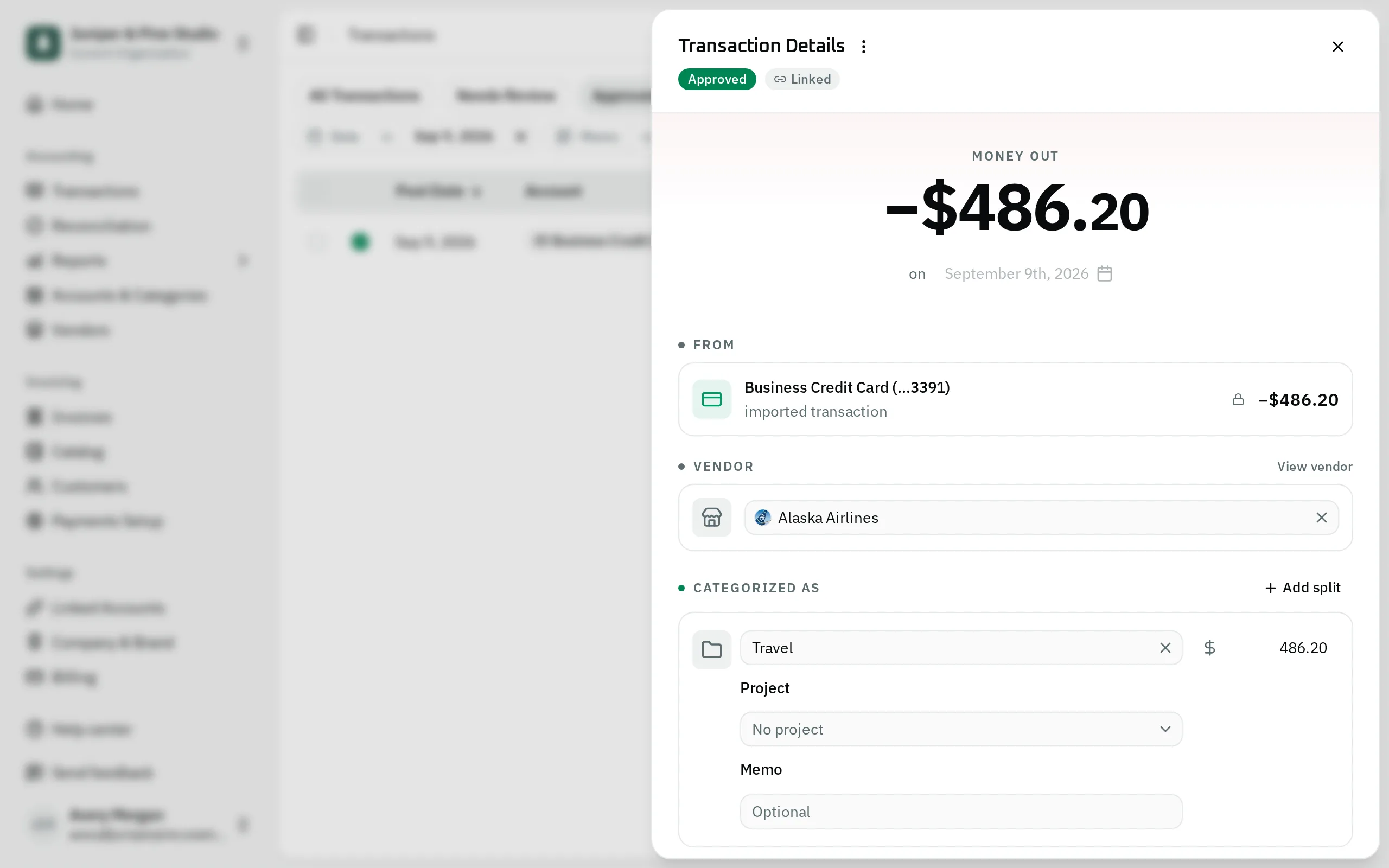
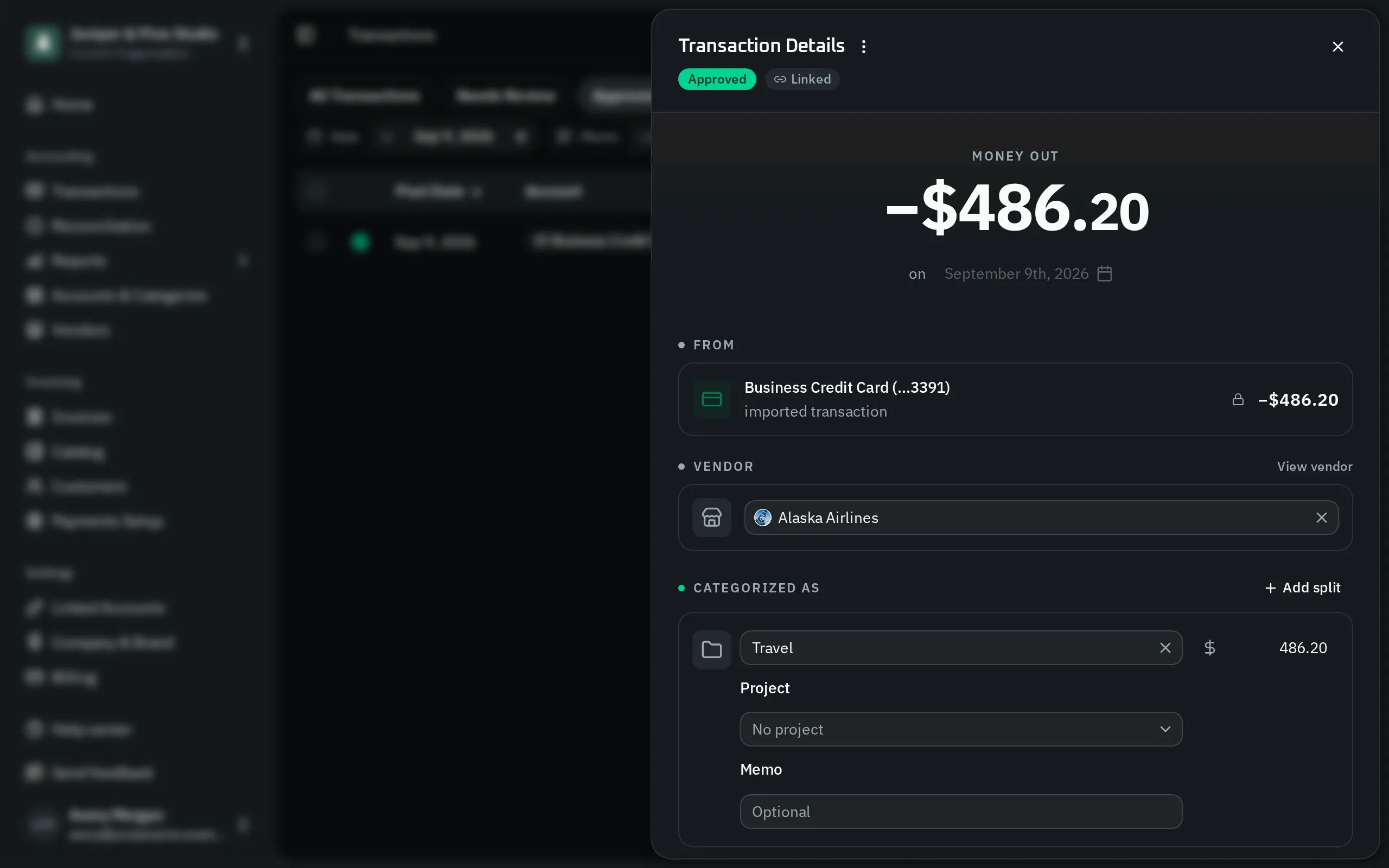
- On the Transactions page, click the row of the transaction.
- In the Transaction Details panel, change the fields that you need.
LazyBooks saves each change as soon as you make it. You do not need a save button, except for a new split. The panel has these sections:
- The amount at the top shows Money out or Money in and the date.
- From shows the account that the money moved through.
- Categorized as shows the category, or the categories of a split. See Categorize transactions.
- Note about this transaction holds the memo that the Memo column shows.
- Where this came from shows the bank, the account, and the bank description of a transaction from your bank.
- The receipts of the transaction. See Receipts and attachments.
A transaction from your bank has the badge Linked. You cannot change its date, its account, or its amount, because they come from your bank. The date is grayed out, and a lock icon marks the account and the amount. You can change its category, its splits, its project, and its note.
For a transaction that you added by hand, you can also change the date, the account, and the amounts.
A finished reconciliation locks the amount, the account, and the date of the transactions that it includes. To change them, reopen the statement first. See Reconcile an account.
For more about the source of a transaction, see See where a transaction came from. To remove a transaction from your books, see Delete transactions.
Search and filter transactions
Filter transactions by date, amount, memo, vendor, account, or project, sort them by date or memo, and export the transactions that you select to a CSV file.
Transfers and matching
Match the two sides of a transfer between your own accounts, such as a credit card payment from checking, and unmatch them again.