Reconcile an account
Compare the transactions of a bank, card, or loan account with its statement, and finish the statement when they match.
Reconciling makes sure that the transactions in LazyBooks match the statement from your bank, card company, or lender. You reconcile one account for one statement period at a time. A statement period is the dates that one statement covers.
The Reconciliation page
Click Reconciliation in the sidebar. The page lists these accounts:
- Each bank, card, and loan account that is connected to your bank on the Banks & Cards page.
- Each active account that you added yourself with the subtype Bank, Cash, Credit card, Line of credit, or Long-term liability, such as petty cash.
The Stripe Balance account and the accounts that LazyBooks uses for its own work are not on this page. An account that you disconnected from its bank is not on this page either. If you have no account to reconcile yet, the page shows Connect a bank. See Connect a bank.
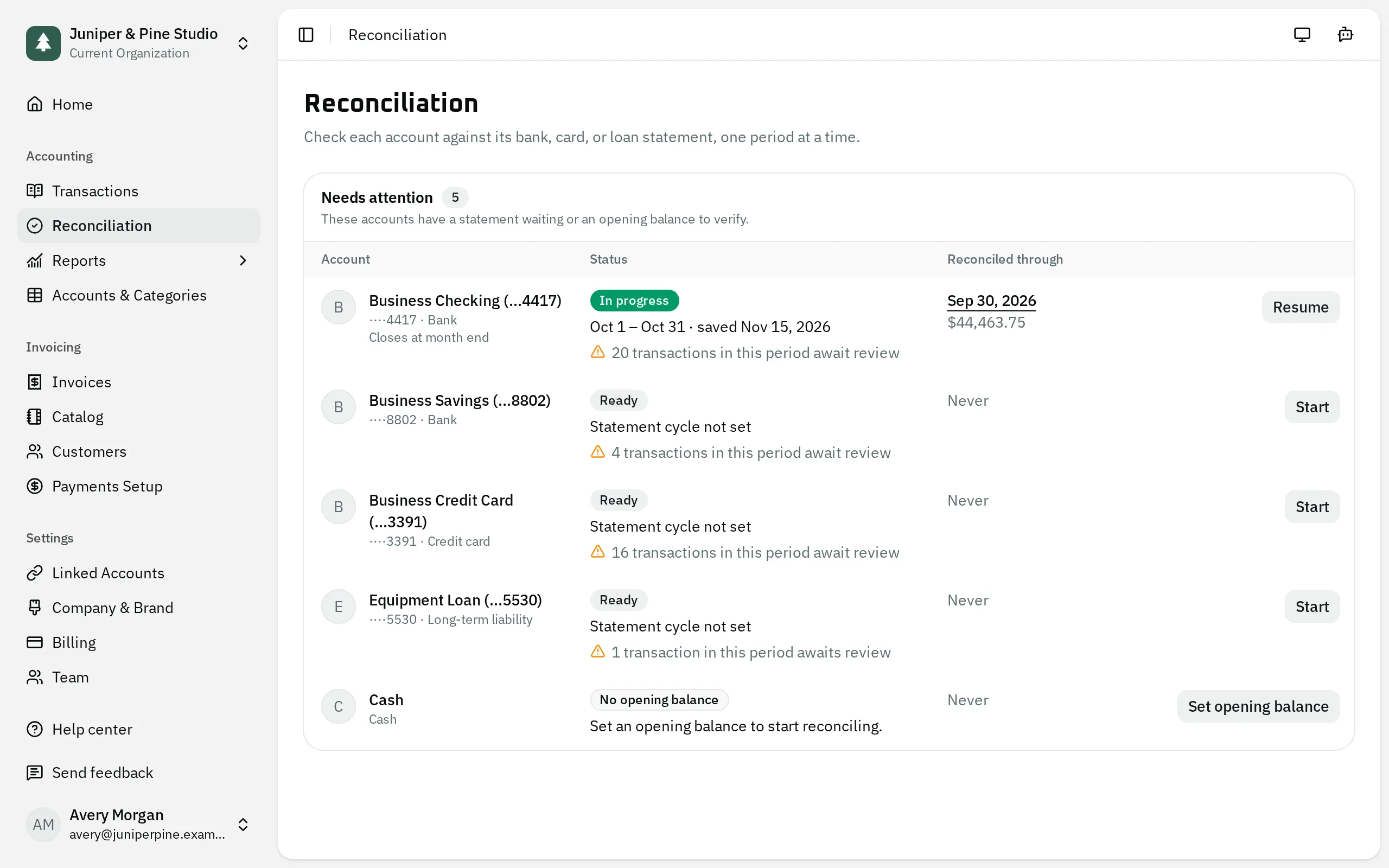
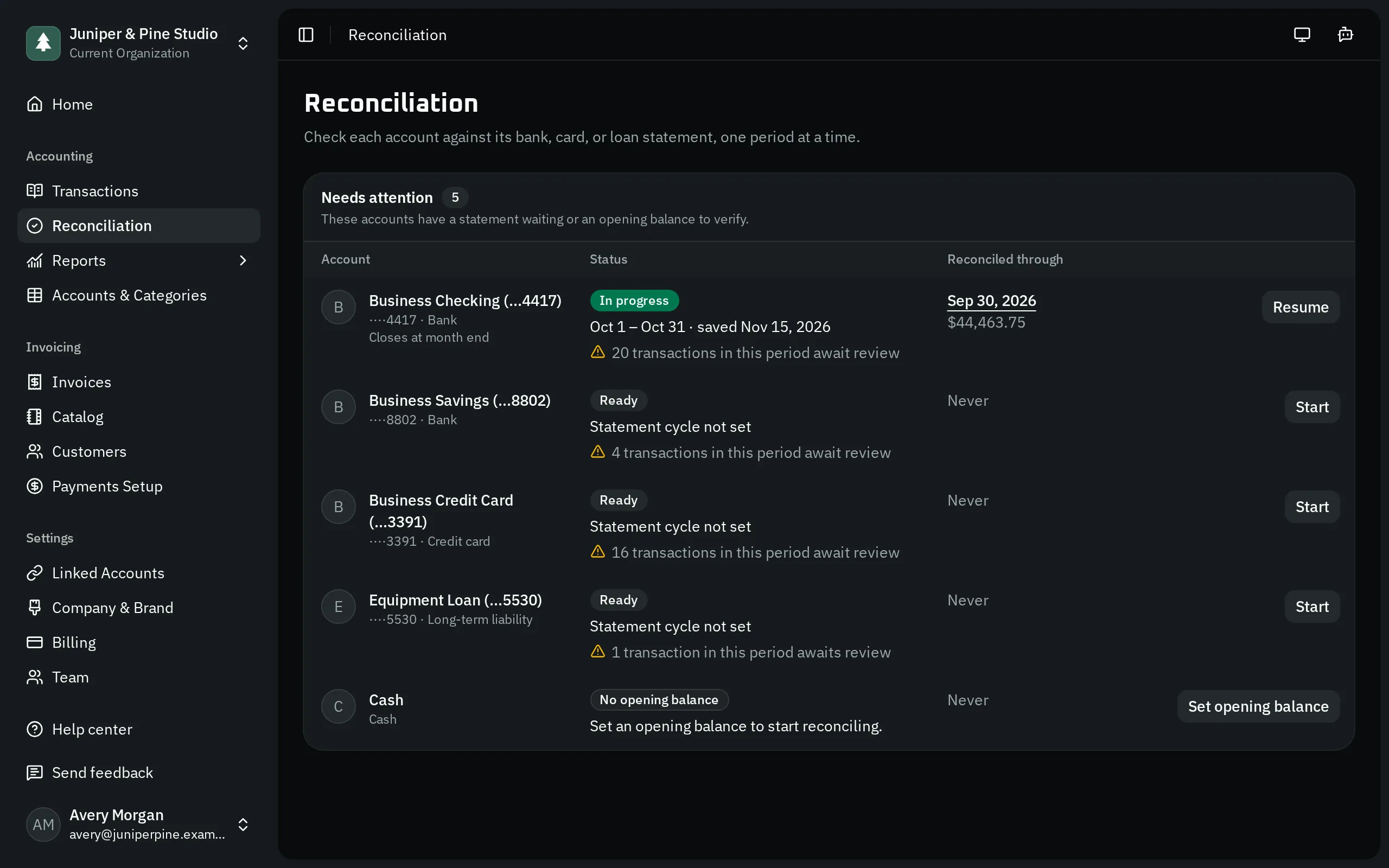
The page puts the accounts into two groups. Needs attention lists the accounts that have a statement to reconcile or an opening balance to verify. Up to date lists the accounts that have nothing to do until the next statement.
Each account shows its status, the Reconciled through date, and one button. Reconciled through shows the end date and the balance of the last statement that you finished. An account that you never reconciled shows Never.
| Status | What it means | Button |
|---|---|---|
| In progress | You started a statement and did not finish it. | Resume |
| Behind · 3 statements | Two or more statement periods ended after the last statement that you finished. | Start |
| Statement expected | One statement period ended after the last statement that you finished. | Start |
| Ready | LazyBooks does not know when the statements of this account close. The row says Statement cycle not set. | Start |
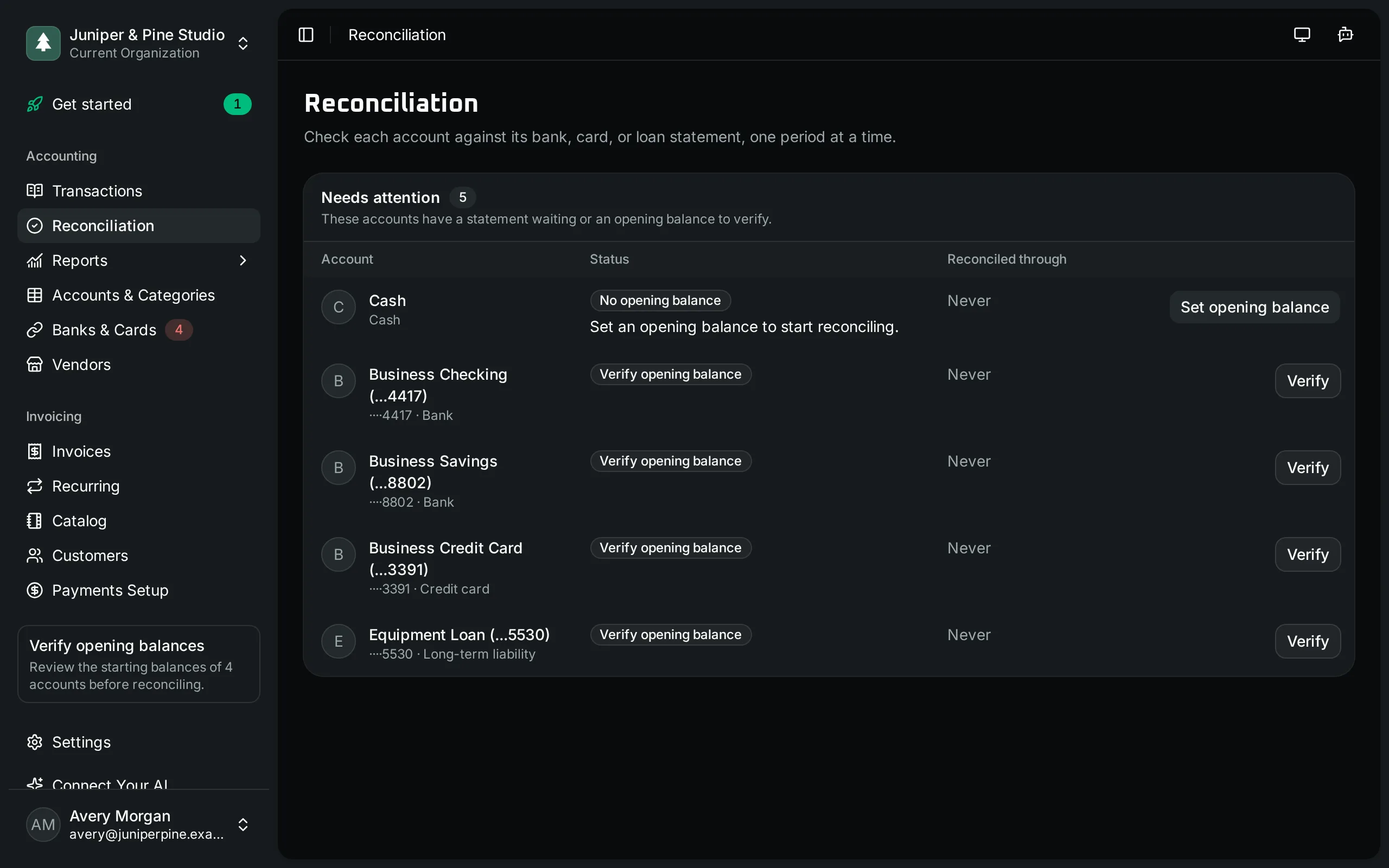
| Verify opening balance | You must verify the opening balance of the account before you reconcile it. | Verify |
| No opening balance | The account has no bank connection and no opening balance yet. | Set opening balance |
| Up to date | You reconciled each statement period that ended. The row shows when the next one is expected. | Reconcile a statement |
The opening balance is what the account held at the end of the day before your transactions in LazyBooks begin. Until you verify it, the account shows Verify opening balance, and you cannot start a statement. For a connected account, Verify opens Banks & Cards. See Verify opening balances. For an account without a bank connection, Verify opens the opening balance panel on this page.
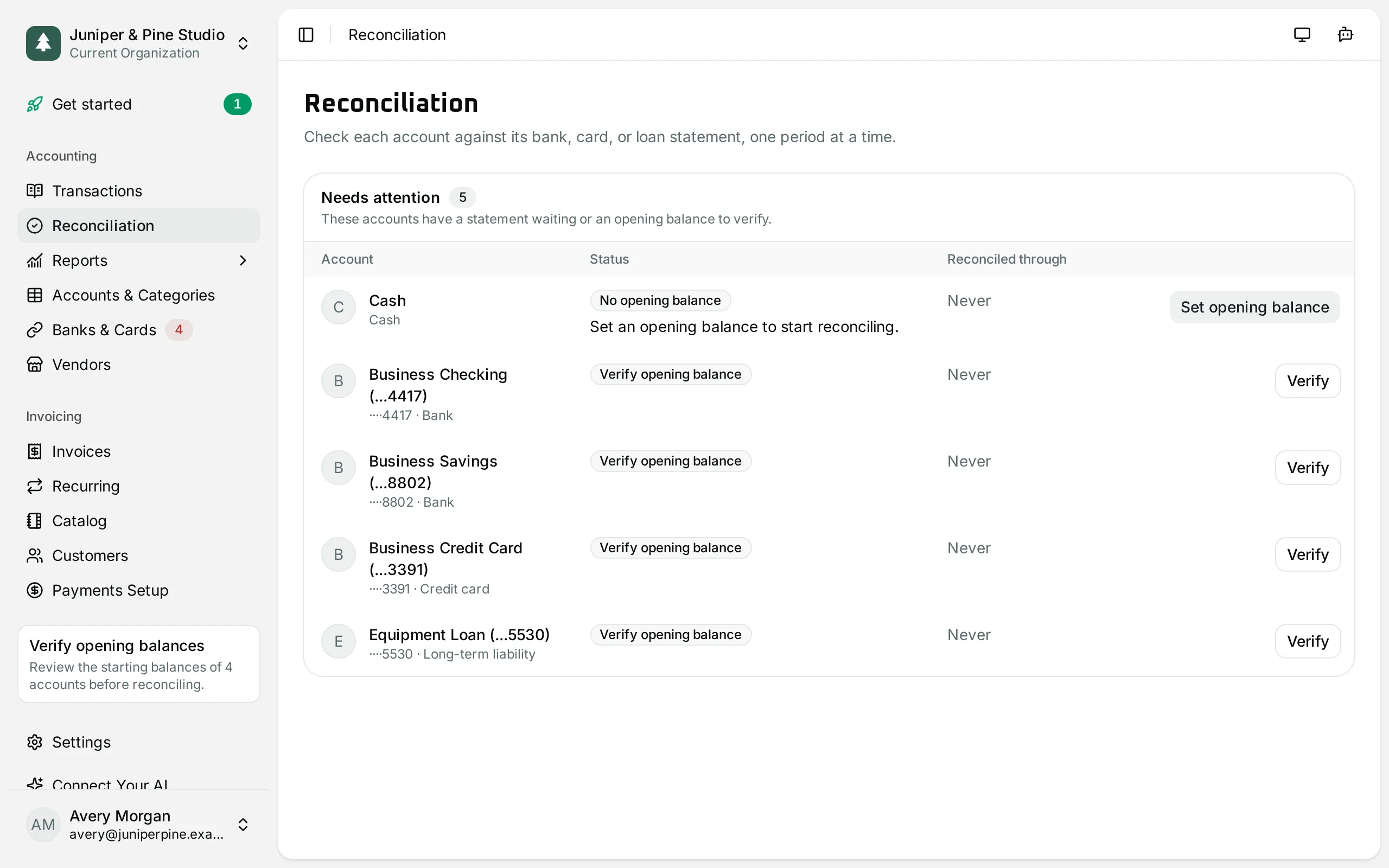
An account can also show warnings under its status:
- The number of transactions in the statement period that wait for review.
- The number of bank transactions in the period that are not in the books yet.
- Feed needs sign-in. You can still reconcile. The Banks & Cards link opens the page where you sign in to the bank again.
- Bank sync is still catching up. LazyBooks still imports the history of the account.
When every account is up to date, a You're all caught up box names the account whose statement is expected next.
Set an opening balance
An account without a bank connection needs an opening balance before you reconcile it. You type it yourself, from a statement.
- On the row of the account, click Set opening balance.
- In the amount box, type the balance at the end of the day of the date. For a card or a loan, the box is Amount owed.
- In Balance on, select the date of the balance.
- Click Set opening balance.
If the account was overdrawn, or if the card company or lender owes you, the amount is negative. Type a minus sign, or click +/− in the box.
LazyBooks posts the opening balance against the Opening Balance Equity account. The balance counts as verified at once, so you can start a statement.
The opening balance must be the first entry of the account. If the account has a transaction or a reconciliation on or before the date, LazyBooks refuses the date. Select an earlier date.
You can also set the opening balance when you add or edit the account. See Add and edit accounts.
A later import of transactions dated on or before the opening balance date moves the opening balance to an earlier date. The account then shows Verify opening balance again. A change of your books start date does the same.
Start a statement
Get the statement from your bank, card company, or lender before you start.
- On the row of the account, click Start. For an account that is up to date, click Reconcile a statement.
- If the panel asks When does this statement close?, select the answer that matches your statements.
- If you selected The same day each month, type the day in Day of the month.
- Under Statement end date, select the last day of the statement period.
- In Statement ending balance, type the ending balance from the statement. For a credit card or a loan, this field is Amount owed on the statement. A statement often calls it the new balance.
- Click Start reconciling.
If the account was overdrawn, or if the card company or lender owes you, the amount is negative. Type a minus sign, or click +/− in the box.
The answers to When does this statement close? are End of the month, The same day each month, and I do not know yet.
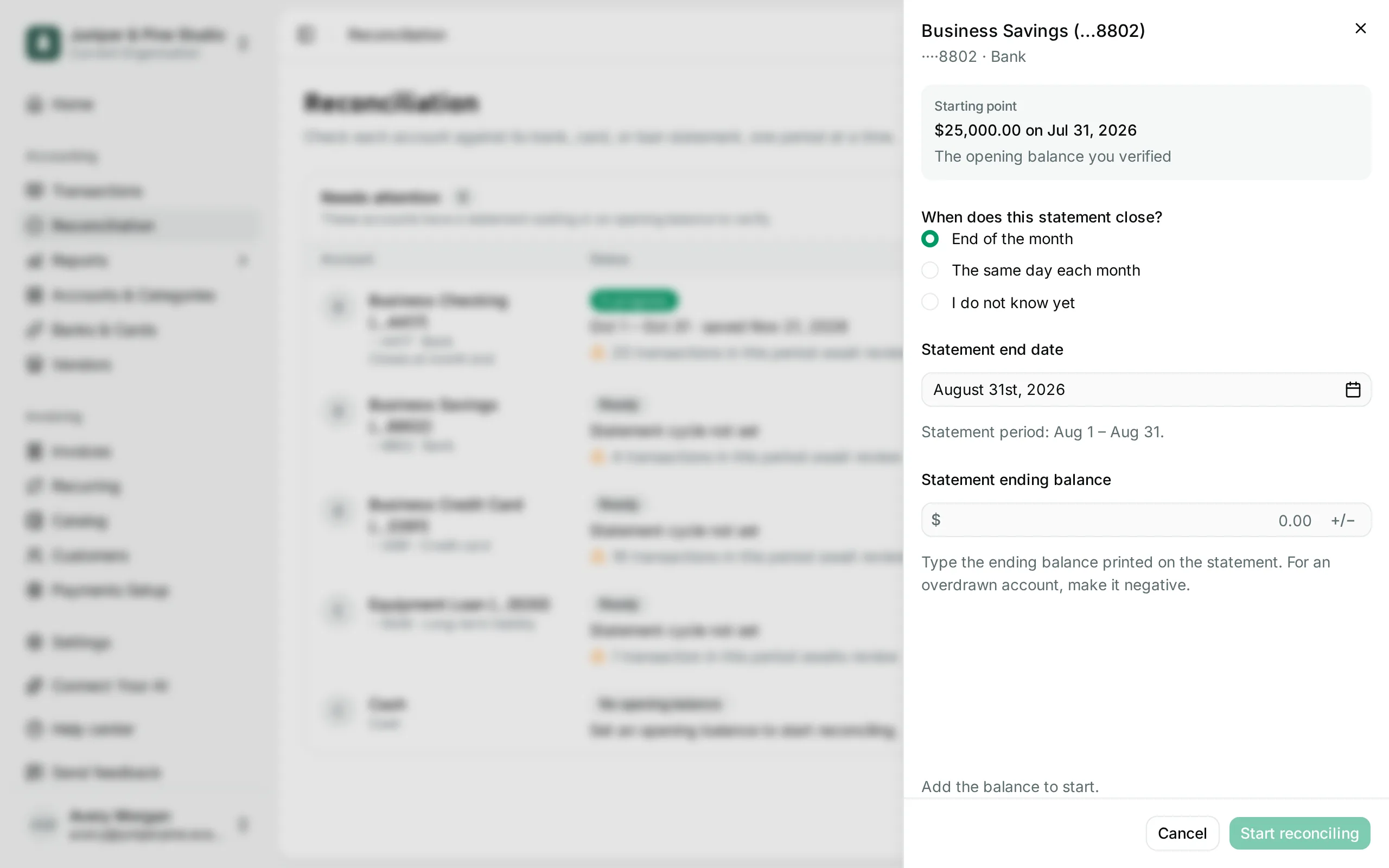
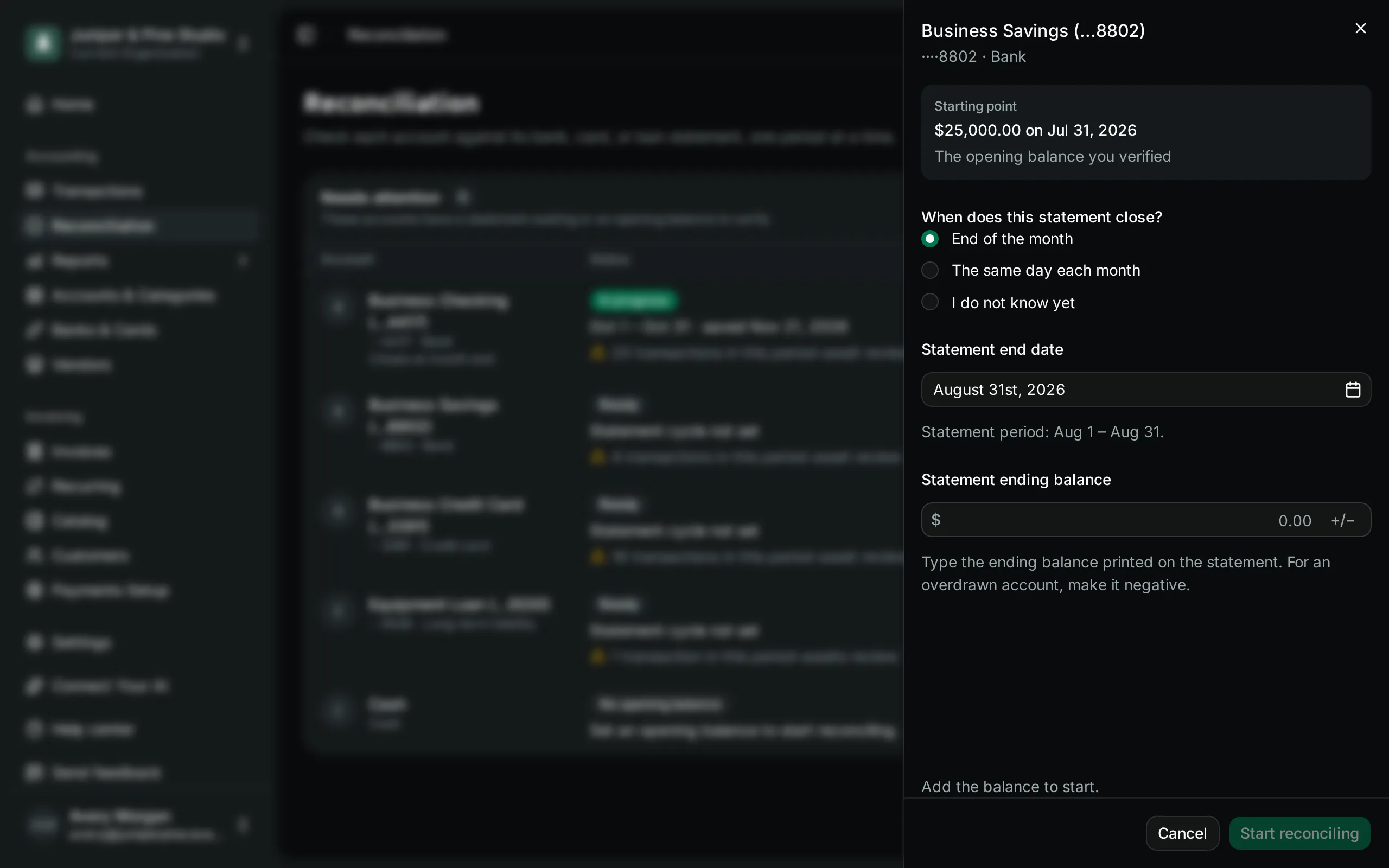
Under Starting point, the panel shows the balance that the statement starts from. It is the ending balance of your last statement, or the opening balance that you verified. The statement period starts on the day after that date.
When LazyBooks knows when the statements close, it fills in the end date for you. It learns this from your answer to the question, or from the end dates of the last two statements that you finished.
Under Before you start, the panel shows the number of transactions in the period that still need review. You can start the statement, but you cannot finish it until you approve them.
If the balance that you type matches your books, and nothing else blocks the statement, the panel shows Your books match this statement. Click Finish statement to finish the statement in one step.
An account can have only one statement in progress at a time.
Confirm the transactions
The statement page lists the transactions of the account for the statement period. To confirm a transaction, you select its checkbox. A confirmed transaction is also on the statement.
When you start a statement, LazyBooks confirms each approved transaction that came from the bank feed or from a CSV bank import. The bank feed is the transactions that LazyBooks imports from your bank. Other transactions start unconfirmed. LazyBooks does not confirm transactions that you approve after you start.
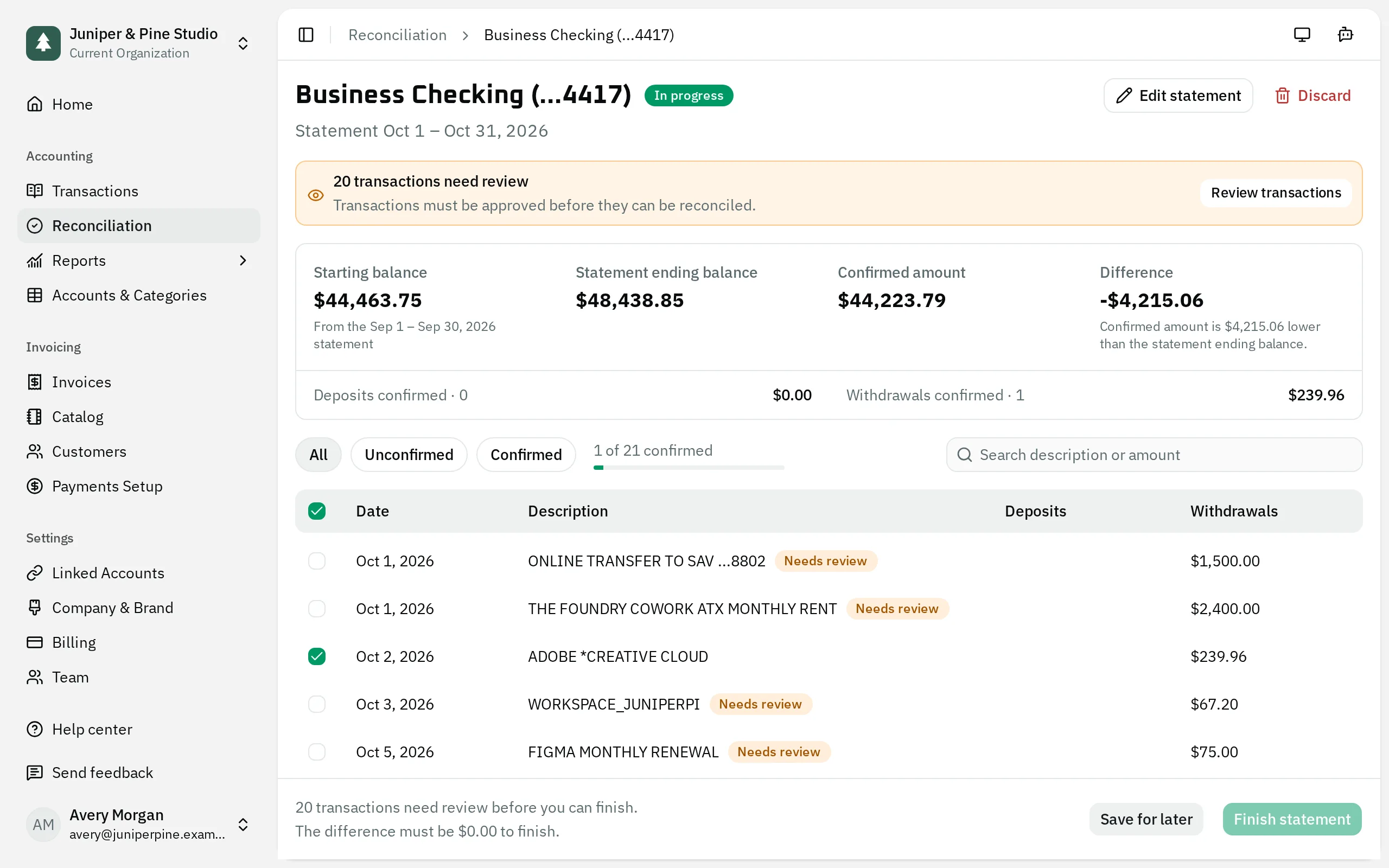
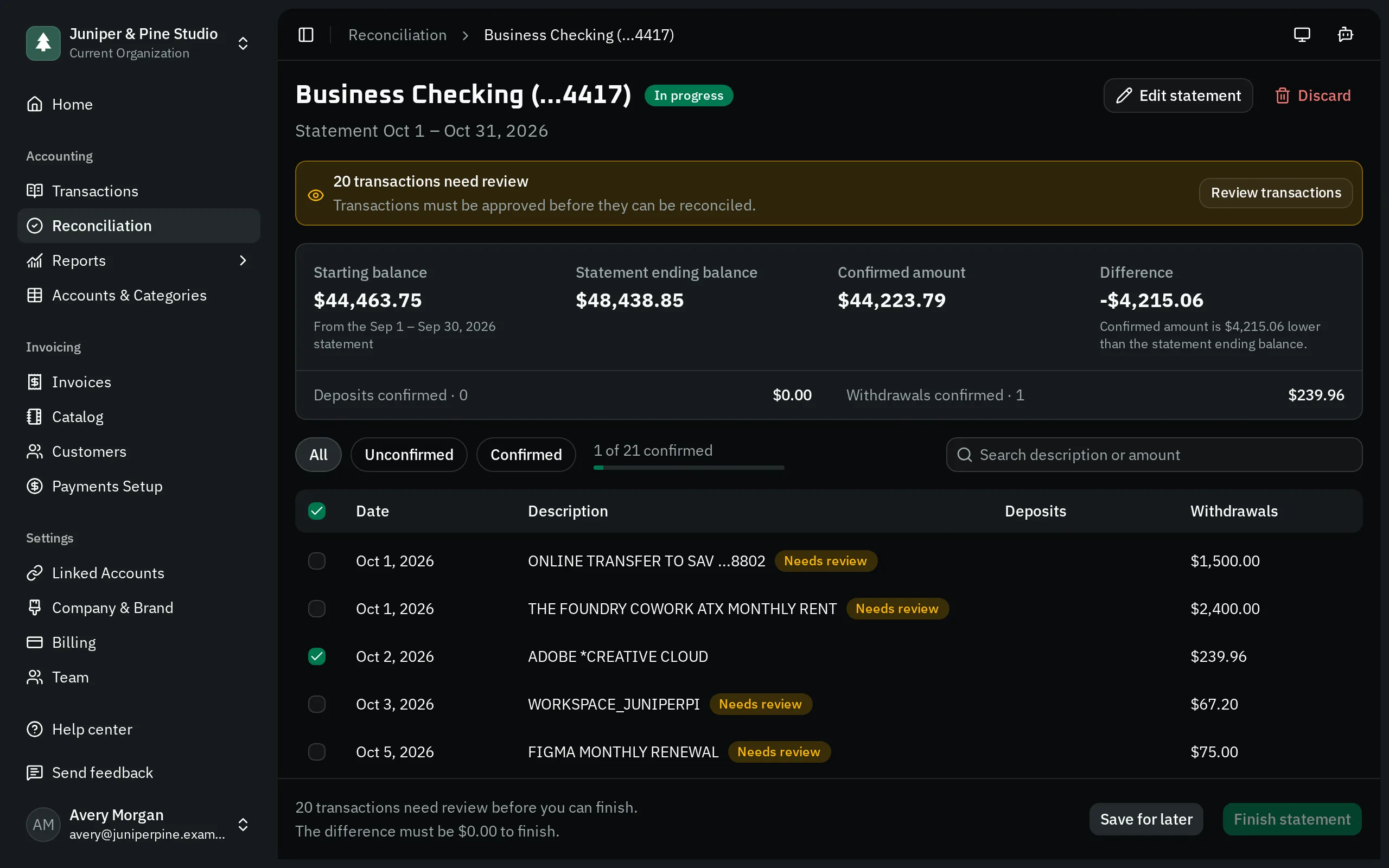
The box at the top compares your books with the statement:
- Starting balance is the balance that the statement starts from.
- Statement ending balance is the balance that you typed from the statement.
- Confirmed amount is the starting balance plus the transactions that you confirmed.
- Difference is the confirmed amount minus the statement ending balance.
For a credit card or a loan, these labels name the amount owed, for example Starting amount owed. Under the balances, the box shows the totals of the money in and the money out that you confirmed.
To confirm the transactions:
- Compare each transaction in the list with the statement.
- If a transaction is on the statement, make sure that its checkbox is selected.
- If a transaction is not on the statement, clear its checkbox.
- When you stop before you finish, click Save for later.
Click Save for later or Finish statement before you leave the page. LazyBooks saves your checkbox changes only when you click one of them.
These tools help you work through a long list:
- To select a range of transactions, select one checkbox, hold Shift, and select another checkbox.
- The checkbox in the header selects or clears each transaction in view.
- All, Unconfirmed, and Confirmed filter the list. Next to them, LazyBooks shows how many transactions you confirmed, for example 1 of 21 confirmed.
- The search box finds a transaction by its description or its amount.
- Click a transaction to see its details, such as where it came from and its category. To change a transaction, go to Transactions.
Some transactions have a label next to the description:
- Needs review: You must approve the transaction before you can confirm it. See Fix a difference.
- Manual: The transaction did not come from the bank feed or from a CSV bank import. A loan entry that LazyBooks made shows Interest or Loan start instead.
- From an earlier period: The transaction is dated before this statement period.
Finish the statement
When the Difference is $0.00, click Finish statement. LazyBooks saves the statement and opens the Reconciliation page. The account is then reconciled through the end date of the statement.


Finish statement stays off while something blocks it. The reasons show next to the button. See Fix a difference.
When you finish a statement, LazyBooks locks its confirmed transactions. To change the amount, the account, or the date of a locked transaction, you must reopen the statement first. You must also reopen it before you delete a locked transaction or move it back to Needs Review.
Discard a statement
To delete a statement in progress, click Discard. In the dialog, click Discard again. Your transactions do not change.
View or reopen a finished statement
On the Reconciliation page, click the date under Reconciled through. It opens the last statement that you finished. The page shows Reconciled, who finished the statement and when, and its Reconciled transactions.
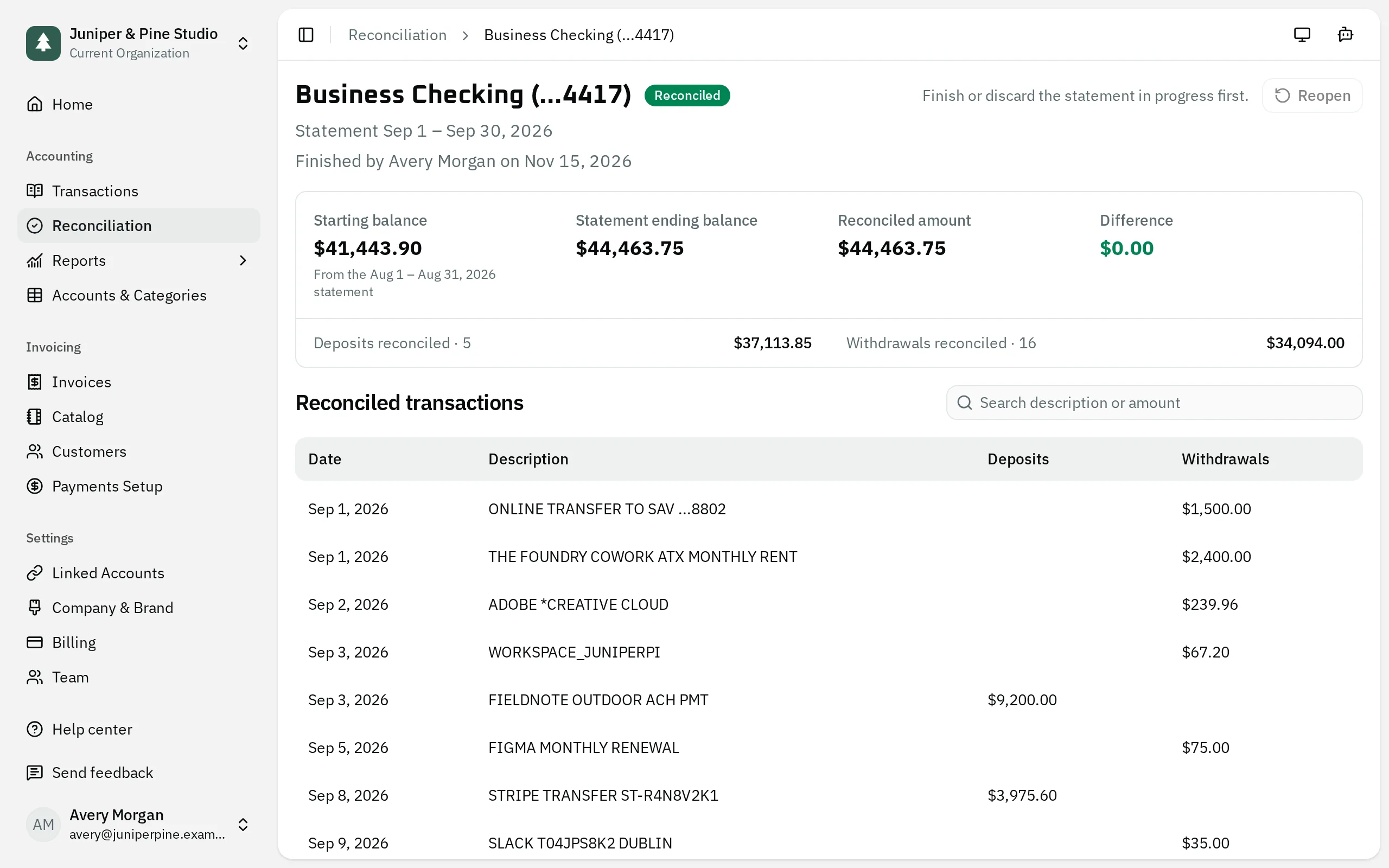
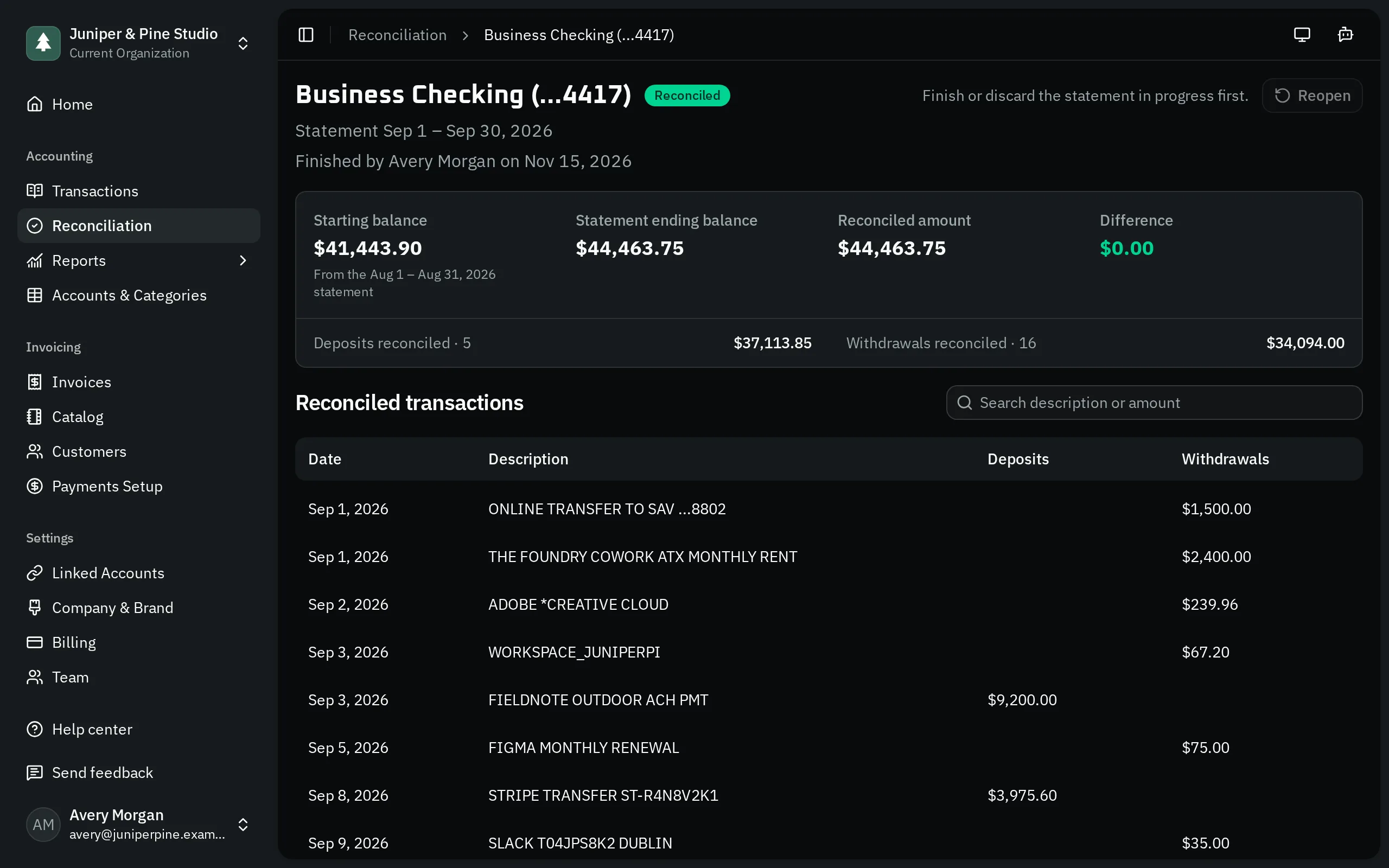
To reopen a finished statement:
- Open the statement.
- Click Reopen.
- Read the dialog, then click Reopen.
The account is then reconciled through the end of the previous statement again. If it was the first statement of the account, the account is reconciled through its opening balance date. You can edit the transactions of the statement again, and you must finish the statement again.
You can reopen only the newest finished statement of an account, and only when no statement of that account is in progress. If Reopen is off, the reason shows next to it:
- Reopen the newer statements first, newest to oldest.
- Finish or discard the statement in progress first.