Import vendors from a CSV file
Move your vendor list from another accounting program or a spreadsheet into LazyBooks with a CSV file.
If you keep a list of vendors in another program, you can import it into LazyBooks from a CSV file. A CSV file is a spreadsheet saved as plain text, with commas between the values. Most spreadsheet and accounting programs can save one.
Get a vendor list from another program
Most accounting programs can export the list of vendors from the page that lists them. Look for a button or a menu item named Export. Some programs call vendors suppliers or payees.
If the program saves an Excel file, open the file in a spreadsheet program and save it as CSV. If you keep your vendors in a spreadsheet, save that sheet as CSV.
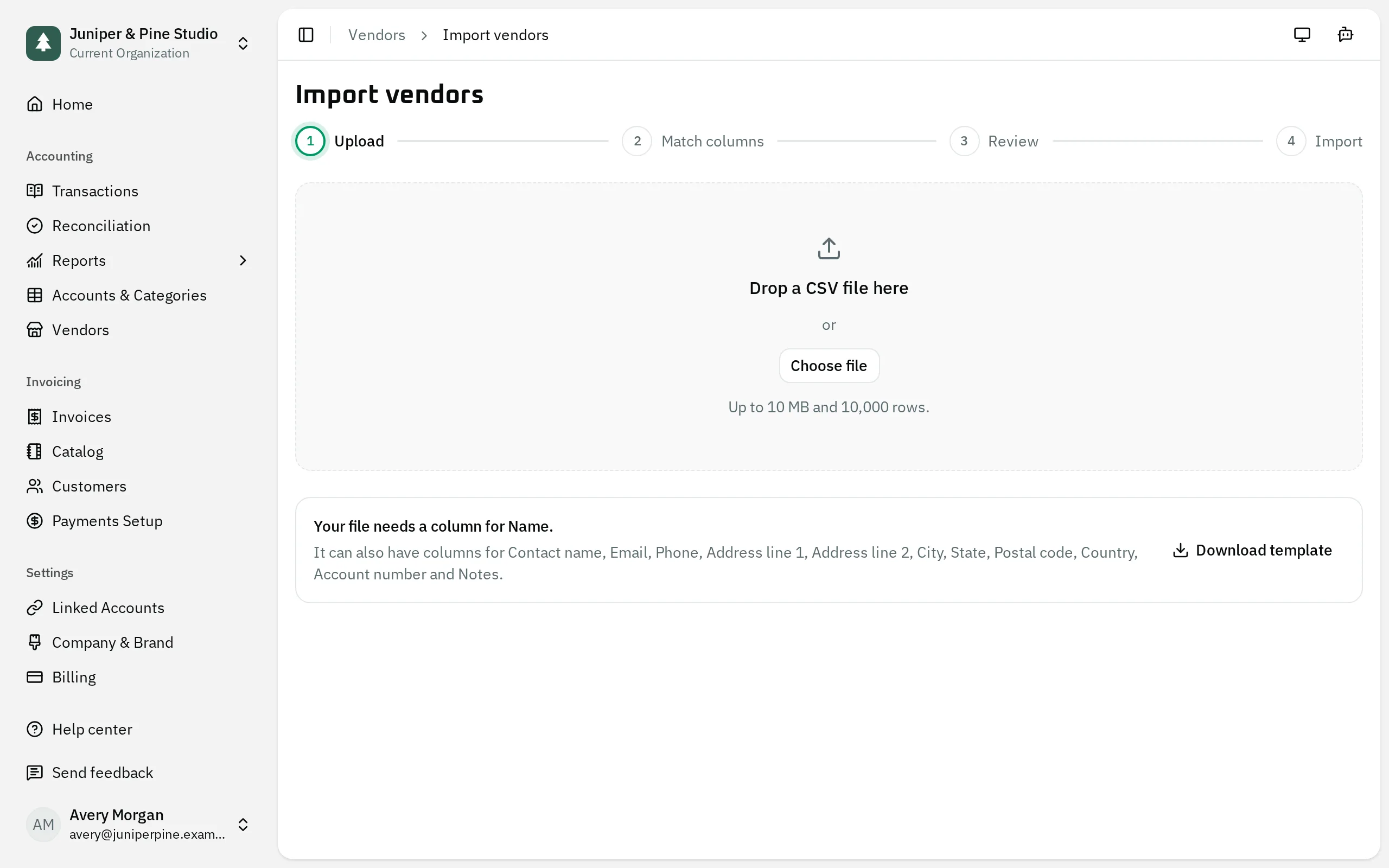
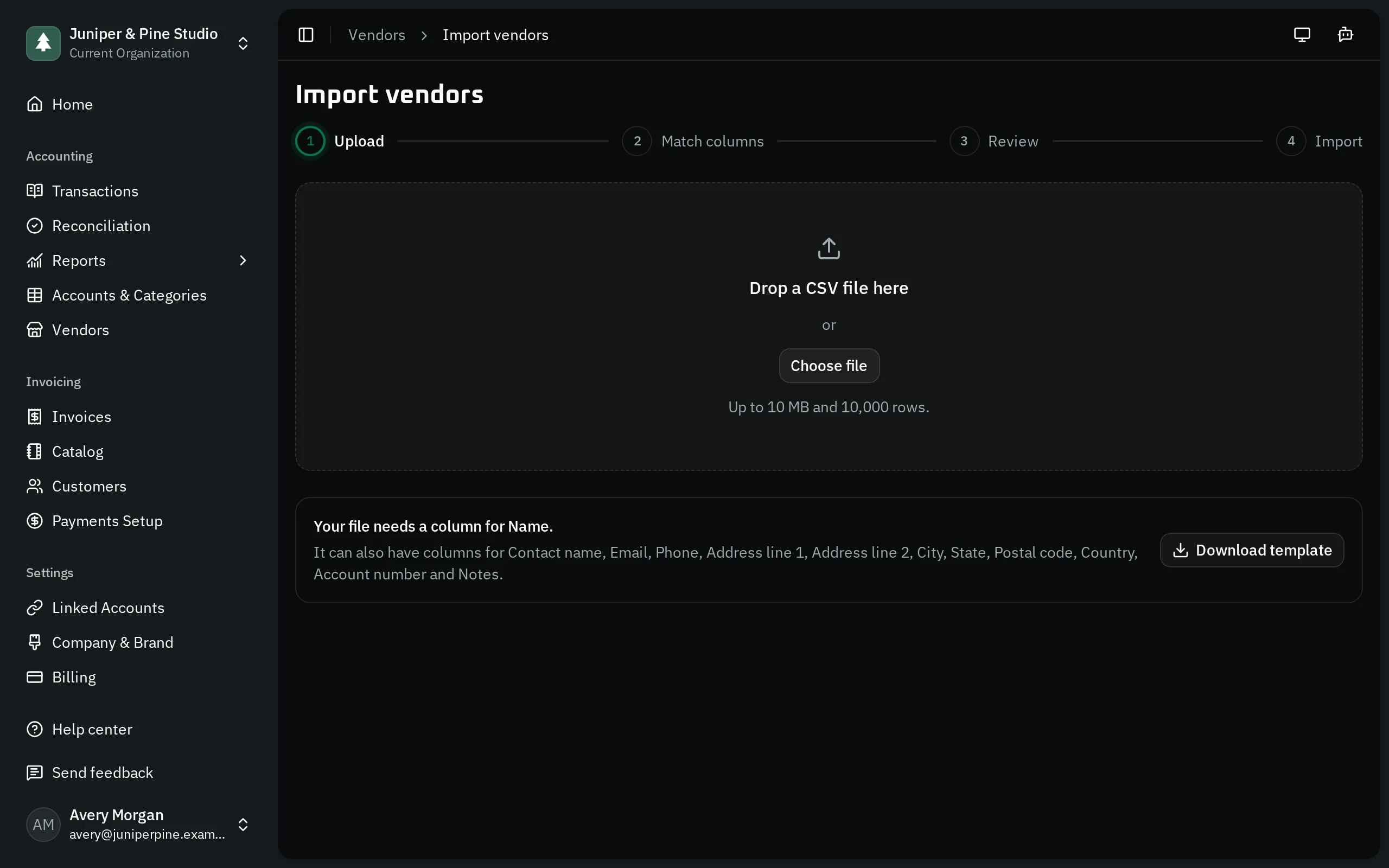
You can also click Download template on the Import vendors page. The template is a CSV file with the column names that LazyBooks reads. Fill it in and save it.
Import the file
- In the sidebar, click Vendors.
- Click Import from CSV.
- Drag your CSV file onto the page, or click Choose file and select the file.
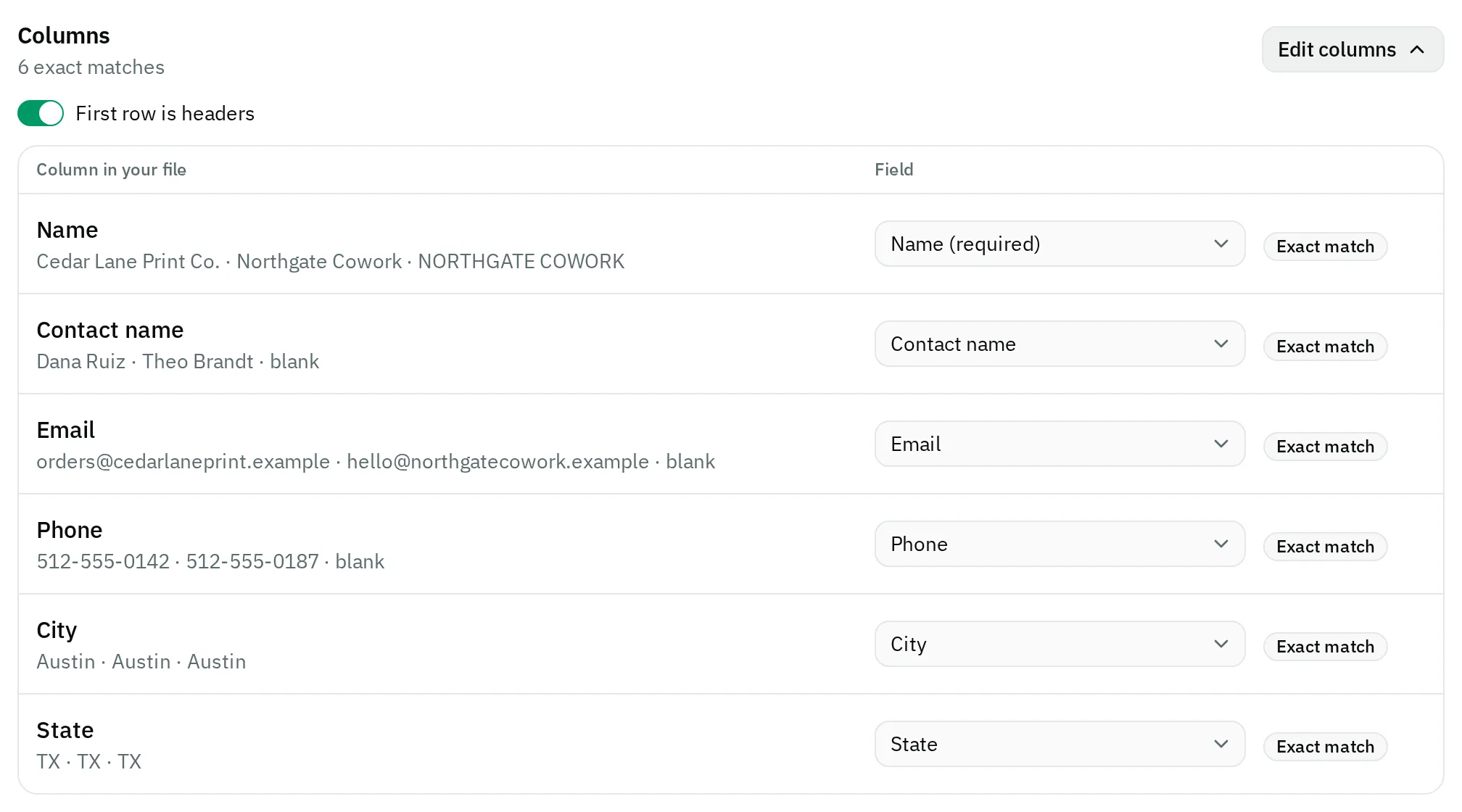
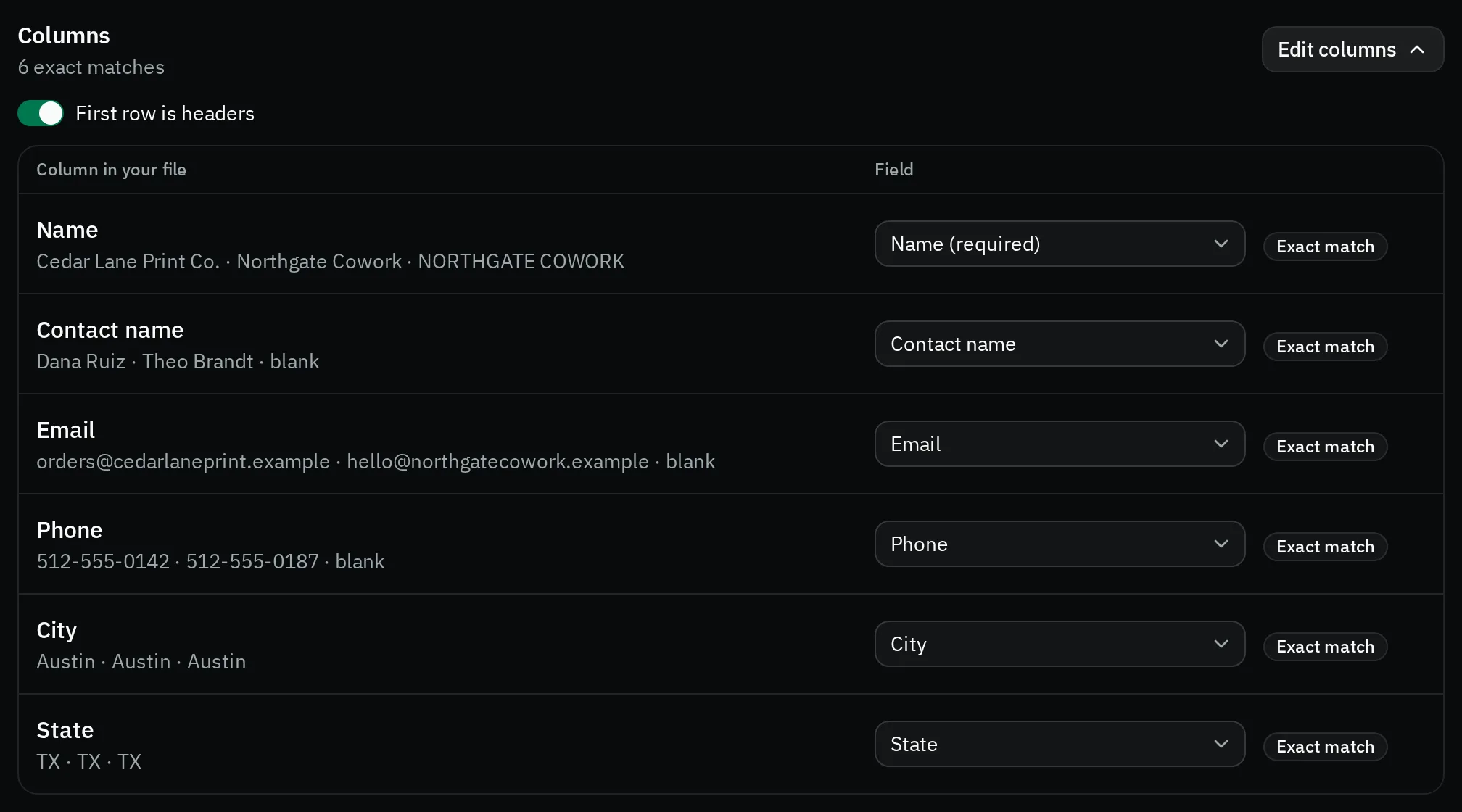
- On Match columns, check that each column of your file goes to the correct field. To change a column, click Edit columns, and choose a field or Don’t import.
- Click Continue.
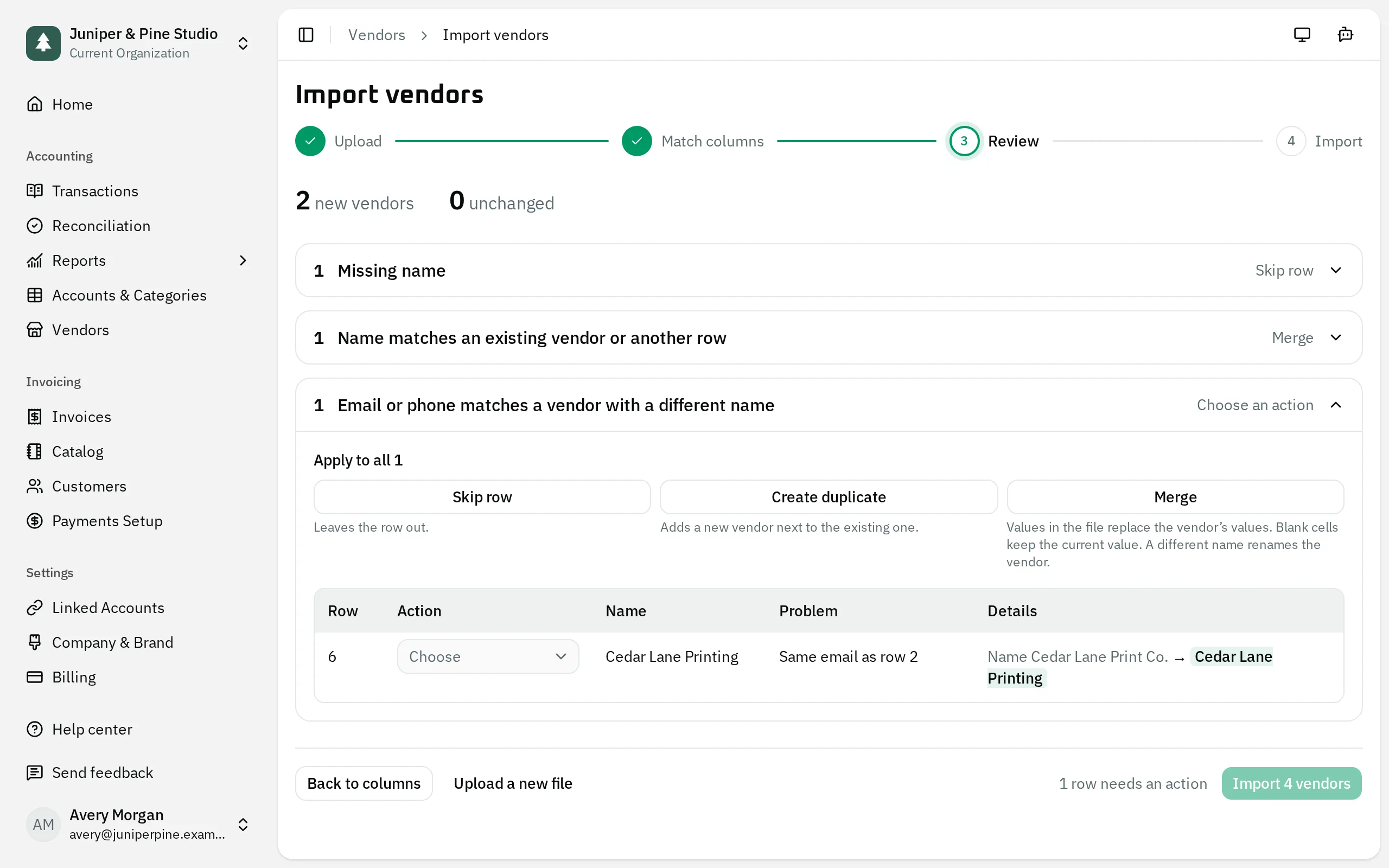
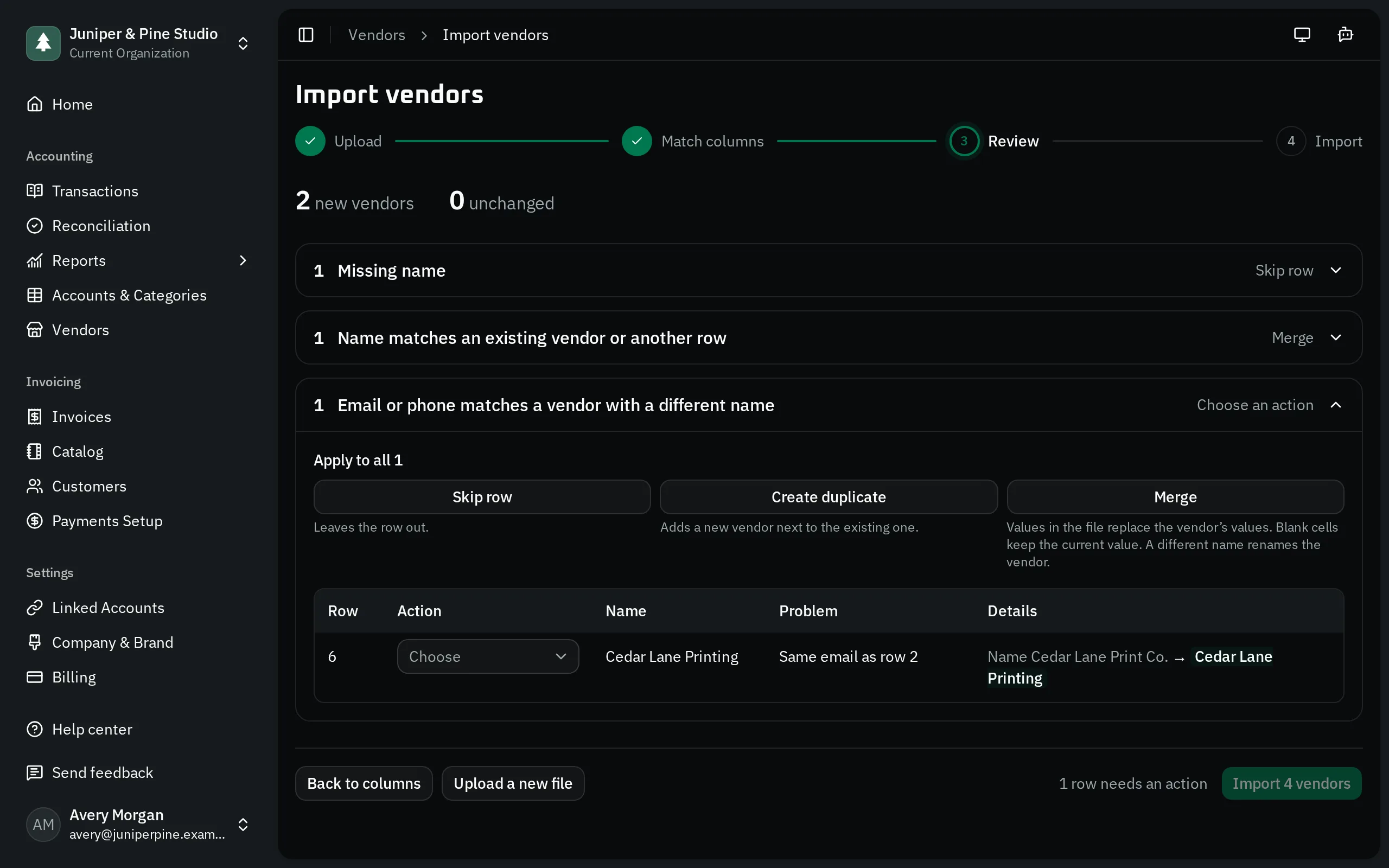
- On Review, choose an action for each row that has a problem.
- Click the Import button. The button shows the number of vendors, for example Import 12 vendors.
A file can be up to 10 MB, with up to 10,000 rows.
The columns of the file
Your file must have a column for Name. It can also have columns for Contact name, Email, Phone, Address line 1, Address line 2, City, State, Postal code, Country, Account number, and Notes.
A column with the same name as a field goes to that field, and shows Exact match. For a column with another name, such as Company or Supplier, LazyBooks can suggest a field. A suggestion shows Suggested, or Check this when LazyBooks is not sure. Check each suggestion before you continue.
How the import finds existing vendors
LazyBooks compares each row with your vendors, the inactive vendors too, and with the rows above it in the file. On Review, it groups the rows that need your decision:
- If a name matches an existing vendor or another row, choose Skip row or Merge. Letter case does not count. Merge is chosen first. It replaces the details of the vendor with the values in the file. Blank cells keep the current value.
- If an email or a phone matches a vendor with a different name, choose Skip row, Create duplicate, or Merge. Create duplicate adds a new vendor next to the existing one. Merge also replaces the name of the vendor with the name in the file.
- If a row has no name, an email that is not valid, or a value that is too long, the only action is Skip row. To import the row, fix it in your file and upload the file again.
A merge into an inactive vendor keeps the vendor inactive. A new vendor from the file is active.
When the import is done, the page shows Import finished with the number of vendors that LazyBooks created, merged, skipped, and left unchanged. Click Go to Vendors to see the list.
When your bank names the business of a transaction with the name of an imported vendor, the transaction gets that vendor. The vendor then also gets the logo of the business. See Vendors.