Verify opening balances
Make sure that the starting balance of each connected account matches your bank statement, so that you can reconcile the account.
After LazyBooks imports the history of a new account, it suggests an opening balance for the account. Compare it with your bank statement, and then confirm it or change it. You cannot reconcile an account until you confirm its opening balance.
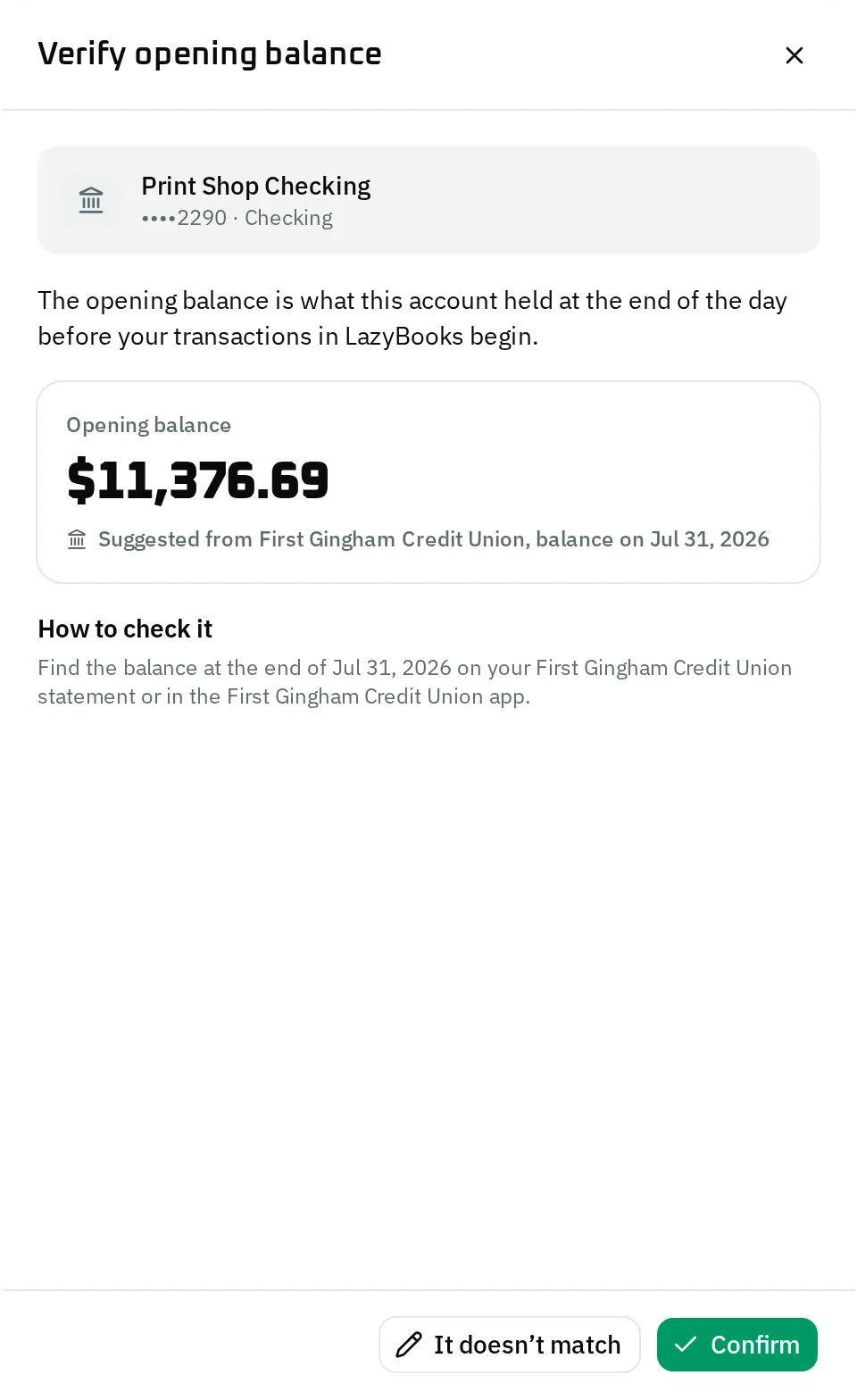
What the opening balance is
The opening balance is what the account held at the end of the day before your transactions in LazyBooks begin. LazyBooks adds each later transaction to it to find the current balance. If the opening balance is wrong, every later balance of the account is wrong by the same amount.
The date of the opening balance is usually the day before your bookkeeping start date. If your bank sent no history that far back, the date is the day before the first transaction that your bank sent.
LazyBooks calculates the suggested amount from the current balance that your bank reports and the transactions that your bank sent. For a credit card or a loan, the opening balance is the amount that you owed.
Find the accounts to verify
LazyBooks shows an account whose opening balance waits for you in these places:
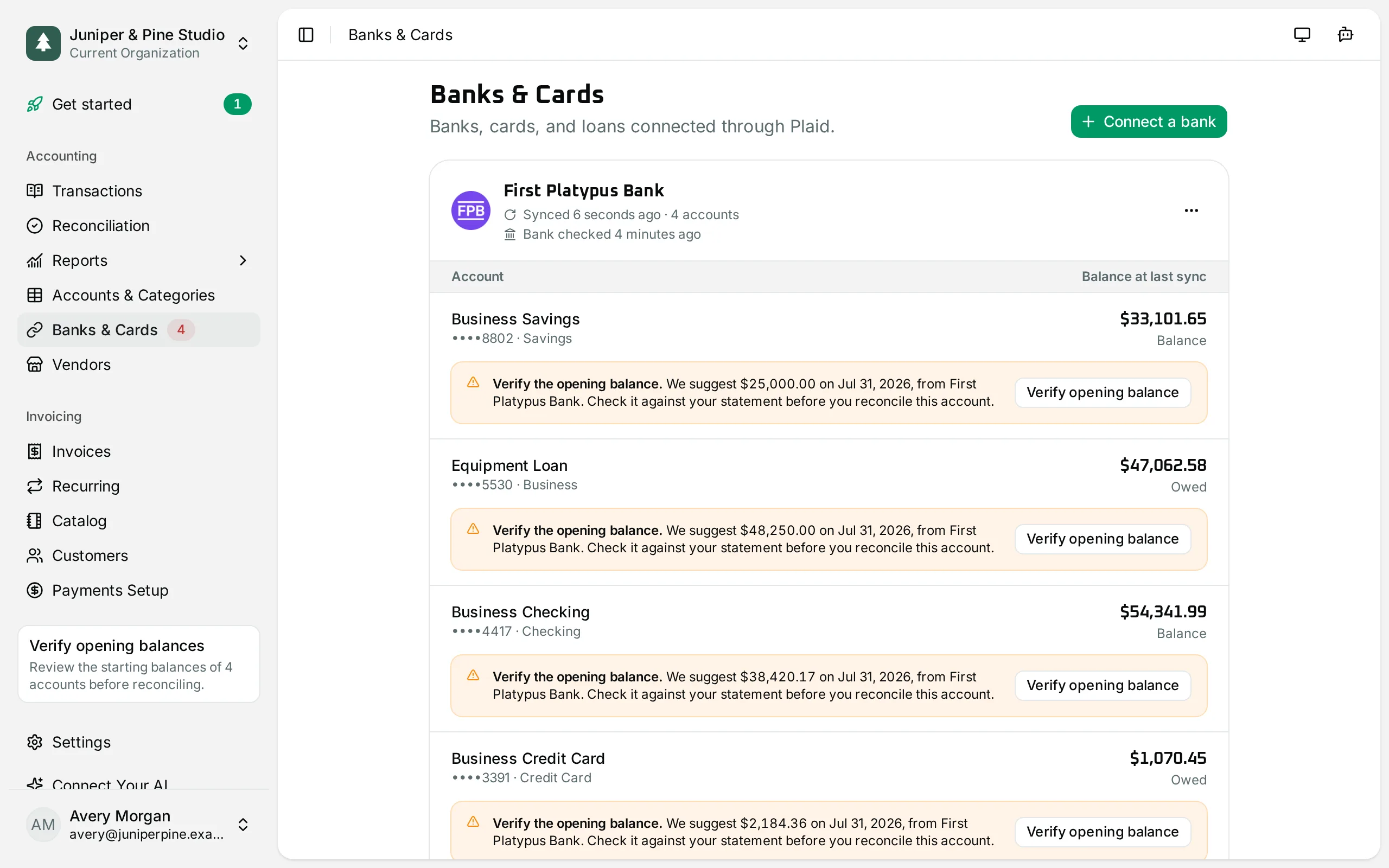
- On the Banks & Cards page, the account shows Verify the opening balance. with the suggested amount and a Verify opening balance button.
- At the bottom of the sidebar, a Verify opening balances card shows. The card opens the Reconciliation page. The number next to Banks & Cards in the sidebar includes these accounts.
- On the Home page, an item says Confirm the opening balance for and the account name, with a Verify button.
- On the Reconciliation page, the account has the status Verify opening balance and a Verify button that opens Banks & Cards.
While the first import still runs, the account shows Calculating opening balance. You cannot verify the balance yet.
Accounts without a bank connection
You type the opening balance of an account without a bank connection yourself. See Set an opening balance. The balance counts as verified when you save it.
An import of a file with earlier transactions, or a change of your books start date, can move that opening balance. The account then waits for you again on the Home page and on the Reconciliation page. Its Verify button opens the opening balance panel on the Reconciliation page.
Verify an opening balance
- In the sidebar, under Accounting, click Banks & Cards.
- Find the account, and click Verify opening balance. A panel opens with the suggested amount and its date.
- Find the balance at the end of that date on your bank statement or in the app of your bank.
- If the two amounts are the same, click Confirm.
If the amounts are different, change the opening balance:
- Click It doesn't match.
- In Opening balance, enter the amount from your statement.
- Make sure that Balance on shows the date of that amount.
- Click Save opening balance.
If the account was overdrawn, or if the card company or lender owes you, the amount is negative. Type a minus sign, or click +/− in the box.
When you save your own amount, LazyBooks confirms it too. The account then shows its opening balance and its date, and you can reconcile it. See Reconcile an account.
For a loan that is not a line of credit, the panel adds a note. The suggestion can be higher than your statement when your loan payments include interest. Compare it with your loan statement for the same date.
Change an opening balance later
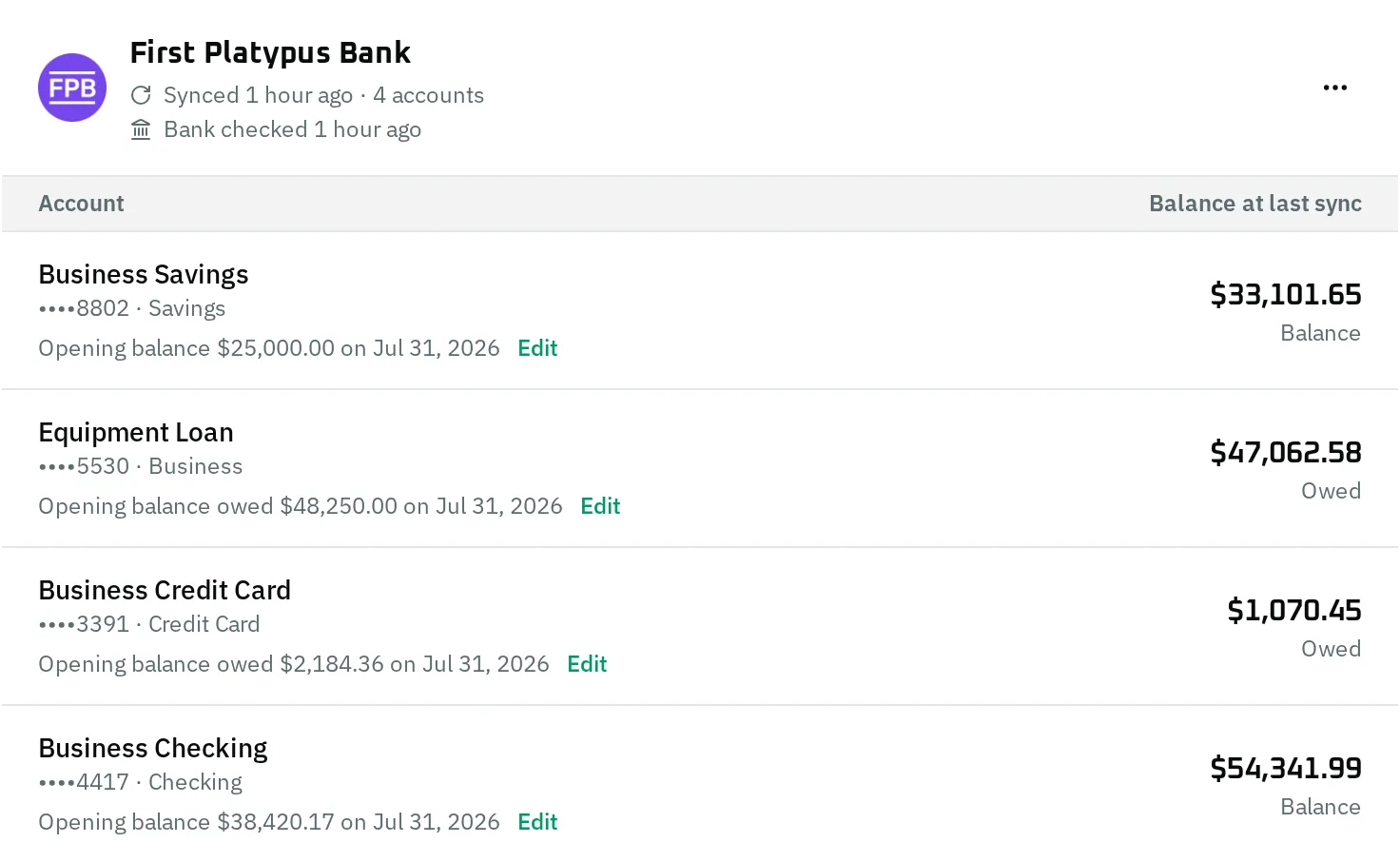
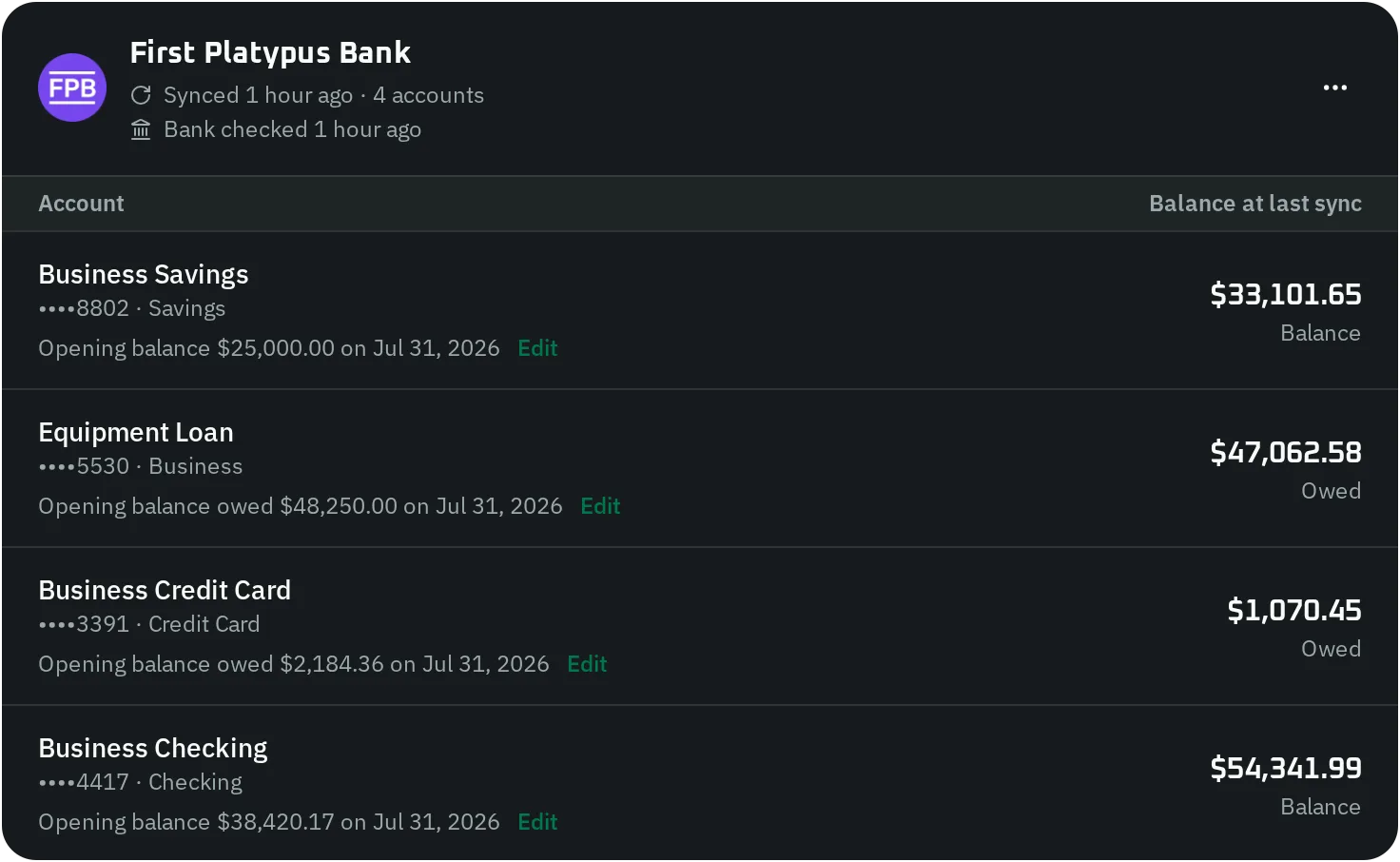
- On the Banks & Cards page, find the account.
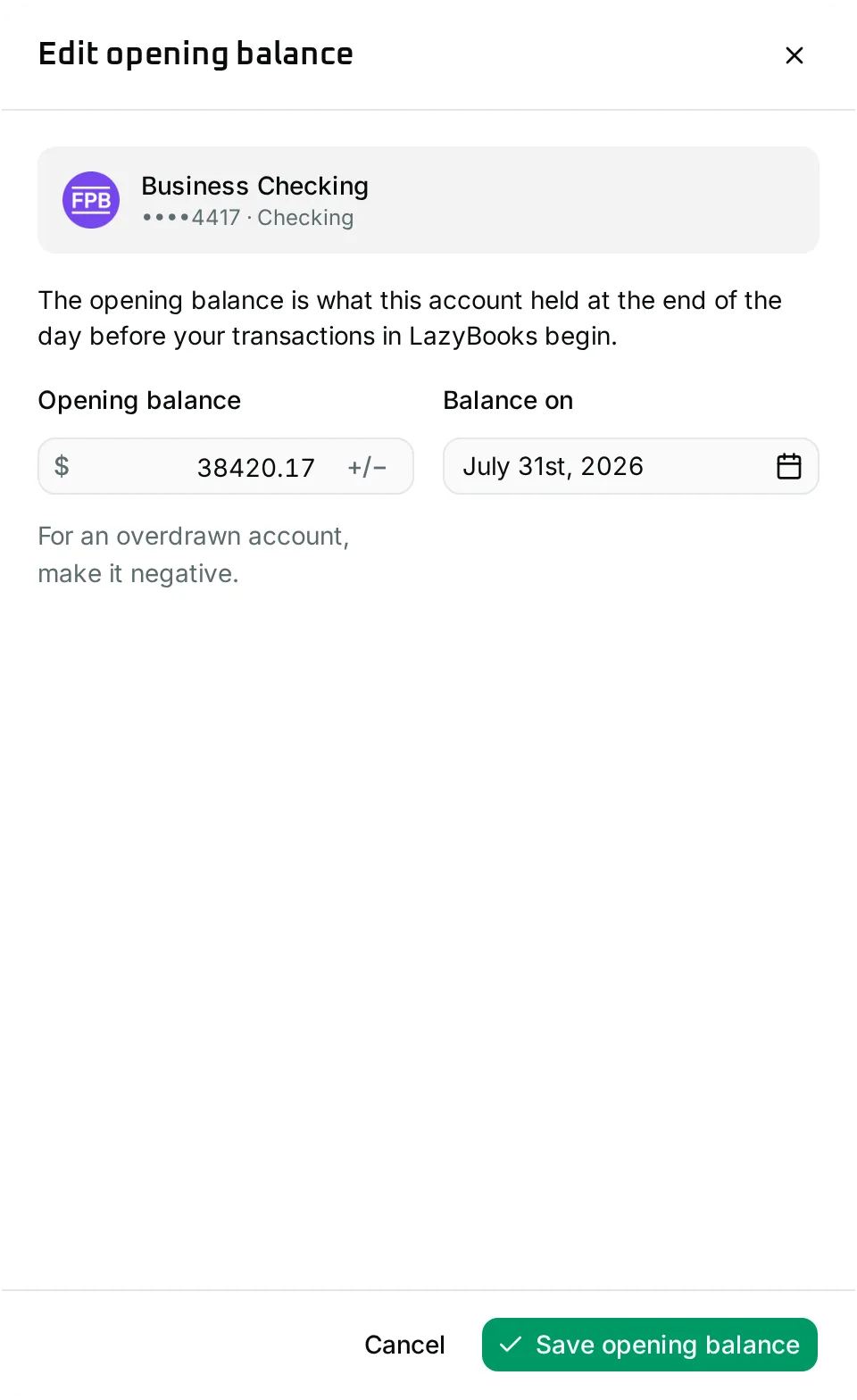
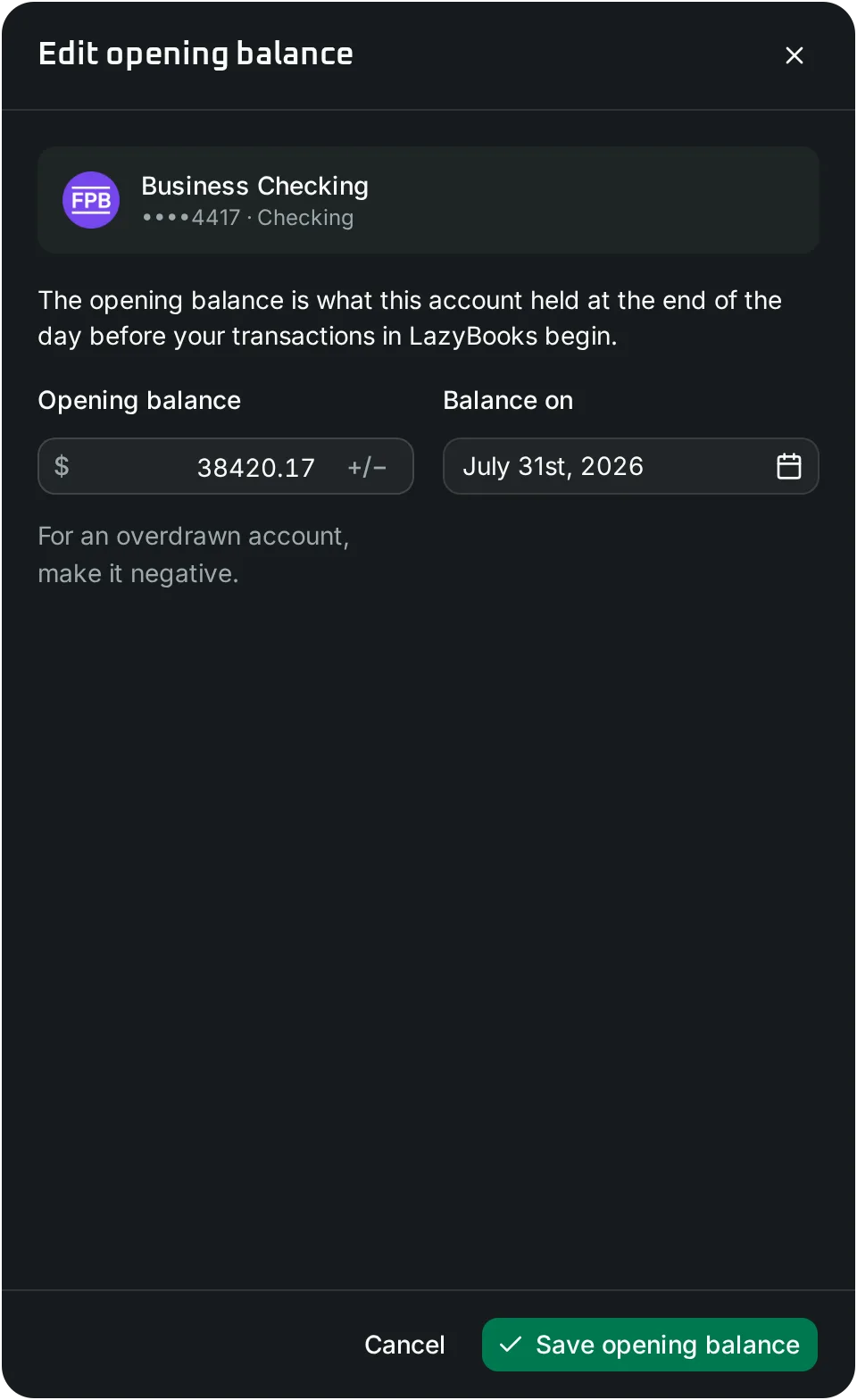
- Next to its opening balance, click Edit. The Edit opening balance panel opens.
- Change Opening balance or Balance on.
- Click Save opening balance.
If the new date conflicts with transactions or reconciliations that are already in your books, LazyBooks does not save it. It shows The opening balance date conflicts with existing transactions or reconciliations.
Some changes move the opening balance, and LazyBooks then asks you to verify it again:
- A change of your bookkeeping start date. See Change the bookkeeping start date.
- A CSV import that adds transactions from before the opening balance date. See Import bank transactions from a file.
If a loan started after your books start date
A loan that started after your bookkeeping start date has no opening balance. LazyBooks records the money that you borrowed instead. When the first transaction of a loan is after your books start date, the panel asks Did this loan start after your books start date?
- If the loan started before your books start date, click No, it started before. Then verify the opening balance as usual.
- If the loan started after your books start date, click Yes, it started after. Then fill in the Record loan start form.
To fill in the form:
- Under Where did the money go?, choose where the money of the loan went.
- If it went into your bank account, choose Into one of my linked bank accounts. Then choose the deposit under The deposit. LazyBooks fills in Start date and Amount borrowed from the deposit.
- If it went to a seller, choose Straight to a seller, such as an auto dealer. Then choose the asset in What the loan bought.
- Make sure that Start date is the day the loan paid out.
- Make sure that Amount borrowed is the full amount of the loan.
- Click Record loan start.
If the lender kept a fee from the deposit, the amount borrowed is more than the deposit. The form then asks for an expense account for the fee. To change a recorded loan start, open the panel again and click Undo loan start. For loan payments and interest, see Record loan payments.
After a QuickBooks import
For an account that you linked to an account from QuickBooks, the panel shows two more lines. Your books on shows the balance of the account in your books on your cutover date. Difference from the bank shows how far that balance is from the bank.
The panel can also list Suggested matches. These are payments that QuickBooks recorded on or before your cutover date and the bank posted after it. Click Match for each one, so that it counts once. See Move from QuickBooks.