The chart of accounts
Find your way around the Accounts & Categories page, the five account types, your connected bank accounts, and the accounts that LazyBooks uses.
The Accounts & Categories page lists the places that your money gets sorted into. Accountants call this list the chart of accounts. LazyBooks sets up the list for you, and you can change it at any time.
In LazyBooks, each item on this page is an account. When you sort a transaction into an account, the app also calls that account a category.
Open the page
In the sidebar, under Accounting, click Accounts & Categories.
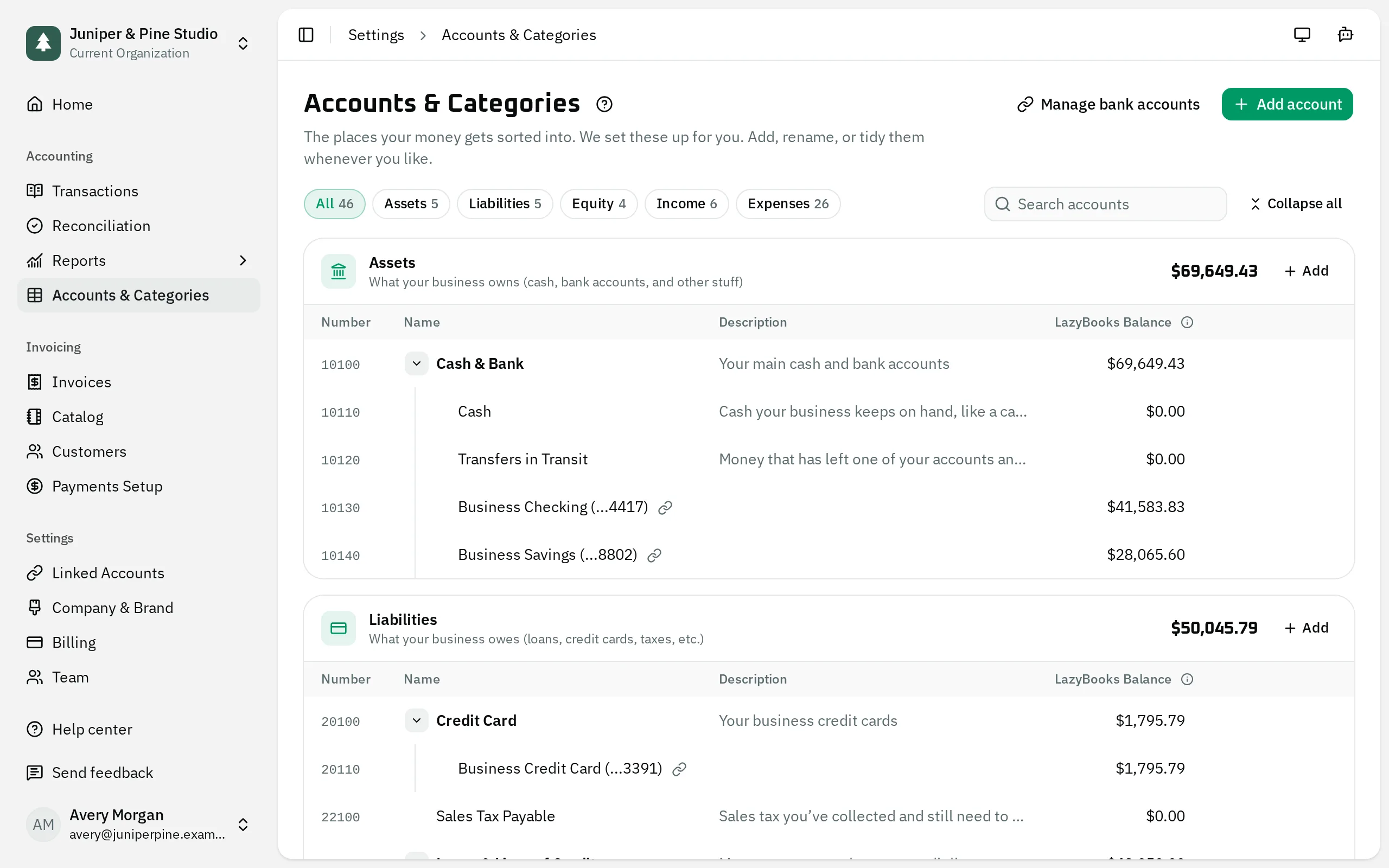
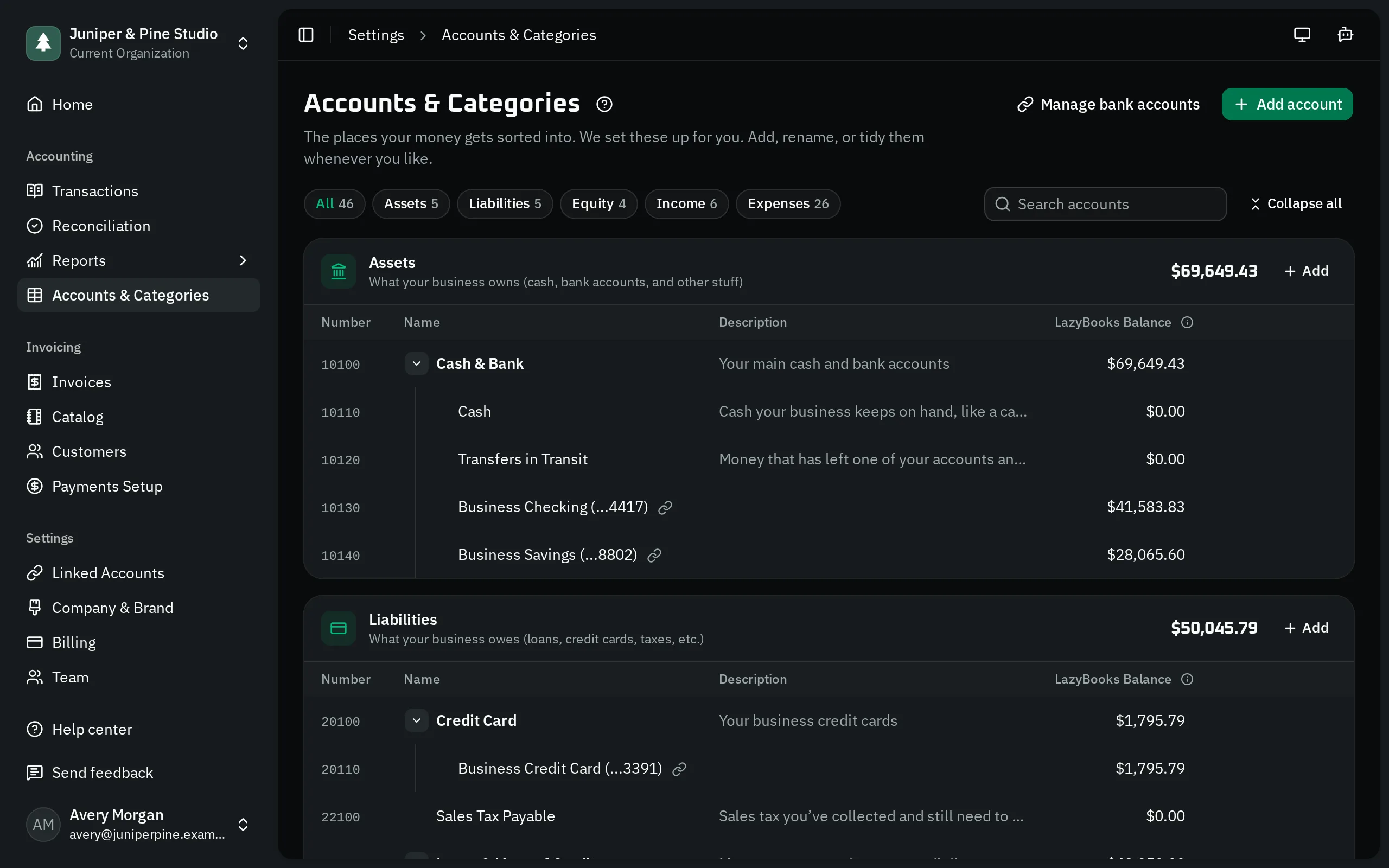
The page has one card for each account type. Each card lists its accounts in a table:
- Number is the account number.
- Name is the name of the account.
- Description is a note about what goes in the account.
- LazyBooks Balance is the total of the transactions that you reviewed in this account. It includes the totals of its subaccounts.
The LazyBooks Balance can be different from the live balance at your bank. Transactions that wait for review do not count until you review them. Income and expense accounts show no balance, because their totals mean something only for a period. To see those totals, use the Profit & Loss report.
The question mark button next to the page title opens a short explanation of accounts and categories.
The five account types
Each account has one of five types. The type never changes after you add the account.
| Type | What it holds |
|---|---|
| Assets | What your business owns, such as cash and bank accounts |
| Liabilities | What your business owes, such as loans, credit cards, and taxes |
| Equity | Your stake in the business: the money that you put in and the money that you take out |
| Income | Money your business earns |
| Expenses | Money your business spends |
Each account also has a category type. The category type decides where the account shows on your reports. You see it when you add or edit an account. These are the category types of each account type:
| Type | Category types |
|---|---|
| Assets | Bank, Cash, Money owed to you (accounts receivable), Inventory, Other current asset, Fixed asset, Accumulated depreciation, Other asset |
| Liabilities | Credit card, Bills you owe (accounts payable), Sales tax payable, Other current liability, Line of credit, Long-term liability |
| Equity | Opening balance, Owner's equity, Retained earnings, Other equity |
| Income | Revenue, Returns & refunds, Other income |
| Expenses | Cost of goods sold, Operating expense, Payroll, Depreciation, Other expense |
Find an account
- Click a type above the cards, for example Expenses, to show only that type. The number next to each type is its number of accounts. Click All to show every type again.
- Type in Search accounts to find an account by its name, number, or description.
- An account with subaccounts has an arrow next to its name. Click the arrow to show or hide its subaccounts. A closed account shows the number of its subaccounts.
- Click Collapse all to close every account with subaccounts. Click Expand all to open them again.
Bank accounts that you connect
When you connect a bank, LazyBooks adds each of its accounts to this page. A connected account shows a link icon next to its name. Click the icon to open Banks & Cards. You can also click Manage bank accounts at the top of the page. See Manage bank connections.
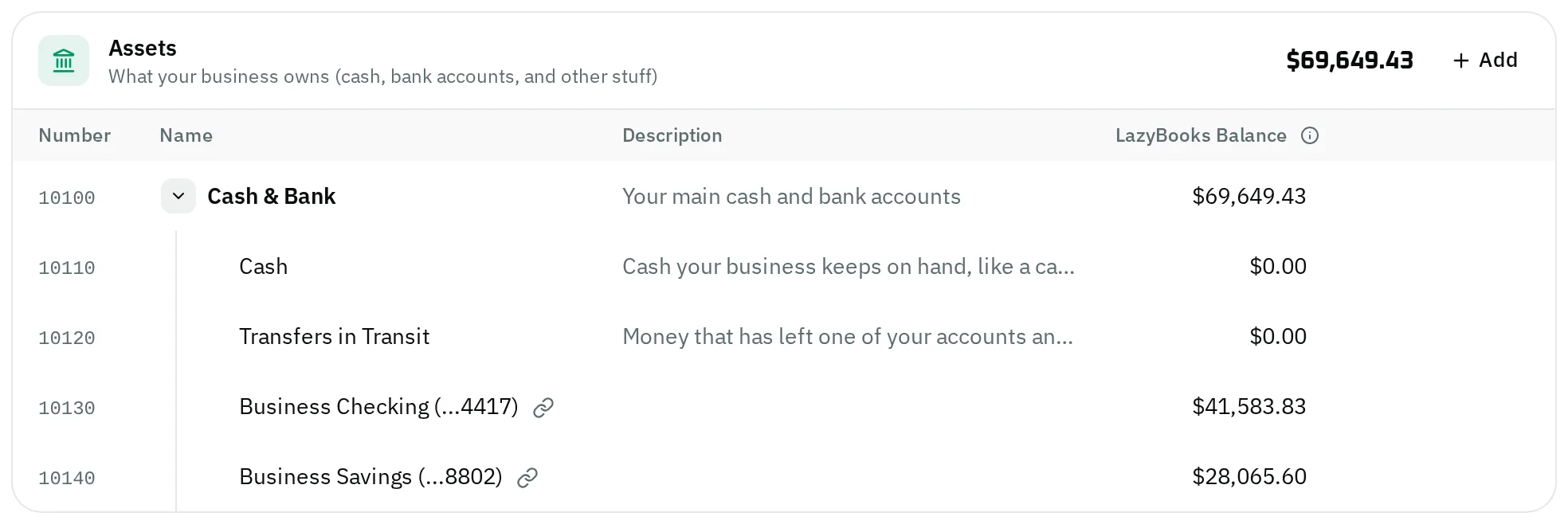
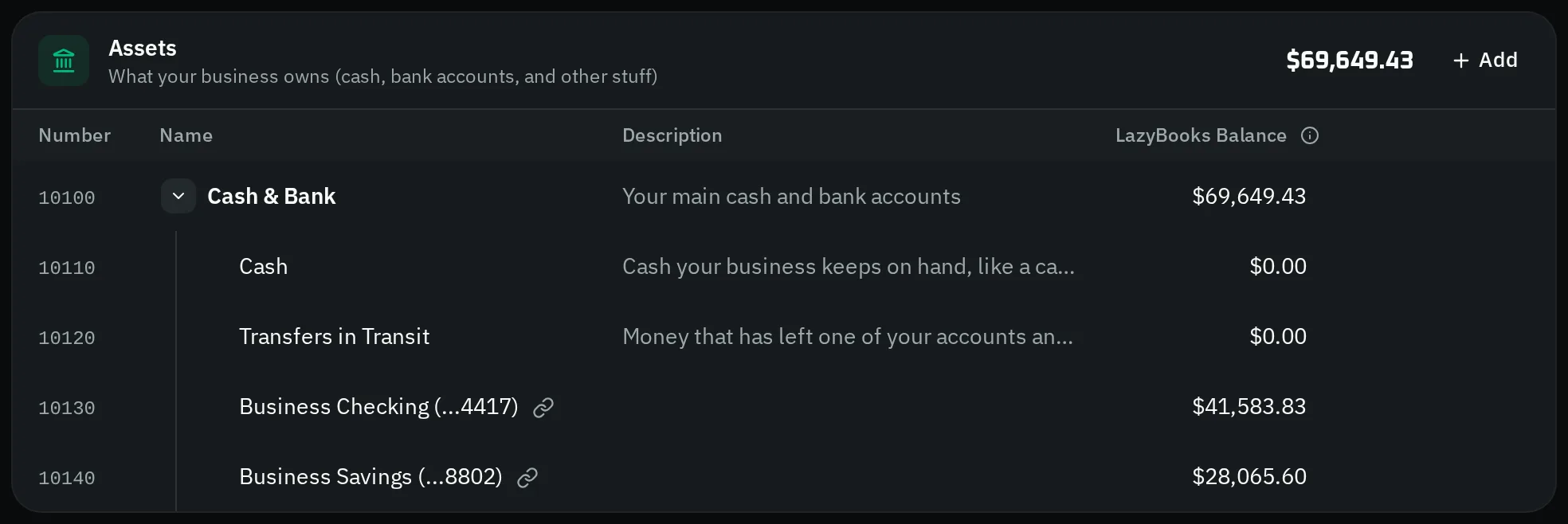
LazyBooks puts each new connected account inside the account that it uses for that kind of connection:
- A checking or savings account goes inside the account for new bank connections.
- A credit card goes inside the account for new credit card connections.
- A loan or a line of credit goes inside the account for new loan and line of credit connections.
In the list that LazyBooks sets up for a new organization, these accounts are Cash & Bank, Credit Card, and Loans & Lines of Credit. Your list can be different, for example if you moved from QuickBooks.
A connected account cannot have subaccounts.
Import transactions into an account
The row of each asset and liability account has an Import transactions button. It opens the upload page for a CSV file of transactions for that account. The account does not need a bank connection. A gray button means that the account cannot take a file, and the button tells you why. See Import bank transactions from a file.
Accounts that LazyBooks uses
LazyBooks uses some accounts for its own work. For example, it puts new bank connections in one account, and imported spending that still needs a category in another. You cannot deactivate these accounts. You can still rename them, change their number and description, and add subaccounts to them.
To find out what LazyBooks uses an account for, hold the pointer on its row. Then hold the pointer on the deactivate button, the circle with a line through it. The tooltip names the job, for example LazyBooks uses this for new bank connections.
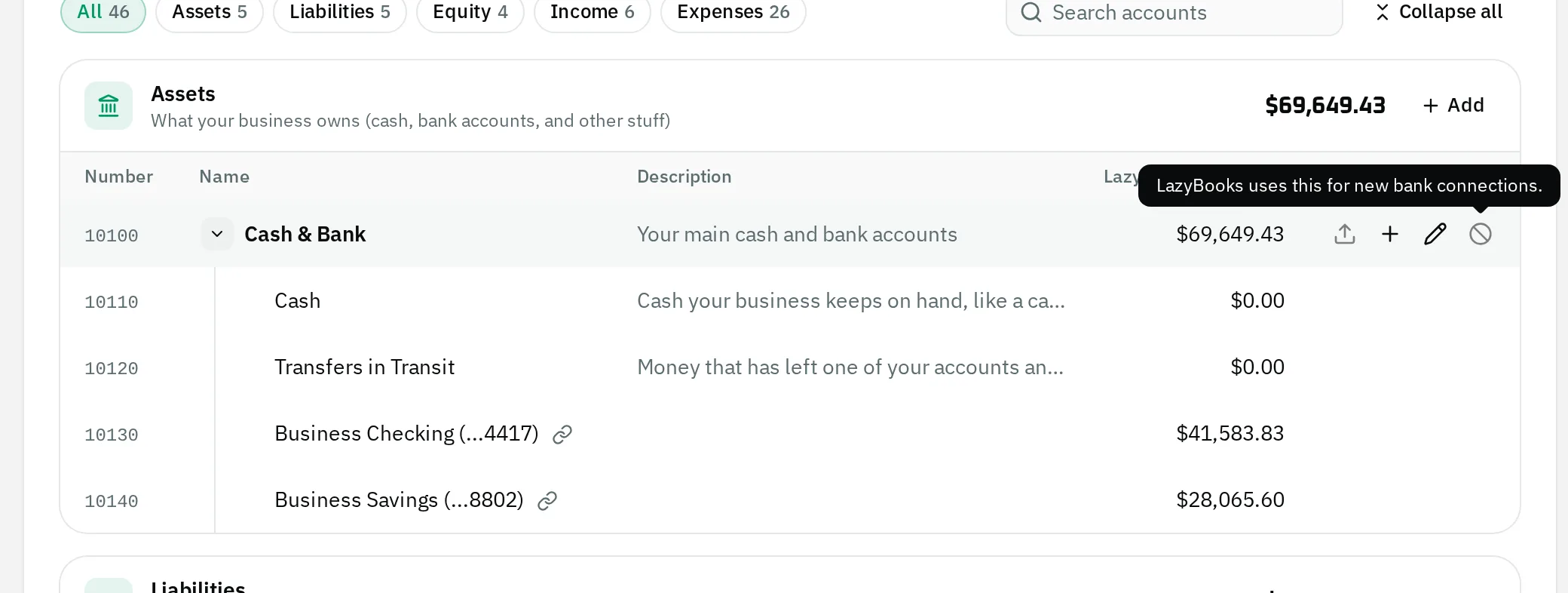
LazyBooks uses an account for each of these jobs:
- Income that still needs a category.
- Expenses that still need a category.
- The starting balances when you set up your books.
- Sales tax that you collect and owe.
- Card processing fees on payments that you collect.
- Sales from payments that you collect through LazyBooks.
- Refunds that you give customers.
- New bank connections.
- New credit card connections.
- Money that left one of your accounts and did not reach the other yet.
- New loan and line of credit connections.
To add, edit, or deactivate an account, see Add and edit accounts.