Catalog items and sales taxes
Save the products and services that you sell, import them from a CSV file, and add the sales taxes that you charge.
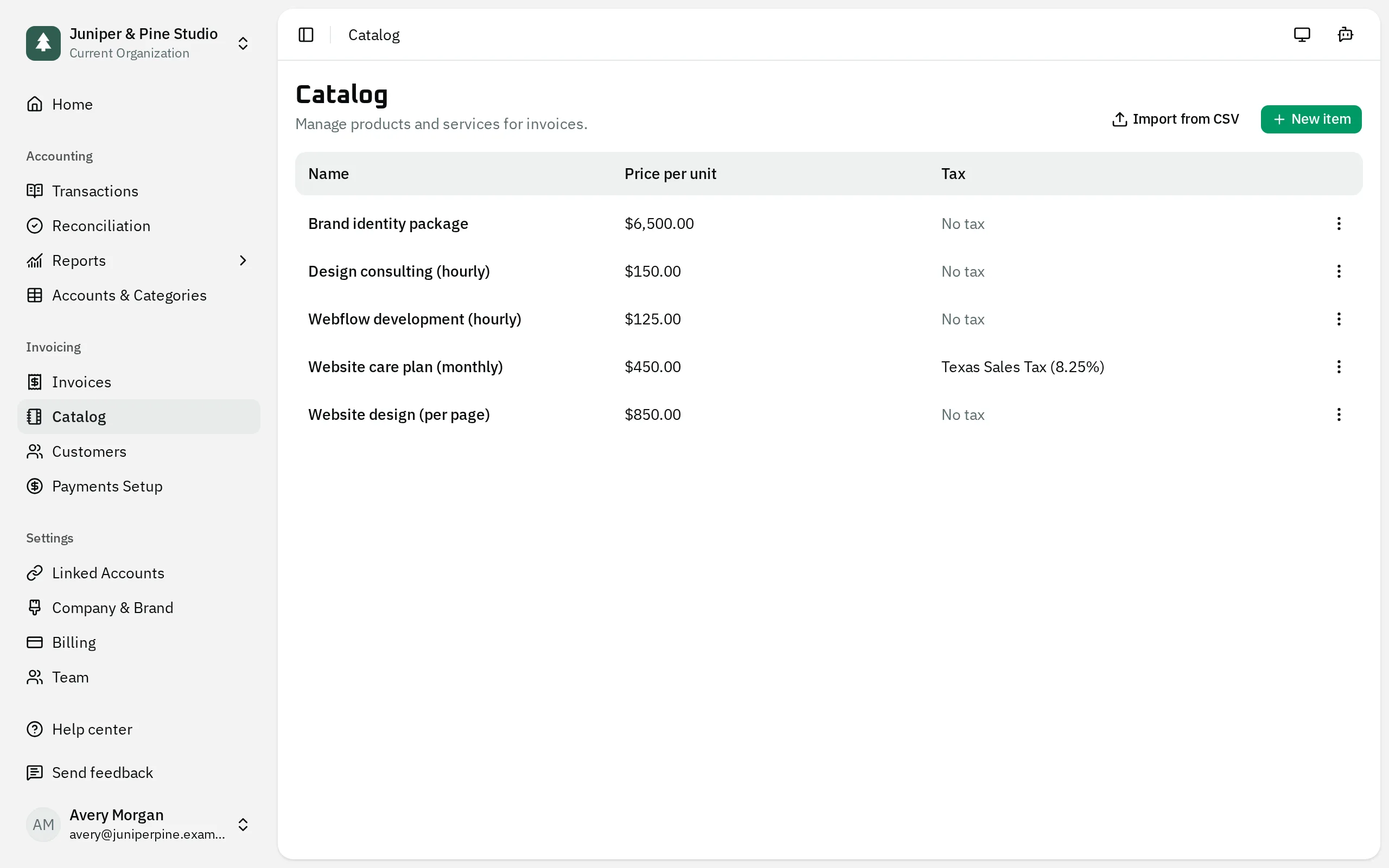
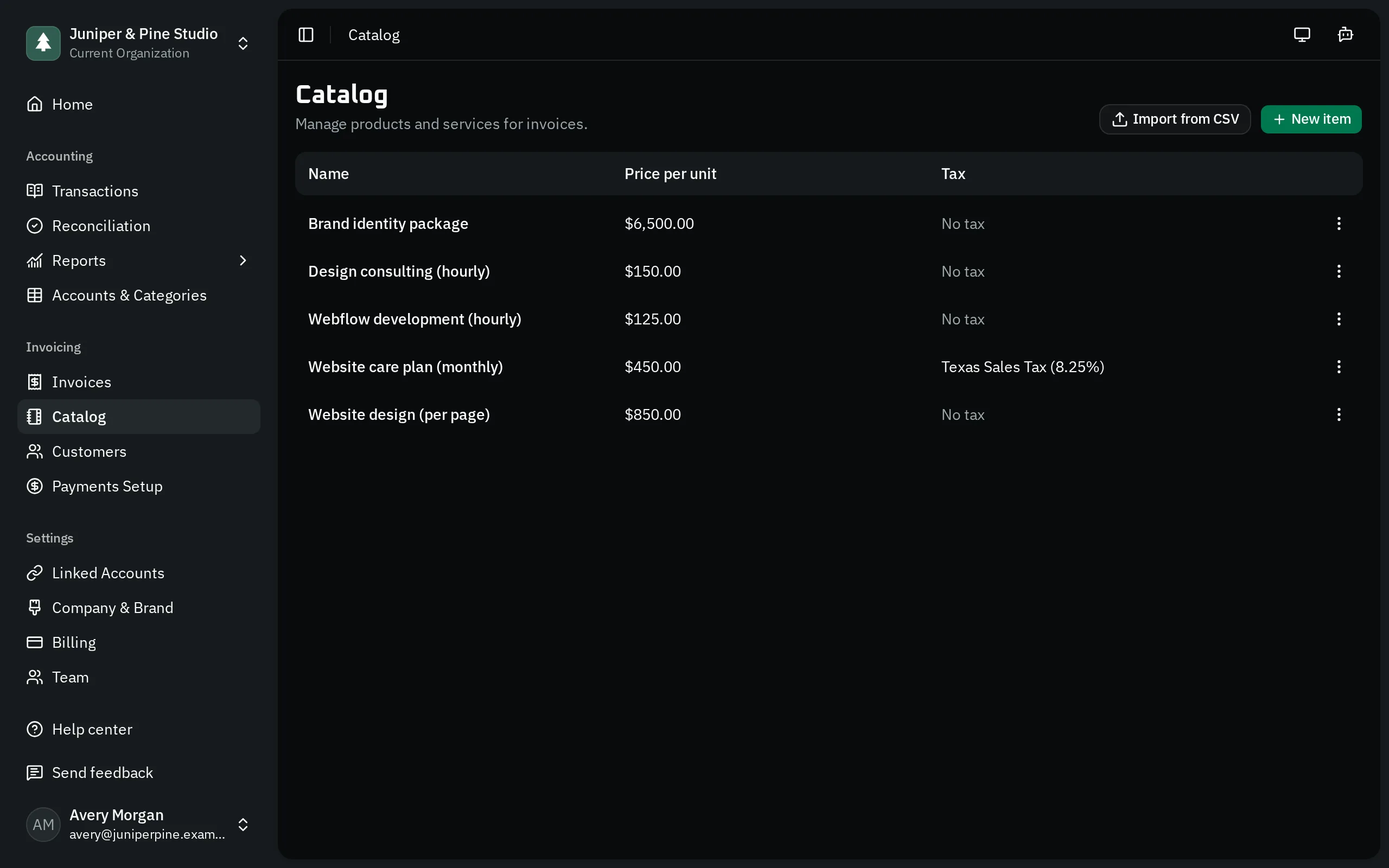
The catalog holds the products and services that you sell, with a price for each one. When you add a catalog item to an invoice, LazyBooks fills in its name, price, and tax.
Add a catalog item
- In the sidebar, under Invoicing, click Catalog.
- Click New item.
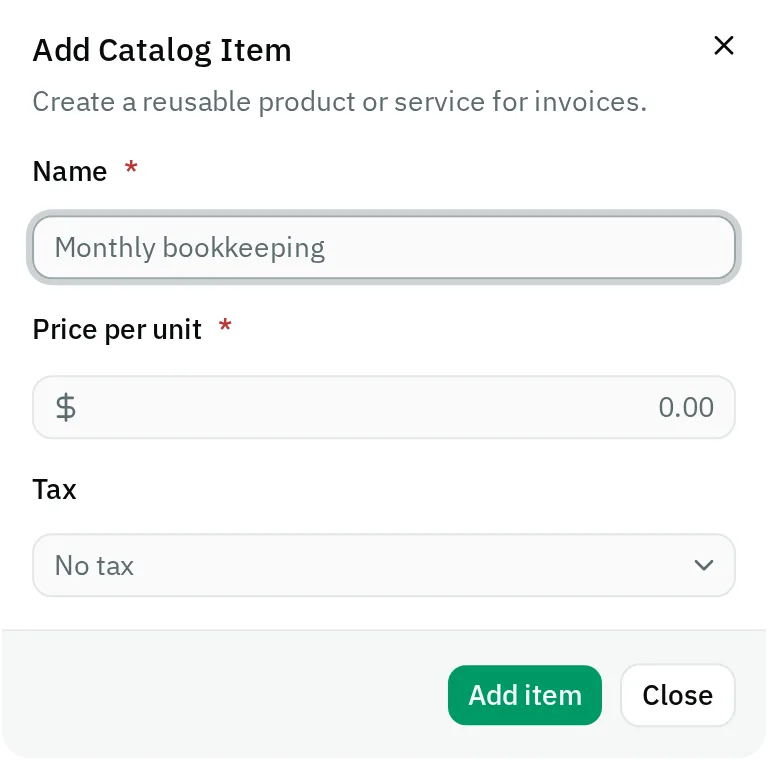
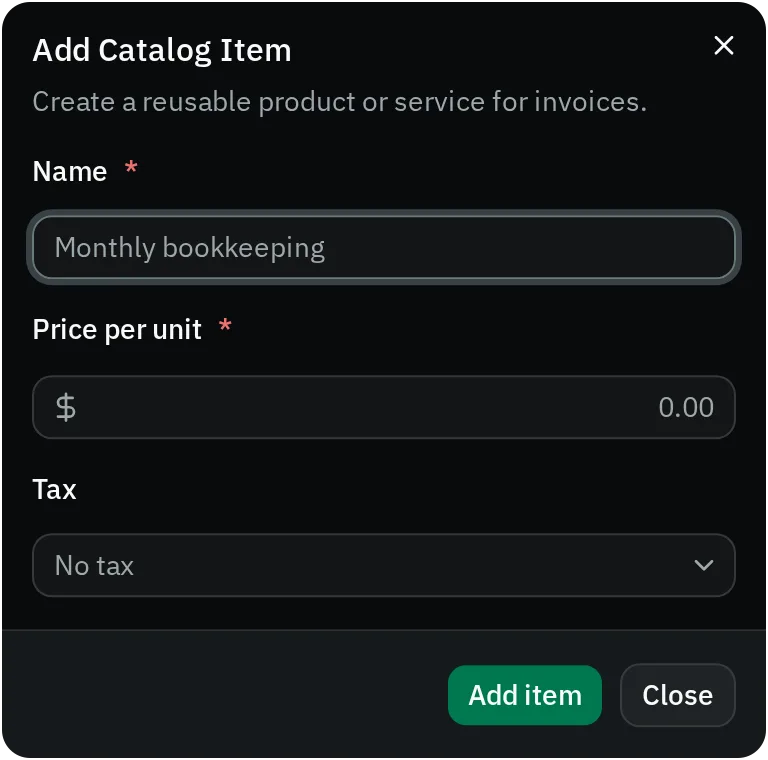
- Type the Name of the product or service.
- Type the Price per unit.
- To charge a sales tax on the item, choose the tax in Tax. For no tax, leave the field empty.
- Click Add item.
An item without a tax can say why it is not taxed. When you add or edit the item, choose the reason in Not taxed because:
- Labor: the item is work that you do, such as an installation or a repair.
- Resale: you sell the item to a customer who sells it again.
- Exempt customer: you sell the item to a customer who does not pay sales tax.
- Other: another reason.
- None: the item has no reason.
Your state decides which of these it taxes. LazyBooks records the reason that you choose. A new invoice line of the item takes this reason, and you can change it on the line. An item with a tax has no reason. So Not taxed because shows only while Tax is empty, and LazyBooks clears the reason when you choose a tax.
You can also add an item while you write an invoice. Type a new name in the line item search, and choose Create: with the name. LazyBooks adds the item to the catalog when it saves the invoice.
Change or delete a catalog item
- On the Catalog page, click the menu button at the right end of the item row.
- Click Edit.
- Change the item.
- Click Save changes.
To delete an item, click Delete in the same menu. Then click Delete in the dialog. Invoices that already use the item do not change.
Import catalog items from a CSV file
A CSV file is a spreadsheet saved as plain text, with commas between the values.
- On the Catalog page, click Import from CSV.
- To get a file with the correct column names, click Download template.
- Drag your CSV file onto the page, or click Choose file and select the file.
- Match the columns, review the rows, and import them. The steps are the same as for customers. See Import customers from a CSV file.


Your file must have a column for Name and a column for Price. It can also have a column for Tax name. LazyBooks finds the tax by its name, not by its rate, so add the tax in LazyBooks before you import.
On Review, LazyBooks asks you about these rows:
- If an item name is already in the catalog or in another row, choose Skip row or Merge. Merge replaces the values of the item with the values in the file. Blank cells keep the current value. If the item has a tax that you deactivated and the tax cell is blank, the item loses that tax, and Review says so.
- If no active tax has the name in the file, choose Skip row or Import without tax. This includes the name of a tax that you deactivated. If the row merges into an item whose tax you deactivated, Import without tax leaves the item with no tax.
- If a row has no name or a price that is not valid, the only action is Skip row.
Add a sales tax
On the Catalog page, click Taxes. Click Add tax.
You can also add a tax when you add or edit a catalog item. Open the Tax list. Choose New Tax. If you type a new name in the field, choose Create with that name.
- Type a Name for the tax, for example Sales Tax.
- Type the Rate in percent, with up to 4 decimal places. For a rate of 8.25%, type 8.25. For 8.875%, type 8.875.
- To add a note about the tax, type a Description.
- Click Add tax.
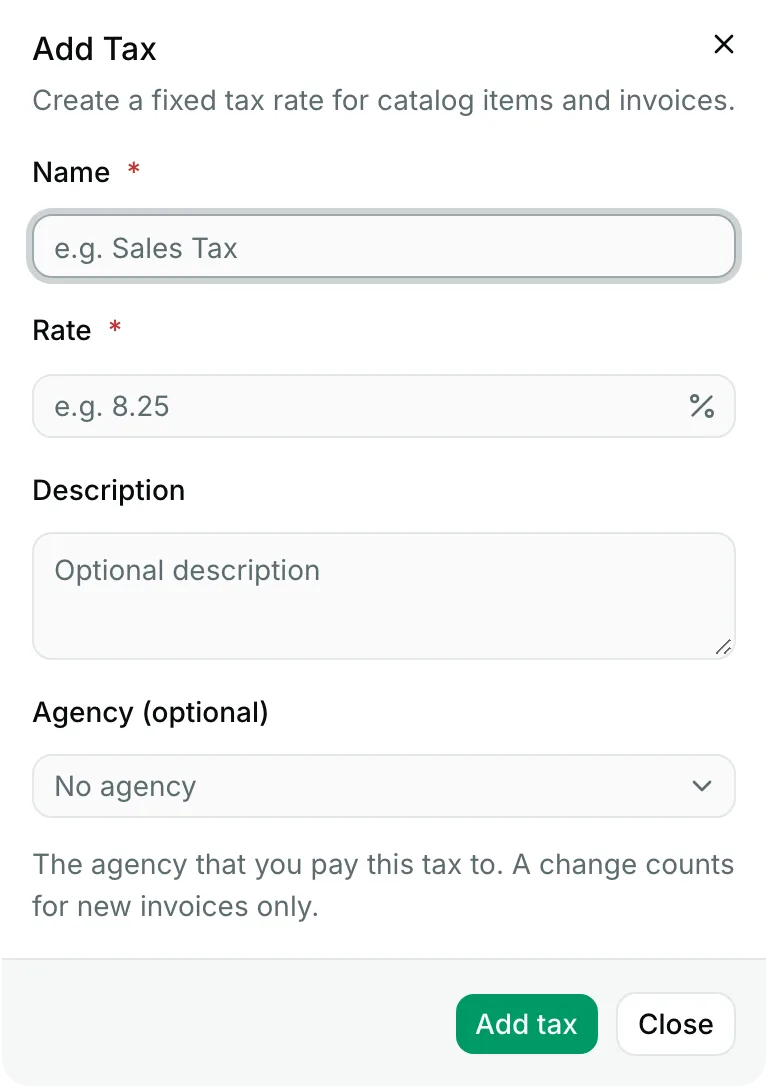
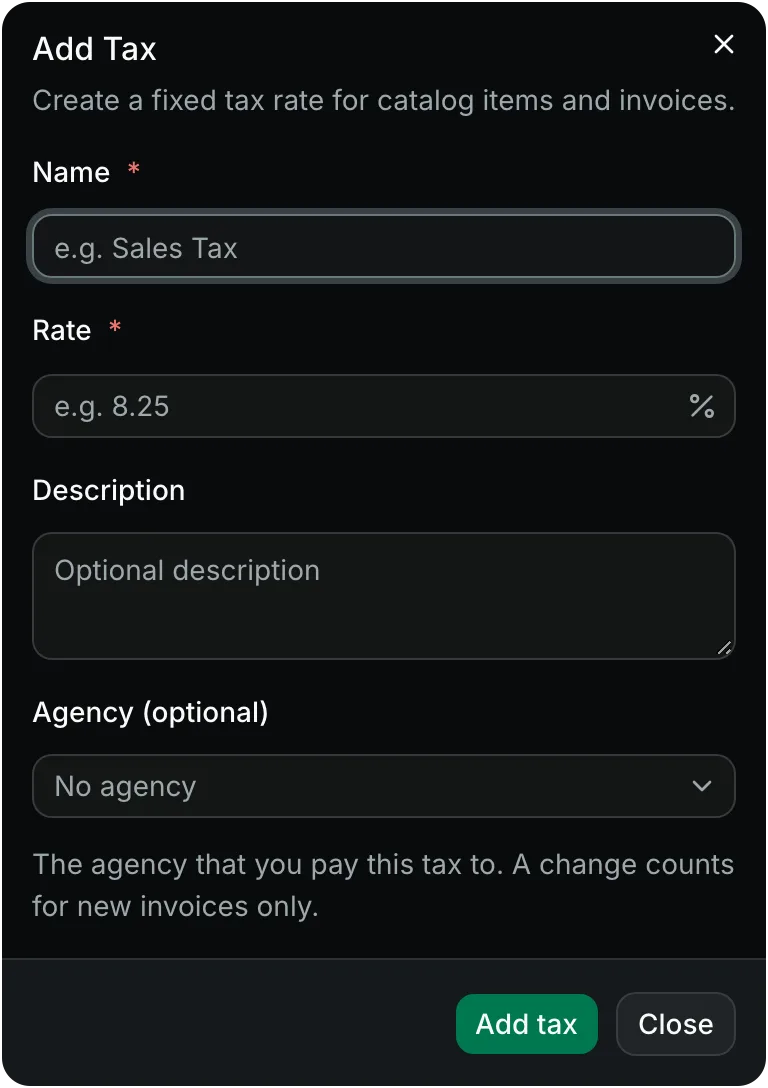
If you added an agency, the dialog also has Agency (optional). Choose the agency that you pay this tax to, or No agency. See Set up sales tax agencies.
The rate must be from 0 to 100 percent. For a zero rate, type 0. LazyBooks selects the new tax on the catalog item. Save the item to keep the selection.
You can also add a tax from an invoice. On a draft invoice line, open the Tax % list and choose New Tax. If you have no taxes yet, click Add a tax. When you add the tax, LazyBooks selects it on that line. See Create and send an invoice.
Add a combined tax
A combined tax is one tax on the invoice with parts that you file with different agencies. For example, a sales tax of 7.845% in Boulder has a Colorado part of 3.985%, which you file with the state, and a Boulder part of 3.86%, which you file with the city.
Use a combined tax only if you file with each agency yourself. If you file the state and local tax on one return, use one rate with one agency.
To add a combined tax, you need two active agencies. See Set up sales tax agencies.
- On the Taxes page, click Add tax. Type a Name for the tax.
- In Rate type, choose Combined rate.
- For each part, type a Name and a Rate, and choose its Agency. Each part has another agency and a rate above 0%. To add a part, click Add part.
- Check the Total. It is the rate that your customers pay.
- Click Add tax.
To change the parts, click Change rate in the menu of the tax. New parts start on the same day as the rate, and the invoices that you sent keep theirs. To go back to a tax without parts, choose One rate, and choose its agency. The Taxes page shows the parts of each combined tax with their agencies. Rate history shows the parts of each rate.
On an invoice you choose a combined tax as any other tax. The customer sees one tax with the total rate. LazyBooks calculates the tax of the line from the total rate, then splits it over the agencies by the rates of their parts. Each part goes to the account and the returns of its agency.
You can also ask the assistant to add a combined tax or to change its parts. The card shows each part with its agency.
Edit a sales tax
On the Catalog page, click Taxes.
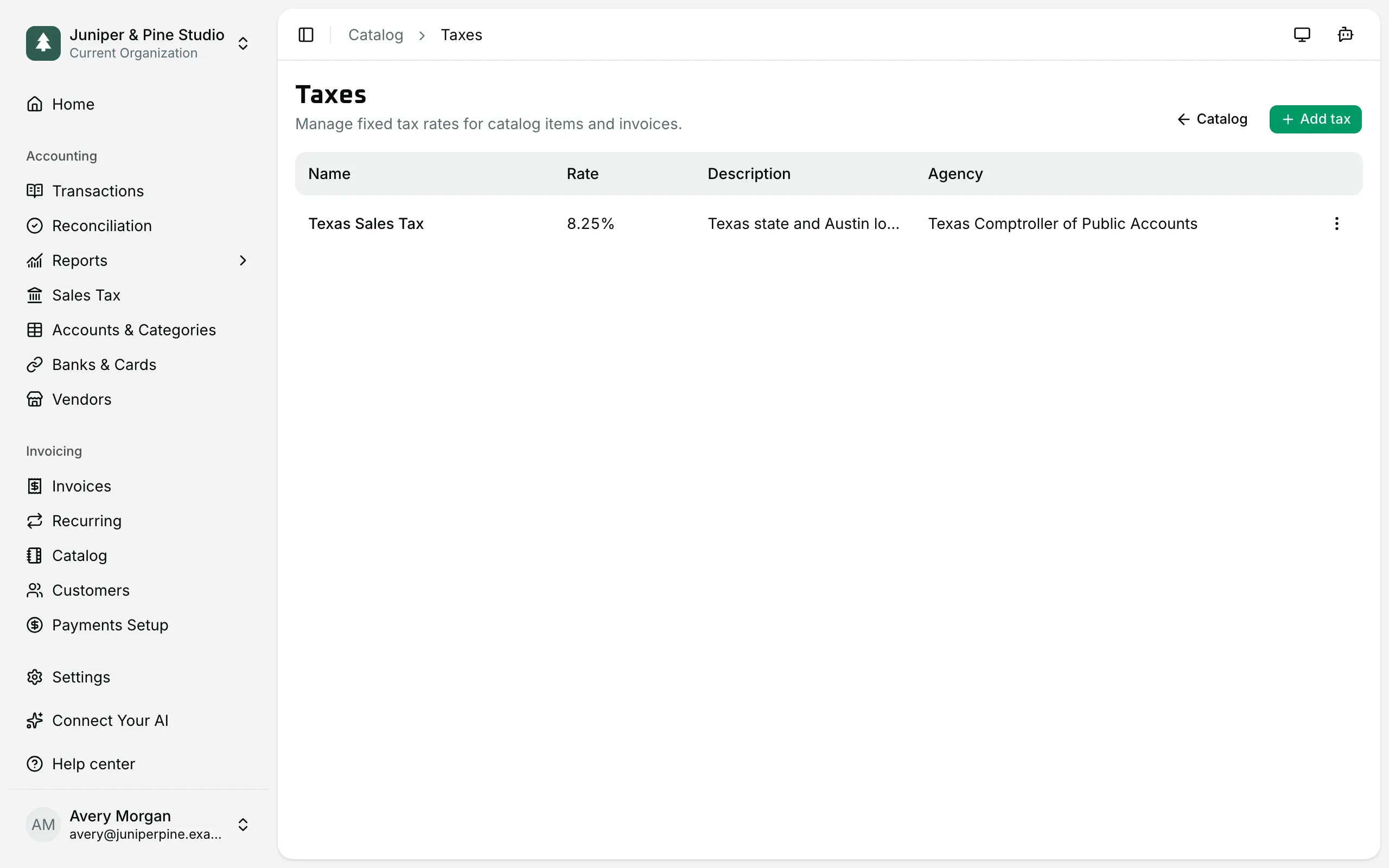
With a mouse, point at the tax row. Click the pencil icon. On a touch screen, tap the three-dot menu. Tap Edit.
Change the fields of the Edit Tax dialog. Click Save changes. The dialog does not change the rate. See Change a tax rate.
Two active taxes cannot have the same name. LazyBooks ignores uppercase and lowercase letters, so "Sales Tax" and "sales tax" are the same name.
If you added an agency, you can also change Agency (optional). The new agency counts for new invoices only. To count what you charged before, see Count earlier tax for an agency. The Agency column of the Taxes page shows the agency of each tax.
Change a tax rate
An invoice uses the rate that the tax has on the issue date of the invoice. A new rate applies to invoices dated on or after the day that it starts:
- Catalog items that use the tax show the rate of today.
- Sent, paid, and void invoices keep their rate and their amounts.
- A draft invoice takes the date that you finalize it on, and the rate of that date. If the rate changed after you saved the draft, its page shows the new total, and LazyBooks finalizes it at the new rate. A draft that a recurring invoice created keeps its own date.
- A scheduled invoice goes out at the rate of its issue date. See Schedule an invoice.
- A recurring invoice uses the rate of the date of each invoice.
To change the rate, set the new one with the day that it starts:
- On the Taxes page, click the three-dot menu at the right end of the tax row. Click Change rate.
- In New rate, type the rate in percent.
- In Effective date, choose the first day of the new rate. The day can be in the past or in the future. The default is today, in the time zone of your organization.
- Review What this affects. It shows the drafts, scheduled sends, recurring invoices, and sent invoices of those days.
- Click Change rate.
If a rate already starts on that day, the new rate replaces it. If the tax has a later change, the new rate applies until the day before that change. Under the current rate, the Rate column shows the next scheduled change.
For an effective date in the past, LazyBooks does not change the invoices that you sent. What this affects shows how much tax those invoices charged too little or too much, in total. It also lists up to 50 of them, each with its amount.
To see the rates of a tax, click Rate history in the same menu. It shows the current rate, the scheduled changes, and the earlier rates. The first rate of a tax is the Initial rate. It has no start date.
- To see the sent invoices with another rate on the days of a rate, click Edit next to it.
- To correct a rate, click Edit next to it. Type the right rate, review What this affects, and click Save rate. The day of the rate stays.
- To cancel a scheduled change, click Cancel next to it. Then click Cancel change. You cannot cancel a change that took effect. Edit its rate instead.
A deactivated tax shows its rate history too, but you cannot change its rates until you reactivate it.
You can also ask the assistant to change a tax. When it asks you to approve a new rate, its card shows the day that the rate starts and what happens to your invoices. Sent invoices keep their rate. Drafts that you finalize on or after that day need updating first. Scheduled sends on or after that day go out at the new rate. Recurring invoices use the new rate on invoices dated on or after that day. You can ask for a day in the past or in the future. For a day in the past, the card also shows how much tax the sent invoices charged too little or too much. See Ask the assistant.
LazyBooks calculates the tax of each line from the line amount and the rate, rounded to the nearest cent. For example, 8.875% of $100.00 is $8.88. When a customer pays online, LazyBooks records the tax in the Sales Tax Payable account. The tax of an agency goes to the account of the agency. See Get paid.
Deactivate a tax
Deactivate a tax that you no longer charge. LazyBooks keeps the tax, so invoices that used it do not change.
- On the Catalog page, click Taxes.
- Click the three-dot menu at the right end of the tax row.
- Click Deactivate.
- The dialog lists what still uses the tax: active catalog items, draft invoices, and recurring invoices. It also lists the scheduled rate changes. The tax keeps them. Review the lists.
- Click Deactivate.
The tax shows Inactive on the Taxes page. After you deactivate a tax:
- It does not show in any Tax list, except on a catalog item that still uses it, so no new invoice line can use it.
- Sent, paid, and void invoices do not change. They still show the name and rate of the tax.
- A catalog item that uses the tax shows Inactive next to the tax on the Catalog page. When you add the item to an invoice, the line gets no tax. A line of the item without tax shows a note that the item's tax is inactive, so you can pick a tax if the line needs one. To save a change to the item, choose an active tax or clear the Tax field for no tax.
- A draft invoice that uses the tax cannot be finalized or sent. Open the draft. The line says that its tax is inactive. Click Remove tax, or choose an active tax for that line. Until you do, the editor does not save your other changes to the draft. A scheduled send of the draft does not go out. See If a scheduled invoice is not sent.
- A recurring invoice creates its next invoice as a draft without the tax, and asks you to review it. See Recurring invoices.
You can also ask the assistant to deactivate a tax. When it asks you to approve the change, its card lists the catalog items, draft invoices, and recurring invoices that still use the tax.
A deactivated tax does not block its name, so you can add a new tax with the same name.
Reactivate a tax
- On the Taxes page, click the three-dot menu at the right end of the inactive tax.
- Click Reactivate. Then click Reactivate in the dialog.
The tax shows in the Tax lists again. Catalog items and recurring invoices that use it charge it again.
If an active tax has the same name now, LazyBooks does not reactivate the tax and tells you why. Rename or deactivate the other tax first. Then reactivate this one.
If a part of a combined tax belongs to an inactive agency, reactivate the agency first. You cannot change the parts of a deactivated tax. You can add a new tax instead.
The assistant can reactivate a tax too. It follows the same rules.