Create and send an invoice
Create an invoice, add line items and taxes, preview it, and send it to your customer.
An invoice starts as a draft that you can change. When the draft is ready, you finalize it, and LazyBooks can email it to your customer.
Start a new invoice
- In the sidebar, under Invoicing, click Invoices.
- Click Create Invoice.
- In the Customer list, choose the customer. To add a new customer, choose New Customer.
- Add the first line item. See Add line items.
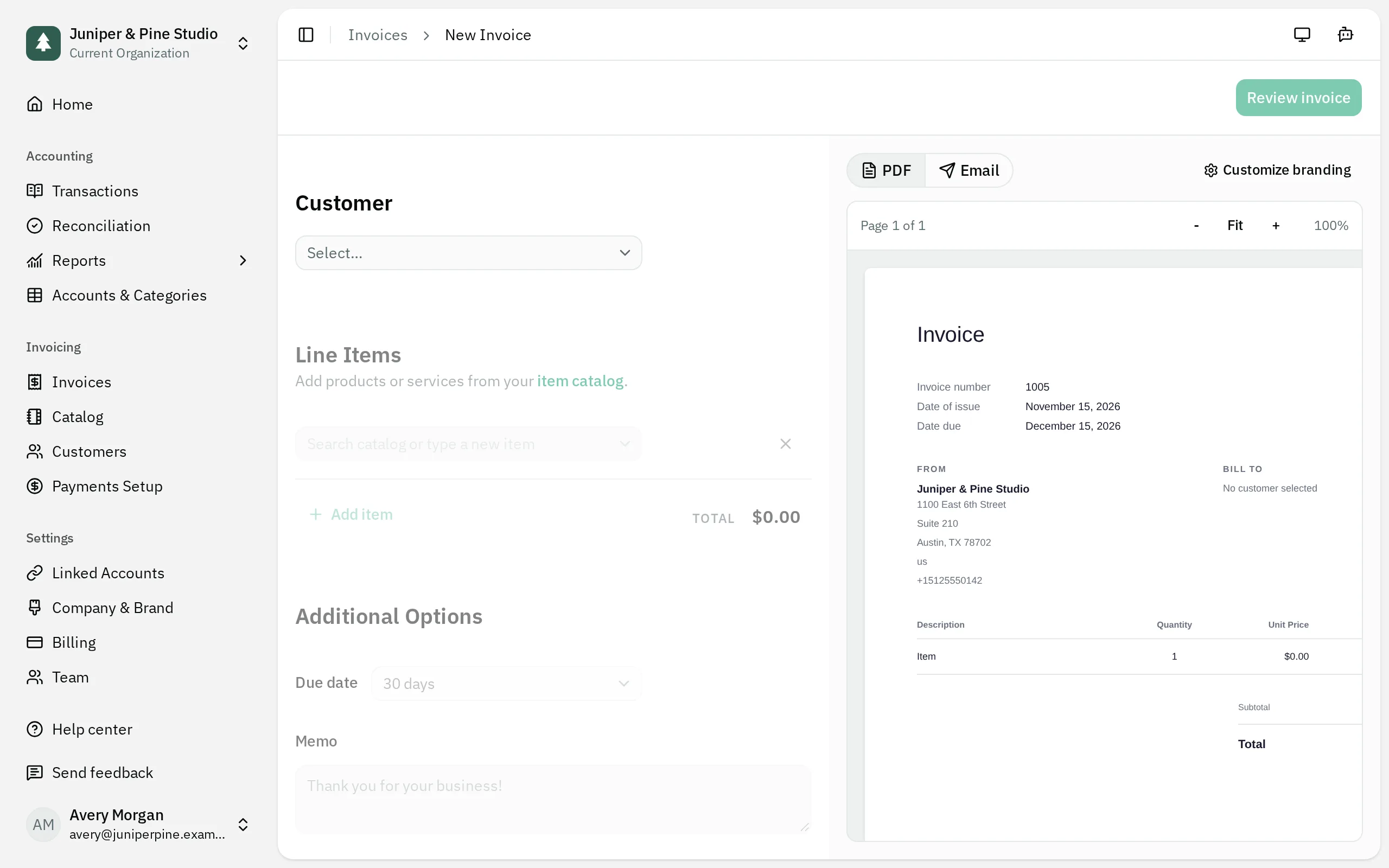
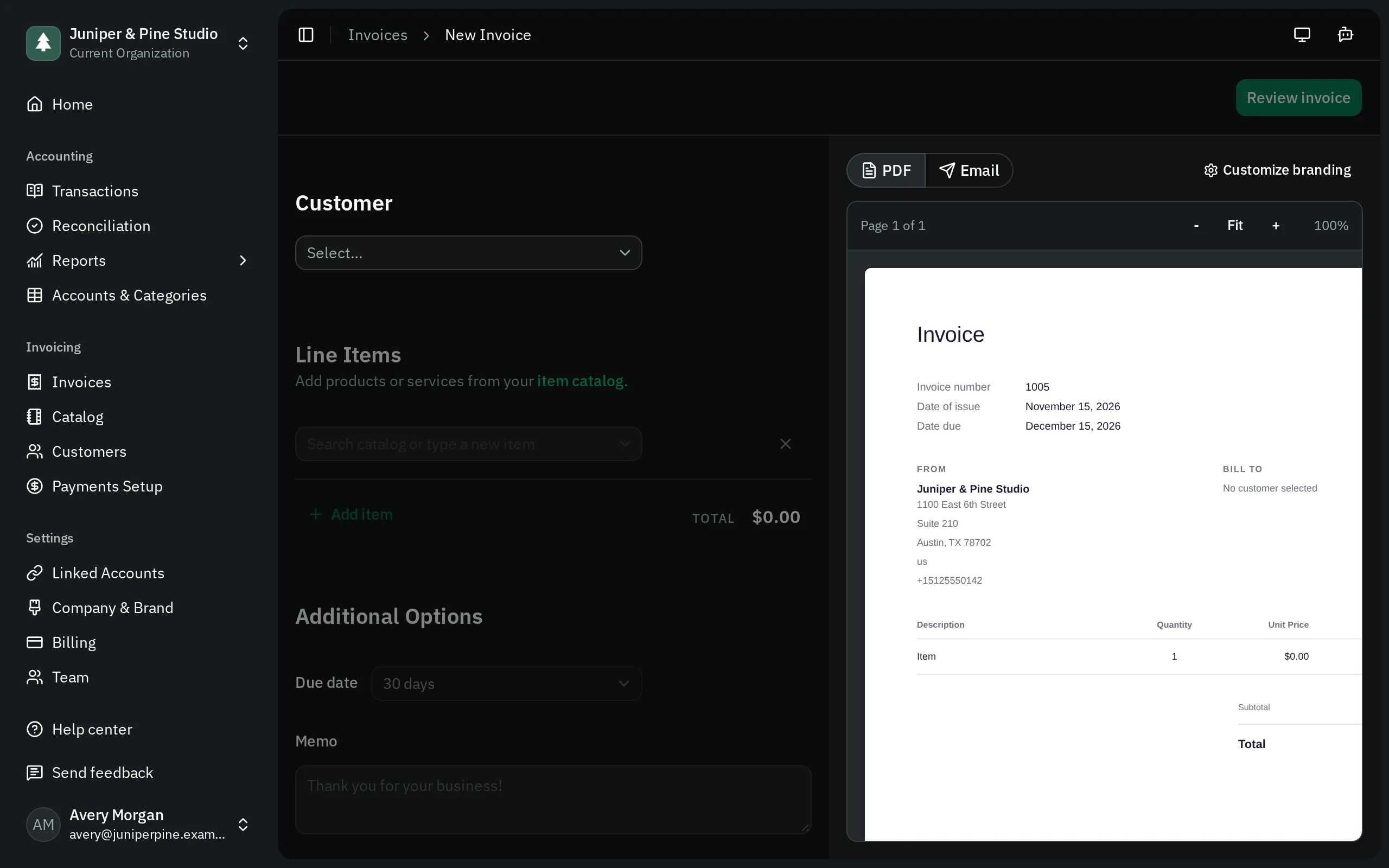
The other fields are unavailable until you choose a customer. If you have no customers yet, click Add a new customer instead. See Add and import customers.
LazyBooks saves nothing until the invoice has a customer and a line item. Then it saves the invoice as a draft and opens it in the editor, where you continue.
Add line items
The new invoice page and the editor have the invoice fields on the left and a preview of the invoice on the right.
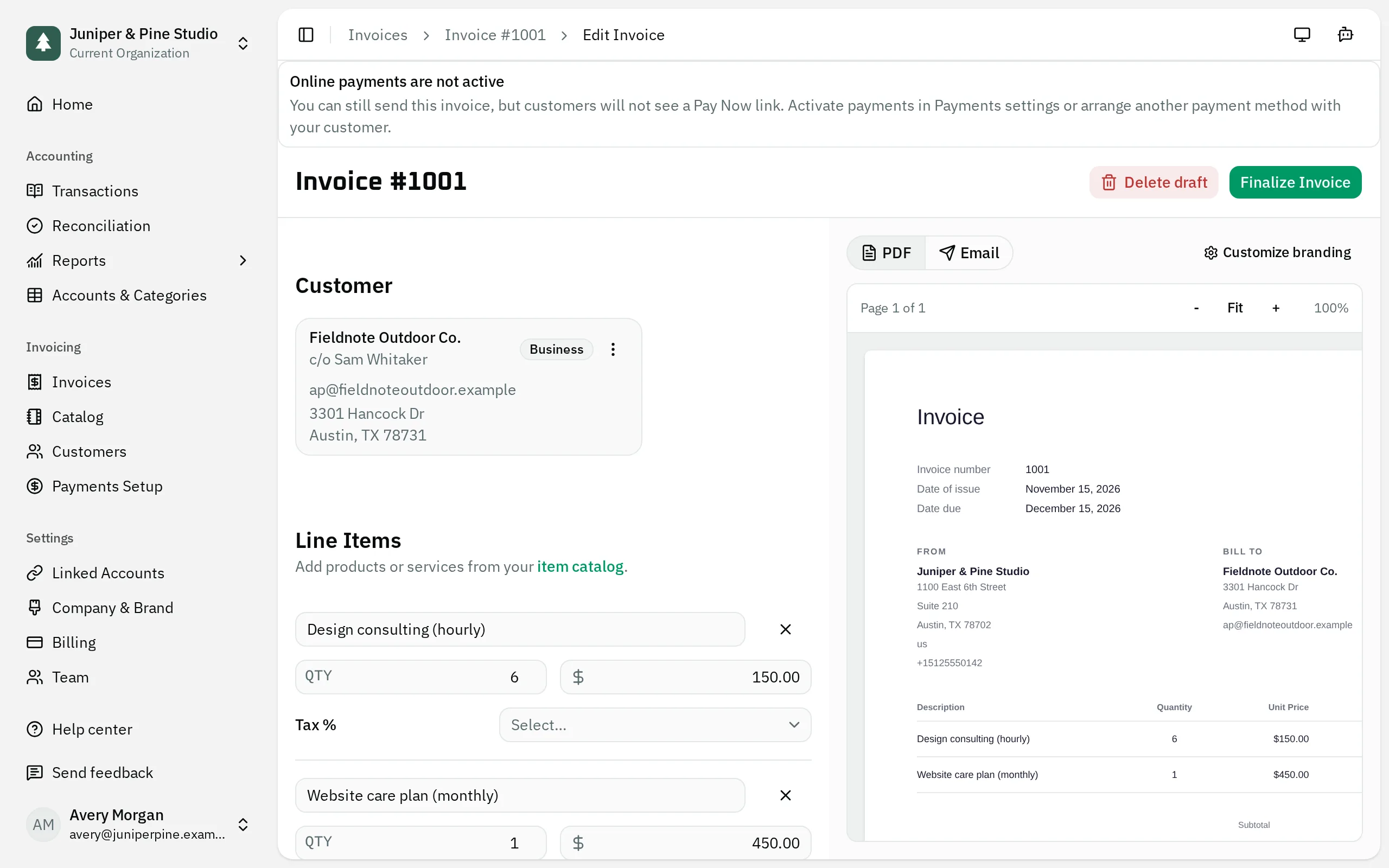
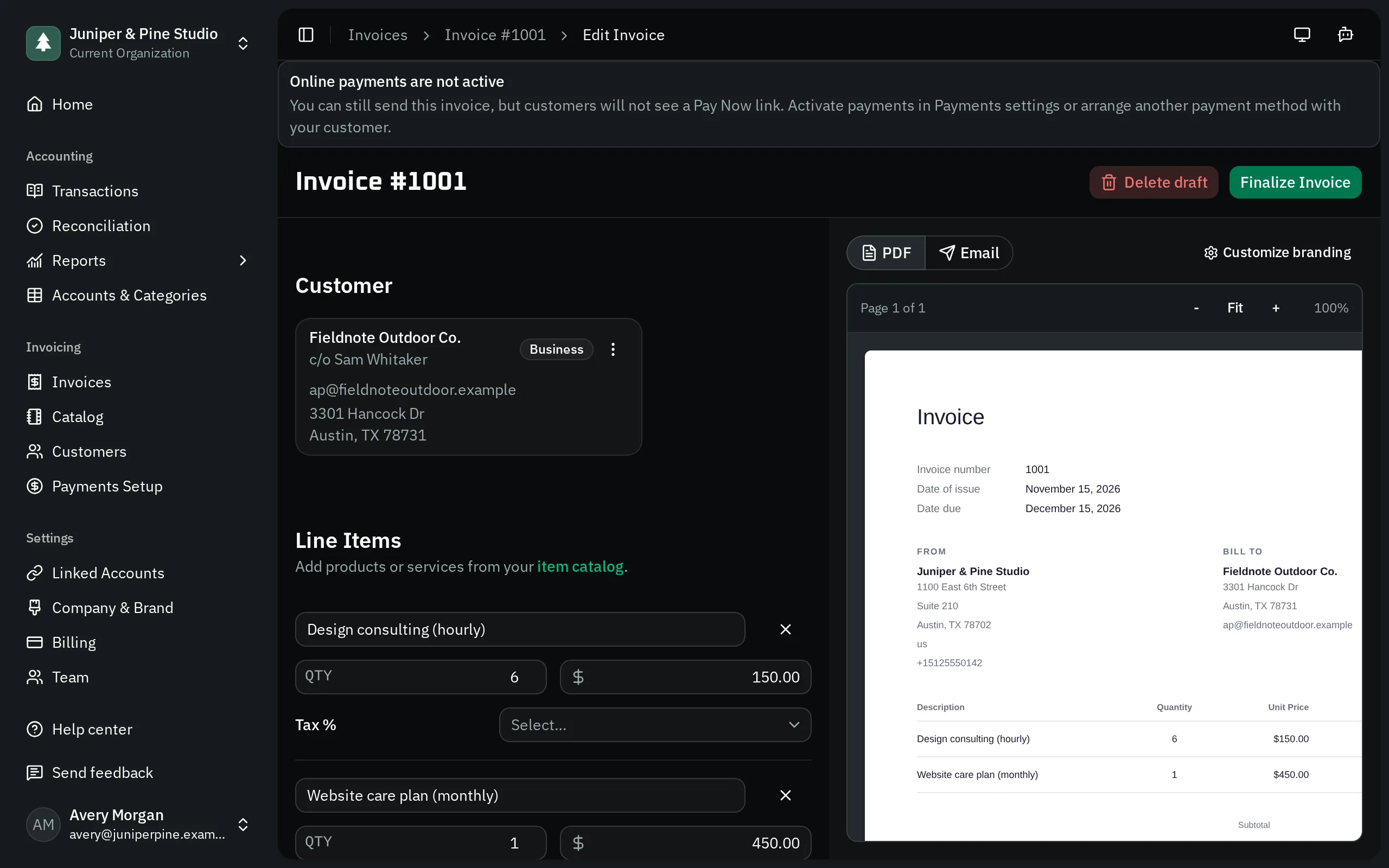
- If the search box under Line Items is not open, click Add item.
- Type the name of a catalog item in the search box.
- Choose the item in the list. LazyBooks fills in its name, price, and tax.
- To bill for something that is not in the catalog, type its name and choose Create: with the name.
- Change the quantity and the unit price if necessary.
- To add another line, do these steps again.
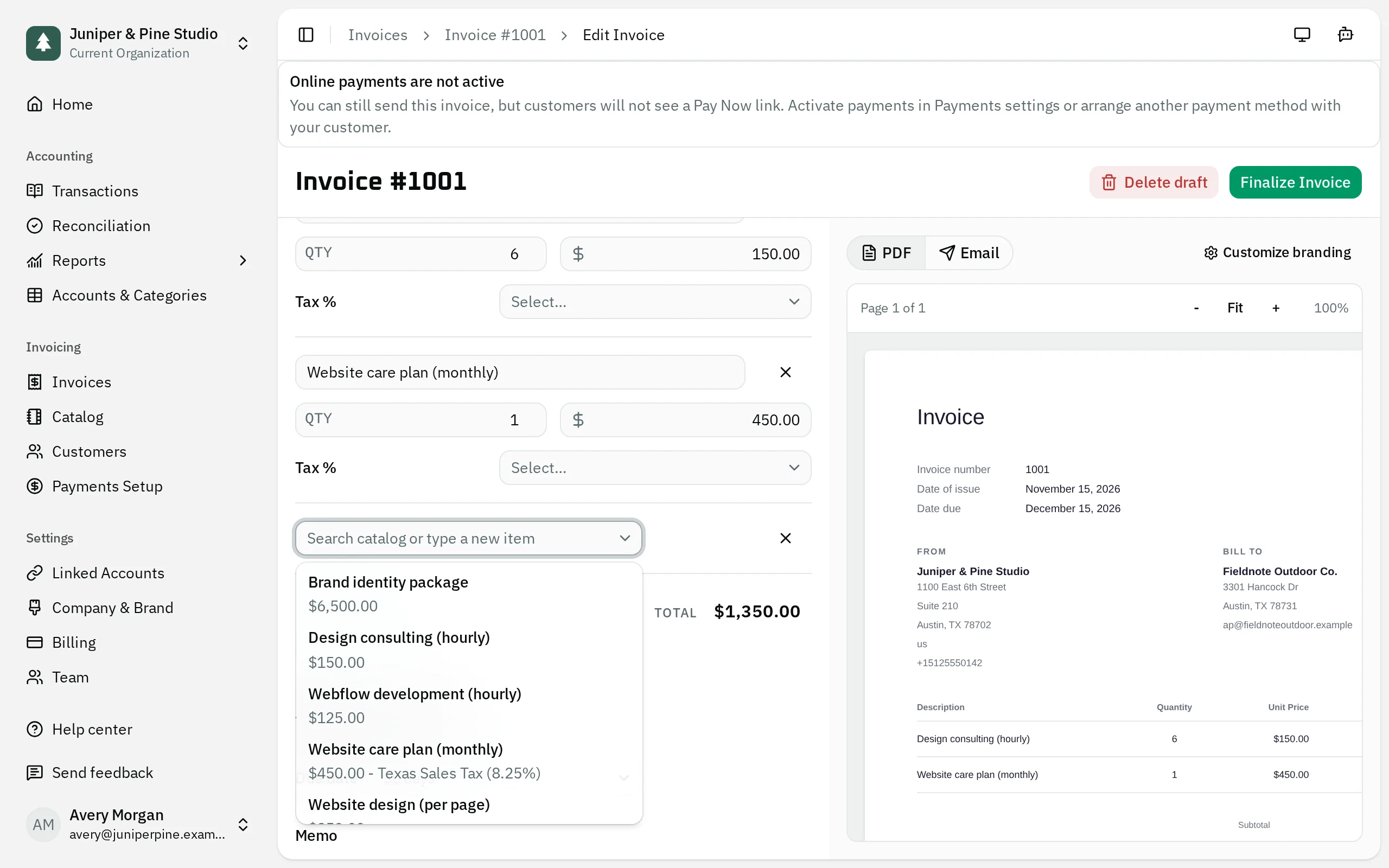
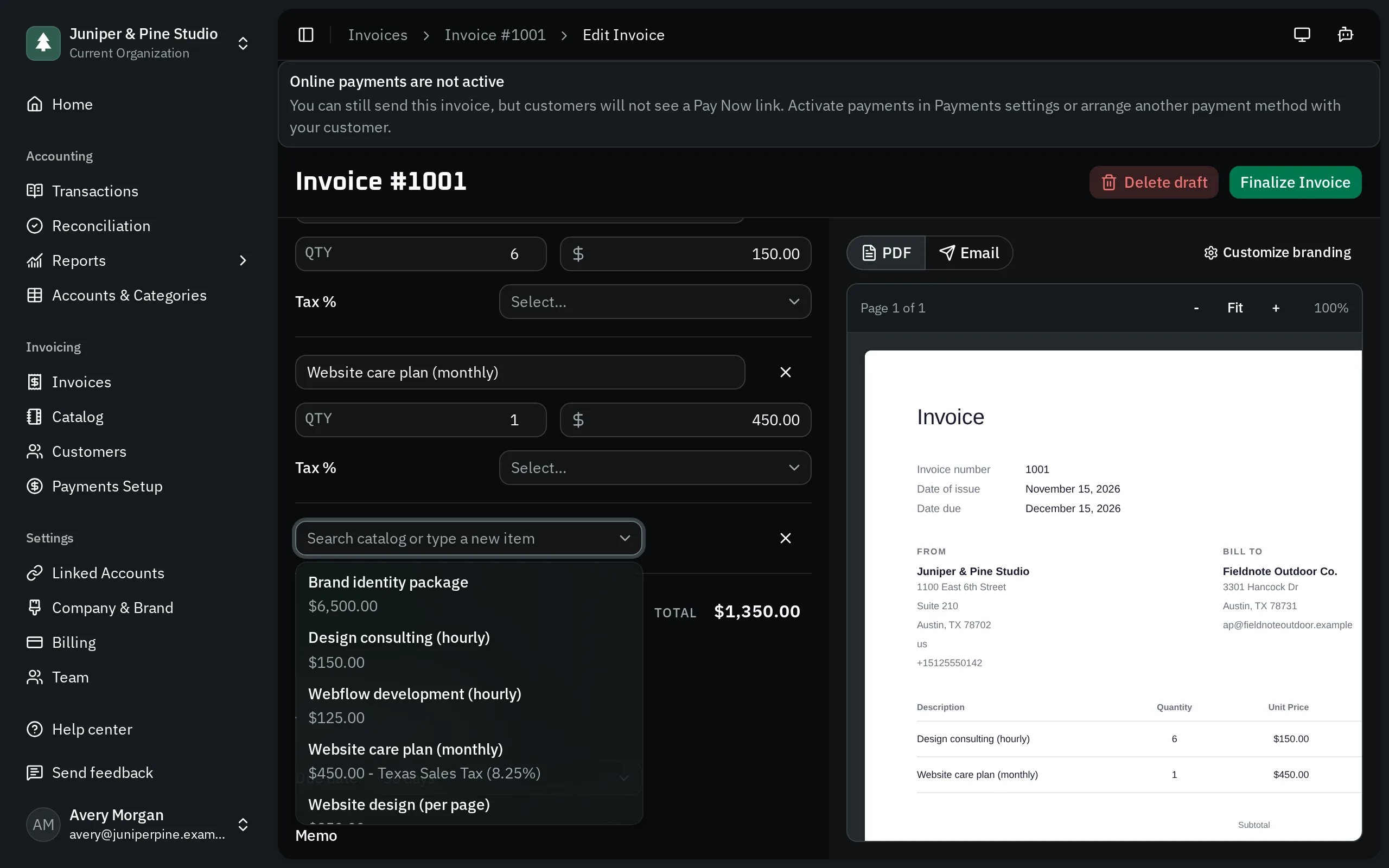
A new item that you create here goes into your catalog when LazyBooks saves the invoice. To remove a line, click the X at the right of its name. You cannot remove the only line of an invoice. You must have at least one line to finalize an invoice.
Add taxes
Each line has a Tax % list. Choose the tax for the line, or leave the list empty for no tax. A catalog item that has a tax fills in its tax for you. If the tax of the catalog item is inactive, the line gets no tax. A line without tax whose catalog item has an inactive tax shows a note, such as "Design's tax, City tax, is inactive." Pick a tax if the line needs one. See Deactivate a tax.
To add a new tax, choose New Tax in the list. See Add a sales tax. The Total under the lines includes the tax.
A line without tax has a Not taxed because list. Choose why the line is not taxed, such as Labor, or None. When you choose a catalog item, LazyBooks fills in the reason of the item. When you choose a tax, the list goes away, and the line has no reason. See Add a catalog item.
You can change the reason of a line without tax after you send the invoice, also when it is paid:
- Open the invoice.
- Under the name of the line, choose a reason in Not taxed because.
LazyBooks saves the reason at once. It records the change on the day that you make it, or on the invoice date when that is later, so earlier periods do not change. A void invoice has no Not taxed because list.
Set the due date, memo, and footer
The Additional Options section has three fields:
- Due date sets how long your customer has to pay, for example 30 days. To pick a date, choose Custom. A new invoice starts with 30 days.
- Memo adds a note to the invoice.
- Footer adds a note at the bottom of the invoice.
Autosave and drafts
After LazyBooks saves the new draft, the editor saves your changes while you work, so it has no save button. The invoice stays a draft until you finalize it. Your customer cannot see a draft.
To find a draft later, open Invoices and click Draft. Then click the invoice.
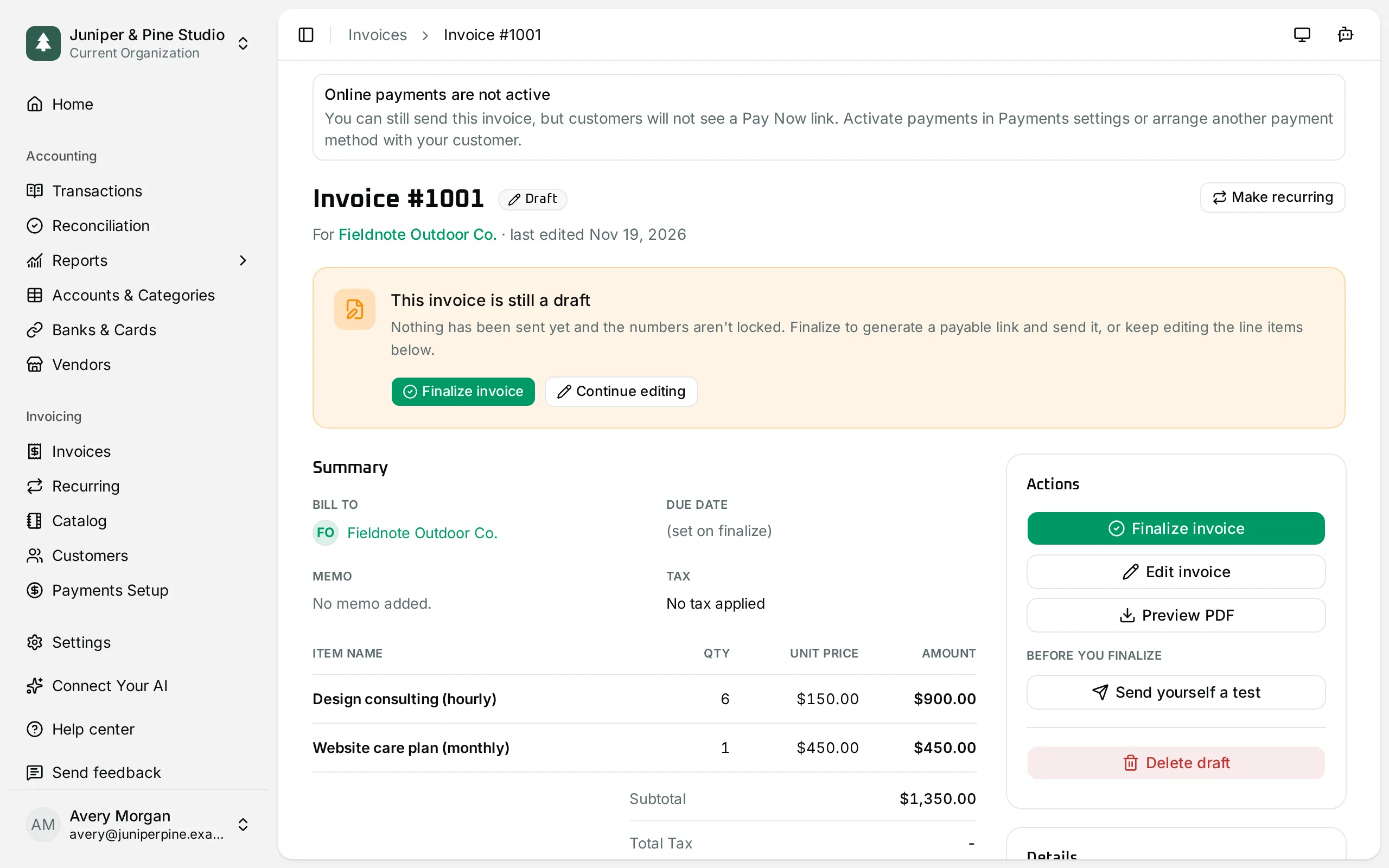
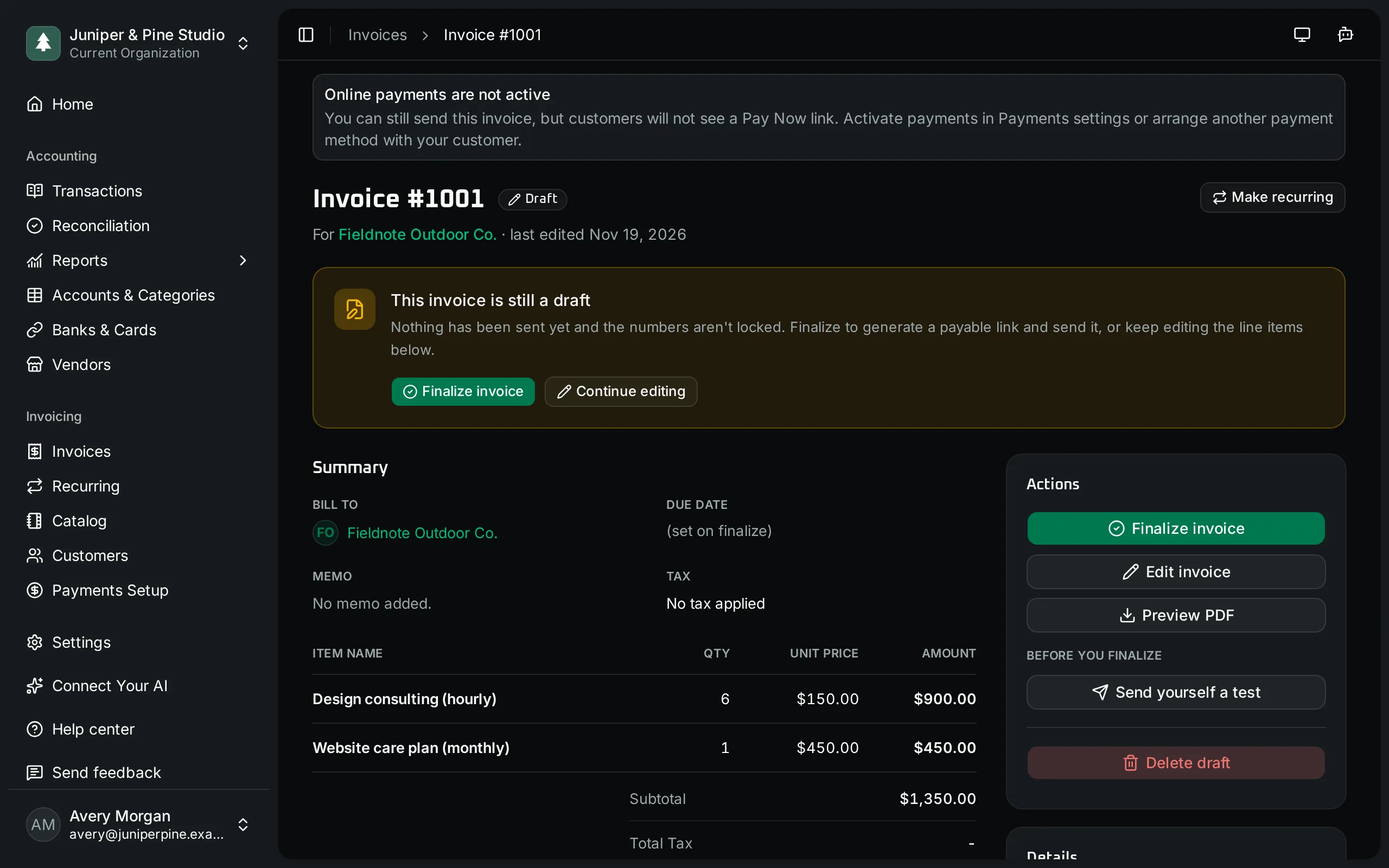
The page of a draft has these actions:
- Finalize invoice opens the finalize dialog.
- Edit invoice opens the editor again.
- Preview PDF opens the invoice document.
- Send yourself a test emails the invoice to your own address.
- Delete draft deletes the draft. See Delete a draft.
The Invoices card on the Home page also counts your drafts. See Home page.
Delete a draft
You can delete a draft that you do not need. You cannot delete an invoice after you finalize it. To cancel a finalized invoice, void it. See Void an invoice.
- Open the draft in the editor, or open the page of the draft.
- Click Delete draft.
- In the dialog, click Delete draft.
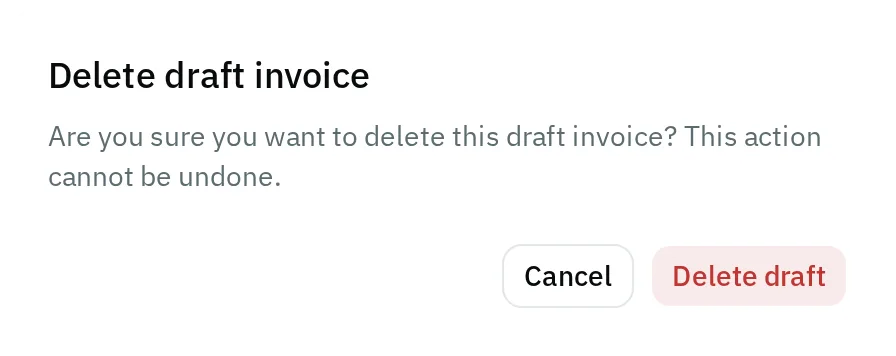
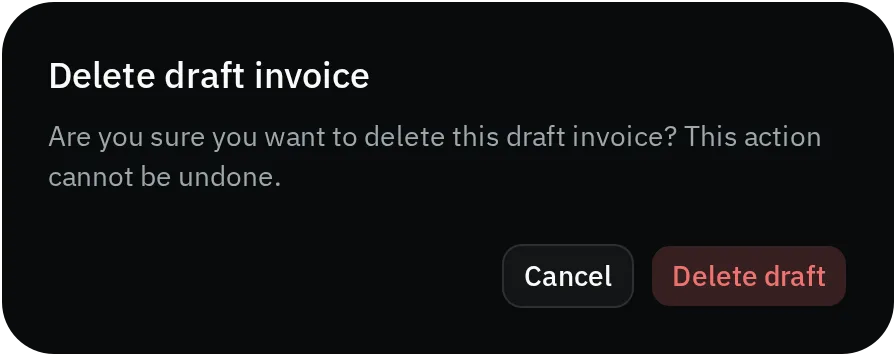
LazyBooks deletes the draft and its line items, and then shows the invoice list. You cannot undo this. The customer and the catalog items of the draft stay.
On a phone, the editor shows only a trash icon for Delete draft. In the invoice list on a phone, tap a draft to open it, and then tap Delete draft.
Preview the PDF and the email
The preview on the right side of the editor changes as you type. Click PDF to see the invoice document. Click Email to see the email that your customer gets.
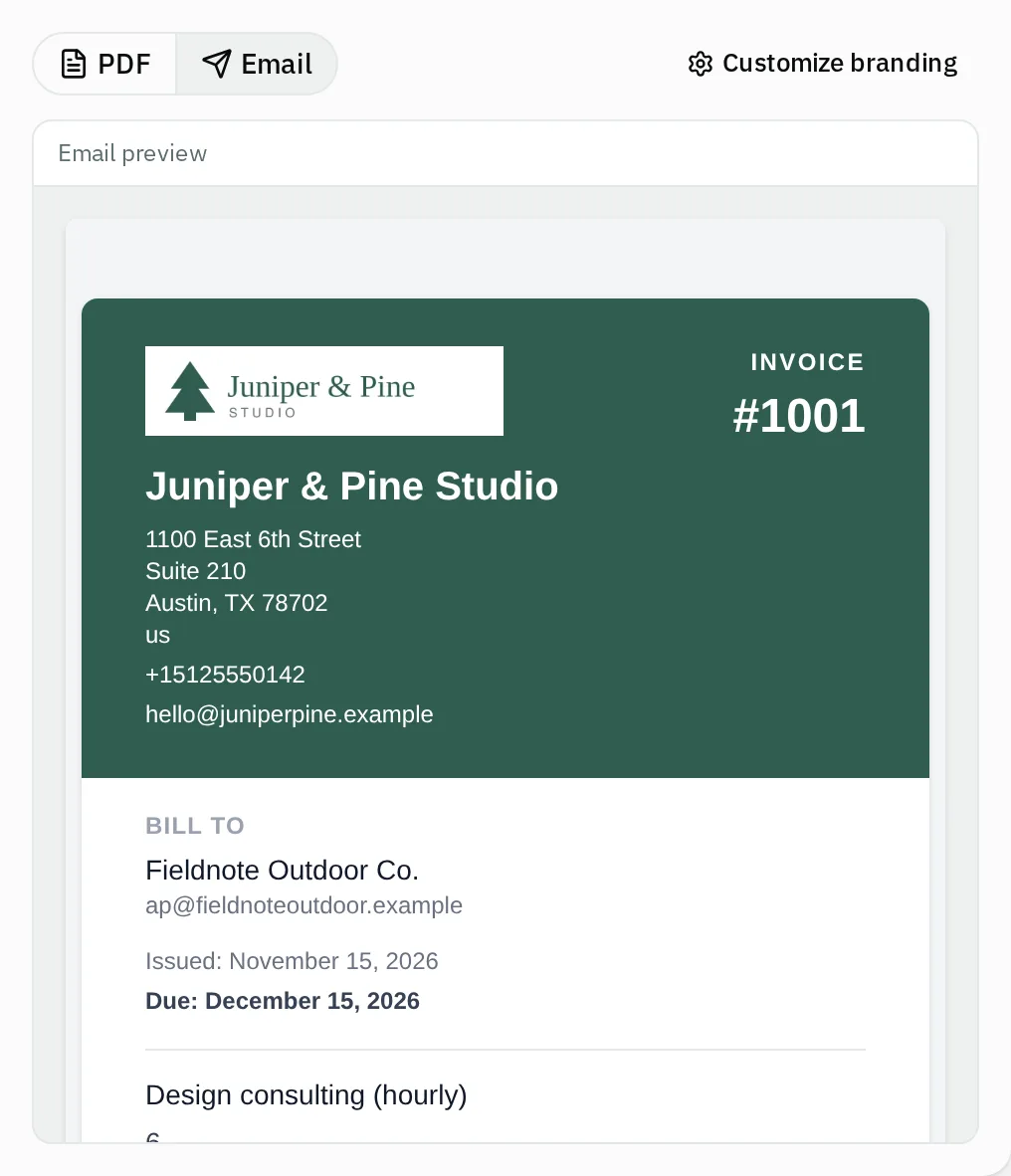
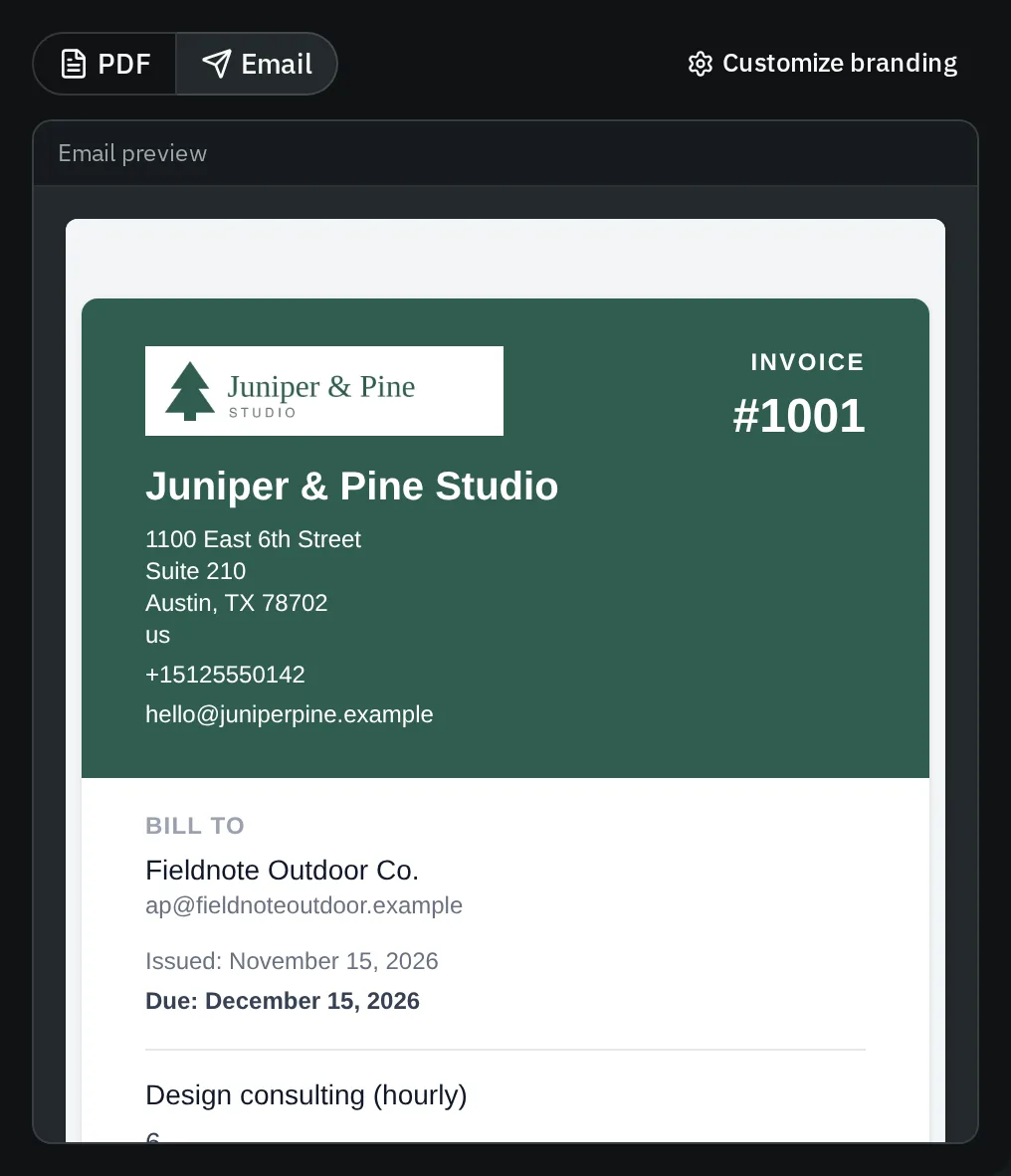
The email has a Pay Now button when online payments are active. Without online payments, the button is View Invoice. The email also has a Download Invoice button.
To change how your invoices look, click Customize branding. It opens the Branding page in a new tab. See Change your organization settings.
If online payments are not set up, the editor shows Online payments are not active. You can still send the invoice. See Set up online payments.
Finalize and send
- At the top of the editor, click Finalize Invoice.
- Choose Finalize and Send or Finalize Only.
- If you send the invoice, make sure that Send To has the correct email address.
- To send copies to more people, select CC additional recipients.
- Type their addresses in CC Recipients.
- Click Finalize and Send, or click Finalize.
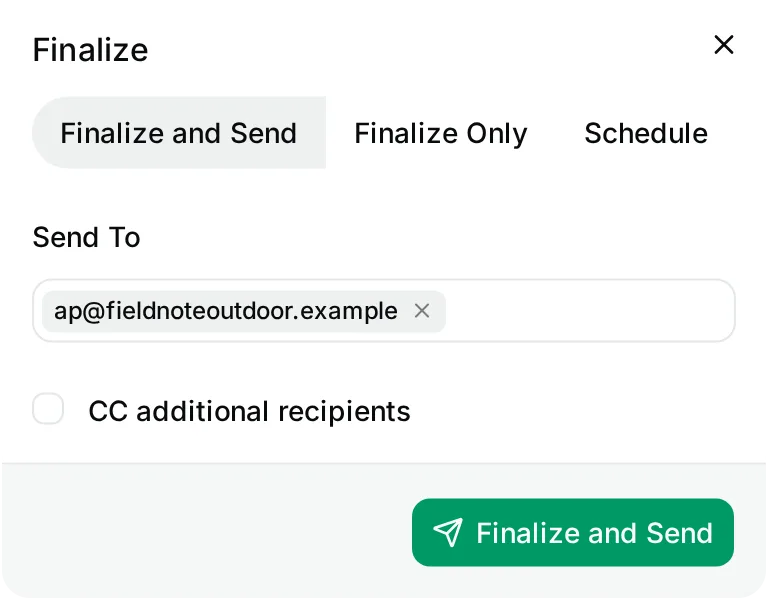
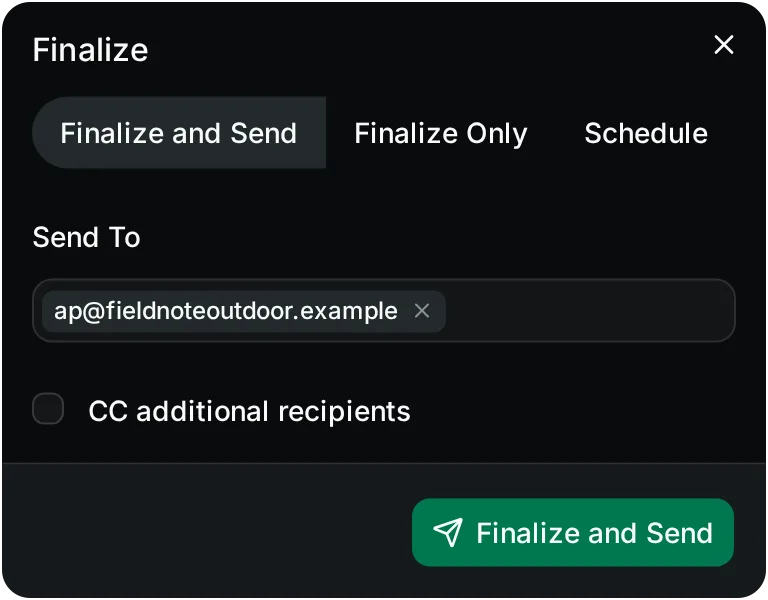
The invoice status changes to Open, and LazyBooks shows the invoice list. Finalize and Send emails the invoice. Finalize Only sends no email. To email it later, open the invoice and click Resend invoice.
To send the invoice on a later day, choose Schedule. See Schedule an invoice.
If a tax rate changes while you edit a draft, LazyBooks keeps the invoice in draft status. Review the updated invoice total in the dialog. Confirm again when the total is correct.
When you finalize an invoice, LazyBooks does not use a tax or a rate that you did not see.
- In the editor, each line shows the rate that its tax has on the issue date of the invoice, and the total uses it. A draft that a recurring invoice created keeps its own issue date. A scheduled draft uses its send day. Any other draft takes the date that you finalize it on. A line whose tax you deactivated shows a note. Click Remove tax on the line, or choose an active tax. Until you do, Finalize tells you which line to fix and the invoice stays a draft.
- The finalize dialog shows the invoice total for your choice. Finalize and Send and Finalize Only use the tax rates of today. Schedule uses the rates of the day that you choose, and the total changes when you choose another day.
- When you finalize from the invoice list or the invoice page, LazyBooks shows the total at the tax rates of today, under Total on finalize. If a rate changed after you saved the draft, this total uses the new rate, and the invoice is finalized with it. A line whose tax you deactivated keeps the invoice a draft, and LazyBooks tells you which line to fix. If the total changes again before you finalize, for example because a rate changes, the invoice stays a draft and LazyBooks shows the new total. Check it, and finalize the invoice again.
- The page of a scheduled draft shows its total on the send day, under Total when sent on and the day, for example Total when sent on Dec 1. Finalize and Send now use the tax rates of today, and the finalize dialog shows that total.
- When the assistant edits or finalizes a draft, it asks you to confirm a new total before it saves a line at a new rate. When it schedules or cancels a send, the draft takes the tax rates of its new day, as it does on the invoice page.
- A scheduled send does not go out with a deactivated tax. It uses the tax rates of its issue date. See Schedule an invoice.
To send an invoice that you finalized without email, open it and click Resend invoice. You can also click Copy payment link and send the link to your customer yourself.
You cannot edit an invoice after you finalize it. If a finalized invoice is wrong, void it and create a new one. See Void an invoice.
Schedule an invoice
You can schedule a draft to send on a later day. LazyBooks finalizes and emails it at that time.
- In the editor of the draft, click Finalize Invoice. Or, on the page of the draft, click Finalize invoice.
- Choose Schedule.
- Make sure that Send To has the correct email address.
- To send copies to more people, select CC additional recipients, and type their addresses in CC Recipients.
- In Date, choose the day to send. The first day you can choose is tomorrow.
- In Send at, choose the hour. The default is 8:00 AM.
- Click Schedule.
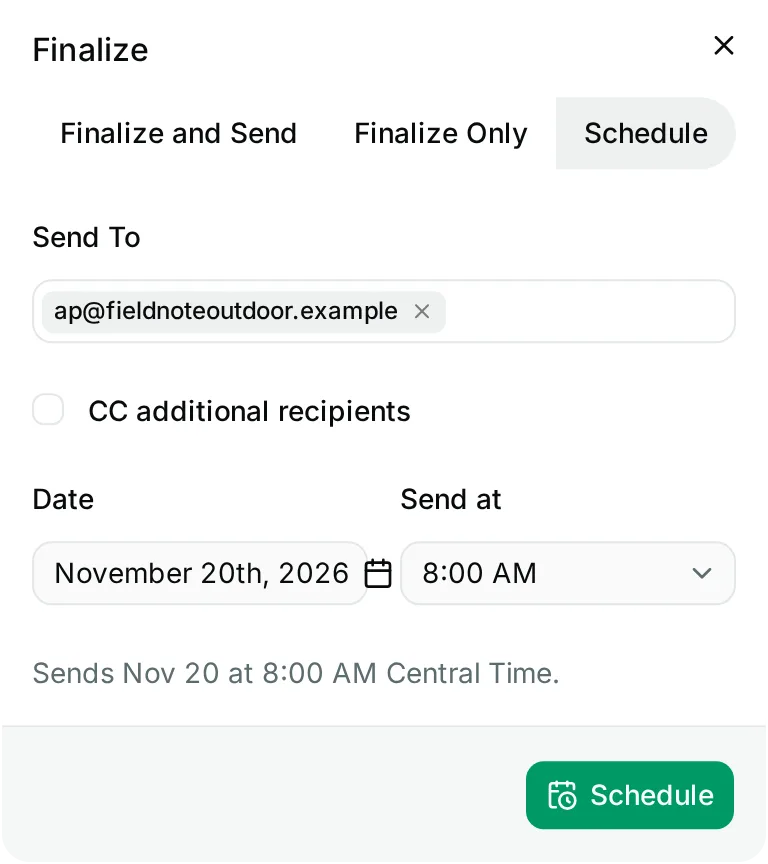
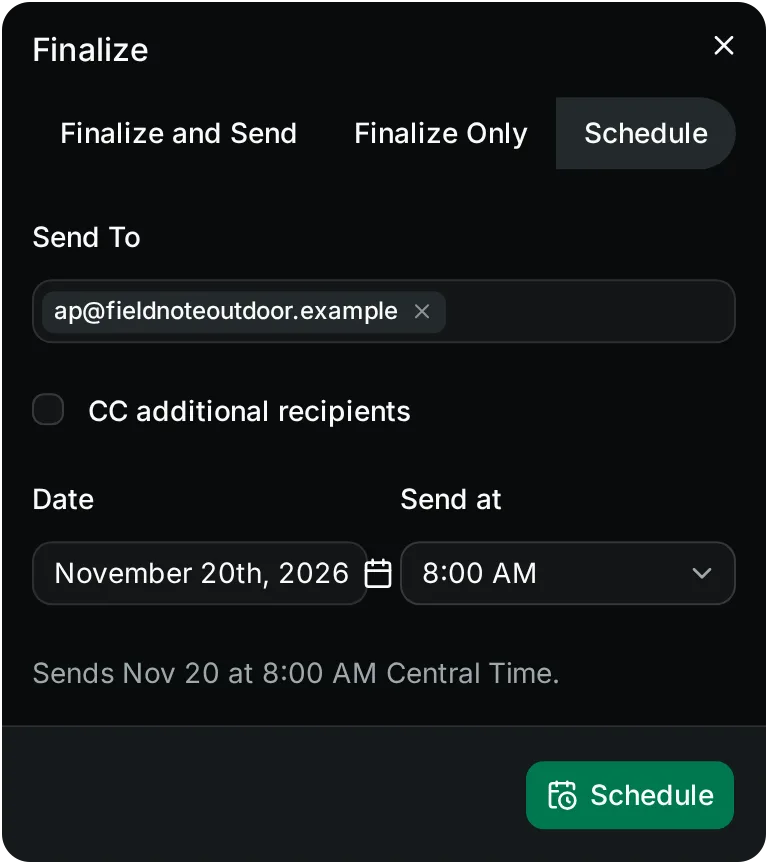
The line under the fields says when the invoice goes out. For example: Sends Dec 1 at 8:00 AM Central Time. The day and the hour are in the time zone of your organization. To change it, see Change the time zone.
The invoice stays a draft until that day, so it is not in your books yet. It uses the tax rates of its send day, and its page shows that total right away. For example, a tax of 6.5% changes to 7.25% on Dec 1. A $1,000 line on an invoice that you schedule for Dec 1 has $72.50 tax, and the total is $1,072.50.
In the invoice list, it shows Scheduled with its day, for example Scheduled · Dec 1. To see only these invoices, click Scheduled.
At the send hour, LazyBooks finalizes the invoice and emails it. The issue date is the send day, and the due date counts from it. LazyBooks looks for invoices to send every 15 minutes. So an invoice for 8:00 AM goes out between 8:00 and 8:15 AM.
If a rate of the send day changes after you schedule the invoice, the invoice goes out with the new total. The to-do list on the Home page then shows both totals for 7 days. For example: Invoice #1005 was sent with a new total.
Change or cancel a schedule
The page of a scheduled draft shows when it sends and to whom.
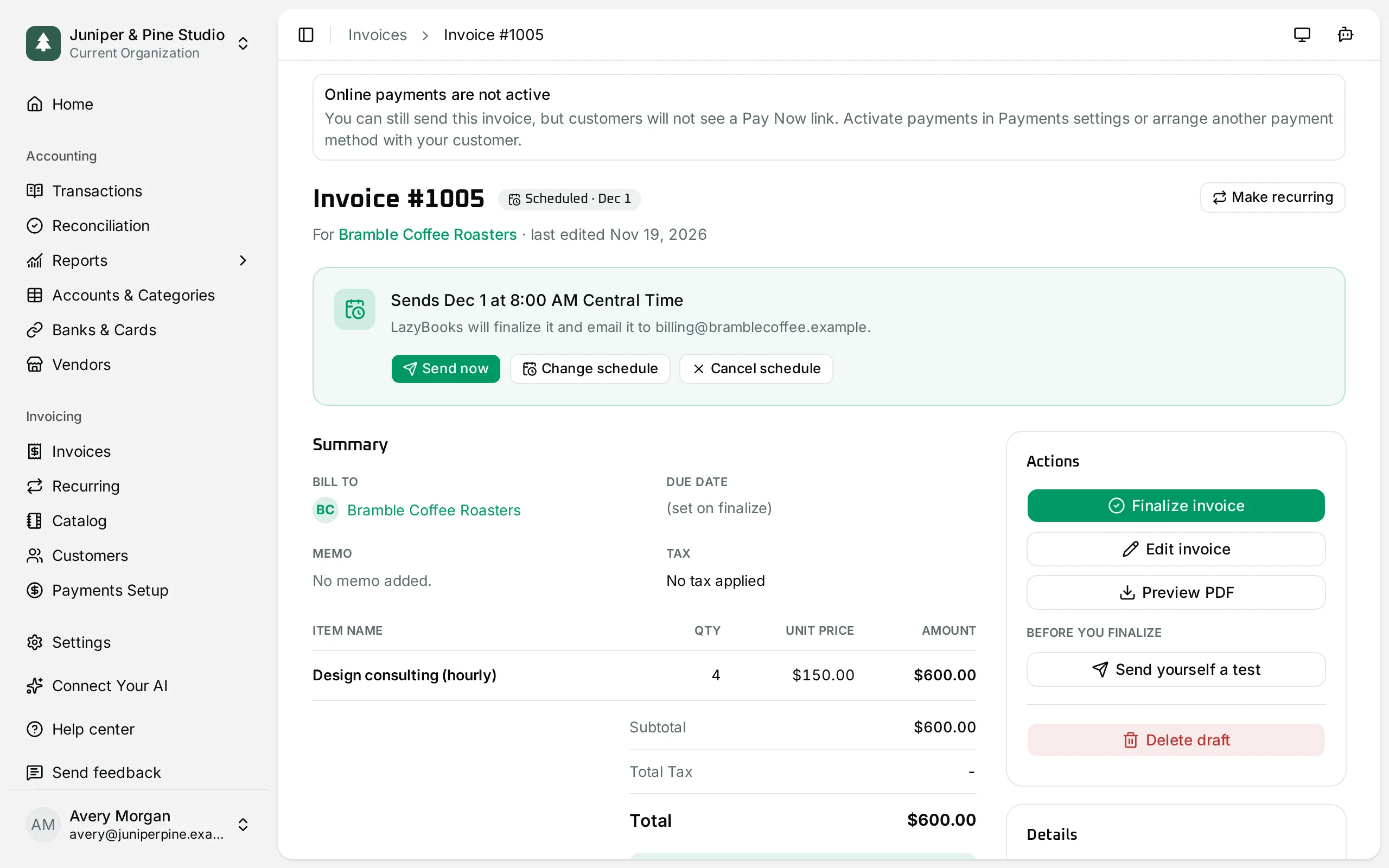
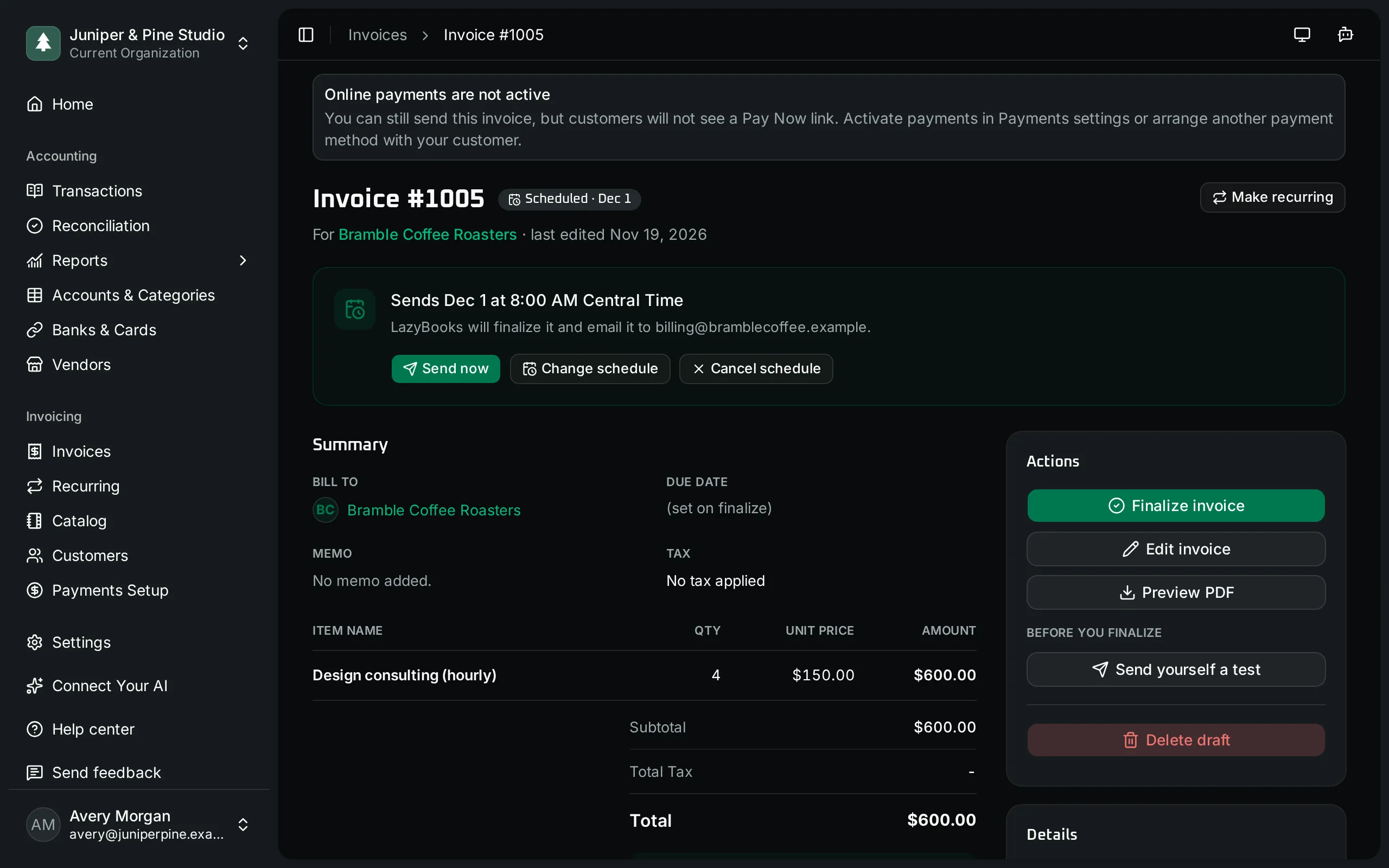
- Send now opens the finalize dialog, so you can finalize and send the invoice at once. It uses the tax rates of today, so its total can be different from the scheduled total.
- Change schedule opens the dialog with the day, the hour, and the email addresses. Change them, and click Schedule. The dialog shows the total for the day that you choose.
- Cancel schedule removes the schedule. The invoice stays a draft and uses the tax rates of today again. In the dialog, click Cancel schedule.
You can still edit a scheduled draft. If you choose another customer, LazyBooks sends the invoice to the email address of the new customer, and it removes the CC addresses. If the new customer has no email address, the invoice is not sent. If you change the email address of the customer, LazyBooks changes the old address in Send To too.
Finalize Only and Delete draft also cancel the schedule.
If a scheduled invoice is not sent
When LazyBooks cannot send a scheduled invoice, the invoice shows Not sent. The page of the invoice tells you why. These are the reasons:
- LazyBooks did not send it within a day of its send time, for example because your organization was locked.
- Your subscription ended.
- LazyBooks tried to email it several times, and the email failed.
- It had no email address.
- It had no line items.
- A line used a tax that was deactivated. Open the draft in the editor. The line shows a note with Remove tax. Remove the tax or pick another one, and check the new total. Then send the invoice again.
- The Sales Tax Payable account of an agency was deleted, or is not a Sales Tax Payable account any more. Choose another account on the Sales Tax page. Then send the invoice again. See Change or deactivate an agency.
The owner of the organization gets an email. The to-do list on the Home page also shows an item, for example Invoice #1005 was not sent.
If the invoice is still a draft, use one of these buttons:
- Send now opens the finalize dialog, so you can finalize and send the invoice at once.
- Schedule again opens the dialog, so you can choose a new day and hour.
- Keep as draft removes the schedule. The invoice stays a draft.
If LazyBooks finalized the invoice but the email failed, the invoice is open, and your customer did not get it. Click Send now at the top of the page, or click Resend invoice in the Actions card.
To bill a customer on a schedule, see Recurring invoices.