Invite and manage team members
Invite people to your organization, choose the role of each person, and accept an invitation that you received.
On the Team page, you give other people access to the books of your organization. Each person has a role that sets what they can do.
Roles
Each person in an organization has one of three roles:
- Owner is the person whose subscription pays for the organization. Each organization has one owner. Only the owner manages billing, changes the bookkeeping start date, and deletes the organization.
- Admin manages the team, the bank connections, the payments setup, and the company settings, like the owner.
- Member works in the books. A member cannot change the team, the bank connections, the payments setup, or the company settings.
Open the Team page
In the sidebar, click Settings, then click Team. The settings panel opens over the page that you were on. Everyone in the organization can see the Team Members list. Only the owner and admins see the Invite Team Member card and the buttons that change the team.
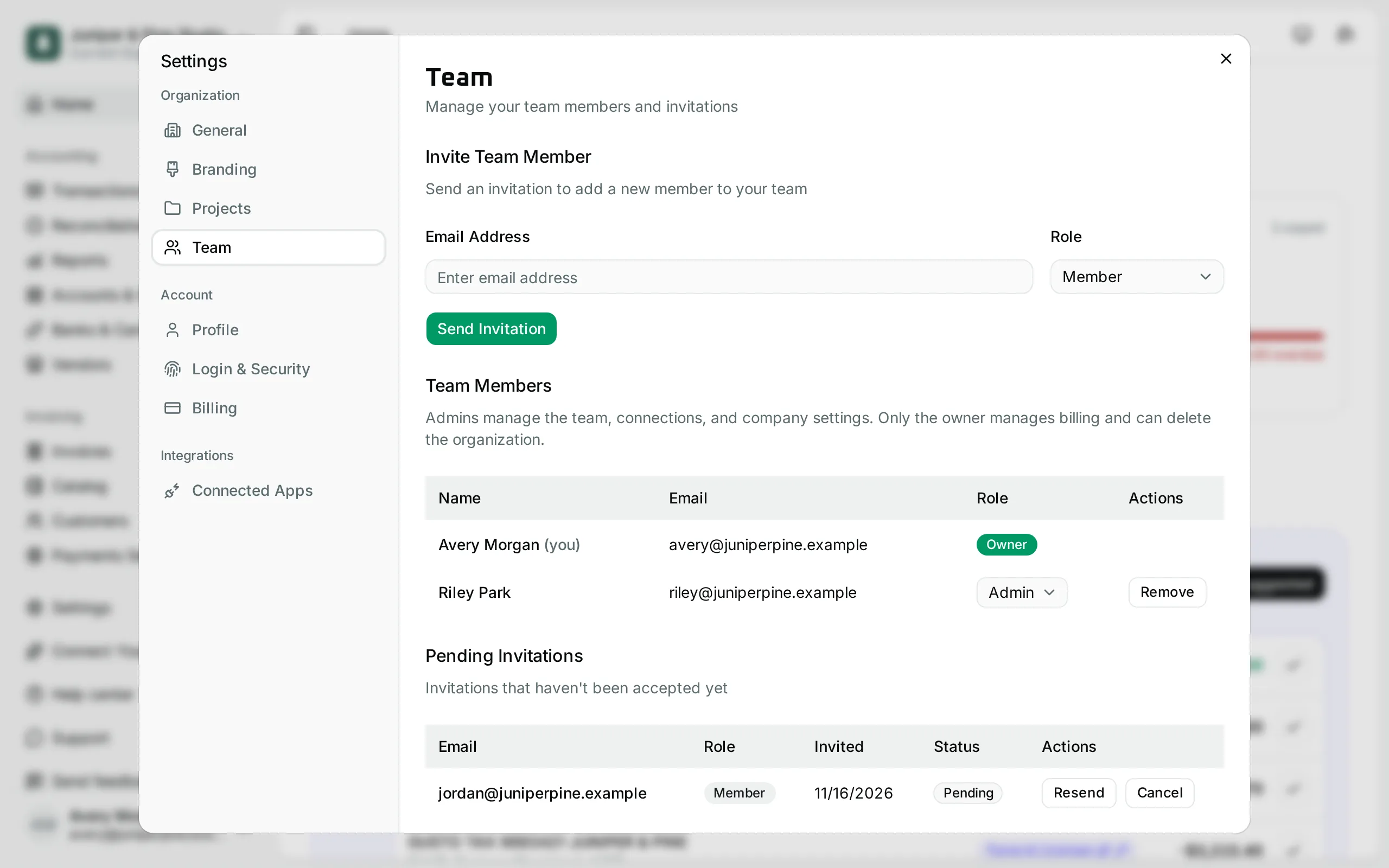
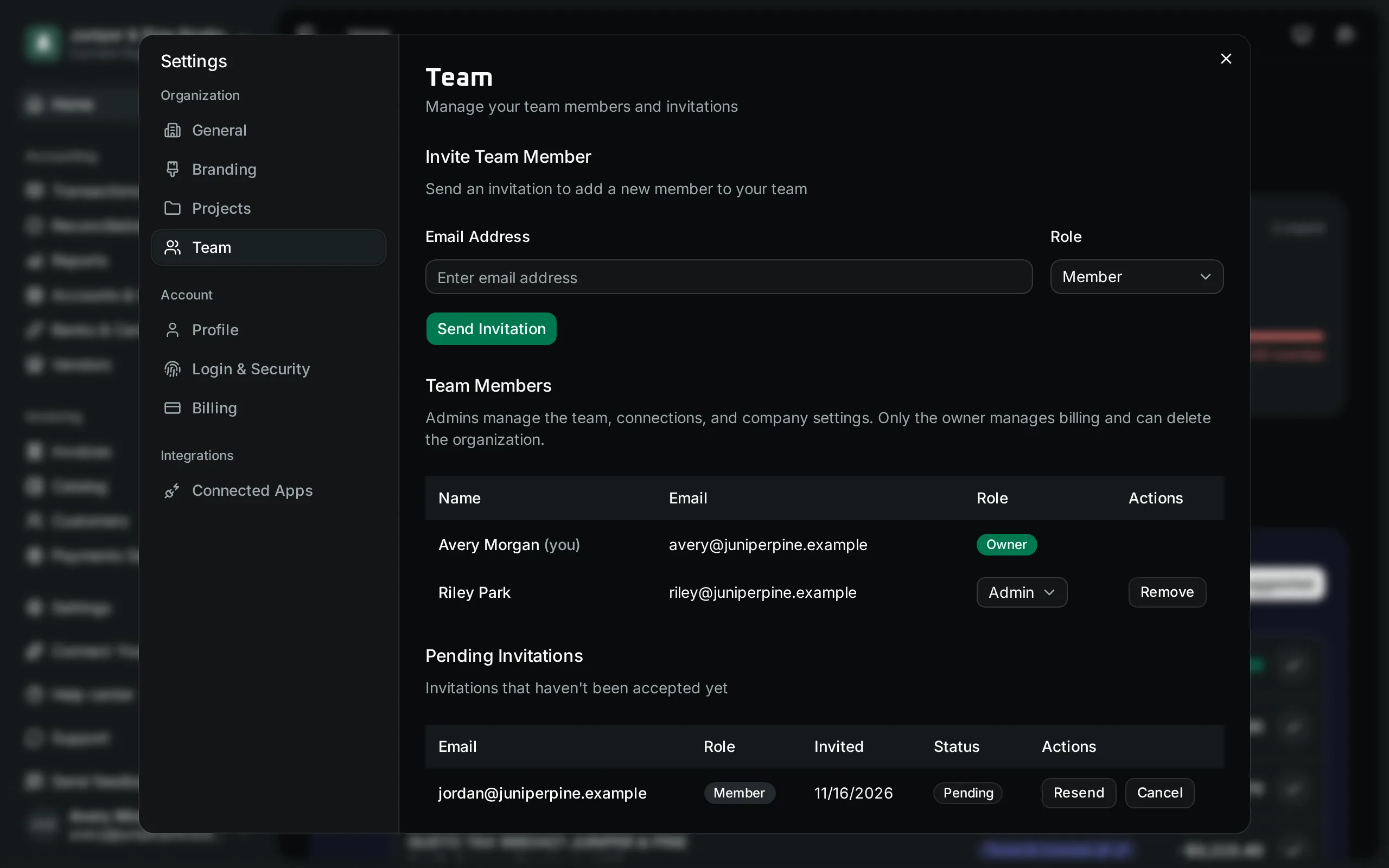
Invite a person
- In the Invite Team Member card, type the email address of the person in Email Address.
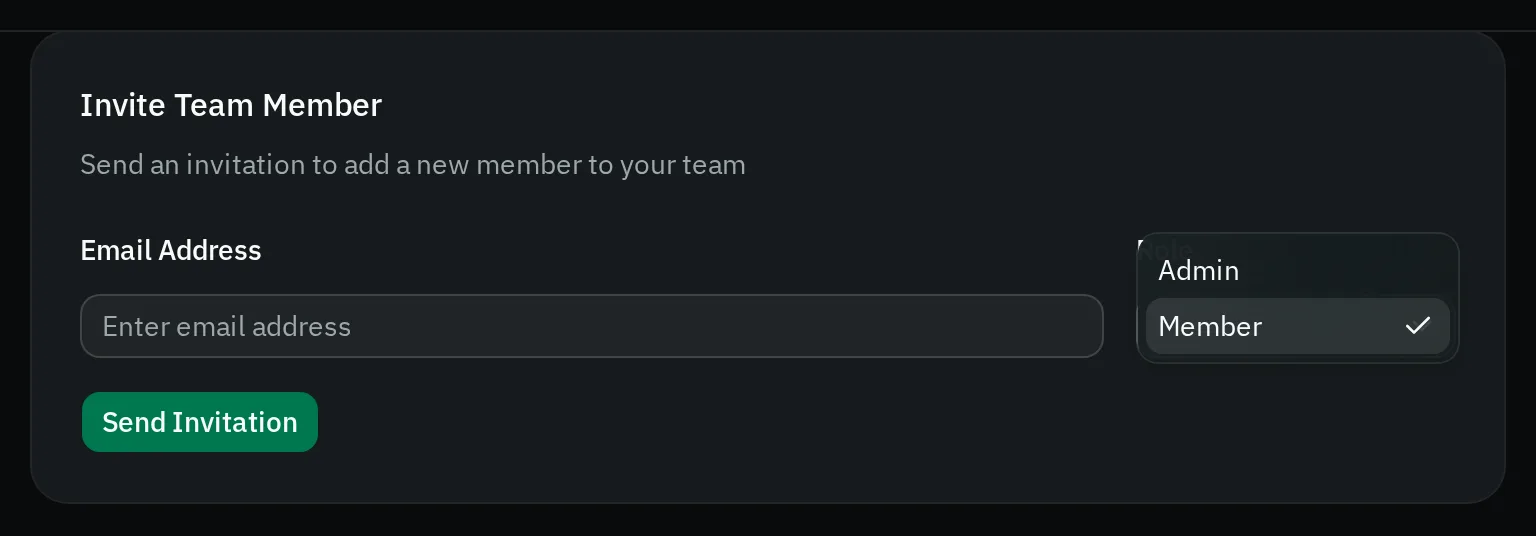
- In Role, choose Admin or Member.
- Click Send Invitation.
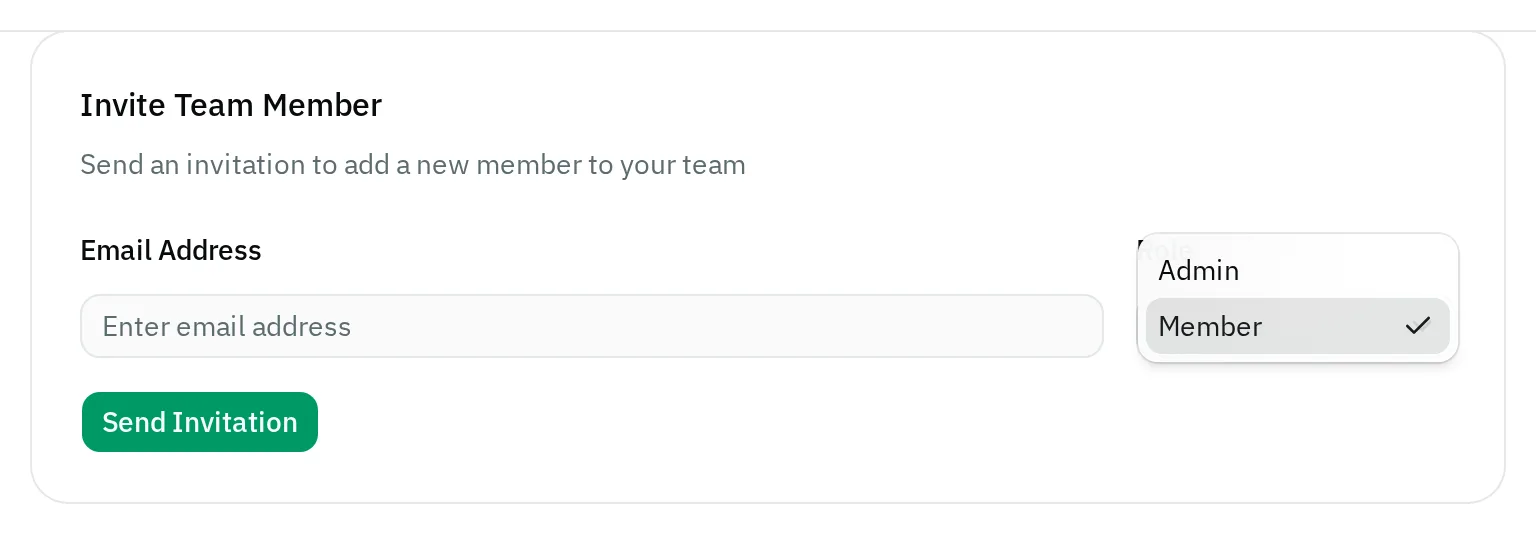
LazyBooks emails an invitation to the person. The invitation shows under Pending Invitations until the person accepts it. The link in the email works for 7 days.
You cannot invite a person who is already in the organization. You cannot send a second invitation to an email address that has one pending. Use Resend instead.
Resend or cancel an invitation
The Pending Invitations list shows each invitation that is not accepted yet, with its role and the date that you sent it.
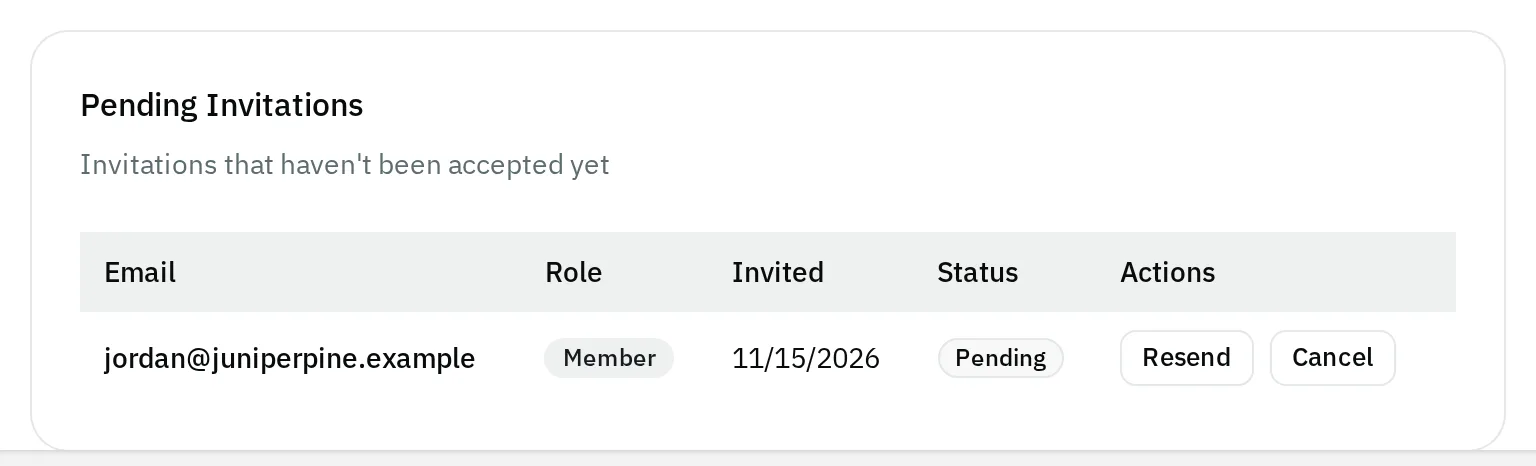
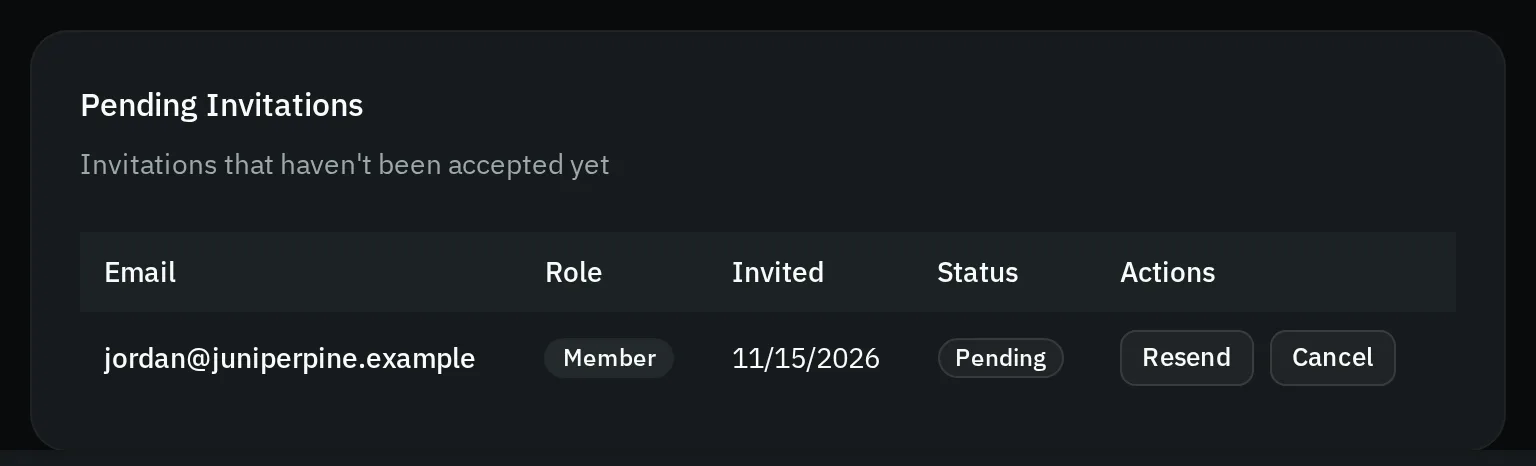
- To send the email again, click Resend. LazyBooks sends a new link that works for 7 days. The link in the earlier email stops working.
- To withdraw the invitation, click Cancel. LazyBooks cancels it at once. It does not ask you to confirm.
Change the role of a person
- In the Team Members list, find the person.
- In the Role column, choose the new role.
LazyBooks saves the new role as soon as you choose it. You cannot change the role of the owner.
Remove a person
- In the Team Members list, click Remove next to the person.
- Click Remove member.
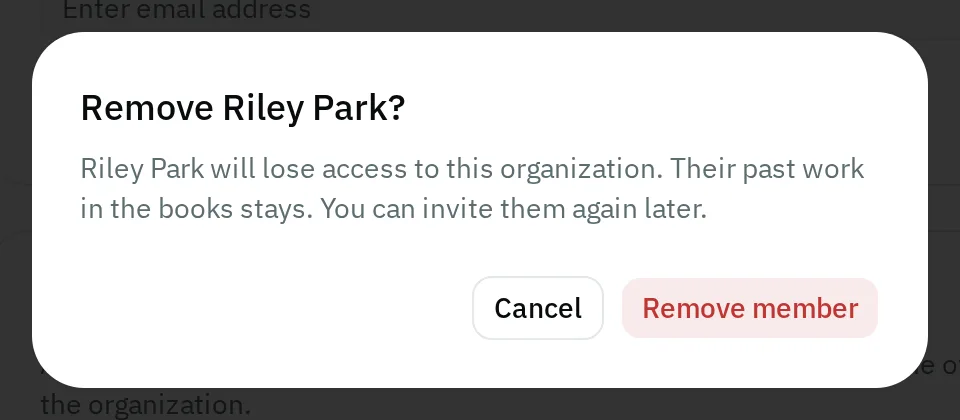
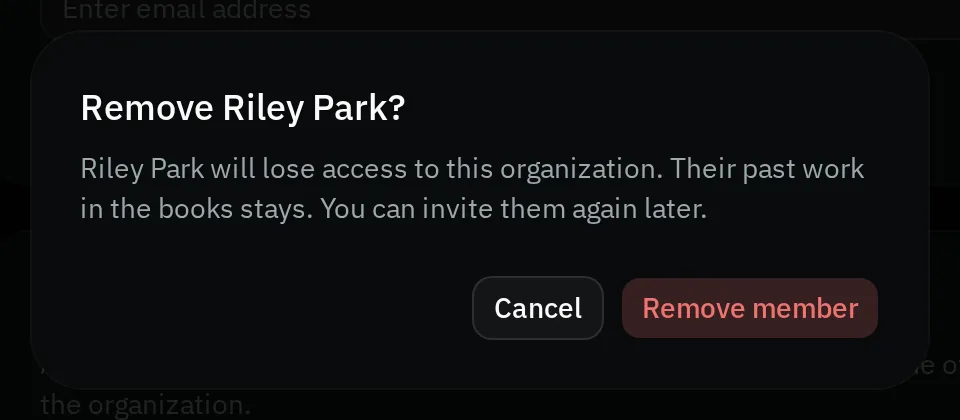
The person loses access to the organization. Their past work in the books stays. You can invite them again later. You cannot remove the owner or yourself.
Accept an invitation
If someone invited you to an organization, you get an email with the subject "You've been invited to join a team".
- In the email, click Accept Invitation.
- Sign in with the email address that the invitation was sent to.
- Make sure that the page names the organization that you expect.
- Click Accept invitation.
If you have no LazyBooks account, LazyBooks creates one when you sign in. See Create your account. A new account also asks for your name after you accept. LazyBooks then opens the organization. You do not need a subscription of your own to work in an organization that you joined.
If the page shows Invalid invitation, the link does not work for your account. These are the possible causes:
- The link is older than 7 days.
- The invitation was canceled.
- The invitation was sent again, so a newer email replaced this link.
- You signed in with a different email address.
Sign in with the address that got the invitation, or open the newest invitation email. You can also ask the person who invited you to click Resend.
Change your organization settings
Update the name, icon, description, address, time zone, start date, logo, brand colors, and projects of your organization.
Manage billing and your subscription
See your plan, update your card, cancel or resume your subscription, and unlock an organization after a failed payment.