Record a sales tax payment
Record what you paid a sales tax agency, with prepayments, discounts, penalties, credits, and refunds.
When you pay a sales tax agency, record the payment in LazyBooks. Then each return shows what is still due, and your Sales Tax Payable accounts go down. LazyBooks does not pay the agency for you.
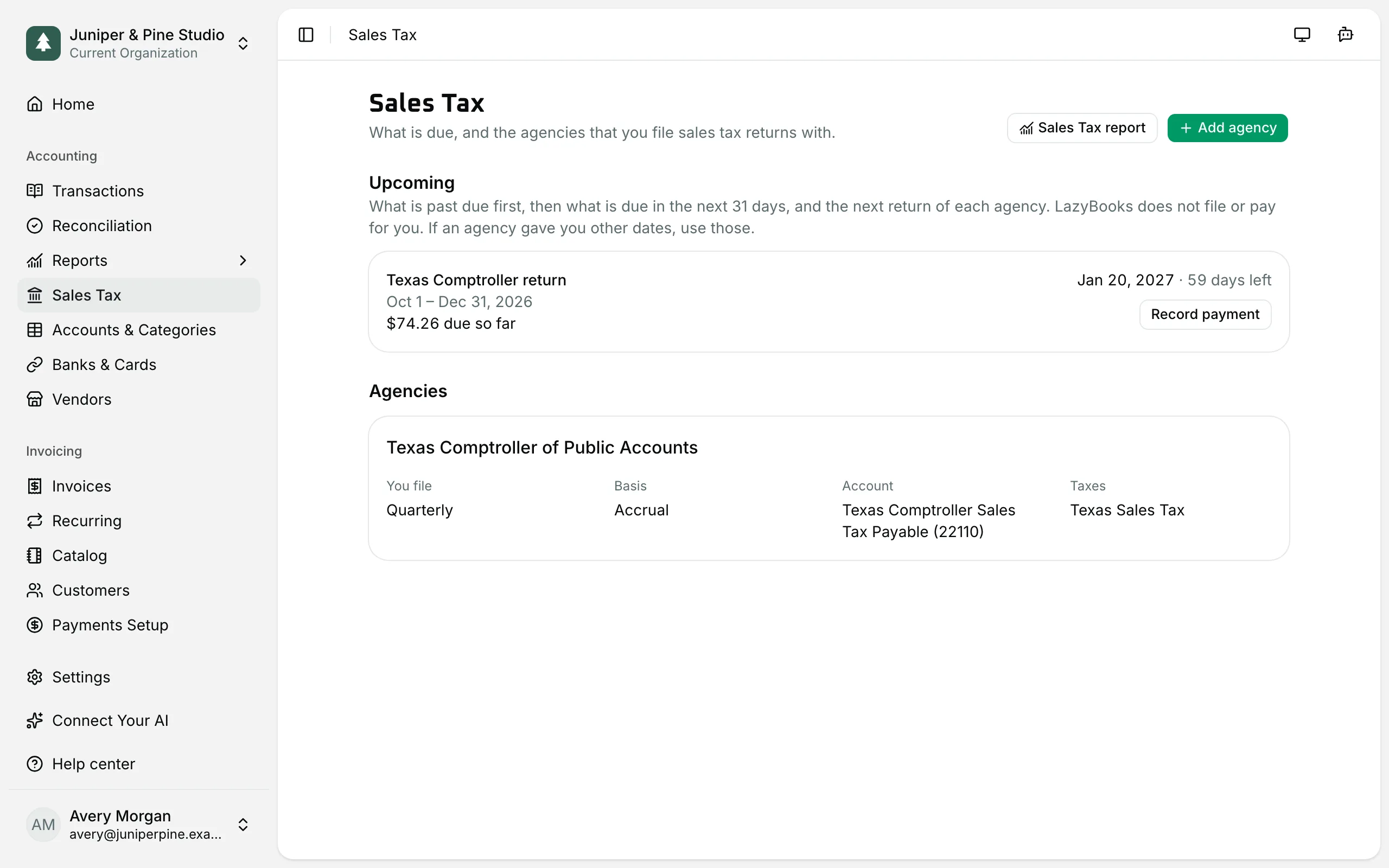
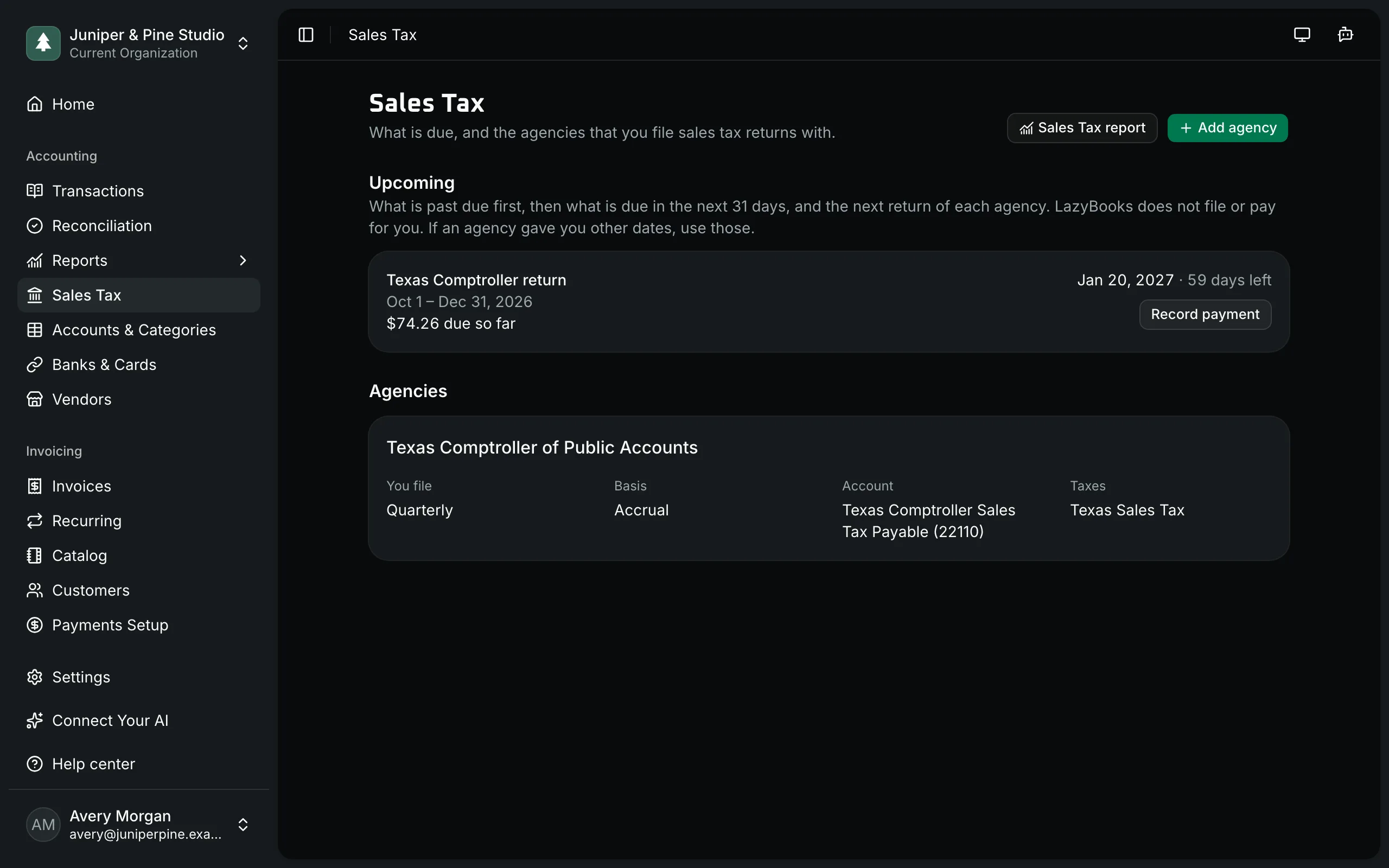
See what you owe
In the sidebar, under Accounting, click Sales Tax. Upcoming shows how much is due for each return. A return that is not over yet says due so far. After you mark a return as filed, it leaves Upcoming. If tax is still due for it, the page shows it under Filed, not paid yet.
Click the name of an agency to see each return under Returns:
- Tax you owe: the tax of the period in the Sales Tax report, on the basis of the agency. It includes tax on sales that are not in your books. It does not include tax that a marketplace collected, because the marketplace pays it.
- Paid, Prepaid, Discount you keep, credits, and refunds. Each one shows only if there is one.
- Still due, Not recorded as paid, or Paid too much. Not recorded as paid is for a return that you filed outside LazyBooks. When its period is over, the home page asks you to record what you paid for it, so your books show it paid. It is not past due. If your books already hold payments to the agency that no return counts, dated after the return ended, the home page asks you to link them first. See Link payments that are in your books. A return that is not over and that you paid nothing for can show Less to pay so far, for example after you carry a decrease into it.
Click View report to see each payment of a return with its date and its discount. See See and export a sales tax return.
Record a payment from a bank transaction
Use this way when the payment is in your bank feed, or is another transaction in your books.
- On the Sales Tax page, find the return under Upcoming or Filed, not paid yet. Click Record payment. You can also click it on the page of the agency.
- Under How you paid, keep From a transaction in your books.
- Click Choose a transaction.
- Search by a word of the description, by an amount, or by dates. Click the transaction.
- Check the Date you paid. LazyBooks takes it from the transaction, and uses it for the due date and the discount. The transaction keeps its own date.
- Under What it pays, check the return and its amounts. One payment can pay several returns.
- Under Check it, read what LazyBooks posts.
- Click Record payment.
LazyBooks changes the category of the transaction to your Sales Tax Payable account. If the transaction needs review, LazyBooks also approves it, so your reports count it. The amount and the date of the transaction do not change. If the account of the agency is inactive, LazyBooks turns it on again when it moves the transaction to that account.
The list shows money out. It leaves out transfers, loan payments, adjustments, and transactions that you recorded for an agency already. If a transaction cannot be a payment, LazyBooks tells you why.
Find a payment in your transactions
LazyBooks looks for payments to your active agencies in your transactions. If it finds any, the Sales Tax page shows them under Payments to record. The page of each agency shows its own. LazyBooks only suggests them. It records nothing until you do.
The text of each suggestion says why it is there. LazyBooks compares three things:
- Amount: what you owe for a return that is over, or that amount less the discount. For a prepayment, the tax of its days or the least part of it that the agency asks for, also less the discount. A near amount is off by at most 1%. The limit is never less than $1.00 or more than $25.00.
- Date: the transaction is near the due date. That is from 21 days before it to 10 days after it.
- Payee: the text of the transaction points to the agency, for example with its name.
If the amount is the same, one of the other two is enough. If the amount is only near, LazyBooks needs both. Likely means that the amount is the same, and that the date and the payee fit too. All others show Possible. Likely suggestions come first.
- Read why the transaction is suggested.
- If it is the payment, click Record payment. The form opens with the transaction and the return.
- Check the form, and click Record payment.
- If it is not a payment, click Not a tax payment. The transaction leaves the list for every agency.
To put a transaction back, click Undo in the message that shows after Not a tax payment. You can still record a transaction that you took off the list. Choose it in the form.
LazyBooks does not suggest a transaction that you recorded already, that is matched as a transfer, or that is on a Sales Tax Payable account. For a transaction on a Sales Tax Payable account, see the next section.
Link payments that are in your books
Your books can hold payments that you did not record for an agency. For example, an import brought them in, or you categorized a transaction as Sales Tax Payable. Link each one to the return that it paid, so the return counts it. Linking changes nothing in your books. The transactions keep their dates, amounts, and categories.
- On the Sales Tax page, under Past payments, click the link. It shows how many past payments there are.
- Select the payments that paid one return.
- Click Link payments.
- Choose the Agency and the Return. Change the ones that LazyBooks chose for you if they are wrong.
- If the payments were a prepayment, choose it in What they paid. The field shows only if the return has prepayments.
- Check the sum, and what is due for the return now and after.
- Click the button that links the payments.
LazyBooks links all the payments that you selected, or none of them. If one cannot be linked, its row says why. The others can be linked without it.
Imported means that an import of finished books brought the payment in. In review means that the transaction is not approved.
If an entry on the list is not a payment to an agency, click Not a payment. The entry leaves the list. To put it back, click Undo in the message.
The list of returns starts with the first day of the agency. To link an older payment, edit the agency and change its first day.
A linked payment shows under Payments on the page of the agency. You can undo it there. The undo does not change the transaction.
Link past payments before you move tax between accounts. See Move sales tax into agency accounts.
Record a payment that you made another way
Use this way when no transaction of your books has the payment, for example cash, or your own money.
- Click Record payment.
- Under How you paid, click I paid another way.
- In Paid from, choose the account.
- Enter the Date you paid.
- Check the Amount you paid and what it pays.
- Click Record payment.
LazyBooks posts one new entry. You cannot choose an account with a bank feed, because its payment arrives as a bank transaction. Record the payment from that transaction.
Record a prepayment
- Under Upcoming, find the prepayment. Click Record prepayment. On the page of the agency, the link is next to the prepayment.
- Choose how you paid.
- In You prepaid, enter the amount without any penalty or interest.
- Click Record payment.
The prepayment shows Paid, and its reminder stops. The return of the period takes it off what is due.
A prepayment without a payment shows Nothing more due when its period is over and owes nothing more. Its reminder stops too.
Discounts
Some states let you keep a part of the tax when you file and pay on time. LazyBooks suggests it in Discount you keep. You can change it. The agency decides what you get.
| Agency | What LazyBooks suggests |
|---|---|
| California | Nothing. LazyBooks found no discount on the returns of California. |
| Utah | 1.31% of the state and local tax, for monthly filers |
| Texas | 0.5% of the tax of a return. For a prepayment, 1.75% in total, which is 1.25% for the prepayment and 0.5% for the return |
For the other states, see Built-in agencies. Some have a limit, and LazyBooks stops there. For an agency without a suggestion, type the discount if the agency gives you one.
LazyBooks suggests the discount of a return only for a date after the period ends and on or before the due date. The payment and the discount together must cover what is due. If you pay less, LazyBooks suggests none. A last payment on time gets the whole discount. For a prepayment, the date must be on or before the due date of the prepayment. In Texas, the prepayment counts as the amount that you prepaid divided by 0.9825. So a prepayment of $982.50 takes $1,000.00 off the return.
LazyBooks rounds to the nearest cent, because the states publish no rule for rounding. It does not know which sales are groceries, so it does not suggest the extra amount that Utah lets a grocery seller keep. The rate of some Utah taxes is different, and LazyBooks uses 1.31% for all of them. Change the amount if your return shows another one. In Utah, a late or short payment loses the discount. An account that must pay by electronic funds transfer (EFT) also loses it with another way to pay. A card payment is not EFT. In Texas, a late return or payment loses it.
The discount is tax that you collected and keep. LazyBooks posts it to the income account in Account for the discount.
Sources:
- Utah: Utah Code 59-12-108(2) and Publication 25.
- Texas: Form 01-922, Form 01-118, and Tax Code 151.423 to 151.425.
Penalties and interest
- Click Add a penalty or interest.
- Enter the Penalty and the Interest.
- Choose an account for each one.
If you have no account for penalties, choose Create Penalties & Fines. Penalties are usually not deductible, so LazyBooks keeps them apart from the tax. This is not tax advice. Ask your tax preparer.
A penalty and interest are not tax, so they do not change what is due for the return.
If the agency bills a penalty or interest on its own, do not use this form, because it needs tax on a return. Categorize the transaction in Transactions.
Credits and refunds
If you paid too much for a return, the page of the agency shows Paid too much and Record refund. It also shows Use credit if another return of the agency has started and still owes something. A return that you filed outside LazyBooks does not count.
To use the amount for another return:
- Click Use credit.
- In Use it for, choose a return that still owes something.
- Check the Amount.
- Click Use credit in the dialog.
A credit moves no money, and your books do not change. Check first that the agency lets you use it.
To record money that the agency paid back:
- Click Record refund.
- Click Choose a transaction, and choose the money that came in.
- Check what it is for. If the agency also paid interest, click Add interest.
- Click Record refund.
If the transaction needs review, LazyBooks approves it.
Undo a payment
- On the page of the agency, find the payment under Payments.
- Click Undo.
- Read what the undo does. Click Undo in the dialog.
What the undo does depends on how you recorded the payment:
- A transaction stays in your books with the categories that it has now. It only stops counting as a sales tax payment, so check its categories in Transactions. The undo does not move it back to review. LazyBooks reverses the entry of a discount.
- An entry that LazyBooks posted is reversed on the same day.
- A credit goes back to the return that it came from.
If the entry of a payment changed
Each payment under Payments links to its transaction with View in Transactions. A label shows when something is different:
- In review: the transaction went back to review after you recorded it. The payment still counts for what is due. Approve it in Transactions so your reports count it.
- Entry changed: the category or the amount changed after you recorded it. Only what is still on the account it was recorded on, or on a Sales Tax Payable account, counts.
- Entry removed: an entry was deleted, so what it held does not count. Click Undo. If you paid, record the payment again.