Expenses by Vendor report
See how much you spent with each vendor in a period, show its months, quarters, or years side by side, open the transactions behind each amount, and export the report.
The Expenses by Vendor report shows how much your business spent with each vendor in a period. Its total is the same as the total expenses of the Profit & Loss report for the period.
Open the report
In the sidebar, click Reports, then click Expenses by Vendor. The report opens on the current month.
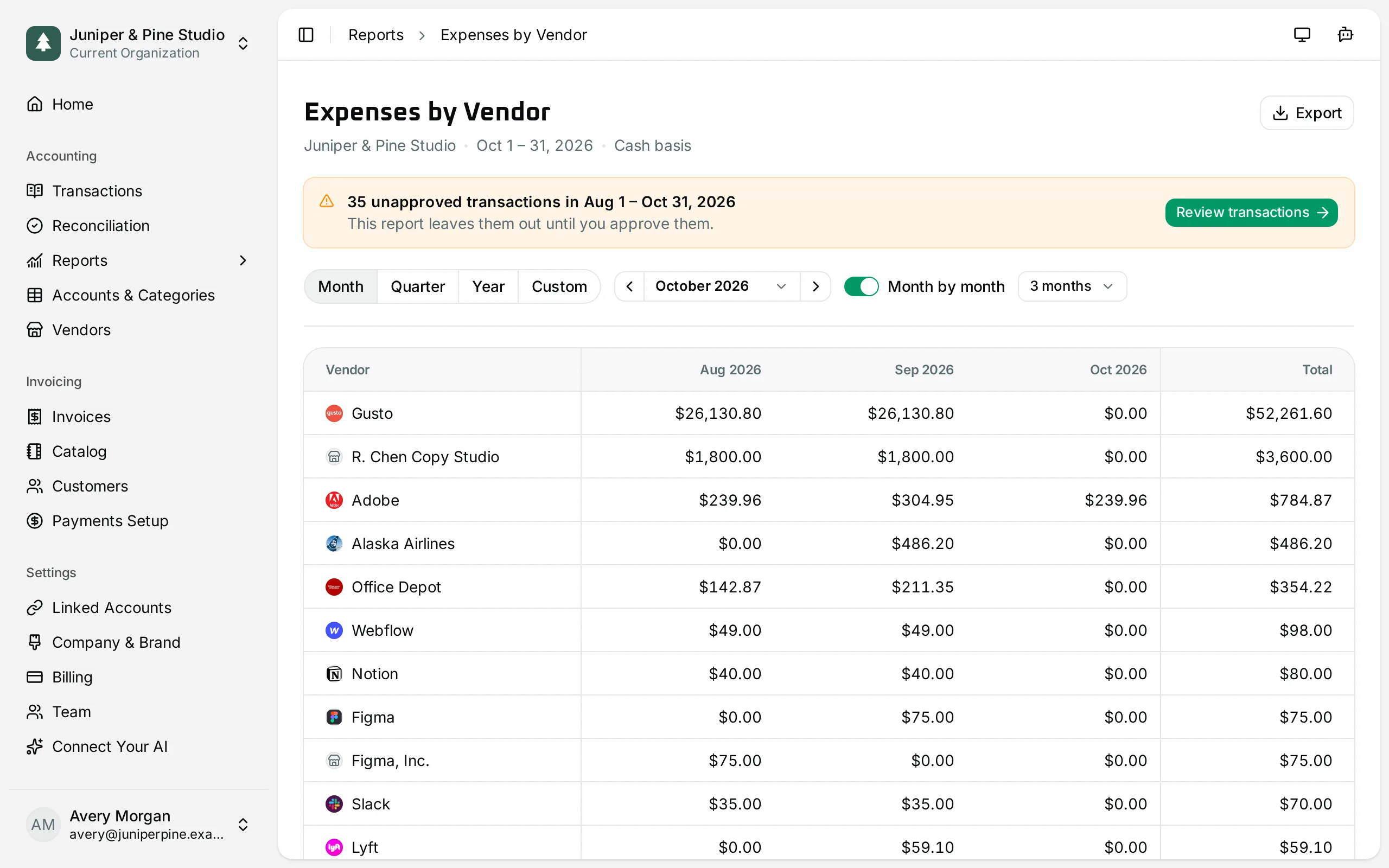
The line under the title shows your organization name, the dates of the report, and the basis, Cash basis or Accrual basis.
What the report shows
The report lists each vendor with what you spent with it in the period, the largest amount first. When the report shows periods side by side, the largest amount in the Total column is first. Then it shows:
- No vendor: the expenses of the transactions without a vendor, if there are any.
- Total: the sum of all the rows.
The amount of a vendor is the total of the expense lines of its approved transactions with a post date in the period. An expense line is a line on an account that the Profit & Loss report counts as an expense. A refund lowers the amount. A payment to a vendor that does not go to an expense account, such as the purchase of equipment that you record as an asset, does not count.
An inactive vendor shows Inactive next to its name. Its expenses still count.
Click a row to open its approved transactions of the period on the Transactions page. When the report shows periods side by side, click a vendor name to open the transactions of all the periods, or click an amount to open the transactions of its period.
The report counts only approved transactions. If transactions in the period wait for review, a yellow box gives their number. Click Review transactions to open them. If the period has no expenses, the report shows No expenses in this period.
Choose the period
Use the period controls as on the Profit & Loss report: click Month, Quarter, or Year, use the arrows, or click Custom to choose your own dates. See Choose the period.
Choose the basis
After the period controls, click Cash or Accrual. The report opens on the cash basis. When you change the period, the report stays on the basis that you chose. See Choose the basis.
The basis changes this report only for an expense that you record before you pay it. Accrual counts it on its date. Cash counts it on the day that you pay.
Show periods side by side
For a month, quarter, or year, the switch next to the period is Month by month, Quarter by quarter, or Year by year. It is on when the report opens. The report then shows one column for each period, oldest on the left, and a Total column at the end. To show only the selected period, turn off the switch.
Next to the switch, a button shows the number of periods, such as 3 months. Click it to choose another number, as on the Profit & Loss report. See Show periods side by side. Your browser keeps the number for the next time that you open a report, and all reports use the same number.
- The columns start with the selected period and go back from it. A period that ends before the first transaction in your books does not show.
- A period that includes today ends today, and its column shows its dates, such as Nov 1 – 16.
- The Total column adds the periods on the screen.
When the report has more columns than the screen shows, swipe or scroll it sideways. The vendor names stay on the left. On a wide screen, the Total column also stays on the right.
For custom dates, the report shows one column. It has no comparison with the previous dates.
Export the report
- Click Export.
- Click Export to CSV or Export to PDF.
The file has the same period, basis, columns, and rows as the report on the screen. A file of periods side by side has one amount column for each period, then Total. In a PDF file with more than two amount columns, the pages turn sideways. If the columns do not fit on one page, they continue on the next pages, and each page shows the vendor names. If transactions wait for review, the file also gives their number. When the period has no expenses, Export is off.