Cash Flow report
See where the cash of your business came from and where it went in a period, and export the report.
The Cash Flow report shows how the cash of your business changed in a period. It starts with your net income and shows the other changes that brought cash in or took cash out. In this report, cash is the money in your bank and cash accounts. Credit cards are never cash.
Open the report
In the sidebar, click Reports, then click Cash Flow. The report opens on the current month.
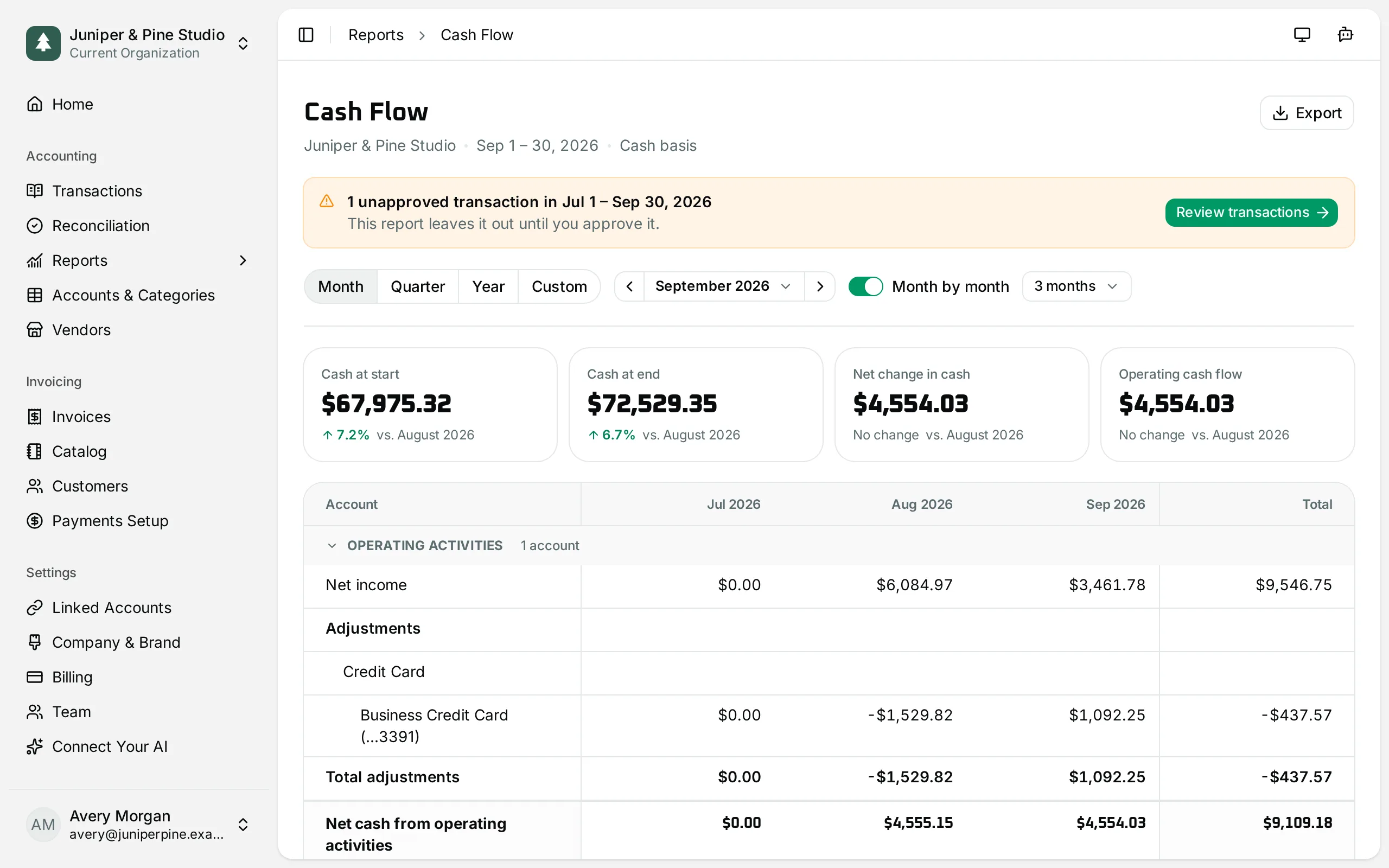
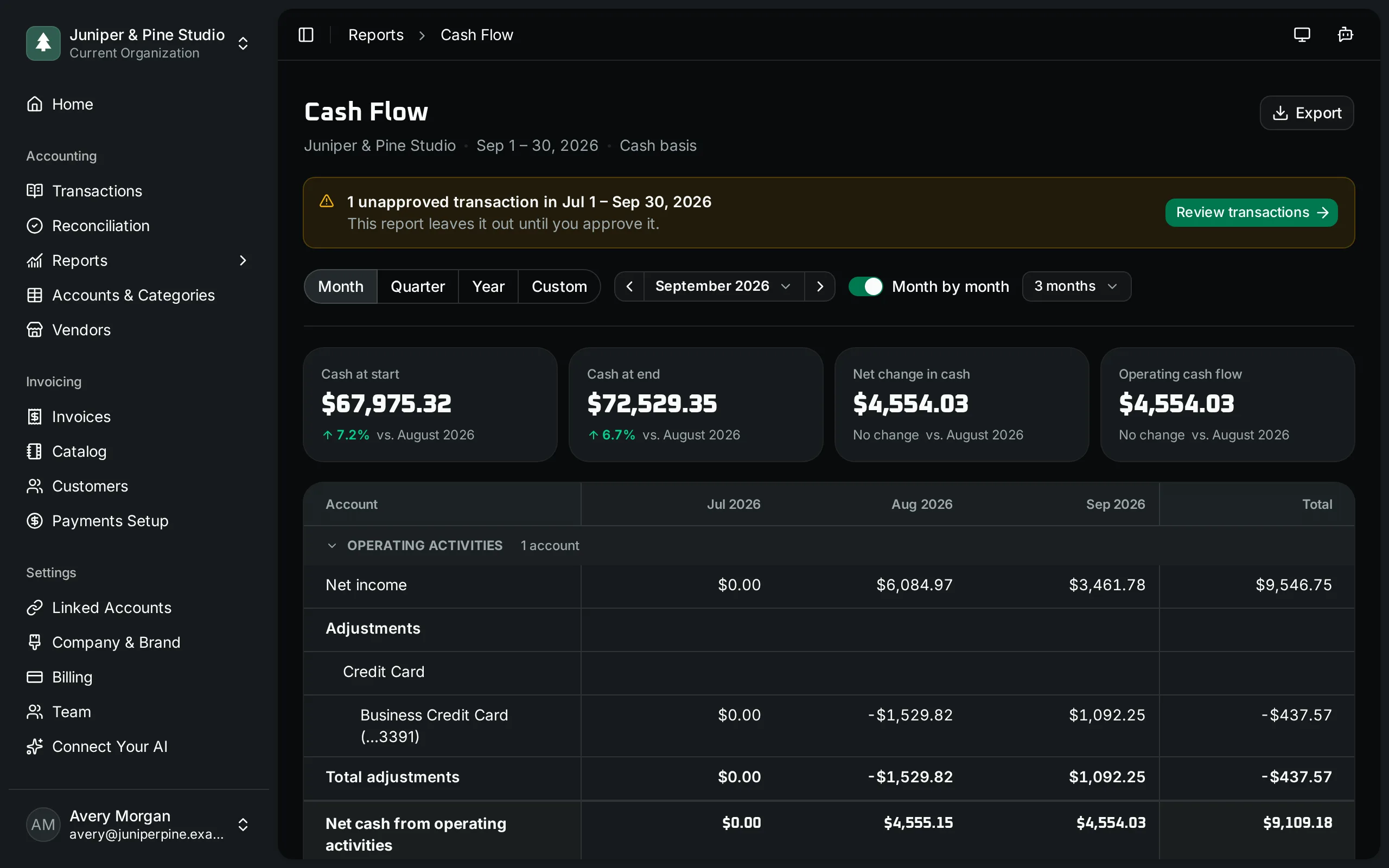
The line under the title shows your organization name, the dates of the report, and the basis, Cash basis or Accrual basis.
The report counts only approved transactions. If transactions in the period wait for review, a yellow box gives their number. Click Review transactions to open them on the Transactions page. See Review and approve transactions.
What the report shows
Four cards at the top show the totals. Each card also shows how much the total changed from the previous period. On a phone, swipe the cards sideways to see all of them.
- Cash at start is your cash at the start of the period.
- Cash at end is your cash at the end of the period.
- Net change in cash is the cash that came in minus the cash that went out.
- Operating cash flow is the total of the Operating activities group.
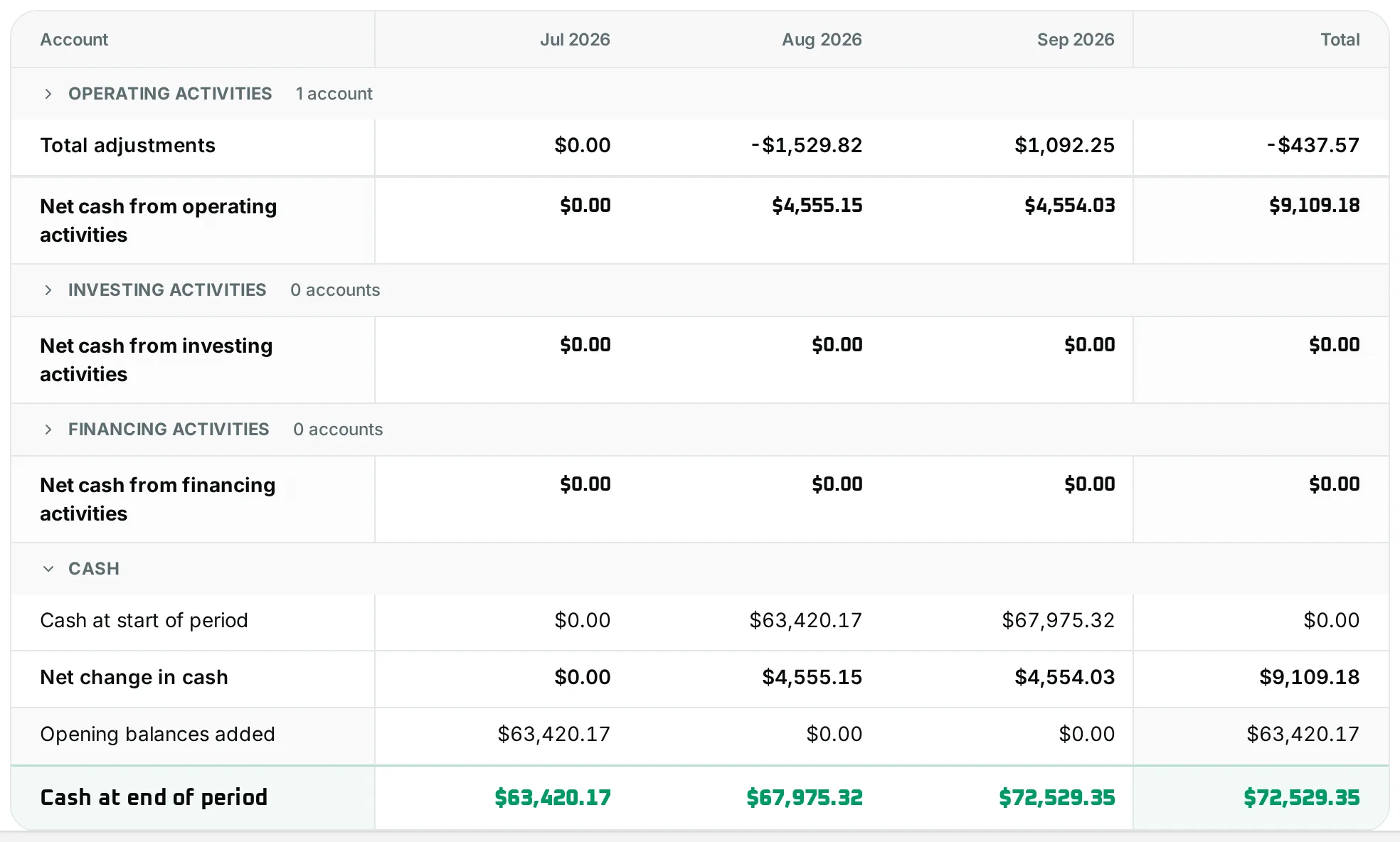
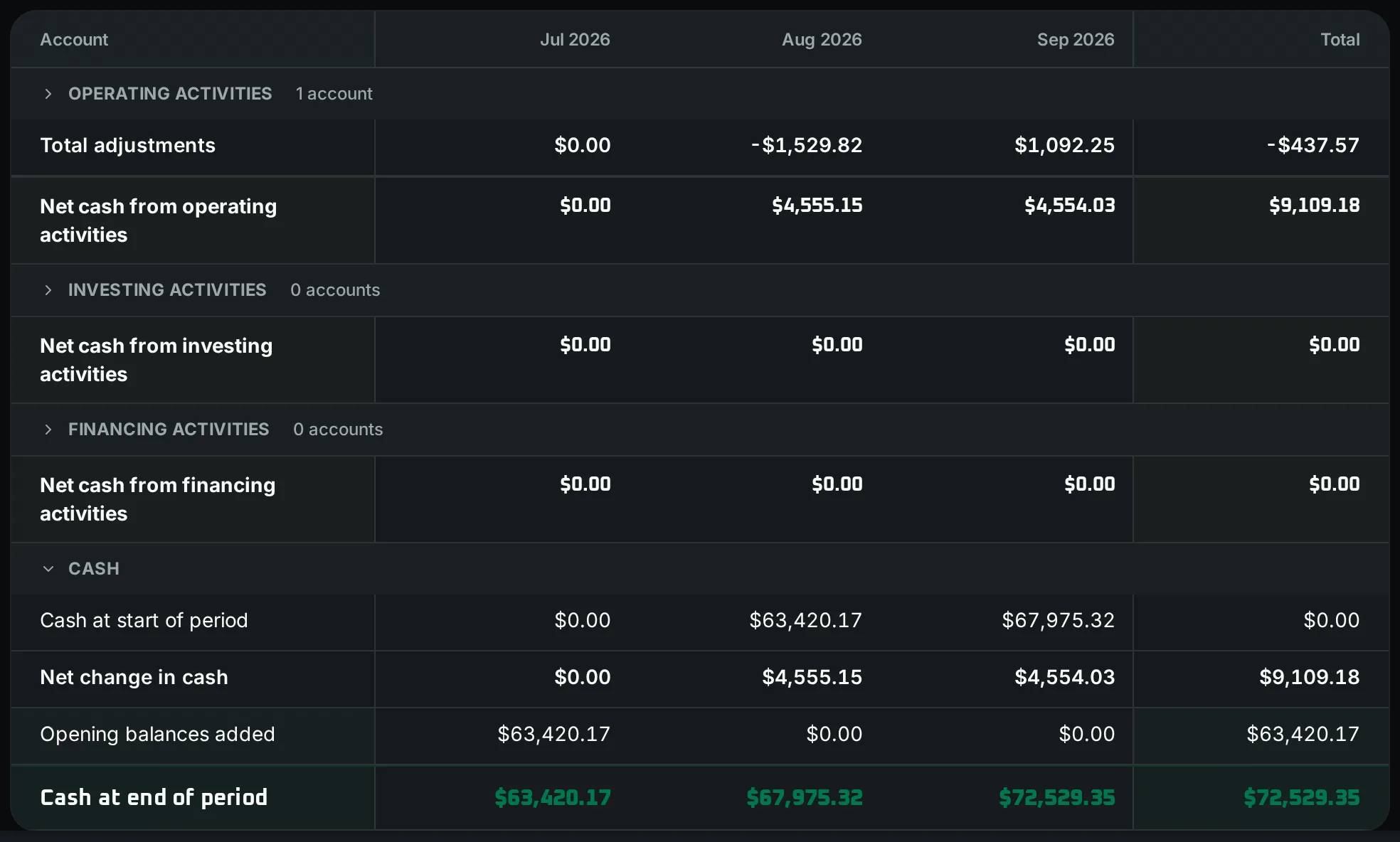
Under the cards, the statement has four groups. In the statement, a positive amount brought cash in, and a negative amount took cash out.
| Group | What it shows |
|---|---|
| Operating activities | Net income, then Depreciation, then Adjustments for the changes in money owed to you, inventory, other current assets, bills you owe, credit cards, sales tax, and other current liabilities. |
| Investing activities | The changes in fixed assets and other assets. |
| Financing activities | The changes in long-term liabilities such as loans, in lines of credit, and in equity accounts. |
| Cash | Cash at start of period, Net change in cash, and Opening balances added when the period has one. The group ends with Cash at end of period. |
Depreciation adds back depreciation. Depreciation lowers your net income, but it moves no cash.
Opening balances are not cash that came in. An opening balance dated on the first day of the period counts in Cash at start of period. An opening balance dated later in the period shows on the Opening balances added line.
The category type of each account decides its group. See The chart of accounts. To hide the accounts of a group, click the name of the group. The group still shows its total.
The cash at the start, plus the net change and any opening balances added, must equal the cash at the end. If it does not, a red box says The cash flow does not match the cash balances. Contact support if the box does not go away.
Choose the period
Use the controls above the cards:
- Click Month, Quarter, or Year. Quarters and years follow the calendar.
- Click the arrows on each side of the period name to go to the period before or after.
- Click the period name to open a list of months, quarters, or years. Then click a period.
- Click Custom to choose your own dates. Click a preset to show its dates at once. Or select the first and the last day in the calendar, and then click Apply.
A period that includes today ends today.
Choose the basis
After the period controls, click Cash or Accrual. The report opens on the cash basis. When you change the period, the report stays on the basis that you chose. See Choose the basis.
The cash at the start and the end of the period is the same on both bases. On the accrual basis, net income counts an unpaid invoice, and the operating section takes it back out as money that customers owe you.
Show periods side by side
For a month, quarter, or year, the switch next to the period is Month by month, Quarter by quarter, or Year by year. It is on when the report opens. The statement then shows one column for each period, oldest on the left, and a Total column at the end. To show only the selected period, turn off the switch.
Next to the switch, a button shows the number of periods, such as 3 months. To change it:
- Click the button.
- Click 3, 6, or 12. Or type a number from 2 to 36 in Custom, and then click Apply.
Your browser keeps the number for the next time that you open a report.
- A period that ends before the first transaction in your books does not show.
- A period that includes today ends today, and its column shows its dates, such as Nov 1 – 16.
- In the Total column, the cash at the start is the cash at the start of the first period, and the cash at the end is the cash at the end of the last period.
- The cards still show the selected period and its change from the previous period.
When the statement has more columns than the screen shows, swipe or scroll it sideways. The account names stay on the left. On a wide screen, the Total column also stays on the right.
Compare custom dates with the previous dates
For custom dates, the switch is Compare to previous. It is on when the report opens. The statement then shows two more columns: the amounts of the previous dates and the change. Custom dates compare with the same number of days just before them. To hide these columns, turn off Compare to previous.
Export the report
- Click Export.
- Click Export to CSV or Export to PDF.
The file has the same period, basis, and columns as the report on the screen. A file of periods side by side has one amount column for each period, then Total. In a PDF file with more than two amount columns, the pages turn sideways. If the columns do not fit on one page, they continue on the next pages, and each page shows the account names. If transactions wait for review, the file also gives their number. When the period has no cash and no activity, Export is off.
Balance Sheet report
See what your business owns, what it owes, and the stake of its owners on one date, and show the balances at the end of earlier months, quarters, or years side by side.
Expenses by Vendor report
See how much you spent with each vendor in a period, show its months, quarters, or years side by side, open the transactions behind each amount, and export the report.